
Introduction
Transform your television into a smart entertainment hub with the Generico TV98 ATV Stick Android 14.0. Featuring the powerful Allwinner H618 processor and support for 8K video streaming with HDR10+, this device delivers an extraordinary visual experience. Dual WiFi 2.4G/5G and Bluetooth 5.0 connectivity ensure smooth streaming and the ability to connect wireless devices. The Android 14.0 operating system provides access to numerous streaming apps and multimedia content. Additional features include USB mouse and keyboard support, 2.4GHz wireless mouse support, and automatic OTA updates to keep the system always up-to-date. The user-friendly interface and simple installation make this TV Stick perfect for transforming any TV into a latest-generation smart TV. Setup requires only an internet connection and an available HDMI port on the television.
Setup
What's in the Box:
- TV Stick
- HDMI Cable
- Power Adapter
Connecting the TV Stick:
- Connect the TV Stick to an available HDMI port on your television.
- Connect the power adapter to the TV Stick and plug it into a power outlet.
- Turn on your television and select the correct HDMI input source using your TV remote.
Initial Configuration:
- Follow the on-screen instructions to select your preferred language and region.
- Connect to your Wi-Fi network (supports both 2.4G and 5G bands) by entering your network password.
- Sign in with your Google account to access the Google Play Store, Google TV, and other integrated services.
Operating Instructions
Navigation:
Use the provided remote control to navigate the interface. For enhanced control, you can connect a 2.4GHz wireless mouse and keyboard via the USB port. The Android 14.0 interface with Google TV support offers an intuitive user experience.
Accessing Applications:
From the home screen, navigate to the app drawer to find pre-installed applications such as Netflix, or download new ones from the Google Play Store.
Streaming Content:
Open your preferred streaming application. Select content to watch. The device supports 8K resolution and HDR10+ for high-quality viewing, provided your television and content support these formats.
Bluetooth Connectivity:
- Go to Settings from the home screen.
- Navigate to Connected Devices and select Pair new device.
- Select your Bluetooth device (e.g., headphones, game controller) from the list to pair it with the TV Stick.
Maintenance
OTA Online Upgrade:
The TV98 ATV Stick supports Over-The-Air (OTA) online upgrades to ensure your device always has the latest firmware and features. This process helps in fixing bugs and introducing new functionalities.
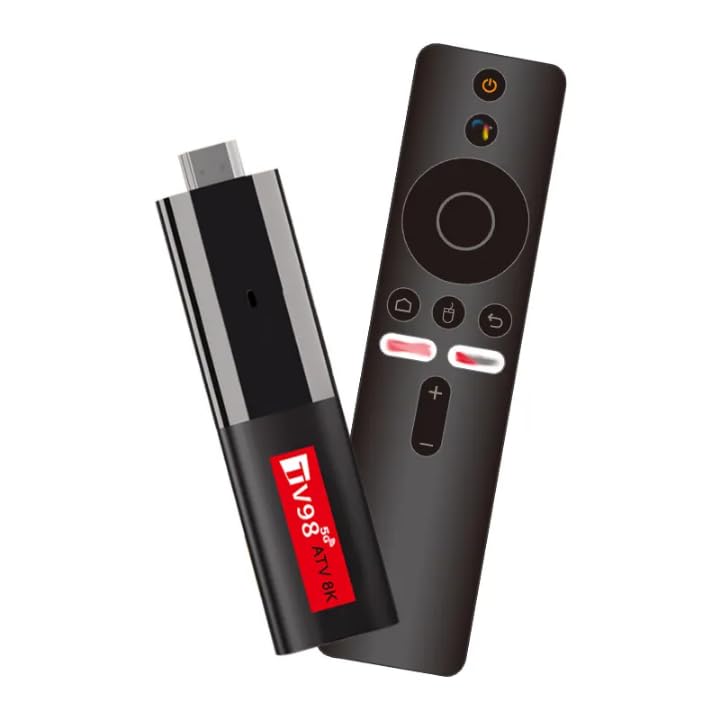
Image Description: This image illustrates the OTA online upgrade process for the TV98 ATV Stick. On the left, the TV98 stick is shown with an 'OTA' arrow pointing upwards, indicating an update. On the right, a television screen displays a 'System Update' interface with a 'CHECK VERSION' button. Below the visual, four steps are outlined: 1) Connect the box to the internet. 2) Support mouse and keyboard via USB; Support 2.4GHz wireless mouse. 3) If a new version is released, it will be displayed, and then you can update according to the prompt. 4) The system cannot be powered off during the upgrade, and the box will restart. After a successful upgrade, the box will automatically enter the main screen.
Steps for OTA Update:
- Ensure the TV Stick is connected to the internet.
- Navigate to the System Update section within the device settings.
- If a new firmware version is available, it will be displayed. Follow the on-screen prompts to initiate the update.
- Important: Do not power off the device during the upgrade process. The device will restart automatically after the update is complete and return to the main screen.
Troubleshooting
No Power:
- Check if the power adapter is securely connected to both the TV Stick and a functional power outlet.
- Ensure the power outlet is active.
No Signal on TV:
- Verify that the HDMI cable is properly connected to both the TV Stick and your television.
- Ensure your television is set to the correct HDMI input source.
Wi-Fi Connection Issues:
- Check if your Wi-Fi router is working correctly and broadcasting a signal.
- Restart both the TV Stick and your Wi-Fi router.
- Confirm that you have entered the correct Wi-Fi password.
- Try moving the TV Stick closer to your Wi-Fi router to improve signal strength.
Remote Control Not Responding:
- Replace the batteries in the remote control.
- Ensure there are no obstructions between the remote control and the TV Stick's IR receiver.
Specifications
| Feature | Detail |
|---|---|
| Brand | Generico |
| Model Name | Tv98 Atv 8k |
| Model Number | Tv98 |
| Operating System | Android 14.0 with Google TV support |
| Processor | Allwinner H618 Chip |
| Video Resolution | 8K (7680.0) |
| Video Codecs | 8K, HDR10+ |
| Connectivity | Dual-band WiFi (2.4G/5G), Bluetooth 5.0, USB, HDMI, Micro USB |
| RAM | 2 GB |
| Storage Capacity | 32 MB |
| Compatible Devices | HDTV, Monitor, Projector, Smart TV |
| Controller Type | Mouse, Keyboard |
| Internet Services Supported | Google TV, Netflix, Streaming Video |
| Special Features | Android 14.0, 8K Decoding, Dual Wifi, Google TV, OTA Online Update |
| Color | Black |
| Item Weight | 150 Grams |
| Dimensions (L x W x H) | 12L x 2.5l x 2H cm |
Warranty Information
This Generico TV98 ATV Stick comes with a 2-year warranty from the date of purchase. Please retain your proof of purchase for any warranty claims.
Additionally, spare parts availability in the EU is guaranteed for 5 years.
Customer Support
For technical assistance, troubleshooting, or further inquiries regarding your Generico TV98 ATV Stick, please refer to the seller's support channels or visit the official product page on Amazon.it where you purchased the device.