
1. Introduction
Thank you for choosing the Everest KM-319BT Multi-Device Wireless Keyboard and Mouse Set. This product offers versatile connectivity options including 2.4G wireless and two Bluetooth channels (BT1, BT2), allowing seamless switching between multiple devices. The keyboard features a QWERTY layout with 108 keys and rainbow backlighting, while the mouse provides 6 buttons and adjustable DPI settings. This manual provides detailed instructions for setup, operation, maintenance, and troubleshooting to ensure optimal performance and user experience.
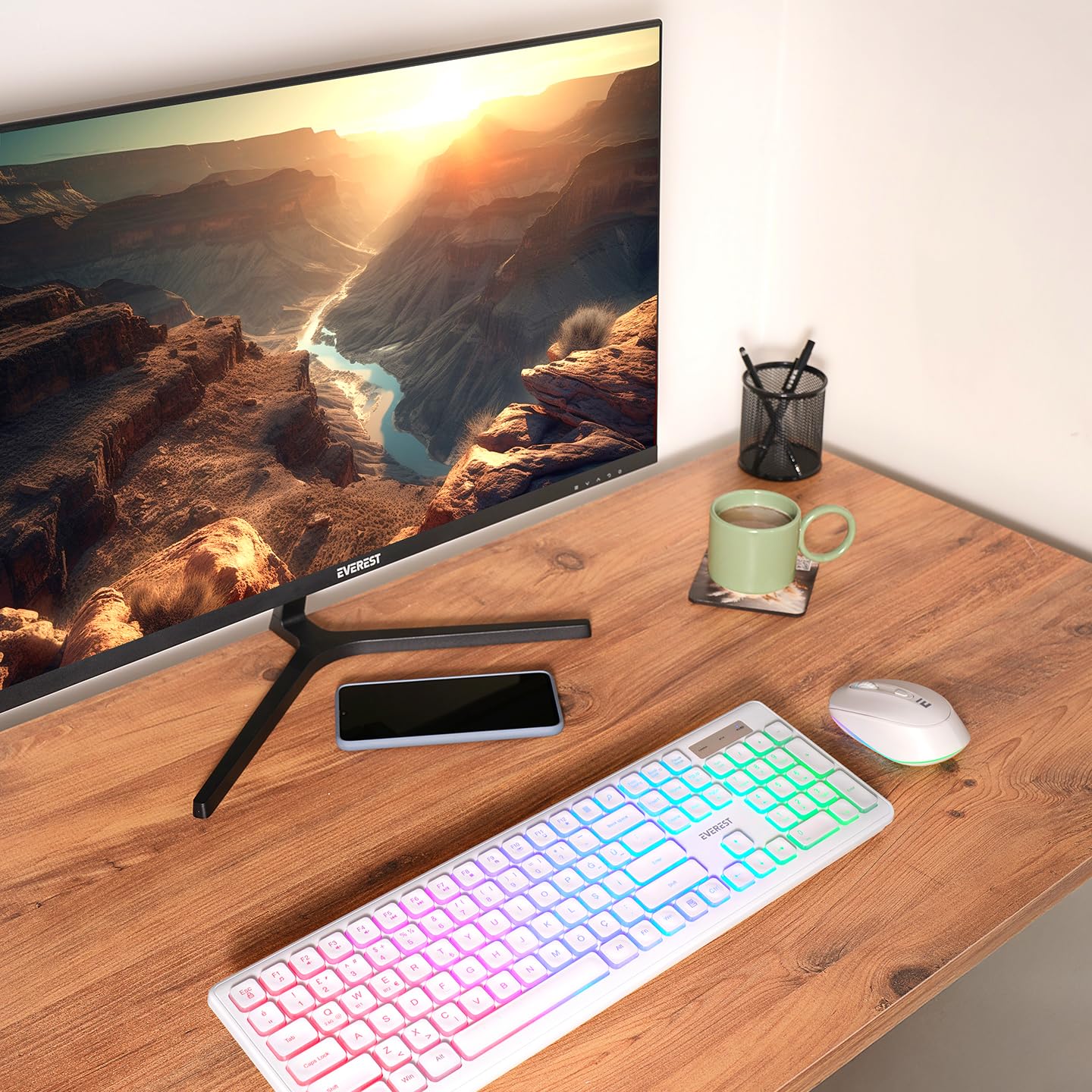
This image displays the Everest KM-319BT wireless keyboard and mouse set. The keyboard features a full QWERTY layout with rainbow backlighting, while the mouse is a compact, ergonomic design.
2. Setup
2.1. Package Contents
- Everest KM-319BT Wireless Keyboard
- Everest Wireless Mouse
- USB 2.4G Receiver (usually stored inside the mouse or keyboard battery compartment)
- User Manual
2.2. Charging the Devices
The keyboard and mouse are equipped with built-in rechargeable batteries. Before first use, or when the battery indicator shows low power, connect the devices to a power source using a compatible USB cable (not always included, check package contents).
- Keyboard Battery: 1500 mA capacity.
- Mouse Battery: 650 mA capacity.
An indicator light on each device will typically show charging status and turn off or change color when fully charged.
2.3. Connecting to Your Device
The KM-319BT set supports three connection modes: 2.4G wireless via USB receiver, Bluetooth 1, and Bluetooth 2.
2.3.1. 2.4G Wireless Connection (USB Dongle)
- Remove the USB 2.4G receiver from the mouse's battery compartment.
- Plug the USB receiver into an available USB port on your computer.
- Turn on the keyboard and mouse. They should automatically connect to your computer.
- The keyboard and mouse are now ready for use.
2.3.2. Bluetooth Connection (BT1 / BT2)
To connect via Bluetooth, ensure your device has Bluetooth enabled.
- Switch to Bluetooth Mode: On the keyboard, press the dedicated Bluetooth channel key (e.g., Fn + 1 for BT1, Fn + 2 for BT2). On the mouse, locate the mode switch button (if available) and switch to BT mode.
- Enter Pairing Mode:
- Keyboard: Press and hold the Bluetooth channel key (e.g., Fn + 1 or Fn + 2) for 3-5 seconds until the indicator light flashes, indicating pairing mode.
- Mouse: Press and hold the Bluetooth pairing button (often on the underside) for 3-5 seconds until the indicator light flashes.
- Pair with Your Device:
- On your computer or mobile device, go to Bluetooth settings.
- Search for new devices.
- Select "Everest KM-319BT Keyboard" and "Everest KM-319BT Mouse" from the list of available devices.
- Follow any on-screen prompts to complete the pairing process.
3. Operation
3.1. Switching Between Devices
The KM-319BT keyboard and mouse allow you to switch between up to three connected devices (one 2.4G, two Bluetooth).
- Keyboard: Press the dedicated channel keys to switch:
- Fn + 3: Switch to 2.4G wireless mode.
- Fn + 1: Switch to Bluetooth 1 mode.
- Fn + 2: Switch to Bluetooth 2 mode.
- Mouse: Use the mode switch button on the underside of the mouse to cycle between 2.4G, BT1, and BT2 modes.
3.2. Keyboard Functions
- QWERTY Layout: Standard 108-key QWERTY layout for comfortable typing.
- Rainbow Backlighting: The keyboard features rainbow backlighting. Use the dedicated backlight key (often Fn + Scroll Lock or a specific light icon key) to cycle through lighting modes or turn it on/off.
- Multimedia Keys: Many function keys (F1-F12) have secondary multimedia functions when pressed in combination with the Fn key. Refer to the keycap legends for specific functions (e.g., volume control, media playback).
3.3. Mouse Functions
- 6 Buttons: Standard left/right click, scroll wheel, and additional side buttons or DPI button.
- DPI Adjustment: The mouse supports adjustable DPI settings (800-1200-1600 DPI). Press the DPI button (usually located below the scroll wheel) to cycle through the sensitivity levels.
4. Maintenance
4.1. Cleaning
- Keyboard: Use a soft, dry cloth to wipe the surface. For deeper cleaning, use a slightly damp cloth with mild soap, ensuring no liquid enters the keyboard. Compressed air can be used to remove debris from between keys.
- Mouse: Wipe the mouse surface with a soft, dry cloth. Clean the optical sensor on the underside with a cotton swab if tracking issues occur.
- Do not use harsh chemicals or abrasive cleaners.
4.2. Battery Care
- If using rechargeable batteries, ensure they are charged regularly.
- Remove batteries if the device will not be used for an extended period to prevent leakage.
5. Troubleshooting
5.1. Keyboard/Mouse Not Responding
- Check Batteries: Ensure batteries have sufficient charge. Recharge if necessary.
- Power Switch: Verify that the keyboard and mouse power switches are in the "ON" position.
- 2.4G Connection:
- Ensure the USB receiver is securely plugged into a working USB port.
- Try plugging the receiver into a different USB port.
- Ensure the keyboard/mouse is set to 2.4G mode (Fn + 3 for keyboard, mode switch for mouse).
- Bluetooth Connection:
- Ensure Bluetooth is enabled on your device.
- Ensure the keyboard/mouse is set to the correct Bluetooth channel (BT1 or BT2).
- Try re-pairing the device: Go to your device's Bluetooth settings, remove the existing pairing for the keyboard/mouse, and then re-pair following the instructions in Section 2.3.2.
- Interference: Move the keyboard/mouse closer to the receiver/device. Avoid placing them near other wireless devices that might cause interference.
5.2. Backlighting Not Working
- Ensure the backlight function is enabled using the dedicated key combination (e.g., Fn + Scroll Lock).
- Check battery level; low battery might disable backlighting to conserve power.
5.3. Mouse Tracking Issues
- Clean the optical sensor on the underside of the mouse.
- Ensure you are using the mouse on a suitable surface (not highly reflective or transparent).
- Adjust DPI settings using the DPI button.
6. Specifications
| Feature | Specification |
|---|---|
| Brand | Everest (Manufacturer: Lunatic) |
| Model | KM-319BT |
| Connectivity Type | 2.4G Wireless (USB Dongle), Bluetooth 1, Bluetooth 2 |
| Keyboard Layout | QWERTY |
| Keyboard Key Count | 108 Keys |
| Keyboard Dimensions | 443 x 144.5 x 24.5 MM |
| Keyboard Battery | 1500 mA (Rechargeable) |
| Keyboard Backlighting | Rainbow Backlighting |
| Mouse Button Count | 6 Buttons |
| Mouse Dimensions | 107 x 65 x 36 MM |
| Mouse Battery | 650 mA (Rechargeable) |
| Mouse DPI | 800-1200-1600 DPI |
| Color | White |
| Product Weight | 0.78 Kilogram |
7. Warranty Information
The Everest KM-319BT Multi-Device Wireless Keyboard and Mouse Set comes with a 24-month warranty from the date of purchase. This warranty covers manufacturing defects and malfunctions under normal use. It does not cover damage caused by misuse, accidents, unauthorized modifications, or normal wear and tear.
Please retain your proof of purchase for warranty claims.
8. Customer Support
If you encounter any issues or have questions regarding your Everest KM-319BT Keyboard and Mouse Set that are not covered in this manual, please contact our customer support team.
For support, please visit the official Everest website or refer to the contact information provided with your product packaging.
Online Support: www.everest.com.tr/support (Example link, replace with actual if available)