
1. Introduction
This manual provides essential information for setting up, operating, and maintaining your Acer Predator X32 V2bmiiphx 31.5-inch UHD 165Hz OLED Gaming Monitor. Please read this manual thoroughly before using the product to ensure proper functionality and to prevent damage.

Figure 1: Acer Predator X32 V2 OLED Gaming Monitor overview.
2. What's in the Box
Verify that all the following items are included in your product package:
- Acer Predator X32 V2bmiiphx Display
- Monitor Stand (Base and Neck)
- Power Cord
- HDMI Cable
3. Setup
3.1 Assembling the Stand
- Carefully remove the monitor and stand components from the packaging.
- Attach the stand neck to the monitor panel. Ensure it clicks securely into place.
- Attach the stand base to the stand neck. Tighten any screws if necessary (some models may feature tool-less assembly).

Figure 2: Assembled monitor stand.
3.2 Connecting Cables
- Connect the power cord to the monitor's power input and then to a power outlet.
- Connect the HDMI cable from your computer's graphics card to one of the HDMI 2.1 ports on the monitor, or use a DisplayPort 1.4 cable for optimal performance.
- If desired, connect external audio devices to the Audio Out port.

Figure 3: Monitor input ports (DisplayPort, HDMI, Audio Out).
3.3 Initial Power-On
Press the power button on the monitor. The monitor should power on and display an image from your connected device. If no image appears, ensure all cables are securely connected and the input source is correctly selected.
4. Operating the Monitor
4.1 On-Screen Display (OSD) Controls
The monitor features a joystick-style button, typically located on the rear or bottom edge, to navigate the On-Screen Display (OSD) menu. Press the joystick to open the OSD, then move it up/down/left/right to navigate and press to select options.
4.2 Adjusting Display Settings
Through the OSD, you can adjust various settings:
- Resolution & Refresh Rate: Set to 3840 x 2160 (UHD) and 165Hz for optimal gaming performance.
- Color Settings: Adjust brightness, contrast, color temperature, and gamma. The monitor supports DCI-P3 99% color gamut for vibrant and accurate colors.
- HDR (High Dynamic Range): Enable VESA DisplayHDR True Black 400 for enhanced contrast and deeper blacks.
- AMD FreeSync Premium Pro: Ensure this feature is enabled in both the monitor OSD and your graphics card settings for tear-free and stutter-free gaming.

Figure 4: High refresh rate and low response time for smooth visuals.
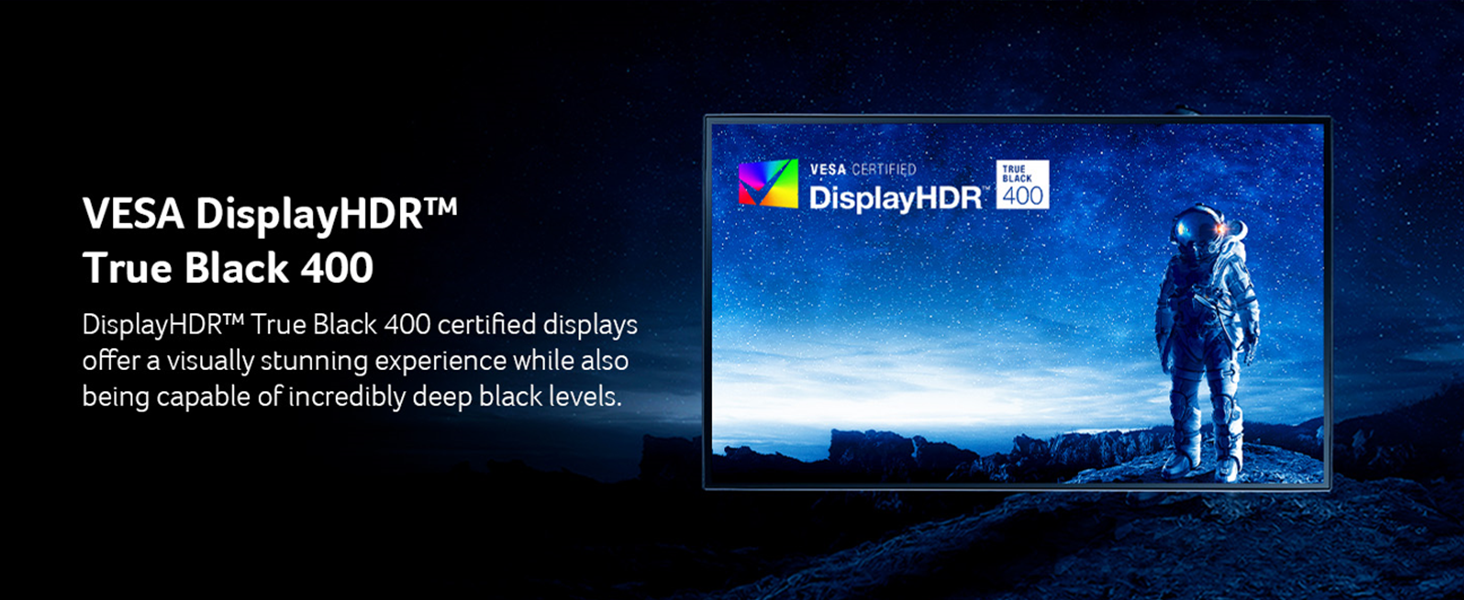
Figure 5: AMD FreeSync Premium Pro ensures smooth gameplay.
4.3 Ergonomic Adjustments
The monitor stand allows for flexible adjustments to optimize your viewing experience:
- Tilt: Adjust the screen's vertical angle.
- Swivel: Rotate the screen horizontally.
- Height Adjustment: Move the screen up or down to eye level.
4.4 Eye Care Features
The Predator X32 V2 includes Acer VisionCare™ 2.0 technologies designed to reduce eye strain during extended use. These features include a flicker-less display, blue light filter, and glare reduction. Access these settings through the OSD menu to customize your viewing comfort.

Figure 6: Acer VisionCare 2.0 for enhanced eye comfort.
5. Specifications
| Feature | Description |
|---|---|
| Model Name | Predator X32 V2bmiiphx |
| Screen Size | 31.5 Inches |
| Display Type | QD-OLED |
| Resolution | UHD (3840 x 2160) |
| Refresh Rate | 165 Hz |
| Response Time | 0.03ms (GTG) |
| Adaptive Sync | AMD FreeSync Premium Pro |
| Brightness | Typ. 250 nits, Peak 1000 nits @ HDR 3% |
| Contrast Ratio | 1,000,000:1 |
| Color Gamut | DCI-P3 99% |
| HDR Certification | VESA DisplayHDR True Black 400 |
| Connectivity | 1 x DisplayPort 1.4, 2 x HDMI 2.1, 1 x Audio Out |
| Speakers | 2 x 2 Watts |
| Ergonomics | Tilt, Swivel, Height Adjustment |
| VESA Mount Compatible | 75 x 75mm |
| Dimensions (D x W x H) | 10.6"D x 28.3"W x 24.25"H |
| Weight | 14.2 Kilograms |
6. Maintenance
6.1 Cleaning the Monitor
To clean the monitor screen, gently wipe it with a soft, lint-free cloth. For stubborn marks, lightly dampen the cloth with water or a specialized screen cleaner. Avoid using harsh chemicals, abrasive cleaners, or direct spraying onto the screen.
6.2 General Care
Keep the monitor in a well-ventilated area. Avoid placing heavy objects on the monitor or its cables. Protect the monitor from extreme temperatures and humidity. Unplug the monitor from the power outlet if it will not be used for an extended period.
7. Troubleshooting
7.1 No Image on Screen
- Ensure the power cord is securely connected to both the monitor and the power outlet.
- Verify that the video cable (HDMI or DisplayPort) is firmly connected to both the monitor and your computer's graphics card.
- Check if the monitor is powered on (power indicator light should be active).
- Use the OSD menu to confirm the correct input source is selected.
7.2 Flickering or Distorted Image
- Ensure the video cable is not damaged and is securely connected. Try a different cable if possible.
- Adjust the refresh rate in your computer's display settings to match the monitor's native 165Hz.
- If AMD FreeSync Premium Pro is enabled, ensure your graphics card drivers are up to date.
7.3 Color Inaccuracies
- Reset color settings to default in the OSD menu.
- Calibrate your monitor using your operating system's display calibration tools or third-party software.
8. Warranty and Support
8.1 Warranty Information
The Acer Predator X32 V2bmiiphx monitor comes with a 3-Year Parts and Labor Warranty. Please retain your proof of purchase for warranty claims. For detailed terms and conditions, refer to the warranty card included in your product packaging or visit the official Acer support website.
8.2 Technical Support
For further assistance, technical support, or service inquiries, please visit the official Acer support website or contact their customer service. You can find contact details and FAQs at www.acer.com/support.


