Introduction
The Generic PowerLite Pro 3 is a powerful and versatile searchlight designed for various applications, including outdoor activities, emergencies, and general illumination. It features multiple lighting modes, dual charging capabilities (USB and solar), and a power bank function to charge other electronic devices. This manual provides essential information for the safe and efficient use of your PowerLite Pro 3.
Package Contents
- 1 x Generic PowerLite Pro 3 Searchlight
- 1 x USB Charging Cable (for Android devices)
- 1 x User Manual
Key Features
- Multiple Headlights: Combines three spotlights for broad illumination.
- Dual Charging: Supports USB charging and integrated solar panel for outdoor recharging.
- Power Bank Function: USB output to charge mobile phones and other electronic devices.
- Long-lasting Battery: Equipped with a powerful battery for extended runtime.
- Three Lighting Modes: Strong light, weak light, and SOS mode.
- Durable Design: Water-repellent and impact-resistant, suitable for outdoor use.
- Portable: Compact and lightweight for easy carrying.
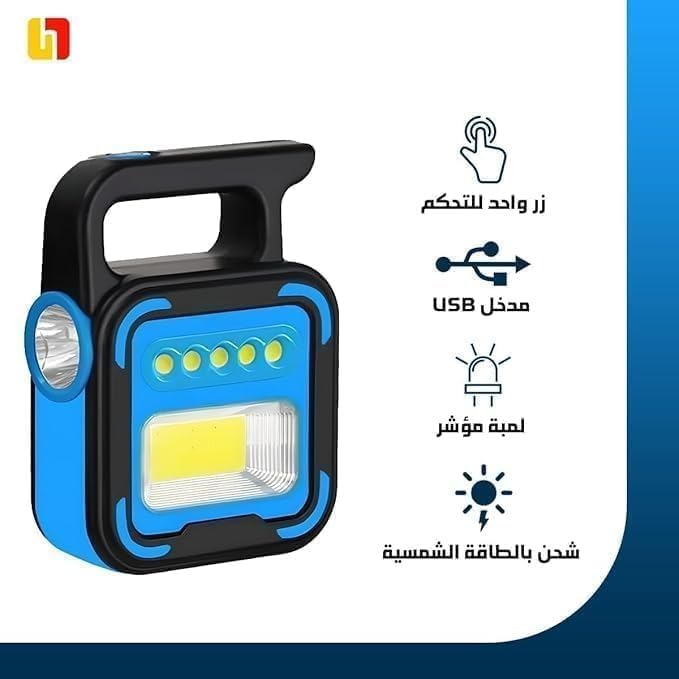
Image 1: The PowerLite Pro 3 searchlight, highlighting its single control button, USB input, indicator light, and solar charging capability.
Setup
- Unpacking: Carefully remove the PowerLite Pro 3 and all accessories from the packaging.
- Initial Charge: Before first use, fully charge the device using the provided USB cable. Connect the USB cable to the flashlight's USB input and a suitable USB power adapter (not included). The indicator light will show charging status.
- Solar Charging (Optional): For initial solar charging, place the device with the solar panel facing direct sunlight for several hours.
Charging the PowerLite Pro 3
USB Charging
To charge the PowerLite Pro 3 via USB:
- Locate the USB input port on the device.
- Connect the provided USB cable to the flashlight's USB input.
- Plug the other end of the USB cable into a USB power source (e.g., wall adapter, computer USB port).
- The indicator light will illuminate to show that charging is in progress. Once fully charged, the indicator light may change color or turn off.
Solar Charging
The integrated solar panel allows for convenient outdoor charging:
- Place the PowerLite Pro 3 in direct sunlight, ensuring the solar panel is fully exposed.
- Solar charging is slower than USB charging and is ideal for maintaining charge or for emergency power in outdoor environments.
Operation
Turning On/Off and Changing Modes
The PowerLite Pro 3 features a single control button for all lighting functions:
- First Press: Turns on the flashlight in Strong Light mode.
- Second Press: Switches to Weak Light mode.
- Third Press: Activates SOS mode (flashing light).
- Fourth Press: Turns the flashlight Off.
Using as a Power Bank
The PowerLite Pro 3 can charge other electronic devices:
- Locate the USB output port on the device.
- Connect your device's charging cable to the PowerLite Pro 3's USB output port.
- Connect the other end of the cable to your mobile phone or other electronic device.
- Charging will begin automatically.

Image 2: The PowerLite Pro 3 connected via USB cable to charge a smartphone, demonstrating its power bank functionality.

Image 3: The PowerLite Pro 3 shown charging various mobile devices, including a smartphone, tablet, and portable gaming console, illustrating its versatility as a charging station.
Maintenance
- Cleaning: Wipe the device with a soft, damp cloth. Do not use abrasive cleaners or solvents.
- Storage: Store the PowerLite Pro 3 in a cool, dry place when not in use. If storing for extended periods, ensure it is partially charged and recharge every 3-6 months to maintain battery health.
- Water Resistance: The device is water-repellent, but not fully submersible. Avoid prolonged exposure to heavy rain or submersion in water.
Troubleshooting
| Problem | Possible Cause | Solution |
|---|---|---|
| Flashlight does not turn on. | Low battery. | Charge the device using the USB cable or solar panel. |
| Device not charging via USB. | Faulty USB cable or power source. | Try a different USB cable or power adapter. Ensure connections are secure. |
| Solar charging is slow or ineffective. | Insufficient direct sunlight; panel obstructed. | Place the device in direct, unobstructed sunlight. Solar charging is supplementary and slower than USB. |
| Cannot charge external devices. | Low battery on PowerLite Pro 3; incorrect cable. | Ensure the PowerLite Pro 3 is sufficiently charged. Use the correct charging cable for your external device. |
Specifications
- Model: PowerLite Pro 3
- Power Source: Battery Powered (rechargeable), Solar
- Lighting Modes: Strong, Weak, SOS
- Charging Input: USB
- Output: USB (for charging external devices)
- Water Resistance Level: Water Repellent
- Dimensions: Approximately 10D x 10W x 10H centimeters
- Weight: Approximately 10 Grams
- Voltage: 20 Volts (internal operating voltage)
Warranty and Support
For warranty information or technical support, please refer to the retailer's policy or contact the manufacturer directly. Keep your purchase receipt as proof of purchase.
Extended warranty options may be available from third-party providers. Please check with your retailer for details.


