1. Introduction
This manual provides detailed instructions for the setup, operation, and maintenance of your ASUS ROG Strix XG32UCWG 32-inch 4K OLED Gaming Monitor. The XG32UCWG features a TrueBlack Glossy WOLED panel, offering sharp visuals and a versatile dual-mode function for seamless switching between 4K at 165Hz and FHD at 330Hz. It incorporates the Neo Proximity Sensor within the ASUS OLED Care Pro suite to prevent panel burn-in by automatically transitioning to a black screen when the user is away. The monitor is designed with a compact stand to optimize desktop space and provides extensive connectivity options, including DisplayPort 1.4 (DSC), HDMI 2.1, and USB-C with 15-watt Power Delivery.
2. Package Contents
Verify that all items listed below are present in your product package. If any item is missing or damaged, contact your retailer.
- XG32UCWG Gaming OLED monitor
- DisplayPort cable
- Microfiber cloth
- Power adapter
- Power cord
- Quick release stand
- Quick start guide
- ROG pouch
- ROG sticker
- USB 3.2 cable
- VESA mount kit
- Warranty Card
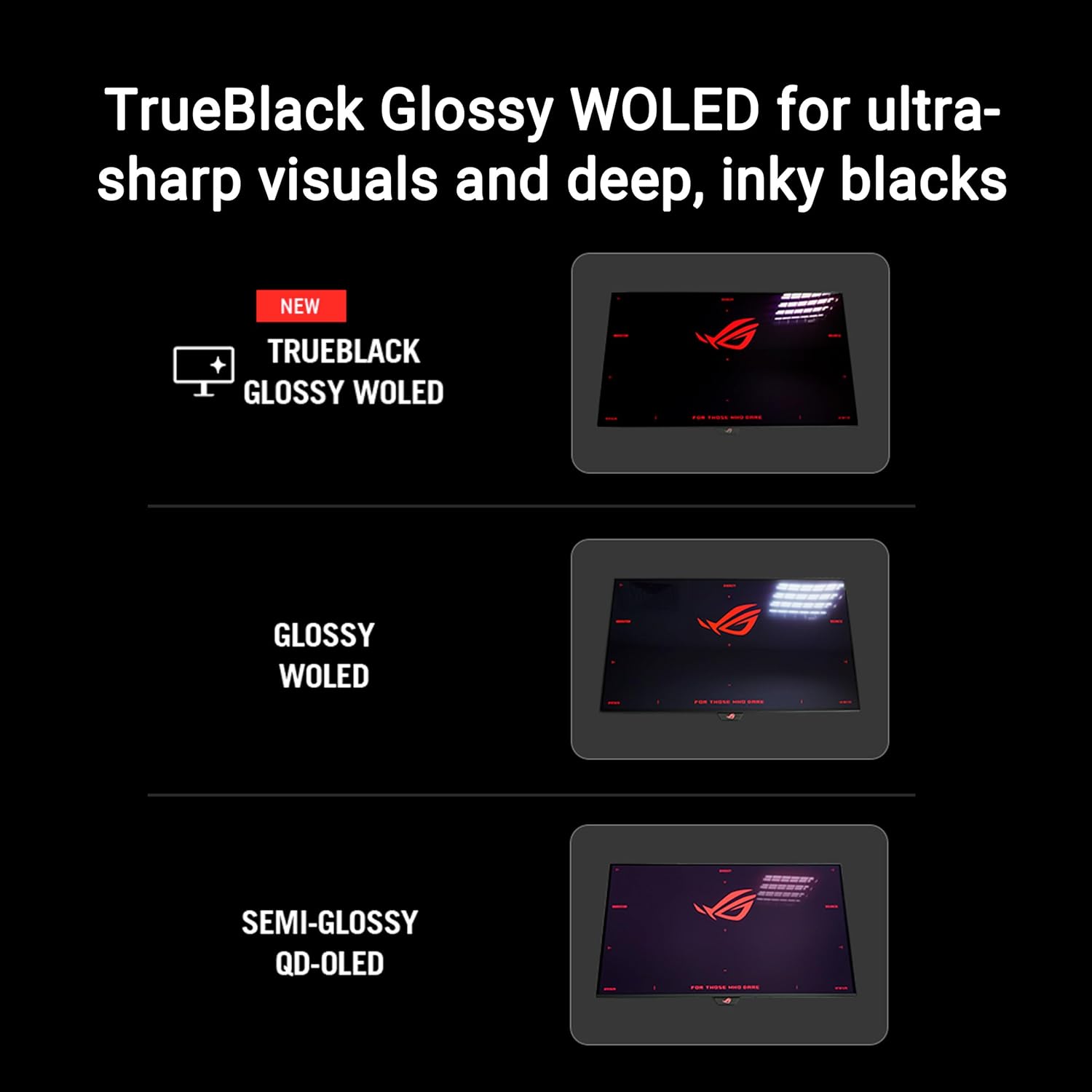
Image: Contents of the ASUS ROG Strix XG32UCWG monitor box, showing the monitor, DisplayPort cable, USB 3.2 cable, microfiber cloth, VESA mount kit, ROG pouch, ROG sticker, quick start guide, warranty card, and power cord with adapter.
3. Setup and Assembly
3.1 Attaching the Stand
Carefully remove the monitor from its packaging. Attach the quick release stand base to the monitor panel. Ensure it clicks securely into place. The stand offers ergonomic adjustments for height, swivel, and tilt.

Image: The monitor stand is shown with indicators for height adjustment (0-80mm), swivel (-15° to +15°), and tilt (-5° to +20°). The stand occupies 45% less desktop space compared to previous designs.
3.2 VESA Wall Mount (Optional)
If you prefer to wall-mount your monitor, use the provided VESA mount kit. Follow the instructions included with your VESA mount for proper installation. Ensure the VESA mount is compatible with the monitor's specifications.
4. Connectivity
The ASUS ROG Strix XG32UCWG monitor offers a variety of input and output ports for connecting to your devices.
- DisplayPort 1.4 (DSC): For high-resolution and high-refresh-rate video input.
- HDMI 2.1: Supports 4K resolution at high refresh rates, ideal for gaming consoles.
- USB-C (with 15W Power Delivery): Provides video input, data transfer, and power delivery for compatible devices.
- USB 3.2 Ports: For connecting peripherals such as keyboards, mice, or external storage.

Image: The back of the monitor displays the arrangement of connectivity ports, including DisplayPort 1.4 (DSC), HDMI 2.1, and USB-C with 15W Power Delivery.
5. Operating the Monitor
5.1 Dual Mode Functionality
The monitor supports a versatile dual-mode feature, allowing you to switch between two distinct display settings:
- 4K (3840 x 2160) at 165Hz: Ideal for high-resolution gaming and detailed content creation.
- FHD (1920 x 1080) at 330Hz: Provides ultra-smooth motion for competitive gaming where higher frame rates are critical.
Use the monitor's OSD (On-Screen Display) menu or the DisplayWidget Center software to switch between these modes.
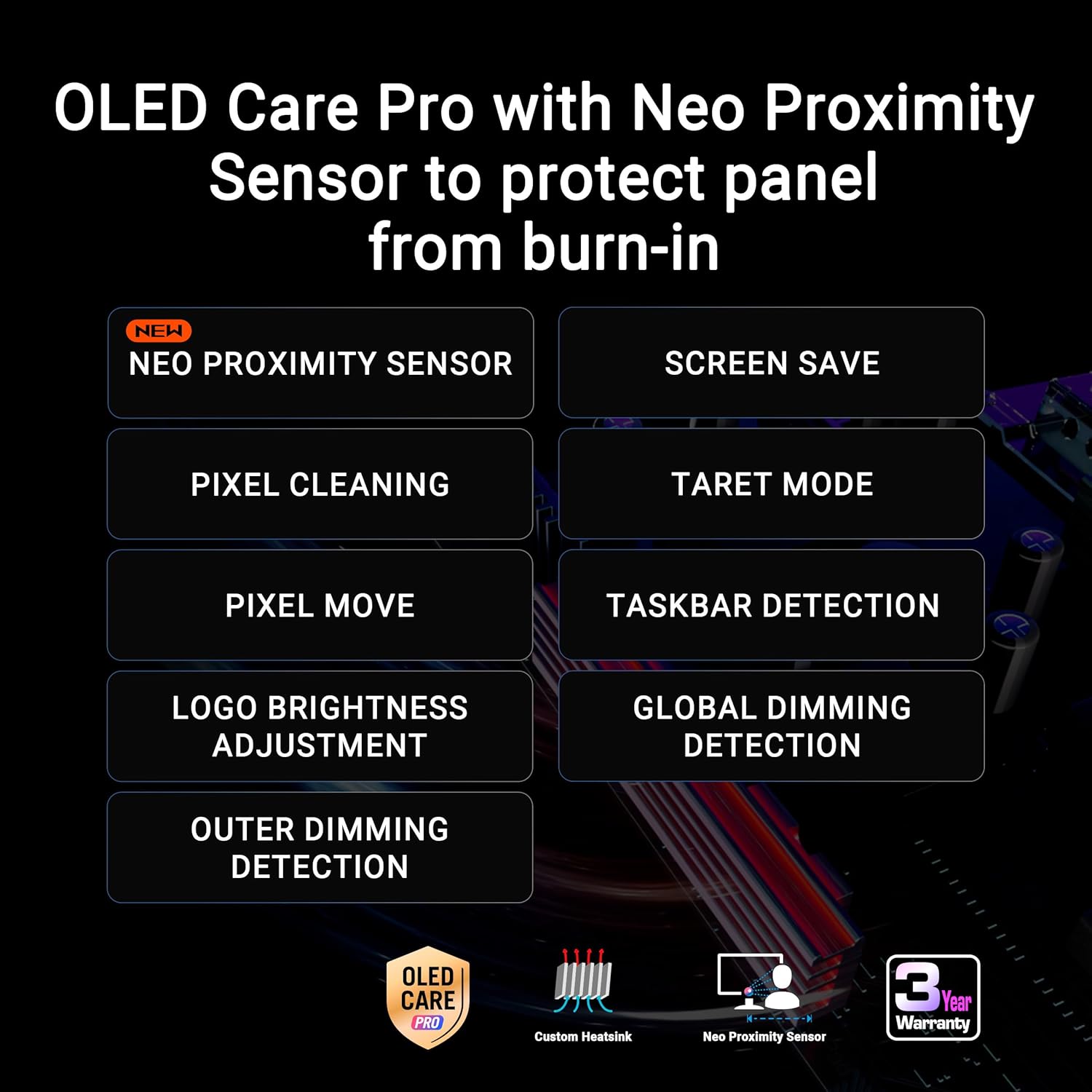
Image: A visual representation of the monitor's dual-mode capability, highlighting the 4K 165Hz and FHD 330Hz options, accessible via a hotkey.
5.2 ASUS OLED Care Pro
ASUS OLED Care Pro is a suite of features designed to protect the OLED panel and prevent burn-in. Key features include:
- Neo Proximity Sensor: Automatically detects when the user is away and switches to a black screen to reduce burn-in risk.
- Pixel Cleaning: A maintenance function that refreshes the pixels.
- Screen Save: Activates a screen saver to prevent static images from remaining on the screen for extended periods.
- Pixel Move: Slightly shifts the image to prevent static pixel usage.
- Logo Brightness Adjustment: Reduces the brightness of static logos to minimize burn-in risk.
- Taskbar Detection: Automatically dims the taskbar area to protect against burn-in.
- Global Dimming Detection: Adjusts overall screen brightness based on content.
- Target Mode: Allows specific areas of the screen to be highlighted or dimmed.
These features can be configured via the DisplayWidget Center software or the monitor's OSD menu.

Image: An overview of ASUS OLED Care Pro features, emphasizing the Neo Proximity Sensor and other burn-in prevention technologies.
5.3 DisplayWidget Center
The DisplayWidget Center is a software utility that allows you to easily access and adjust monitor settings using your mouse. This includes OLED Care Pro functions, color settings, game visuals, and other display parameters.
5.4 AI Assistant
The new AI Assistant provides enhanced gaming experiences with features such as:
- Dynamic Crosshair: An on-screen crosshair that adapts to game environments.
- Dynamic Shadow Boost: Enhances visibility in dark areas without overexposing bright regions.
- AI Visual Functions: Optimizes visual settings based on game content.
6. Display Features
6.1 TrueBlack Glossy WOLED Panel
The monitor features an exclusive TrueBlack Glossy WOLED panel, which provides a zero-haze surface for exceptionally sharp imagery and deep, inky blacks. This technology enhances contrast and color vibrancy.

Image: A visual comparison demonstrating the deep blacks and sharp visuals achieved with the TrueBlack Glossy WOLED panel.
6.2 HDR Performance
The XG32UCWG is VESA DisplayHDR 400 True Black compliant, offering outstanding HDR performance. It supports a 99% DCI-P3 gamut and true 10-bit color with a Delta E < 2 color difference, making it suitable for professional photo and video editing in addition to gaming.
6.3 G-SYNC Compatible
This monitor is G-SYNC Compatible, ensuring a smooth, tear-free gaming experience by synchronizing the display's refresh rate with the GPU's frame rate.
7. Maintenance and Care
To ensure the longevity and optimal performance of your OLED monitor, regular maintenance and proper care are essential. Utilize the ASUS OLED Care Pro features as described in Section 5.2.
- Cleaning: Use the provided microfiber cloth to gently wipe the screen. For stubborn smudges, slightly dampen the cloth with distilled water. Avoid harsh chemicals or abrasive materials.
- Burn-in Prevention: Always enable OLED Care Pro features. Avoid displaying static images for extended periods. Utilize screen savers and power-saving modes when not actively using the monitor.
- Ventilation: Ensure adequate airflow around the monitor to prevent overheating.
8. Troubleshooting
If you encounter issues with your monitor, refer to the following basic troubleshooting steps:
- No Power: Ensure the power cord is securely connected to both the monitor and a working power outlet. Check the power adapter.
- No Signal: Verify that the video cable (DisplayPort, HDMI, or USB-C) is correctly connected to both the monitor and your computer/device. Ensure the correct input source is selected on the monitor's OSD menu.
- Flickering/Distorted Image: Check cable connections. Update your graphics card drivers. Try a different video cable.
- Burn-in Concerns: Ensure all ASUS OLED Care Pro features are enabled and functioning correctly.
- Software Issues: If using DisplayWidget Center, ensure it is the latest version. Reinstall if necessary.
For more advanced troubleshooting or persistent issues, consult the ASUS support website or contact customer service.
9. Specifications
| Feature | Specification |
|---|---|
| Brand | ASUS |
| Series | XG32UCWG |
| Item Model Number | XG32UCWG |
| Standing Screen Display Size | 32 Inches |
| Screen Resolution | 3840 x 2160 Pixels (4K UHD) |
| Max Screen Resolution | 3840 x 2160 Pixels |
| Aspect Ratio | 16:9 |
| Screen Surface Description | Glossy (TrueBlack Glossy WOLED) |
| Dual Mode | 4K@165Hz, FHD@330Hz |
| Response Time | 0.03ms (GtG) |
| Adaptive Sync Technology | G-SYNC Compatible |
| Connectivity | DisplayPort 1.4 (DSC), HDMI 2.1, USB-C (15W PD), USB 3.0 Ports |
| Item Weight | 16.1 pounds |
| Product Dimensions (LxWxH) | 10.8 x 28.1 x 22.8 inches |
| Color | BLACK |
10. Warranty and Support
The ASUS ROG Strix XG32UCWG monitor comes with a 3-year warranty. For warranty claims, technical support, or service inquiries, please visit the official ASUS support website or contact your local ASUS customer service center. Keep your purchase receipt and warranty card for reference.


