
1. Introduction
This manual provides essential information for the proper setup, operation, maintenance, and troubleshooting of your Xiaomi 43-inch X Ultra HD 4K Smart Google LED TV, Model L43MB-AIN. Please read this manual thoroughly before using the product to ensure optimal performance and safety.

Front view of the Xiaomi 43-inch X Ultra HD 4K Smart Google LED TV, highlighting its sleek design and key features.
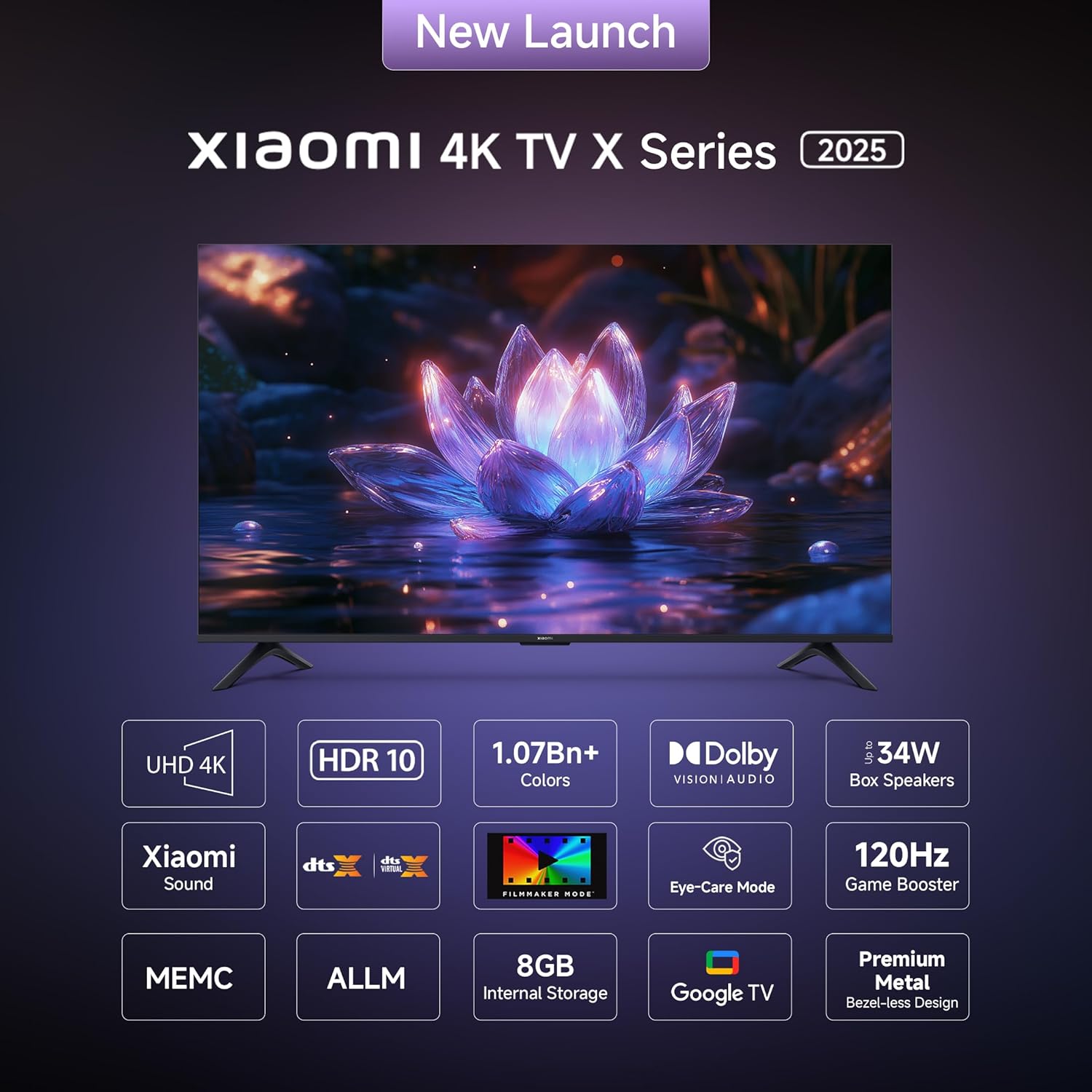
The television features a minimalist, all-screen display for an immersive viewing experience.
2. What's in the Box
Verify that all components are present in the packaging before proceeding with the setup.
- 1 LED TV Unit
- 1 Remote Control
- 2 Stands Unit
- 4 Screws (for stand assembly)
- 2 x AAA batteries (for remote control)
- 1 Power Cord
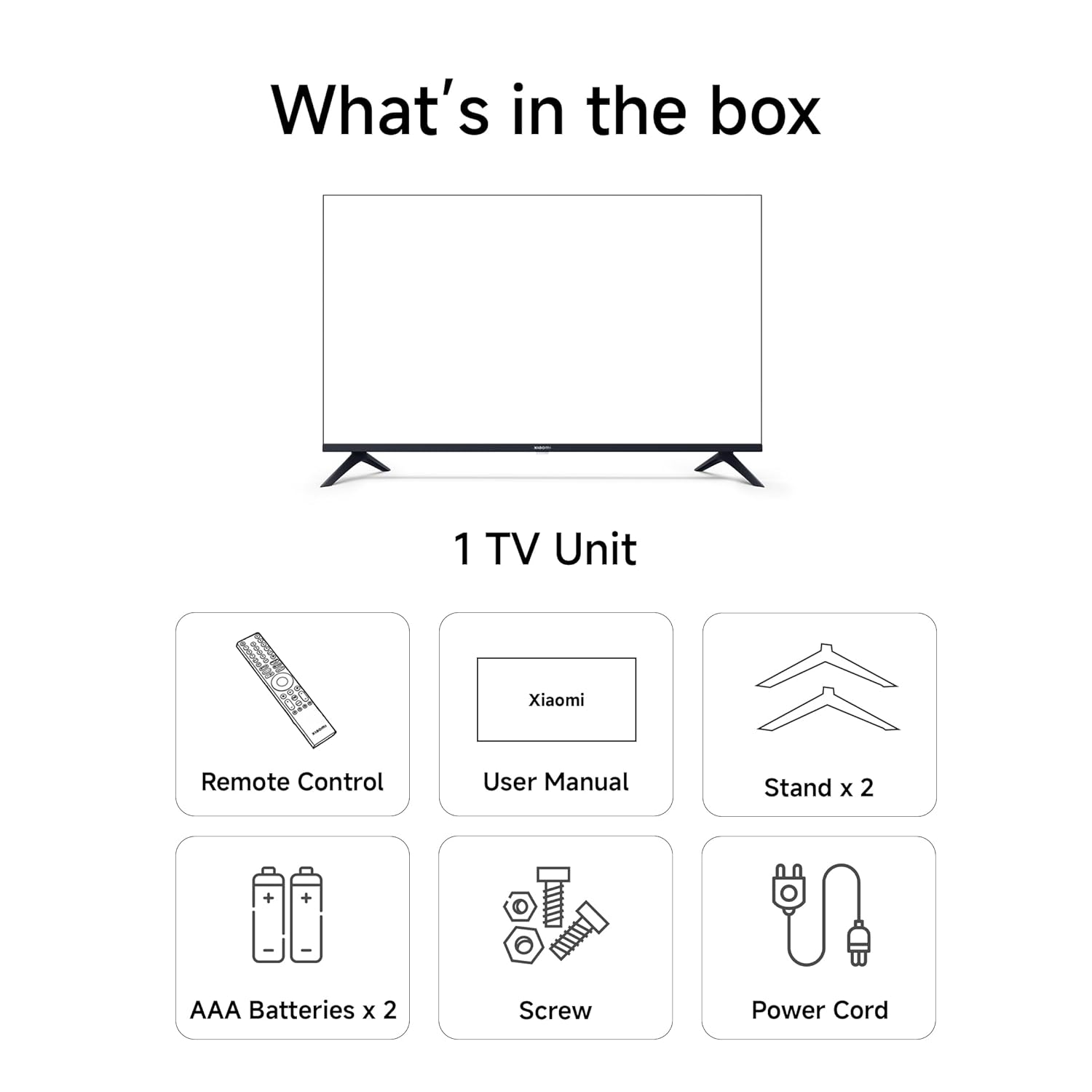
Visual representation of the items included with your Xiaomi TV.
3. Setup
3.1 Physical Installation
Your Xiaomi TV supports both table-top placement using the included stands and wall mounting (wall mount bracket sold separately).
Table-Top Installation:
- Carefully place the TV screen-down on a soft, flat surface to prevent damage.
- Attach the two stand units to the designated slots on the bottom of the TV.
- Secure each stand with the provided screws.
- Carefully lift the TV to its upright position on a stable, level surface.
Wall Mounting:
For wall mounting, use a compatible VESA wall mount bracket (not included). Follow the instructions provided with your wall mount bracket and ensure professional installation if you are unsure.
3.2 Connecting Peripherals
The TV offers various connectivity options for external devices.
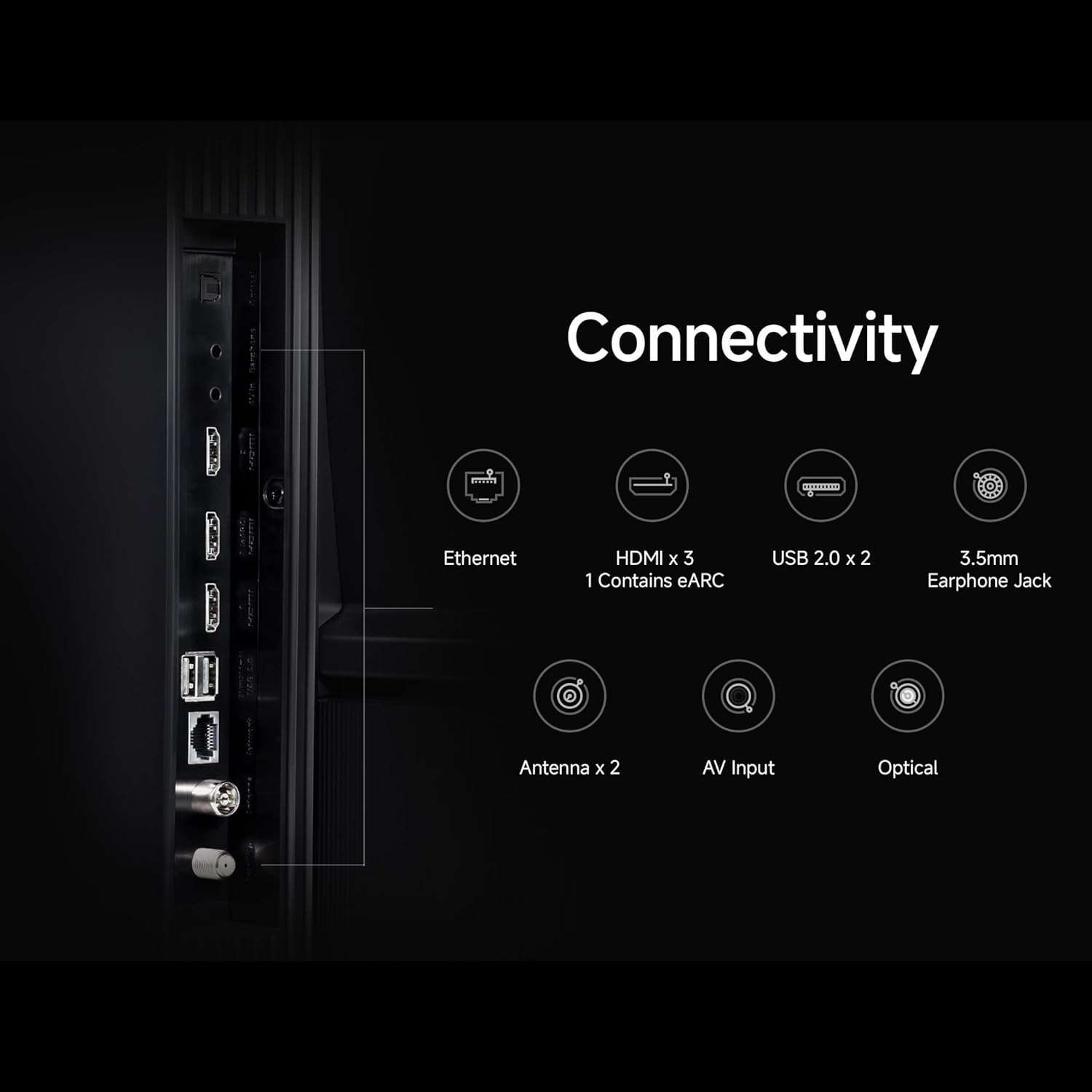
Rear panel of the TV displaying various input and output ports.
Detailed diagram of available connectivity ports including Ethernet, HDMI, USB, and audio jacks.
- HDMI Ports: Connect up to 3 HDMI devices (e.g., gaming consoles, set-top boxes, Blu-ray players). One port supports eARC for enhanced audio return.
- USB Ports: Two USB ports are available for connecting external storage devices.
- Ethernet: For a wired internet connection.
- Optical: Digital audio output.
- 3.5mm Audio Jack: For headphones or external speakers.
- AV Input: For older devices using composite video and stereo audio.
- Antenna: For connecting a terrestrial or cable antenna.
3.3 Initial Power On and Network Connection
- Connect the power cord to the TV and then to a power outlet.
- Press the power button on the remote control or on the TV.
- Follow the on-screen instructions to complete the initial setup, including language selection, region, and network connection.
- For network connection, select your Wi-Fi network and enter the password, or ensure the Ethernet cable is connected. The TV supports Dual Band Wi-Fi.
- Sign in with your Google account to access Google TV features and download applications.
4. Operating Instructions
4.1 Remote Control
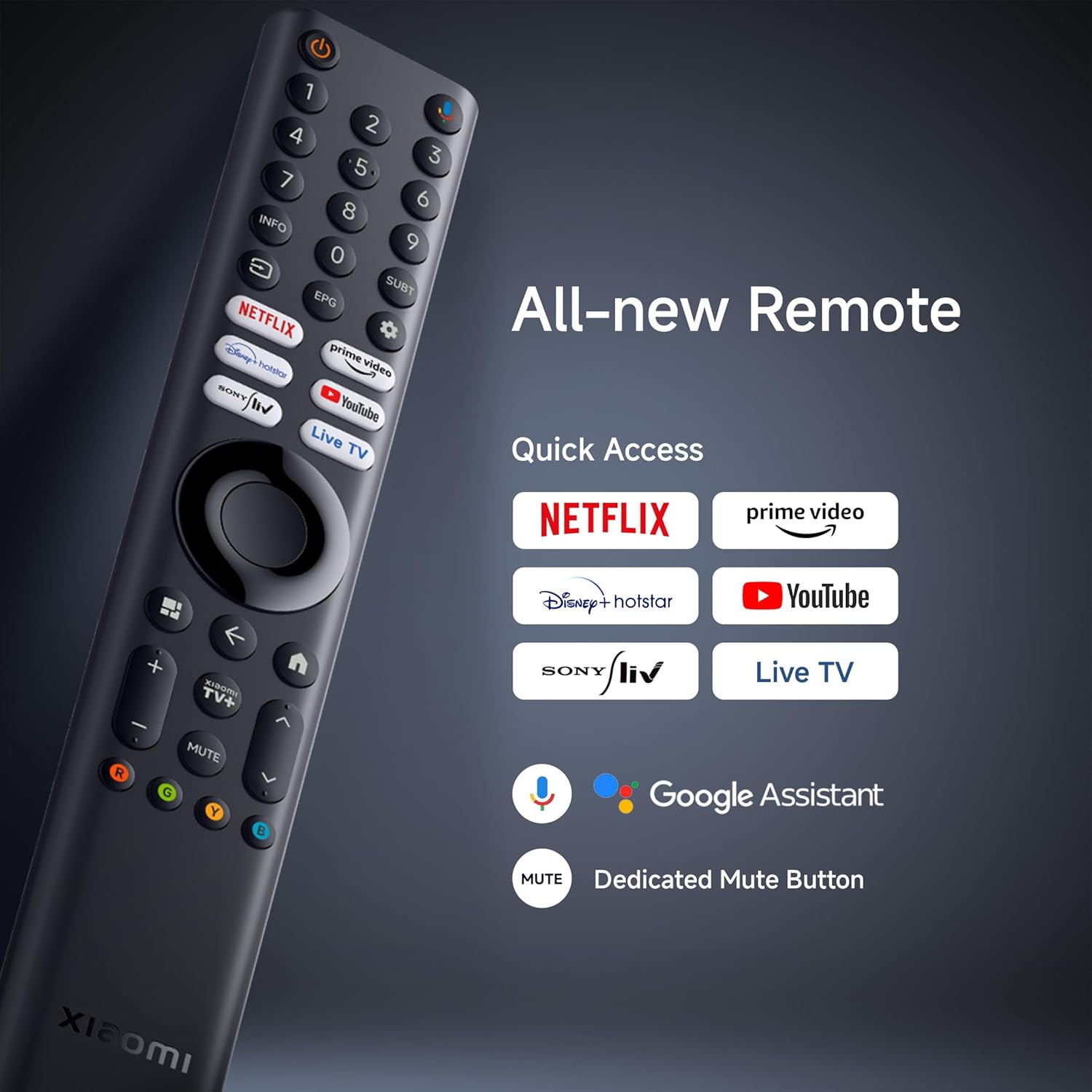
The included Bluetooth remote control provides easy access to all TV functions and smart features.

The remote control features dedicated buttons for popular streaming services and Google Assistant.
- Power Button: Turns the TV on or off.
- Google Assistant Button: Activates voice commands for search and control.
- Navigation Pad: For menu navigation.
- Back Button: Returns to the previous screen.
- Home Button: Accesses the Google TV home screen.
- Volume Buttons: Adjusts audio volume.
- Mute Button: Silences the audio.
- Dedicated App Buttons: Quick access to Netflix, Prime Video, YouTube, JioCinema, SonyLiv, etc.
4.2 Google TV Interface and Smart Features
Your TV runs on Android 14 OS with Google TV, offering a personalized content experience.

The Google TV interface provides personalized recommendations and easy access to apps.
- Content First UI: Organizes content from various streaming services for easy discovery.
- Personal Profiles: Create individual profiles for tailored recommendations.
- Google Assistant: Use voice commands to search for content, control smart home devices, and get information.
- Google Cast Built-In: Stream content directly from your smartphone or tablet.
- Supported Apps: Access a wide range of applications like Netflix, Prime Video, YouTube, and more from the Google Play Store.
- PatchWall: Xiaomi's custom content aggregation platform, offering curated content and live channels.

Easily stream content from your mobile device to the TV using Google Cast or Apple AirPlay 2.
4.3 Display Settings
The TV features a 4K Ultra HD display with advanced visual technologies.
- 4K Ultra HD (3840 x 2160): Provides sharp and detailed images.
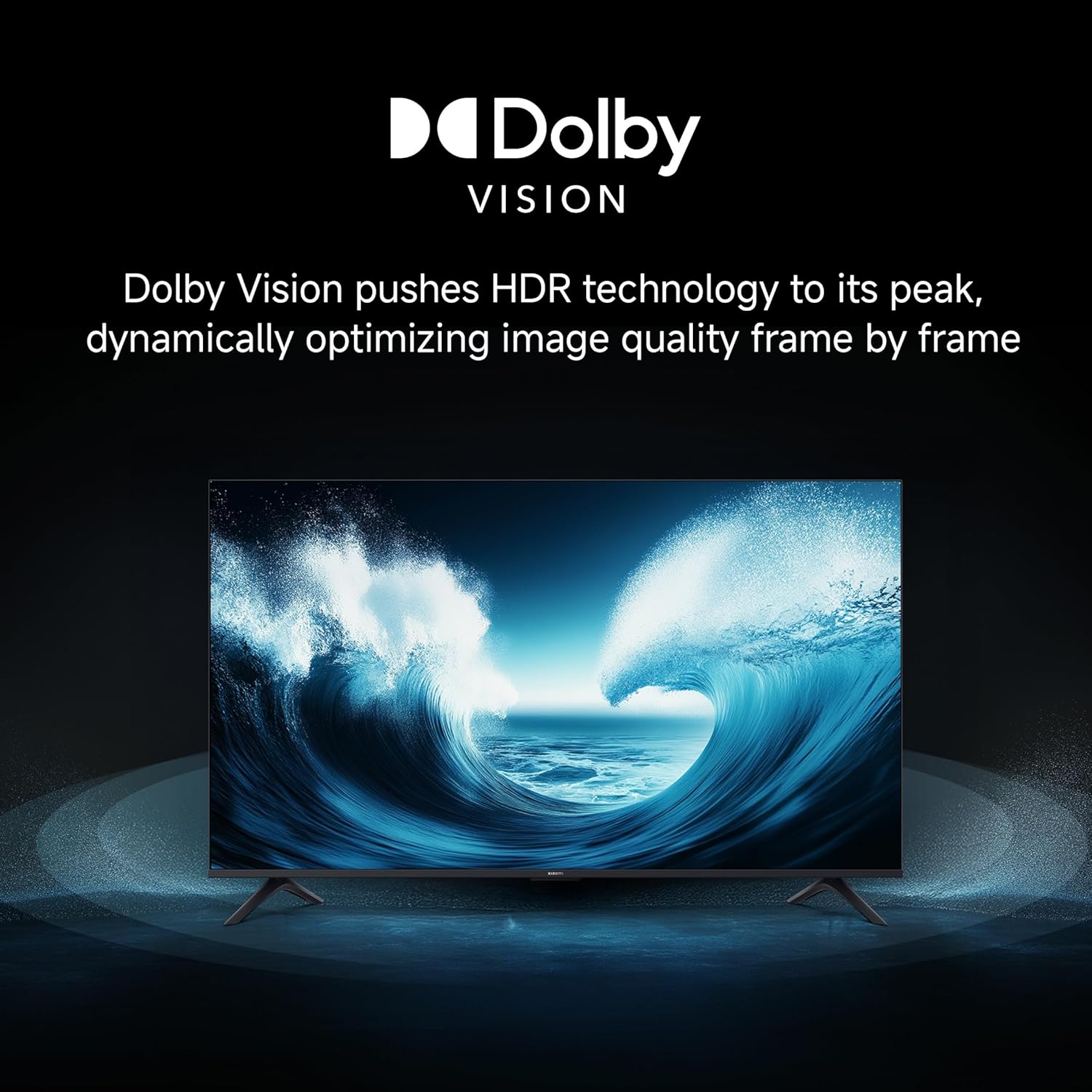
- Dolby Vision: Dynamically optimizes image quality frame by frame for enhanced brightness, contrast, and color.

Dolby Vision enhances visual realism by optimizing HDR content.
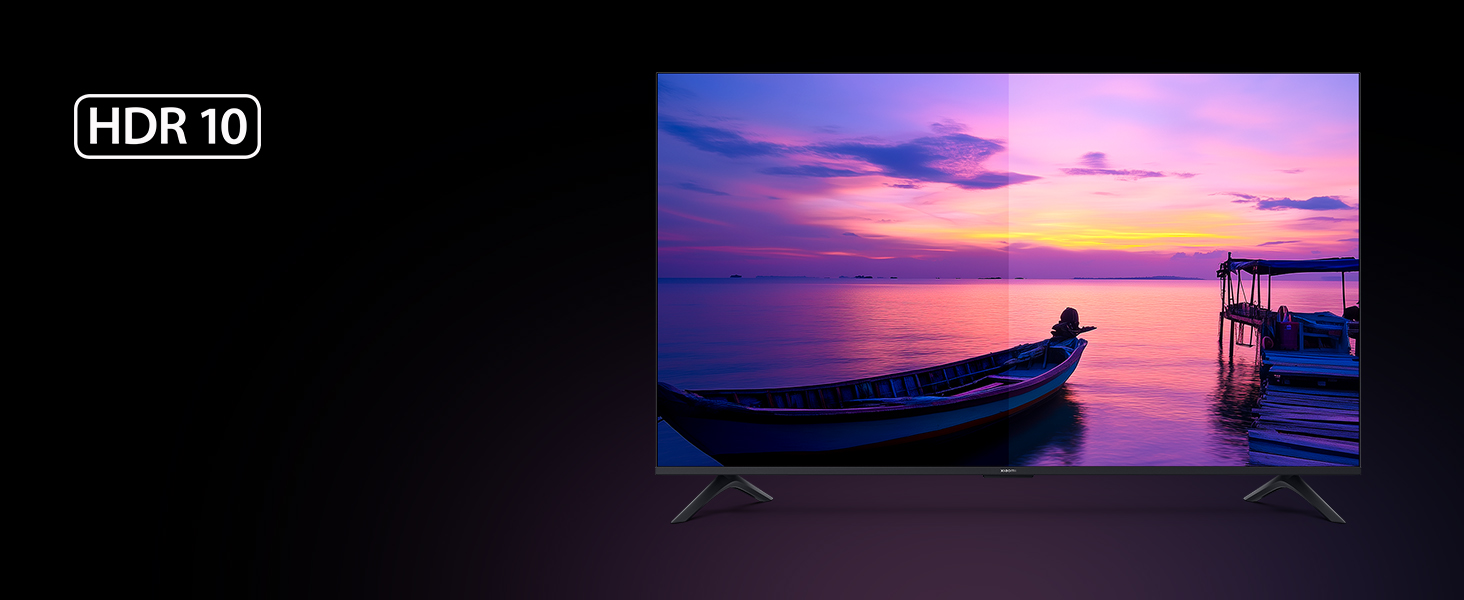
- HDR 10 & HLG: Supports high dynamic range content for a wider range of colors and contrast.
HDR10 delivers high brightness and contrast for stunning visual realism.
- Filmmaker Mode: Disables post-processing effects to present content as the director intended.

Filmmaker Mode ensures content is viewed without artificial enhancements.
- Vivid Picture Engine 2 & Wide Colour Gamut: Enhances color accuracy and vibrancy.
- MEMC Engine (Reality Flow MEMC): Improves motion clarity for fast-moving scenes.
- Eye Comfort Mode: Reduces blue light emission for comfortable viewing.
4.4 Audio Settings
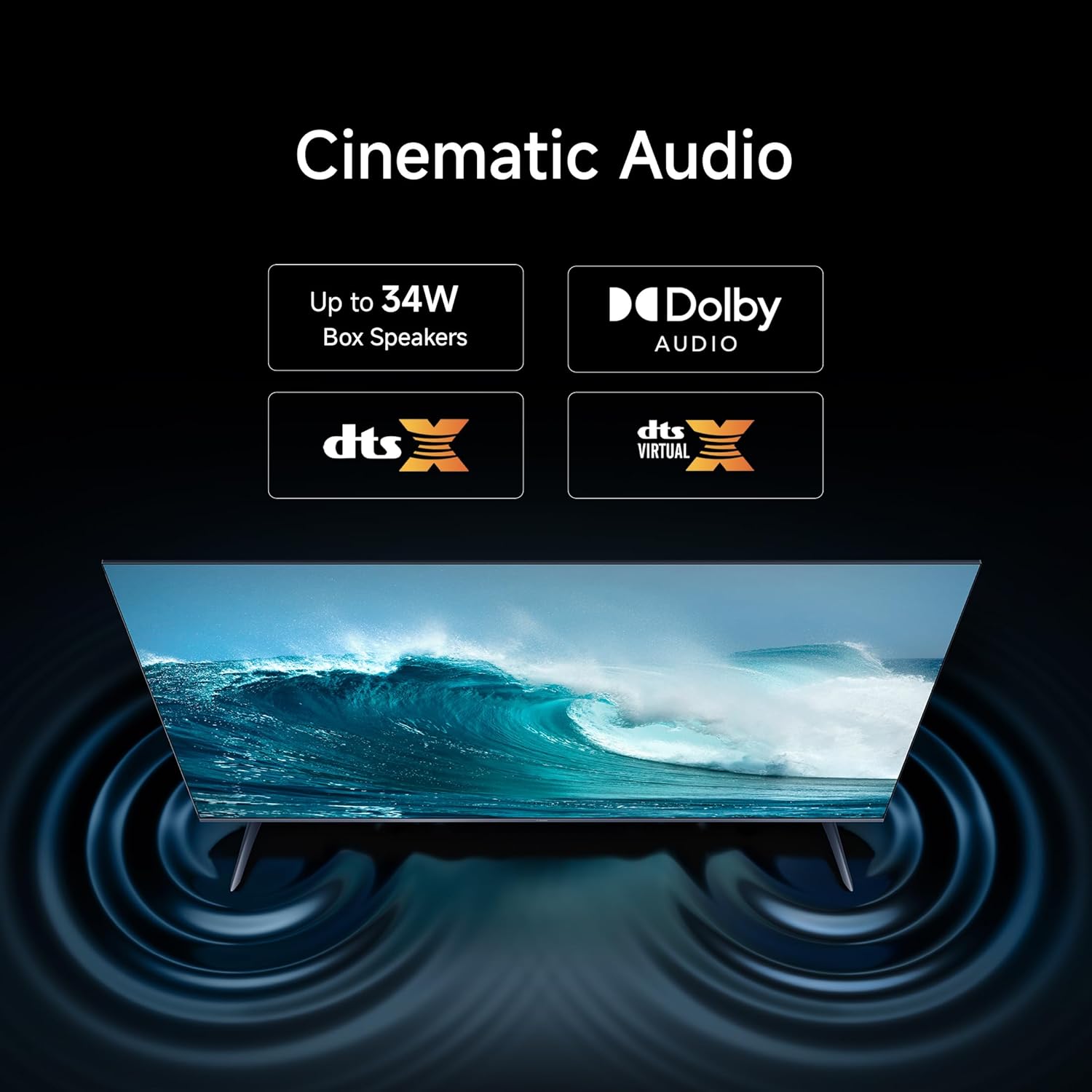
The TV is equipped with 30 watts output speakers and supports advanced audio technologies.
- Dolby Audio: Provides rich, clear, and powerful sound.
- DTS-X & DTS Virtual:X: Delivers immersive, multi-dimensional audio experiences.

The TV supports Dolby Audio, DTS, and DTS Virtual:X for an enhanced sound experience.
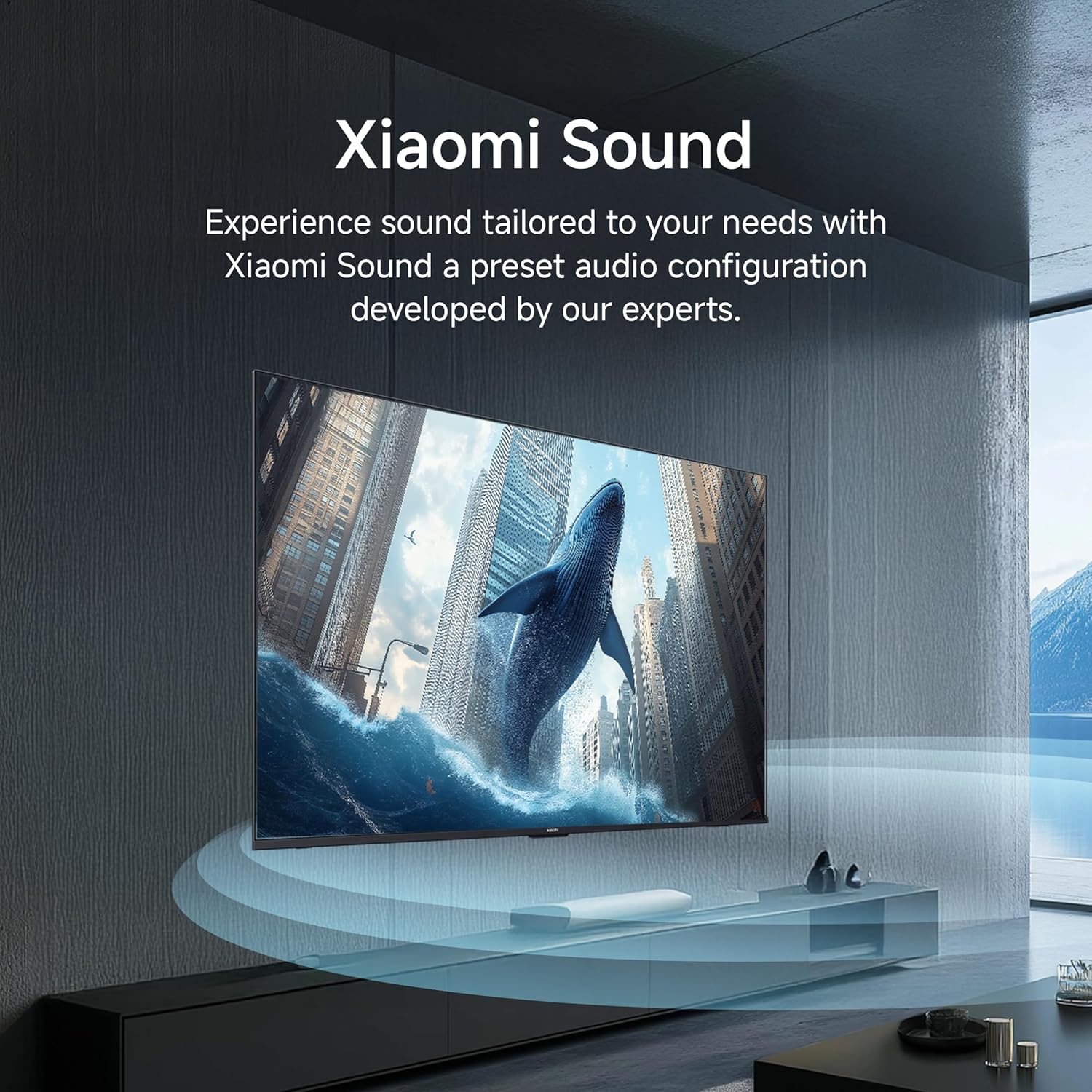
- Xiaomi Sound: Preset audio configurations developed for optimized sound.
Experience tailored sound with Xiaomi Sound's expert-developed audio configuration.
4.5 Gaming Features
Enhance your gaming experience with dedicated features.
- 120Hz Game Booster: Boosts the refresh rate to 120Hz for ultra-low latency and responsive gaming.
The 120Hz Game Booster provides a smoother and more responsive gaming experience.
5. Maintenance
5.1 Cleaning the TV
- Always unplug the TV from the power outlet before cleaning.
- Use a soft, dry, lint-free cloth to gently wipe the screen and cabinet.
- For stubborn marks, lightly dampen the cloth with water or a specialized screen cleaner (ensure it is safe for LED screens) and wipe gently.
- Avoid using abrasive cleaners, waxes, or solvents as they can damage the TV's surface.
5.2 Software Updates
The TV may receive software updates to improve performance and add new features. Ensure your TV is connected to the internet to receive these updates automatically or check for them manually in the settings menu.
6. Troubleshooting
If you encounter issues with your TV, refer to the following common troubleshooting steps.
6.1 No Power
- Ensure the power cord is securely connected to both the TV and the power outlet.
- Check if the power outlet is functioning by plugging in another device.
- Press the power button on the TV itself, not just the remote, to rule out a remote issue.
6.2 No Picture or Poor Picture Quality
- Verify that the correct input source is selected (e.g., HDMI 1, AV).
- Check all cable connections (HDMI, antenna, etc.) for looseness or damage.
- If using an external device, ensure it is powered on and functioning correctly.
- Adjust picture settings (brightness, contrast, color) in the TV menu.
- For 4K content, ensure your source device and HDMI cables support 4K resolution.
6.3 No Sound or Poor Sound Quality
- Increase the volume using the remote control.
- Check if the TV is muted.
- Verify audio cable connections if using external speakers.
- Adjust audio settings in the TV menu.
6.4 Remote Control Not Working
- Ensure the AAA batteries are correctly inserted and not depleted. Replace if necessary.
- Remove any obstructions between the remote and the TV.
- If the remote is Bluetooth, try re-pairing it with the TV (refer to the TV's on-screen help for pairing instructions).
6.5 Network Connectivity Issues
- Check if your Wi-Fi router is powered on and functioning.
- Restart your router and modem.
- Ensure the Wi-Fi password entered is correct.
- If using an Ethernet cable, ensure it is securely connected.
7. Specifications
Detailed technical specifications for the Xiaomi 43-inch X Ultra HD 4K Smart Google LED TV (Model L43MB-AIN).

Diagram illustrating the physical dimensions and weight of the 43-inch Xiaomi TV.
| Feature | Specification |
|---|---|
| Brand | XIAOMI |
| Model | L43MB-AIN |
| Model Name | GTV Series |
| Model Year | 2025 |
| Screen Size | 43 Inches (108 cm) |
| Display Technology | LED |
| Resolution | 4K Ultra HD (3840 x 2160 Pixels) |
| Refresh Rate | 60 Hz |
| Display Type | Dolby Vision | HDR 10 | HLG |
| Viewing Angle | 178 Degrees |
| Image Aspect Ratio | 16:09 |
| Image Contrast Ratio | 5000:1 |
| Response Time | 6.5 Milliseconds |
| Operating System | Google TV (Android 14 OS) |
| RAM Memory Installed Size | 2 GB |
| Memory Storage Capacity | 8 GB |
| Processor | Quad-core A55 |
| Special Features | Filmmaker Mode, MEMC, Eye Comfort Mode |
| Connectivity Technology | Ethernet, HDMI, USB, Wi-Fi (Dual Band), Bluetooth |
| Hardware Interface | 3 HDMI ports (1 eARC), 2 USB ports, 3.5mm Audio, Bluetooth, Ethernet, Optical, AV |
| Speakers Maximum Output Power | 30 Watts |
| Speaker Surround Sound Channel Configuration | Dolby Audio, DTS-X, DTS Virtual:X |
| Supported Audio Formats | Dolby, DTS, MP3, FLAC, AAC, OGG, ADPCM, OPUS |
| Power Source | AC (240 Volts) |
| Product Dimensions (LxWxH) | 95.7 x 21.1 x 59.9 cm |
| Item Weight | 6 kg |
The TV is powered by a Quad-core A55 processor with 2GB RAM and 8GB storage for smooth performance.
8. Warranty and Support
Your Xiaomi TV comes with a 1 Year of Comprehensive Warranty. To avail warranty services, please retain your Amazon invoice as proof of purchase.
For further assistance, technical support, or to access the latest user manual, please visit the official Xiaomi website or contact their customer service. Contact details can typically be found on the manufacturer's website or in the warranty card included with your product.