
1. Introduction
This manual provides essential information for setting up, operating, and maintaining your Xiaomi X Series 4K Ultra HD Smart Google TV. Please read this manual thoroughly before using your television to ensure proper and safe operation.
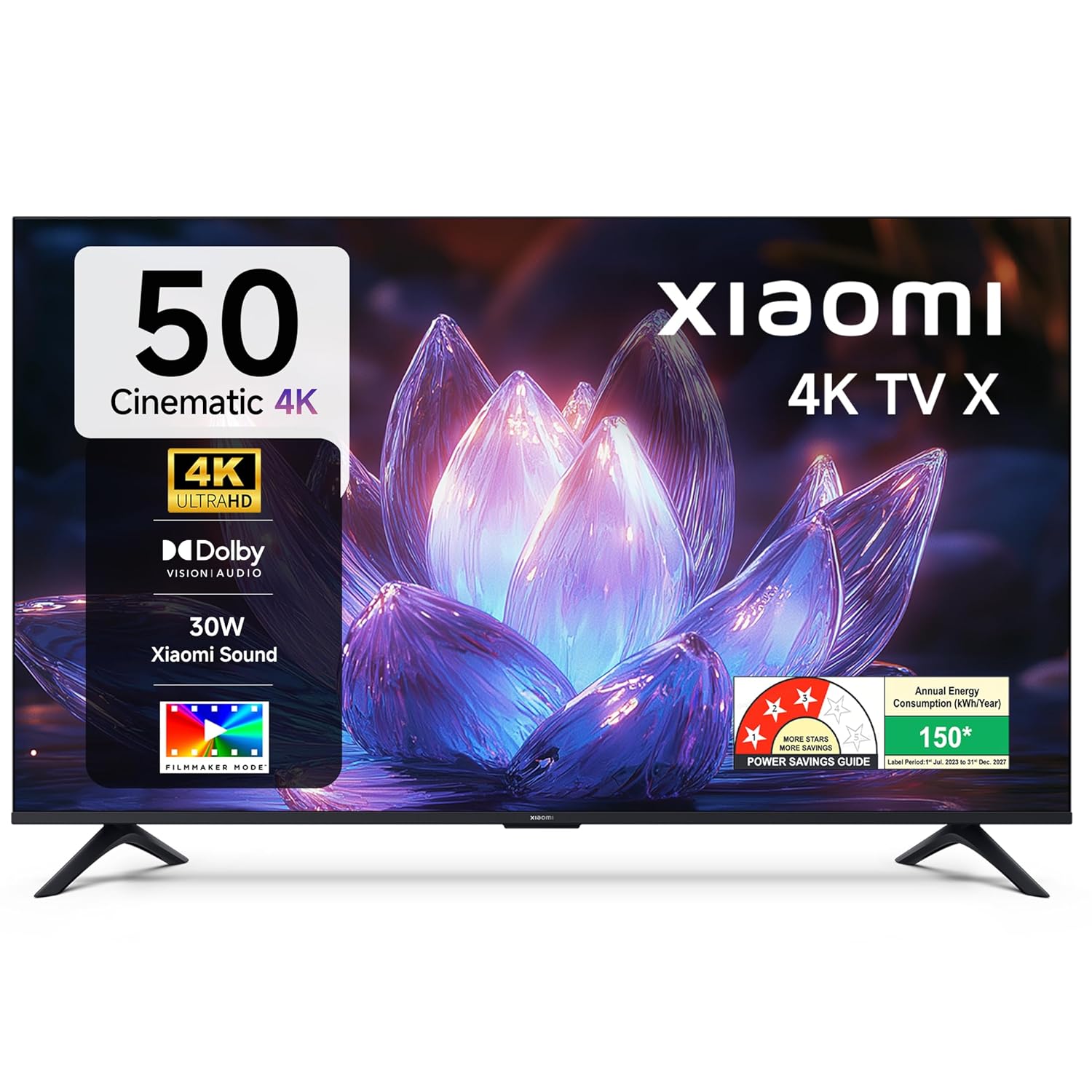
Image 1.1: Front view of the Xiaomi X Series 50-inch 4K Ultra HD Smart Google TV.
The Xiaomi X Series TV offers a cinematic 4K viewing experience with advanced features including Dolby Vision, HDR10, Filmmaker Mode, and a 120Hz Game Booster. It runs on Google TV, providing a smart and intuitive user interface with access to various streaming services and Google Assistant.
2. Setup
2.1. Unboxing and Package Contents
Carefully unpack your television and check for all included components. Ensure the packaging is handled responsibly.

Image 2.1: Included accessories with your Xiaomi TV.
The package should contain:
- 1 LED TV Unit
- 1 Remote Control
- 1 User Manual (this document)
- 2 Stand Units
- 4 Screws for stand assembly
- 2 x AAA batteries for the remote control
- 1 Power Cord
2.2. Physical Installation
You can install your TV using the included stands for table mounting or a compatible wall mount (sold separately).
Table Mount Installation:
- Place the TV screen-down on a soft, flat surface to prevent damage.
- Attach the two stand units to the designated slots at the bottom of the TV.
- Secure each stand with the provided screws.
- Carefully lift the TV and place it on a stable, level surface.
Wall Mount Installation:
For wall mounting, it is recommended to use a professional installation service. Refer to the wall mount kit instructions for specific details. Ensure the wall mount is compatible with the TV's VESA mounting pattern.
2.3. Initial Power On and Connectivity
- Connect the power cord to the TV and then to a power outlet.
- Insert the AAA batteries into the remote control.
- Press the power button on the remote or the TV to turn it on.
- Follow the on-screen instructions for initial setup, including language selection, network connection (Wi-Fi or Ethernet), and Google account sign-in.

Image 2.2: Overview of connectivity ports on the Xiaomi TV.
Connectivity Ports:
- HDMI Ports (x3): Connect gaming consoles, set-top boxes, Blu-ray players. One port supports eARC for enhanced audio return.
- USB Ports (x2): Connect hard drives, USB flash drives, or other USB devices.
- Ethernet Port: For wired internet connection.
- 3.5mm Audio Jack: For connecting headphones or external audio devices.
- Optical Audio Output: For connecting to soundbars or home theater systems.
- Antenna Inputs (x2): For connecting terrestrial or cable TV antennas.
- AV Input: For connecting older devices with composite video and stereo audio.
3. Operating Instructions
3.1. Remote Control
The included remote control provides easy access to all TV functions. It features dedicated buttons for popular streaming services and Google Assistant.

Image 3.1: The all-new remote control for your Xiaomi TV.
- Power Button: Turns the TV on or off.
- Google Assistant Button: Activates voice commands.
- Navigation Pad: For menu navigation.
- Back Button: Returns to the previous screen.
- Home Button: Accesses the Google TV home screen.
- Volume Up/Down: Adjusts audio volume.
- Channel Up/Down: Changes TV channels.
- Dedicated App Buttons: Quick access to Netflix, Prime Video, YouTube, and other services.
- Mute Button: Silences the TV audio.
3.2. Google TV Interface and Navigation
Your Xiaomi TV runs on Google TV, offering a personalized and intuitive user experience. The home screen provides content recommendations, quick access to apps, and personal profiles.

Image 3.2: Google TV interface with key features.
- Content First UI: Prioritizes content discovery.
- Personal Profiles: Create individual profiles for tailored recommendations.
- Google Assistant: Use voice commands for search, control, and information.
- Google Cast Built-In: Stream content directly from your phone or tablet.
- Watchlist: Keep track of movies and shows you want to watch.
- Ambient Mode: Display photos or useful information when the TV is idle.
- Kids Profile: Curated content and parental controls for children.
The TV also features PatchWall, which provides customized recommendations and content curation, enhancing your viewing experience.
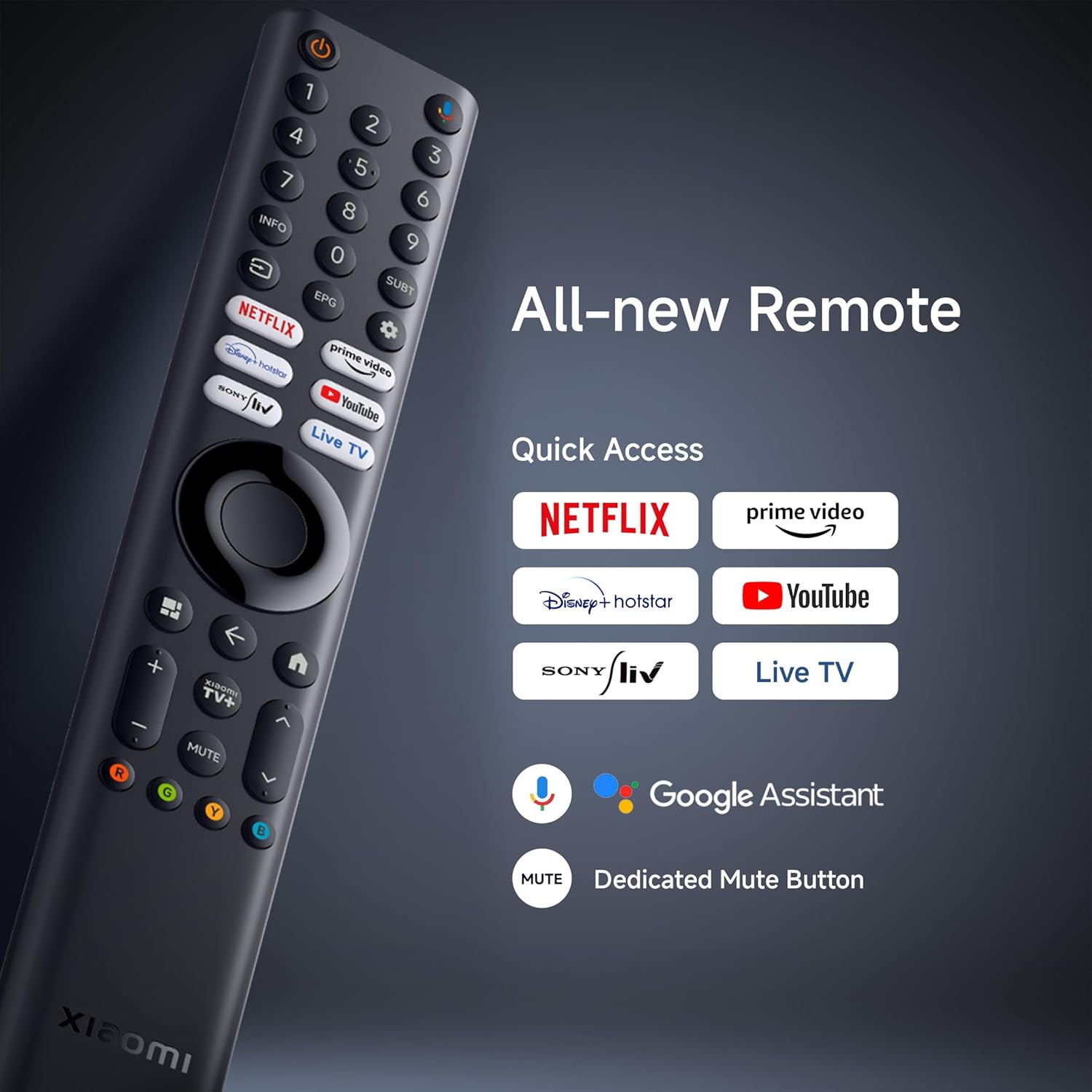
Image 3.3: PatchWall interface for content discovery.
3.3. Display Settings
Optimize your viewing experience with various display technologies and settings.
- 4K Ultra HD: Enjoy crisp, detailed images with 3840 x 2160 resolution.
- Dolby Vision: Experience enhanced brightness, contrast, and color with dynamic HDR optimization frame by frame.

Image 3.4: Dolby Vision technology for dynamic image quality.
- HDR10: Delivers high brightness and contrast for realistic visuals.
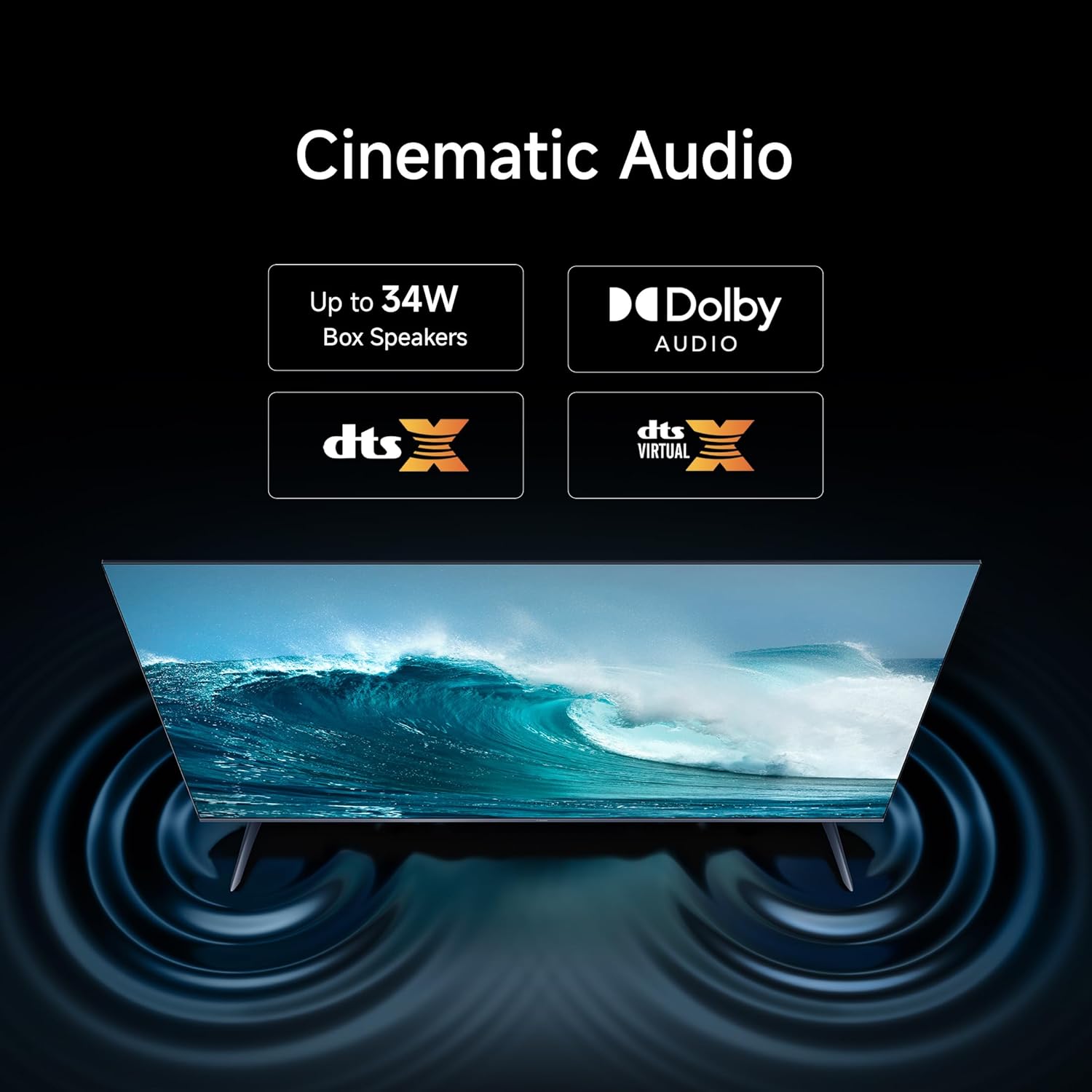
Image 3.5: HDR10 for detailed and realistic visuals.
- Filmmaker Mode: Disables post-processing effects to present content as the director intended.

Image 3.6: Filmmaker Mode for authentic content viewing.
- Vivid Picture Engine 2: Enhances color and clarity, supporting 1.07 billion colors and 94% DCI-P3 color gamut.
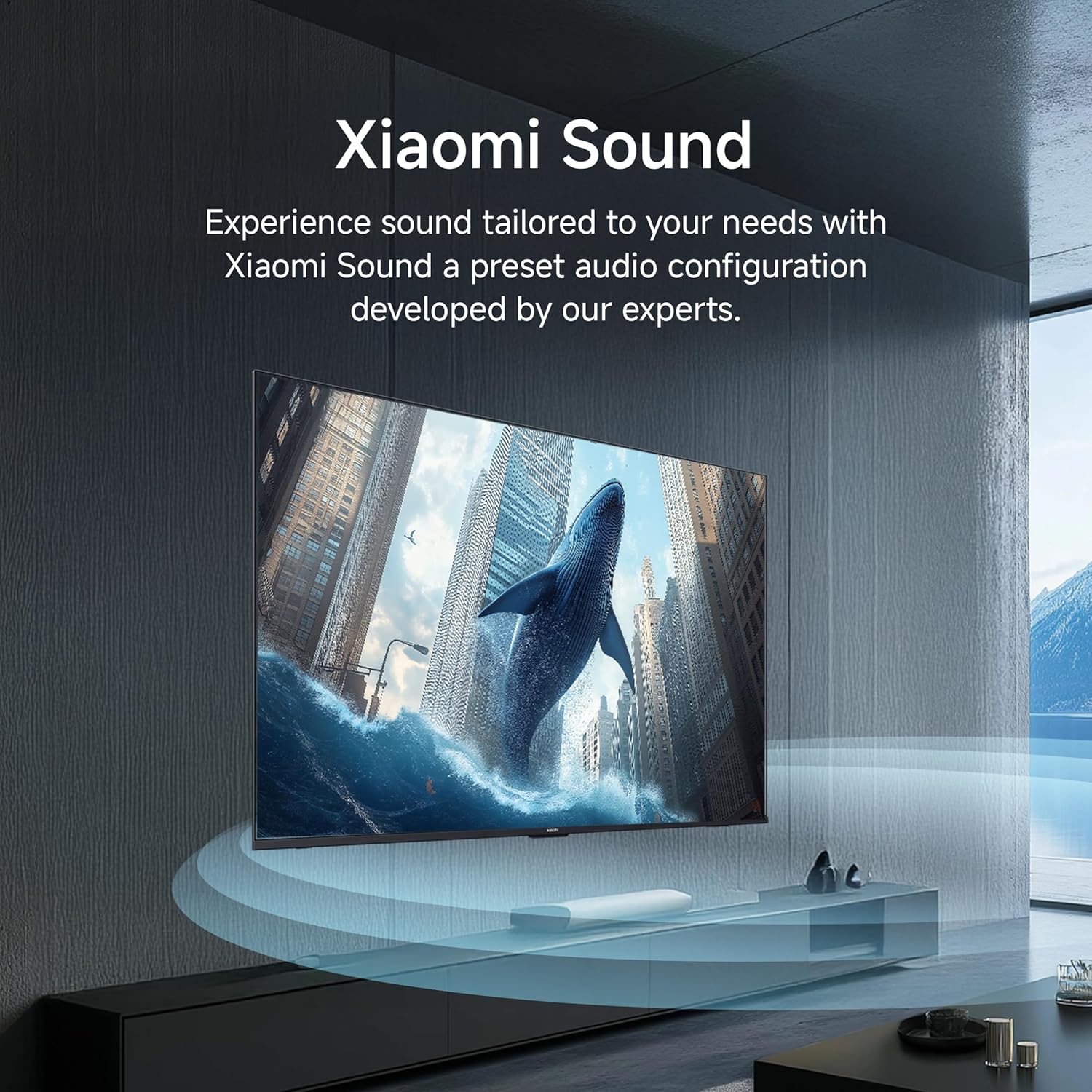
Image 3.7: Vivid Picture Engine 2 for rich and accurate colors.
- Eye Comfort Mode: Reduces blue light emission for comfortable viewing.
3.4. Audio Settings
The TV features 30 watts output with Dolby Audio, DTS-X, and DTS Virtual:X for an immersive sound experience.
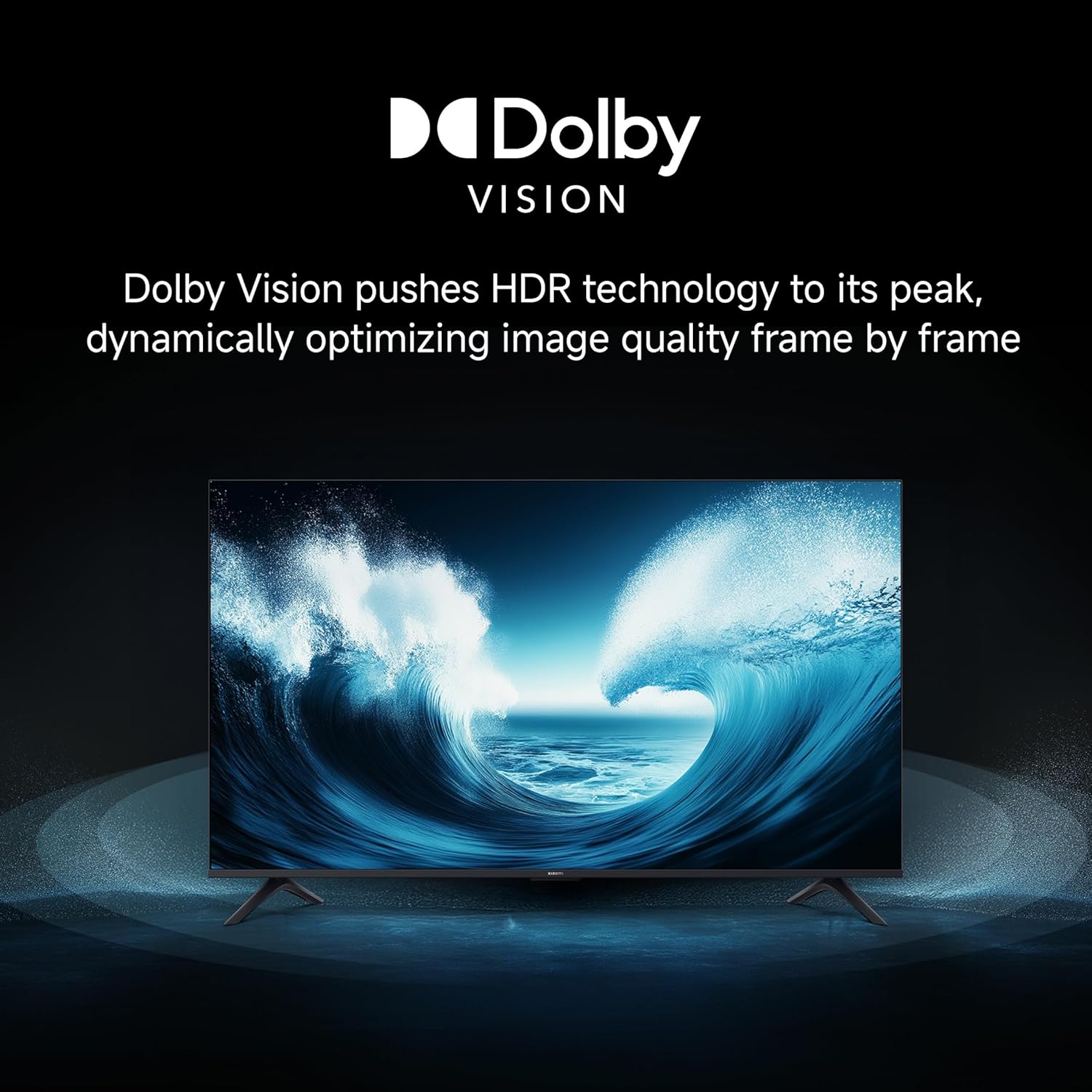
Image 3.8: Cinematic Audio technologies for enhanced sound.
Xiaomi Sound: Experience sound tailored to your needs with a preset audio configuration developed by experts.

Image 3.9: Xiaomi Sound for a customized audio experience.
3.5. Gaming Features
Enhance your gaming with dedicated features:
- 120Hz Game Booster: Boosts the refresh rate to 120Hz (DLG) for ultra-low latency and a more responsive gaming experience.

Image 3.10: 120Hz Game Booster for smoother gaming.
- MEMC Engine: Motion Estimation, Motion Compensation for smoother motion in fast-paced content.
3.6. Streaming and Casting
Stream content from your phone or tablet directly to your TV using Google Cast or Apple AirPlay 2.

Image 3.11: Stream content from your phone to the TV.
The TV also supports various pre-installed apps like Netflix, Prime Video, YouTube, and Zee5. For additional content, consider the OTTplay subscription offer:

Image 3.12: OTTplay subscription offer for extended content access.
For more details on the OTTplay offer, scan the QR code or visit https://qr-codes.io/sbzPOa.
4. Maintenance
4.1. Cleaning Your TV
- Always unplug the TV before cleaning.
- Use a soft, dry, lint-free cloth to gently wipe the screen and cabinet.
- For stubborn marks, lightly dampen the cloth with water or a specialized screen cleaner. Do not spray cleaner directly onto the screen.
- Avoid using abrasive cleaners, waxes, or solvents as they can damage the TV's surface.
4.2. Software Updates
Your Xiaomi TV will periodically receive software updates to improve performance and add new features. Ensure your TV is connected to the internet to receive these updates. You can check for updates manually through the TV's settings menu.
5. Troubleshooting
If you encounter issues with your TV, refer to the following common solutions:
| Problem | Possible Solution |
|---|---|
| No power / TV won't turn on | Check if the power cord is securely connected to both the TV and the power outlet. Ensure the power outlet is working. Try a different outlet. |
| No picture / Black screen | Ensure the correct input source is selected. Check all cable connections (HDMI, AV). Try restarting the TV. |
| No sound | Check the volume level and ensure the TV is not muted. Verify audio cable connections if using external speakers. Check audio output settings in the TV menu. |
| Remote control not working | Replace the batteries. Ensure there are no obstructions between the remote and the TV. Re-pair the Bluetooth remote if necessary (refer to TV settings). |
| Slow or laggy interface | Close unused applications. Clear cache from app settings. Perform a factory reset as a last resort (this will erase all data). Ensure sufficient internal storage is available (8 GB ROM). |
| Wi-Fi connectivity issues | Restart your router and modem. Ensure the TV is within range of your Wi-Fi network. Re-enter the Wi-Fi password. Try a wired Ethernet connection if possible. |
If the problem persists after trying these solutions, please contact customer support.
6. Specifications
Detailed technical specifications for your Xiaomi X Series 4K Ultra HD Smart Google TV (L50MB-AIN).

Image 6.1: Physical dimensions and weight of the TV.
| Feature | Detail |
|---|---|
| Brand | XIAOMI |
| Model | L50MB-AIN |
| Model Year | 2025 |
| Screen Size | 50 Inches (126 cm) |
| Display Technology | LED |
| Resolution | 4K Ultra HD (3840 x 2160 Pixels) |
| Refresh Rate | 60 Hz / 120Hz DLG |
| Viewing Angle | 178 Degrees |
| Display Type | Dolby Vision | HDR 10 | HLG |
| Image Aspect Ratio | 16:9 |
| Image Contrast Ratio | 5000:1 |
| Response Time | 7 Milliseconds |
| Operating System | Android 14 OS | Google TV |
| RAM Memory | 2 GB |
| Internal Storage | 8 GB |
| Audio Output Power | 30 Watts |
| Speaker Configuration | Dolby Audio | DTS - X | DTS Virtual : X |
| Supported Audio Formats | Dolby, DTS, MP3, FLAC, AAC, OGG, ADPCM, OPUS |
| Connectivity | Dual Band Wi-Fi, Bluetooth, Ethernet, 3 HDMI ports (1 eARC), 2 USB ports, Optical, 3.5mm Audio, AV |
| Special Features | Filmmaker Mode, MEMC, Eye Comfort Mode, Google Cast built-in, Google Assistant |
| Product Dimensions (LxWxH) | 111.1 x 28 x 70 cm |
| Item Weight | 7.4 kg |
| On-mode Power Consumption | 75 watts |
| Voltage | 240 Volts |
7. Warranty and Support
7.1. Warranty Information
Your Xiaomi X Series 4K Ultra HD Smart Google TV comes with a 2-year comprehensive warranty. This warranty covers the cost of parts and labor for the product on an on-site service basis. Local transportation costs are covered if the unit needs to be transported to a service center for repairs that cannot be performed at your location.
To avail warranty services, please retain your purchase invoice.
7.2. Customer Support
For further assistance, technical support, or warranty claims, please visit the official Xiaomi India website or contact their customer service. The user manual can also be accessed from the brand's official website for detailed information.
Manufacturer: DIXON TECHNOLOGIES (INDIA) LIMITED


