
1. Introduction
This manual provides essential information for setting up, operating, and maintaining your NIMO 15.6-inch FHD Laptop. Please read this guide thoroughly to ensure optimal performance and longevity of your device. Keep this manual for future reference.
2. What's in the Box
- 1 x NIMO N155 Laptop
- 1 x Type-C 65W PD Fast Charger
- 1 x User Manual
- Windows 11 Home (Pre-installed)
- 2 Years Warranty, 90 Days Return Information
3. Product Overview
The NIMO 15.6-inch FHD Laptop is designed for efficiency and convenience, featuring a robust AMD Ryzen 5 processor, ample memory, and fast storage. Its sleek design and comprehensive connectivity options make it suitable for various tasks.
3.1. Laptop Components

Figure 1: NIMO 15.6-inch FHD Laptop (Rose Gold variant)
This image displays the NIMO 15.6-inch FHD Laptop in Rose Gold, showcasing its full-size keyboard, large touchpad, and the vibrant display. Key features like fingerprint sensor, Type-C PD charger, and backlit keyboard are highlighted on the screen.
3.2. Ports and Connectors

Figure 2: NIMO Laptop Ports Diagram
This diagram illustrates the available ports on the NIMO laptop, including Micro SD card reader, USB 2.0, USB 3.2 Gen1, Audio Jack, Kensington Lock on one side, and Type-C, USB 3.2 Gen1 Full-function, HDMI 1.4, and a Charge LED on the other side.
- USB 3.0 Ports: For high-speed data transfer and connecting peripherals.
- USB 2.0 Port: For connecting standard USB devices.
- Type-C Port: Supports 65W Power Delivery (PD) for fast charging and data transfer.
- HDMI 1.4: For connecting to external displays.
- Micro SD Card Reader: For expanding storage or transferring files from memory cards.
- Audio Jack: For connecting headphones or external speakers.
- Kensington Lock Slot: For physical security of the device.
4. Setup
4.1. Initial Power-On
- Unpack the laptop and all accessories from the box.
- Connect the 65W Type-C PD Fast Charger to the laptop's Type-C port and a power outlet.
- Open the laptop lid. The laptop may power on automatically. If not, press the power button located on the top right of the keyboard.
- Follow the on-screen instructions to complete the Windows 11 Home setup, including language, region, network connection, and user account creation.
4.2. Connecting to a Network
During the initial setup or at any time, you can connect your NIMO laptop to a Wi-Fi network:
- Click the Wi-Fi icon in the system tray (bottom right corner of the screen).
- Select your desired Wi-Fi network from the list.
- Enter the network password if prompted and click 'Connect'.
5. Operating Instructions
5.1. Power Management
- Power On: Press the power button.
- Sleep Mode: Close the lid or press the power button briefly.
- Shut Down: Click the Start button, then Power > Shut down.
- Restart: Click the Start button, then Power > Restart.
5.2. Keyboard and Touchpad
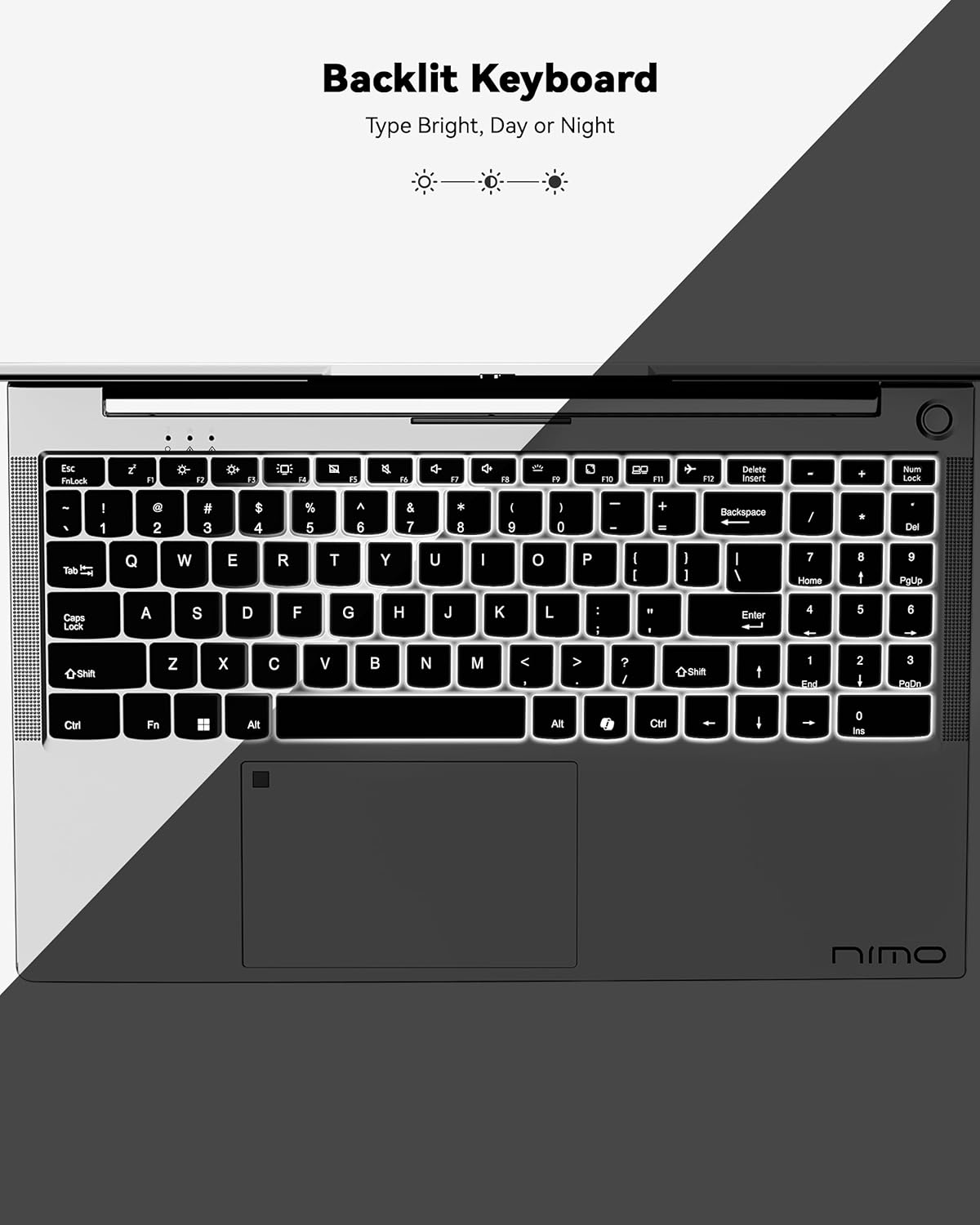
Figure 3: Backlit Keyboard
This image highlights the backlit keyboard feature of the NIMO laptop, demonstrating how the keys illuminate for typing in low-light conditions.
- Backlit Keyboard: Press Fn + F5 (or the key with the keyboard backlight icon) to toggle the backlight on/off or adjust brightness.
- Touchpad: Supports multi-touch gestures for scrolling, zooming, and navigation. Refer to Windows settings for customization.
- Fingerprint Sensor: Located on the touchpad for secure and instant login. Set up your fingerprint in Windows Settings > Accounts > Sign-in options.

Figure 4: Fingerprint Sensor on Touchpad
This image shows a close-up of the NIMO laptop's touchpad, clearly indicating the integrated fingerprint sensor for quick and secure access.
5.3. Webcam
The laptop features a 2MP webcam for video calls and conferences. Ensure proper lighting for best image quality.
5.4. Audio
The integrated speakers provide clear audio. You can also connect headphones or external speakers via the audio jack.
6. Key Features
- Vivid 15.6" Full HD Display: Enjoy stunning visuals with the 15.6" Full HD (1920x1080) IPS anti-glare display, featuring an 85% screen-to-body ratio and micro-edge design.
- Powerful Performance: Equipped with an AMD Ryzen 5 processor, 16GB DDR4 RAM, and a 1TB PCIe SSD for fast boot-ups, seamless multitasking, and efficient handling of applications.
- Upgradable Components: The RAM and SSD slots are expandable, allowing for future memory and storage upgrades.
- 65W USB-C PD Fast Charger: The included charger provides rapid power delivery, offering 2 hours of use from just 15 minutes of charging. It is also versatile for charging other compatible devices.
- Secure & Instant Login: Integrated fingerprint reader on the touchpad ensures quick and secure access to your device.
- Ergonomic Backlit Keyboard: Work comfortably in any environment with the backlit keyboard, featuring adjustable brightness.
- Seamless Connectivity: Features Wi-Fi 6 and Bluetooth 5.2 for stable, high-speed wireless connections, along with multiple USB 3.0 ports and HDMI for versatile peripheral connections.
Video 1: NIMO Laptop - Perfect for Work and Study, Anytime, Anywhere
This video demonstrates the NIMO laptop's versatility for various tasks, highlighting its portability and performance for work, study, and entertainment in different settings.
Video 2: NIMO 15.6 FHD Laptop for Students Home Work
This video showcases the NIMO 15.6 FHD laptop as an ideal device for students, home users, and professionals, emphasizing its suitability for educational and work-related tasks.
7. Maintenance
- Cleaning: Use a soft, lint-free cloth to clean the screen and exterior. Avoid harsh chemicals.
- Battery Care: To prolong battery life, avoid fully discharging the battery frequently. Store the laptop in a cool, dry place.
- Software Updates: Regularly update your Windows operating system and drivers to ensure optimal performance and security.
- Ventilation: Ensure the laptop's ventilation openings are not blocked to prevent overheating. Use on a hard, flat surface.
8. Troubleshooting
- Laptop not powering on: Ensure the charger is securely connected and the battery has sufficient charge. Try a different power outlet.
- Screen is blank: Connect to an external monitor to check if the display is the issue. Restart the laptop.
- Wi-Fi connectivity issues: Restart your router and the laptop. Check Wi-Fi settings and ensure airplane mode is off.
- Slow performance: Close unnecessary applications, check for malware, and ensure sufficient free storage space. Consider upgrading RAM or SSD if performance remains an issue.
- Keyboard or touchpad not responding: Restart the laptop. Check for driver updates in Device Manager.
For persistent issues, please refer to the support section or contact NIMO customer service.
9. Specifications
| Feature | Specification |
|---|---|
| Standing Screen Display Size | 15.6 Inches |
| Screen Resolution | 1920 x 1080 pixels (Full HD) |
| Processor | AMD Ryzen 5 (3.7 GHz) |
| RAM | 16 GB DDR4 (Upgradable) |
| Memory Speed | 4800 MHz |
| Hard Drive | 1024 GB SSD (Upgradable) |
| Graphics Coprocessor | AMD Integrated graphics |
| Operating System | Windows 11 Home |
| Wireless Type | 802.11a/b/g/n/ac (Wi-Fi 6) |
| Bluetooth | Bluetooth 5.2 |
| Number of USB 2.0 Ports | 1 |
| Number of USB 3.0 Ports | 3 |
| Average Battery Life | 9 Hours |
| Item Weight | 5 pounds |
| Product Dimensions | 14.07 x 8.98 x 0.76 inches |
| Rear Webcam Resolution | 2 MP |
| Special Features | Backlit Keyboard, Fingerprint Reader, HD Audio, Numeric Keypad |
10. Warranty and Support
Your NIMO laptop comes with a 2-year manufacturer's warranty. Additionally, NIMO offers a 90-day hassle-free return and exchange policy. Our dedicated support team is available to assist with any issues or replacements.
10.1. Contact Support
- For product-related questions or technical assistance, please contact NIMO customer service via their official website, email, or telephone.
- Contact information can typically be found on the NIMO official website or product page.
11. Safety Information
- Use only original chargers and regularly inspect cables for damage.
- Handle the laptop by its base and consider using a protective case. Avoid placing heavy objects on it.
- Place the laptop on a hard, flat surface to ensure proper ventilation and prevent overheating. Keep it away from extreme temperatures and moisture.
- Do not overcharge the battery. Discontinue use if the battery swells or shows signs of damage.
- Set strong passwords, keep software updated, use antivirus protection, and regularly back up your data.
- In case of liquid spills, immediately unplug the laptop and allow it to dry completely before attempting to power it on.
- For any technical issues, consult qualified professionals. Do not attempt to disassemble or repair the device yourself.
12. Legal Disclaimer
This laptop is provided "as is," with no express or implied warranties except for the manufacturer's limited warranty (if applicable). Implied warranties of merchantability or fitness for a specific purpose are disclaimed. NIMO is not liable for damages resulting from misuse (e.g., non-approved chargers, unauthorized repairs), physical damage, or failure to follow safety guidelines, including data loss or business interruption. Users are responsible for regularly backing up their data. This disclaimer does not exclude liability for manufacturing defects or violations of mandatory local laws. By using the NIMO laptop, you accept these terms, which are governed by applicable jurisdiction laws.
