
1. Introduction
Thank you for choosing the AKATUO Smart Projector. This compact and versatile projector is designed to provide an immersive viewing experience with its built-in Android OS, high-resolution display, and extensive connectivity options. This manual will guide you through the setup, operation, and maintenance of your new projector to ensure optimal performance and longevity.

Figure 1.1: The AKATUO Smart Projector, highlighting its key features including 1080P support, Android OS, WiFi 6, and Bluetooth 5.2 connectivity.

Figure 1.2: The compact design of the AKATUO Smart Projector, making it highly portable and easy to carry for various uses.
2. Package Contents
Please check the package contents upon unboxing. If any items are missing or damaged, please contact customer support.
- AKATUO Smart Projector
- Power Cable
- Remote Control (Batteries not included)
- User Manual
3. Product Overview
Familiarize yourself with the various parts and ports of your projector.

Figure 3.1: Overview of the projector's connectivity ports, including HDMI, USB, and audio outputs.
Front Panel
- Projection Lens: Emits the image.
- Focus Ring: Adjusts image clarity.
Rear Panel
- Power Port: Connects the power cable.
- HDMI Port: Connects to HDMI-enabled devices (e.g., TV stick, game console, PC).
- USB Port: Connects to USB drives for media playback.
- Audio Out (3.5mm): Connects to external speakers or headphones.
Top Panel
- Control Buttons: Power, navigation, and menu controls.
4. Setup
4.1 Initial Setup
- Placement: Place the projector on a stable, flat surface. Ensure there are no obstructions to the ventilation vents.
- Power Connection: Connect the power cable to the projector's power port and then to a power outlet.
- Power On: Press the power button on the projector or the remote control to turn on the device.
4.2 Focus and Keystone Correction
Adjust the image for clarity and proper rectangular shape.

Figure 4.1: Illustration of projection distance, screen size, and adjustment options like vertical correction and zoom.
- Focus Adjustment: Rotate the focus ring on the projector lens until the projected image appears sharp and clear.
- Keystone Correction: If the image appears trapezoidal (wider at the top or bottom), use the digital keystone correction feature in the projector's settings menu to adjust it to a perfect rectangle. The projector supports ±15° vertical correction.
- Zoom Function: The projector supports 50%-100% zoom, allowing you to adjust the screen size without moving the projector. Access this feature in the display settings.
5. Operating
5.1 Power On/Off
- To Power On: Press the power button on the projector or the remote control.
- To Power Off: Press the power button again. A confirmation prompt may appear; select 'Power Off'.
5.2 Navigating the Android OS
The AKATUO Smart Projector comes with a built-in Android operating system, providing direct access to various applications.

Figure 5.1: The projector's display showing the integrated Android TV interface with various streaming applications.
- Home Screen: Upon startup, you will see the Android home screen with pre-installed apps like YouTube and Prime Video.
- Navigation: Use the arrow keys on the remote control to navigate through menus and select items. The 'OK' button confirms selections.
- App Installation: You can download and install additional apps from the integrated app store (if available) or by sideloading APKs.
- Settings: Access system settings to configure network, display, sound, and other preferences.
5.3 Connecting Devices
The projector offers multiple ways to connect external devices.
5.3.1 HDMI Connection
- Connect an HDMI cable from your device (e.g., TV stick, laptop, game console) to the projector's HDMI port.
- The projector should automatically detect the HDMI input. If not, select the HDMI source from the input menu.
5.3.2 USB Connection
- Insert a USB drive into the projector's USB port.
- The projector's media player will typically open, allowing you to browse and play media files (videos, photos, music).
5.3.3 Wi-Fi Connection
Connect to your home network for online streaming and updates.
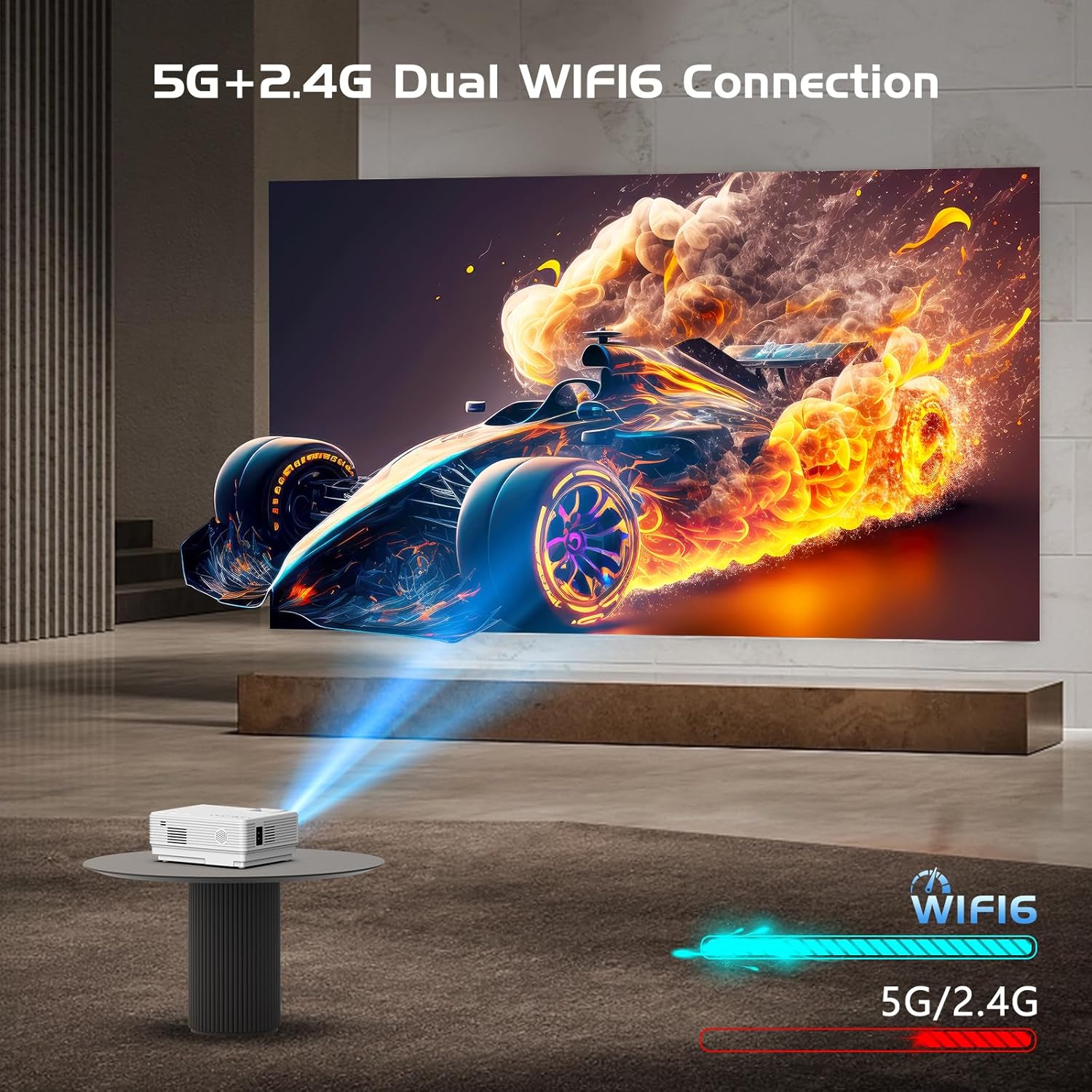
Figure 5.2: The projector's capability for dual-band WiFi 6 connection, ensuring stable and fast wireless performance.
- Go to Settings > Network > Wi-Fi.
- Select your Wi-Fi network from the list.
- Enter the password and connect. The projector supports WiFi 6 for enhanced performance.
5.3.4 Bluetooth Connection
Connect external audio devices wirelessly.

Figure 5.3: The projector's upgraded Bluetooth 5.2 feature, enabling low-power, lossless sound quality for connected audio devices.
- Go to Settings > Bluetooth.
- Turn on Bluetooth and search for available devices.
- Select your Bluetooth speaker or headphones from the list to pair. The projector features Bluetooth 5.2 for stable and high-quality audio.
5.3.5 Screen Mirroring (iOS/Android/Windows)
The projector supports mirroring content from your smartphone or PC.
- Ensure both your device and the projector are connected to the same Wi-Fi network.
- On the projector, select the 'Screen Mirroring' or 'Miracast' app.
- Follow the on-screen instructions to connect your iOS (AirPlay), Android (Miracast), or Windows device.
6. Maintenance
Regular maintenance ensures the longevity and optimal performance of your projector.
6.1 Cleaning the Lens
- Use a professional lens cleaning cloth or air blower to gently remove dust and smudges.
- Do not use abrasive cleaners or harsh chemicals, as they can damage the lens coating.
6.2 Cleaning the Projector Body
- Wipe the exterior with a soft, dry cloth. For stubborn stains, dampen the cloth slightly with water.
- Ensure no liquid enters the ventilation openings or ports.
6.3 Storage
- When not in use for extended periods, store the projector in a cool, dry place, away from direct sunlight and excessive dust.
- Use the original packaging or a protective case to prevent damage.
7. Troubleshooting
If you encounter issues with your projector, refer to the following common problems and solutions.
| Problem | Possible Cause | Solution |
|---|---|---|
| No image projected | Power cable loose; Projector off; Incorrect input source; Lens cap on. | Check power connection; Turn on projector; Select correct input source (HDMI, USB, etc.); Remove lens cap. |
| Image is blurry | Focus not adjusted; Projector too close/far. | Adjust the focus ring; Adjust projection distance or use zoom function. |
| Image is trapezoidal | Projector not perpendicular to screen. | Use digital keystone correction in settings. |
| No sound | Volume too low; Muted; Incorrect audio output; Bluetooth device not connected. | Increase volume; Unmute; Check audio output settings; Reconnect Bluetooth device. |
| Wi-Fi connection issues | Incorrect password; Router too far; Network interference. | Verify password; Move projector closer to router; Restart router and projector. |
8. Specifications
Technical specifications for the AKATUO Smart Projector.
| Feature | Specification |
|---|---|
| Brand | AKATUO |
| Recommended Use | Home cinema |
| Special Feature | Portable |
| Connectivity Technology | Wi-Fi (WiFi 6), Bluetooth (BT 5.2) |
| Screen Resolution | 1280 x 720 (Supports 1080P and 4K playback) |
| Operating System | Android OS |
| Included Components | Power cable |
| Maximum Projection Distance | 5 Meters |
| Minimum Projection Distance | 1.5 Meters |
| Zoom Function | 50% - 100% |
| Keystone Correction | ±15° Vertical |
9. Warranty and Support
AKATUO products are designed and manufactured to the highest quality standards. This product is covered by a limited warranty from the date of purchase. Please refer to the warranty card included in your package for specific terms and conditions.
For technical support, troubleshooting assistance, or warranty claims, please contact AKATUO customer service through the contact information provided on our official website or your purchase platform. Please have your product model and purchase details ready when contacting support.
