
Product Overview
The Acer Gadget Gimbal Stabilizer Q09 is a versatile 1-axis gimbal designed for smartphones, offering enhanced stability and creative control for video recording, live streaming, and photography. Its compact and portable design makes it ideal for on-the-go use.
- Portable & Compact: Weighing just 8.29 oz (235g) and folding down to 5.9 inches, it's designed for easy transport.
- High-Performance Stabilization: Equipped with advanced motion gyroscopes and precision motor control to eliminate hand tremors for smooth footage.
- Wireless Remote Control: Features a detachable Bluetooth 5.2 remote with a 32.8 ft (10m) range for effortless photo and video capture.
- 360° Rotation: The phone mount rotates 360° for flexible shooting angles, allowing seamless switching between portrait and landscape modes.
- Detachable Fill Light: Includes a removable and rotatable fill light with 3 color modes and 9 brightness levels for optimal lighting.
- No App Needed: Simple operation without the need for additional apps.
- Wide Compatibility: Works with most iOS and Android smartphones.
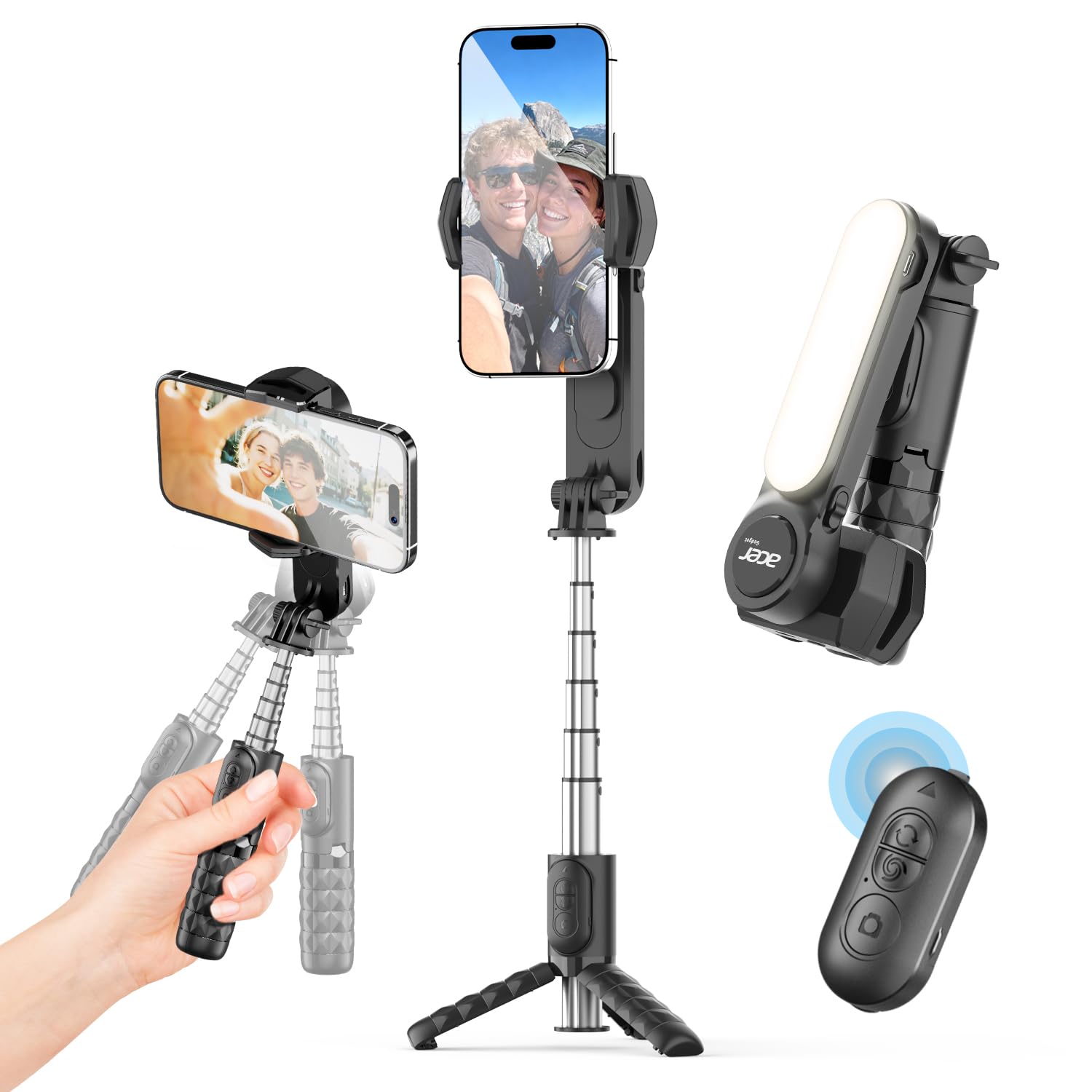
Acer Gadget Gimbal Stabilizer Q09 in its compact, folded position.
Setup Guide
Package Contents
Please verify that all the following items are included in your package:
- Acer Gadget Gimbal Stabilizer Q09
- Detachable Fill Light
- Wireless Remote Control
- USB-C Charging Cable
- User Manual

Acer Gadget Gimbal Stabilizer Q09 package contents including gimbal, light, charging cable, and user manual.
Assembly and Initial Use
Unfolding the Gimbal

Hands unfolding the Acer Gadget Gimbal Stabilizer Q09 from its compact, folded state.
Gently unfold the gimbal from its compact position. Ensure all joints click securely into place.
Attaching Your Smartphone

A smartphone securely mounted in the clamp of the Acer Gadget Gimbal Stabilizer Q09.
Extend the phone clamp and carefully insert your smartphone. Ensure it is centered and securely held to maintain balance.
Charging the Device

Diagram illustrating the charging ports for the Acer Gadget Gimbal Stabilizer Q09 and its detachable fill light.
Connect the provided USB-C charging cable to the charging port on the gimbal handle and the fill light. A full charge takes approximately 1.5 hours and provides 2-3 hours of working time.
Operating Instructions
Powering On/Off
Press and hold the power button on the gimbal handle for 3 seconds to power on or off. The indicator light will illuminate.
Switching Between Modes (Selfie Stick / Gimbal Stabilizer)

Image showing the toggle key on the Acer Gadget Gimbal Stabilizer Q09 for switching between selfie stick and gimbal stabilizer modes.
Use the dedicated toggle key to switch between Selfie Stick Mode (stabilization off) and Gimbal Stabilizer Mode (1-axis stabilization active).
Using the Detachable Fill Light

A user demonstrating the three color modes (Warm, White, Natural) and brightness levels of the detachable fill light on the Acer Gadget Gimbal Stabilizer Q09.
The fill light can be detached and reattached to the front or back of the phone clamp. Press the light button to cycle through 3 color modes (Warm, White, Natural) and 9 brightness levels. Press and hold to turn off.
Wireless Remote Control

The detachable wireless remote control for the Acer Gadget Gimbal Stabilizer Q09, shown with a family taking a group photo.
The remote control is located in the gimbal handle. Slide it out to use. Pair via Bluetooth (Bluetooth 5.2) with your smartphone. Use it to capture photos or start/stop video recording from up to 32.8 ft (10m) away.
360° Rotation and Orientation Adjustment

Diagram illustrating the 360-degree rotation capability of the Acer Gadget Gimbal Stabilizer Q09 for flexible shooting angles.
The phone mount supports 360° rotation. Manually adjust the phone's orientation between portrait and landscape modes. The gimbal's stabilization system will automatically adjust to maintain a steady shot.
This video demonstrates the 360-degree rotation feature of the Acer Gadget Gimbal Stabilizer Q09, allowing users to easily switch between horizontal and vertical shooting modes.
Maintenance
- Keep the device clean and free from dust and debris. Use a soft, dry cloth for cleaning.
- Store the gimbal in a cool, dry place when not in use, away from direct sunlight and extreme temperatures.
- Avoid exposing the device to water or other liquids.
- Charge the battery regularly to prolong its lifespan, even if the device is not in frequent use.
Troubleshooting
Gimbal not stabilizing:
- Ensure the gimbal is powered on and in Gimbal Stabilizer Mode.
- Check if the smartphone is securely mounted and balanced in the clamp.
- Verify battery level and recharge if low.
Remote control not connecting:
- Ensure the remote control is charged and powered on.
- Check your smartphone's Bluetooth settings to ensure it's enabled and paired with the device.
- Try unpairing and re-pairing the remote control.
Fill light not working:
- Ensure the fill light is charged.
- Press the light button to cycle through modes; press and hold to turn on/off.
Product Specifications
| Feature | Detail |
|---|---|
| Model Number | Q09 |
| Brand | Acer |
| Item Weight | 12.6 ounces |
| Folded Size | 5.9 inches (approx. 15cm) |
| Battery Capacity | 500mAh (Gimbal) |
| Working Time | 2-3 hours |
| Charging Time | 1.5 hours |
| Remote Control Range | 32.8 ft (10m) |
| Stabilization | 1-Axis Gimbal |
| Fill Light | 3 Color Modes, 9 Brightness Levels, Detachable |
| Compatibility | Most iOS/Android Smartphones |
| UPC | 195133314428 |
Warranty and Support
For detailed warranty information, product registration, or technical support, please visit the official Acer website or contact your authorized retailer. Please retain your proof of purchase for any warranty claims.