
1. Introduction
This manual provides comprehensive instructions for the installation, operation, and maintenance of your Generic Android Phone Farm Server Box System, model S21fe. Please read this manual thoroughly before using the device to ensure proper functionality and safety.
2. Package Contents
Verify that all items listed below are present in your package. If any items are missing or damaged, please contact customer support.
- 1 x Android Phone Farm Server Box System (S21fe model)
- 20 x Phone Motherboards (pre-installed or for installation)
- 1 x Power Cord
- 1 x USB Cable
- 1 x Ethernet Cable
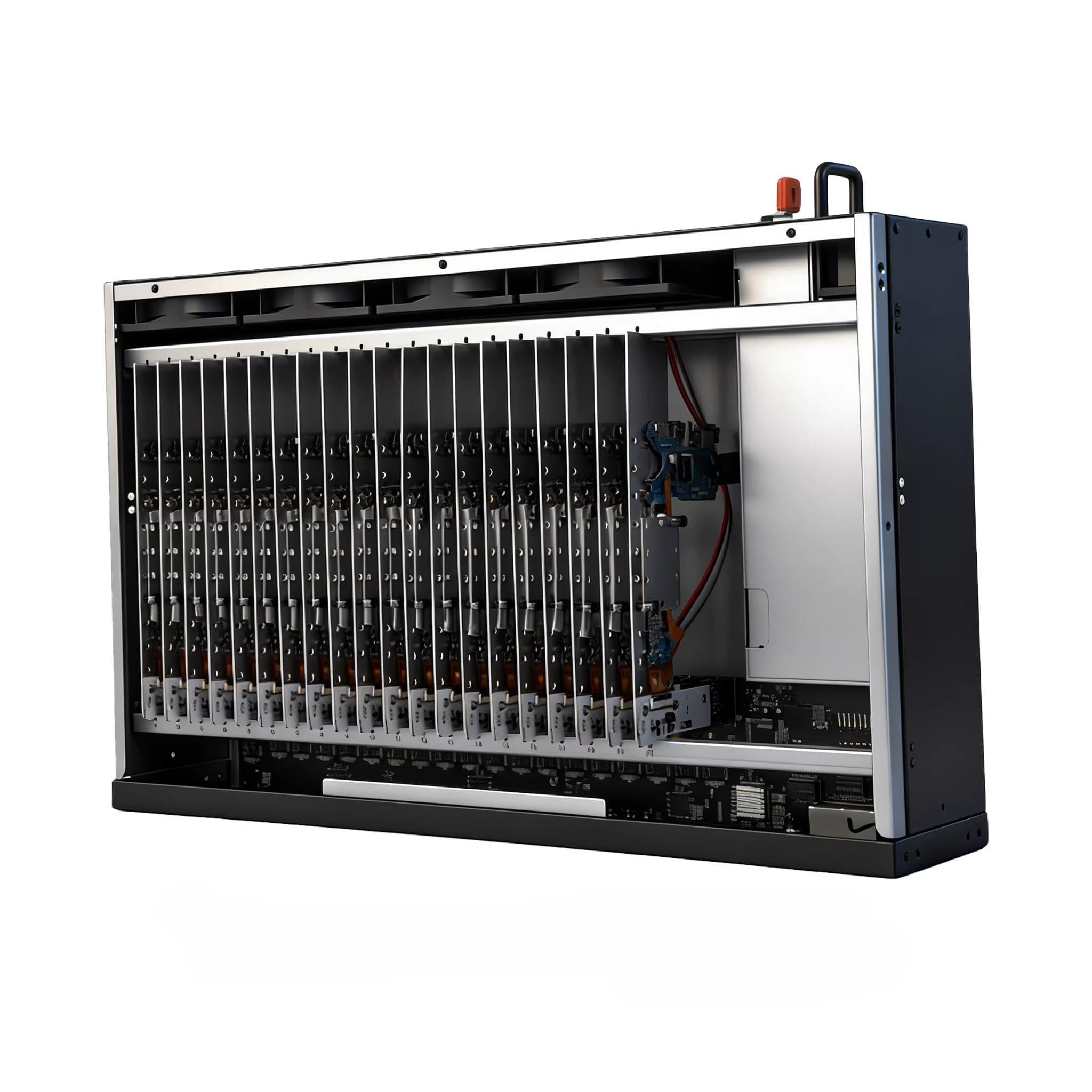
Figure 2.1: The Generic Android Phone Farm Server Box System S21fe, showing its compact design and internal structure.
3. Product Features
- 20-Phone Capacity: Supports up to 20 individual phone motherboards for multi-device operations.
- Energy Efficiency: Designed for optimized power consumption while maintaining performance.
- Battery-Free Operation: Devices operate without batteries to prevent overheating and extend hardware lifespan.
- Integrated Cooling System: Built-in fans ensure optimal temperature management.
- Centralized Control: Software integration for monitoring and control of multiple devices.
- Dual Connectivity: Supports both USB mode (OTG) and Ethernet network cable connections.

Figure 3.1: Internal view of the Android Phone Farm Server Box, illustrating the 20 slots for phone motherboards.
4. Setup Guide
4.1 Unpacking and Placement
- Carefully remove the server box from its packaging.
- Place the unit on a stable, flat surface with adequate ventilation. Ensure there is sufficient space around the unit for airflow.
4.2 Connecting Power
- Connect the provided power cord to the power input port on the rear of the server box.
- Plug the other end of the power cord into a grounded electrical outlet.
4.3 Connecting to a Computer
The server box supports two connection modes: USB (OTG) and Ethernet.
- USB (OTG) Mode: Connect the provided USB cable from the server box to an available USB port on your computer.
- Ethernet Mode: Connect the provided Ethernet cable from the server box to your router or network switch.

Figure 4.1: Rear view of the server box, indicating ports for power, USB, and Ethernet connections.
4.4 Initial Power On
- Press the power button located on the front panel of the server box.
- Observe the indicator lights for proper power-up sequence.
5. Operating Instructions
5.1 Software Installation
Before operating the server box, install the necessary control software on your computer. Refer to the software's documentation for detailed installation steps.
5.2 Device Recognition
Once connected and powered on, the control software should detect the individual phone motherboards within the server box. A display connected to your computer may show the status of each device.
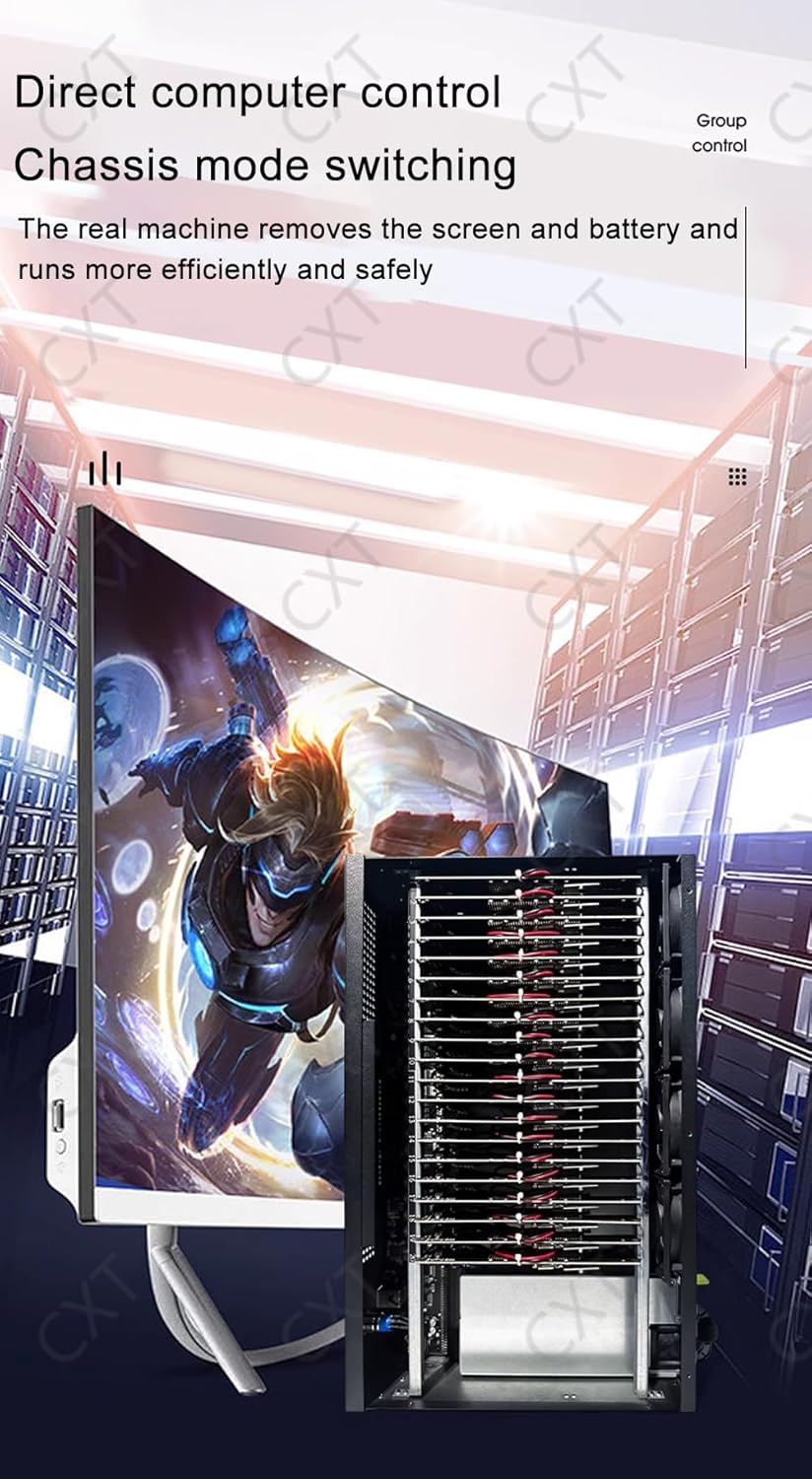
Figure 5.1: The server box connected to a monitor, demonstrating direct computer control and display of device status.
5.3 Control Functions
The control software provides various functions for managing the phone motherboards:
- Power Control: Turn individual or all devices on/off.
- Mode Switching: Switch between single channel mode and group control.
- Fan Speed Adjustment: Control the speed of the internal cooling fans.
- Monitoring: View the status and performance of each connected device.

Figure 5.2: Illustrative control icons for power, mode conversion, and fan speed adjustment.
6. Maintenance
6.1 Cleaning
- Regularly clean the exterior of the server box with a soft, dry cloth.
- Use compressed air to clear dust from ventilation openings and fan blades to ensure optimal cooling performance.
- Do not use liquid cleaners or solvents directly on the device.
6.2 Environmental Conditions
- Operate the device in a cool, dry environment.
- Avoid direct sunlight and extreme temperatures.
- Ensure proper air circulation around the unit.
7. Troubleshooting
| Problem | Possible Cause | Solution |
|---|---|---|
| Device does not power on | Power cord not connected; Power outlet faulty; Power button not pressed | Check power cord connection; Try a different outlet; Press power button firmly |
| Individual phone motherboard not recognized | Loose connection; Software issue; Motherboard fault | Ensure motherboard is seated correctly; Restart control software; Contact support if issue persists |
| Overheating | Blocked ventilation; Fan malfunction; High ambient temperature | Clear obstructions from vents; Check fan operation; Ensure adequate room ventilation |
| No network connection (Ethernet) | Ethernet cable loose/faulty; Router/switch issue; Incorrect network settings | Check Ethernet cable; Verify router/switch status; Consult network administrator |
8. Specifications
| Feature | Detail |
|---|---|
| Model Number | S21fe |
| Capacity | 20 Phone Motherboards |
| Connectivity | USB (OTG), Ethernet |
| Cooling System | Integrated Fans |
| Power Source | AC Power (via included power cord) |
| Manufacturer | zhenxiyanxuanyiliao |
| Date First Available | April 30, 2025 |
9. Warranty and Support
9.1 Warranty Information
This product comes with a standard manufacturer's warranty. Please refer to the warranty card included in your package for specific terms and conditions, including warranty duration and coverage details. Keep your proof of purchase for warranty claims.
9.2 Customer Support
For technical assistance, troubleshooting not covered in this manual, or warranty inquiries, please contact the manufacturer or your retailer. Ensure you have your product model number (S21fe) and purchase details ready when contacting support.


