
1. Introduction
Thank you for choosing the Walfront Mini UPS. This device is designed to provide a stable and uninterrupted power supply to your electronic devices during power outages or fluctuations. With its 6000mAh rechargeable lithium battery and multiple output options, it ensures continuous operation for essential equipment like routers, modems, and security cameras.
Please read this manual thoroughly before using the product to ensure proper operation and to maximize its lifespan.
2. Product Overview and Components
The Walfront Mini UPS is a compact and versatile power backup solution. Familiarize yourself with its components:
- Mini UPS Unit: The main device housing the battery and power output ports.
- 1-to-2 DC 5.5x2.1mm Cable: Used for connecting devices requiring multiple DC inputs or for specific configurations.
- Power Cord: For connecting the UPS to a wall outlet for charging and continuous power supply.
- User Manual: This document.
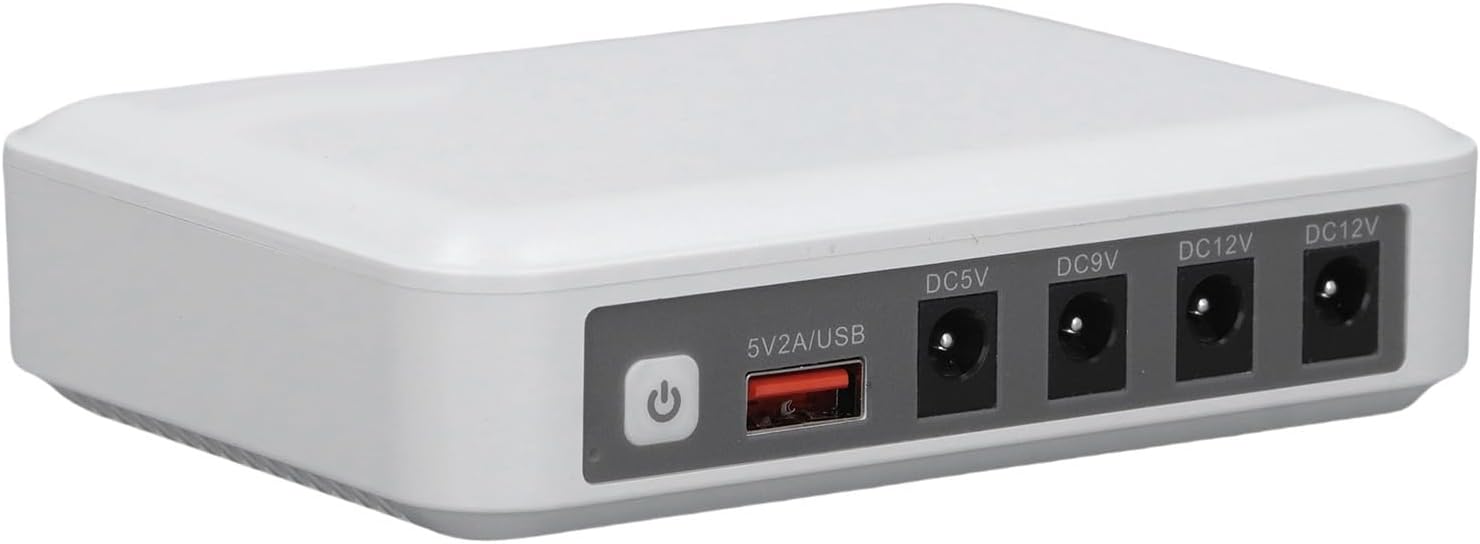
Figure 2.1: Front view of the Walfront Mini UPS, showing the power button, USB output, and multiple DC output ports (DC5V, DC9V, DC12V).
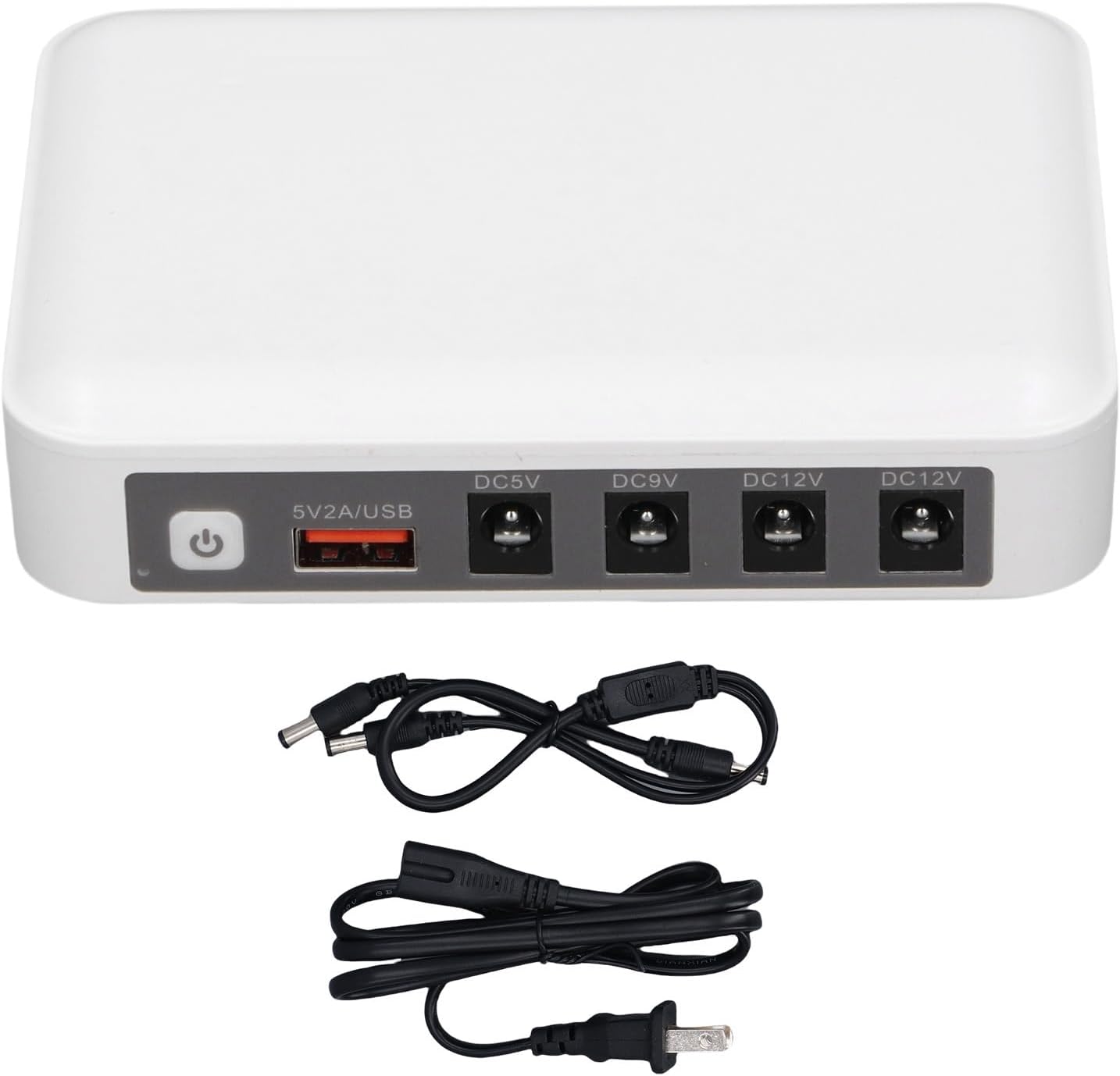
Figure 2.2: The Walfront Mini UPS unit displayed with its accompanying accessories: a 1-to-2 DC 5.5x2.1mm cable and a standard power cord.

Figure 2.3: A detailed view of the universal DC 5.5x2.1mm standard power connector, which is compatible with the UPS output ports.
3. Specifications
| Feature | Specification |
|---|---|
| Model | WALFRONT4dv2xm1k8t-11 |
| Material | Iron |
| Battery Capacity | 1 x 6000mAh Rechargeable Lithium Battery |
| DC Output (DC OUT) | 5V 2A Maximum, 9V 2A Maximum, 12V 2A Maximum (two 12V ports) |
| USB Output (USB OUT) | 5V 2A Maximum |
| Output Port Type | DC 5.5x2.1mm |
| Dimensions | 5.59 x 5.55 x 1.65 inches |
| Item Weight | 13.7 ounces |
| Color | White |
4. Setup Instructions
Follow these steps for initial setup:
- Charge the UPS: Connect the provided power cord to the UPS and then to a standard wall outlet. The UPS will begin charging its internal battery. Ensure it is fully charged before first use for optimal performance.
- Identify Device Voltage: Determine the voltage (5V, 9V, or 12V) and current requirements of the device you intend to power. This information is usually found on the device's original power adapter or in its manual.
- Select Correct Output Port: Connect your device to the corresponding DC output port on the UPS (DC5V, DC9V, or DC12V) using an appropriate DC 5.5x2.1mm cable. If your device requires 5V via USB, use the 5V/2A USB port.
- Power On: Press the power button on the UPS to turn it on. The LED indicators will show the battery level.
Important Note: Always ensure the voltage output selected on the UPS matches the input voltage required by your device to prevent damage.

Figure 4.1: Labeled diagram of the Walfront Mini UPS ports, indicating the power button, USB output, and various DC output voltages.
5. Operating Instructions
Once set up, the Walfront Mini UPS operates automatically to provide backup power.
- Normal Operation: When connected to a wall outlet, the UPS will pass power through to your connected devices and simultaneously charge its internal battery.
- Power Outage: In the event of a power failure, the UPS will automatically switch to battery power, providing uninterrupted operation for your connected devices. This transition is seamless and typically unnoticeable to the connected devices.
- Battery Level Indicator: The LED indicators on the UPS provide a visual representation of the remaining battery charge. Monitor these indicators to understand the available backup time.
- Powering Multiple Devices: You can connect multiple devices to the UPS, provided their combined power requirements do not exceed the UPS's maximum output capacity for each port. Use the 1-to-2 DC cable if needed for specific setups.
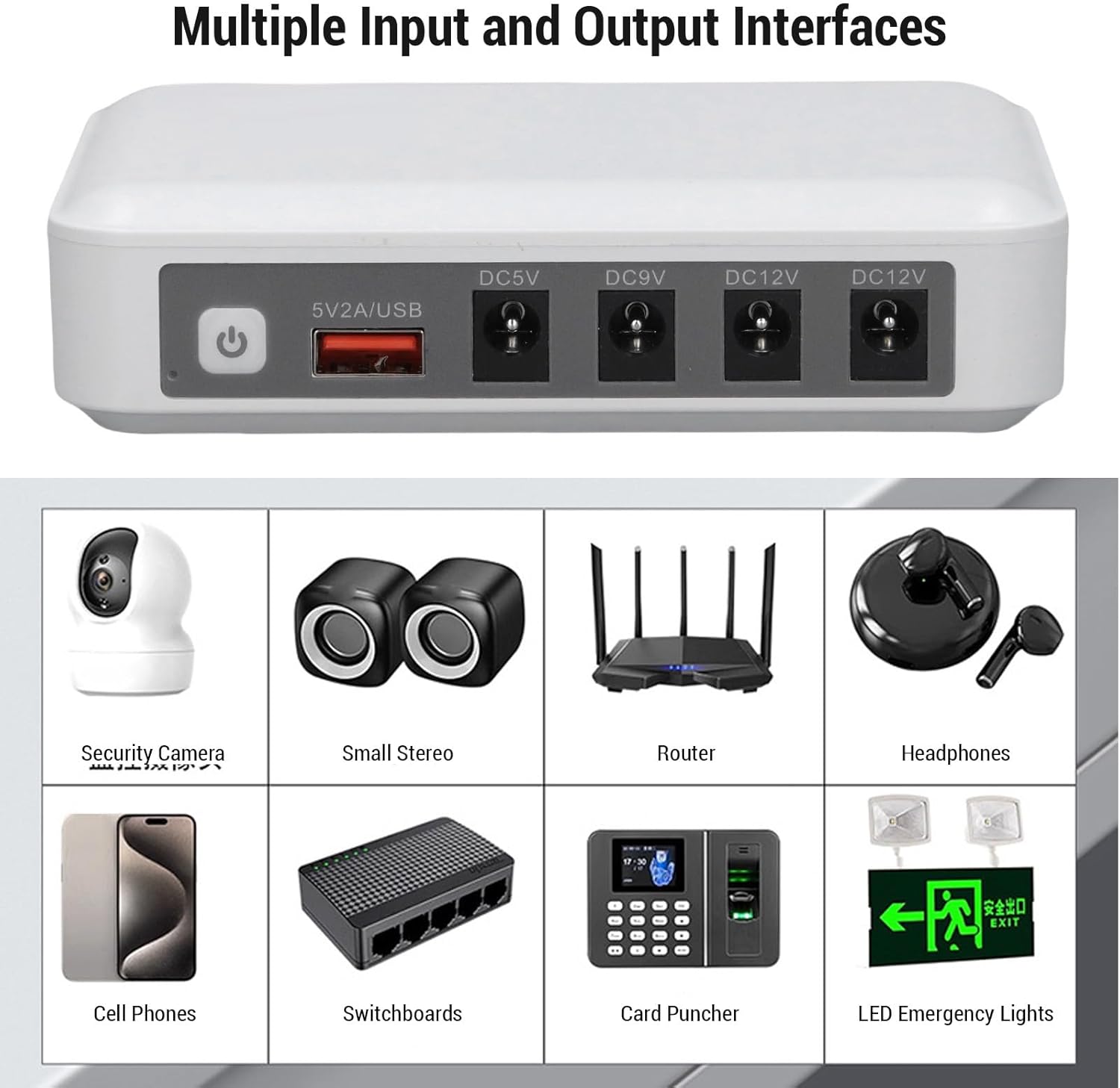
Figure 5.1: The Walfront Mini UPS demonstrating its capability to power multiple devices such as a security camera, router, and cell phone simultaneously.

Figure 5.2: Illustrative scenarios where the Walfront Mini UPS provides essential power backup, including home power outages, continuous internet access in dormitories, security camera operation, and maintaining emergency lighting.
6. Maintenance
To ensure the longevity and optimal performance of your Walfront Mini UPS, follow these maintenance guidelines:
- Regular Charging: Even if not in constant use, fully charge the UPS at least once every three months to maintain battery health.
- Storage: Store the UPS in a cool, dry place away from direct sunlight and extreme temperatures.
- Cleaning: Use a soft, dry cloth to clean the exterior of the UPS. Do not use liquid cleaners or solvents.
- Avoid Overloading: Do not connect devices that exceed the specified maximum output current for each port or the overall capacity of the UPS.
7. Troubleshooting
If you encounter issues with your Walfront Mini UPS, refer to the following common problems and solutions:
- UPS Not Turning On:
- Ensure the UPS is charged. Connect it to a power outlet and allow it to charge for several hours.
- Verify the power button is pressed firmly.
- Connected Device Not Receiving Power:
- Check if the UPS is turned on.
- Confirm that the connected device's power cable is securely plugged into the correct output port on the UPS.
- Verify that the output voltage selected on the UPS matches the device's required input voltage.
- Ensure the device's power consumption does not exceed the UPS's output capacity for that port.
- Short Backup Time:
- The UPS battery may not be fully charged. Allow it to charge completely.
- The combined power draw of connected devices might be high. Disconnect non-essential devices to extend backup time.
- Battery degradation over time is normal. Ensure regular charging as per maintenance guidelines.
If the problem persists after trying these solutions, please contact customer support.
8. Warranty and Support
Walfront products are designed for reliability and performance. For warranty information or technical support, please refer to the contact details provided with your purchase documentation or visit the official Walfront website.
For further assistance, you may contact Walfront customer service through their official channels. Please have your model number (WALFRONT4dv2xm1k8t-11) and purchase details ready.