
Introduction
This manual provides comprehensive instructions for the setup, operation, maintenance, and troubleshooting of your KOORUI GN10 27-inch QHD 240Hz Mini-LED Gaming Monitor. Please read this manual thoroughly before using the product to ensure proper functionality and to prevent damage.
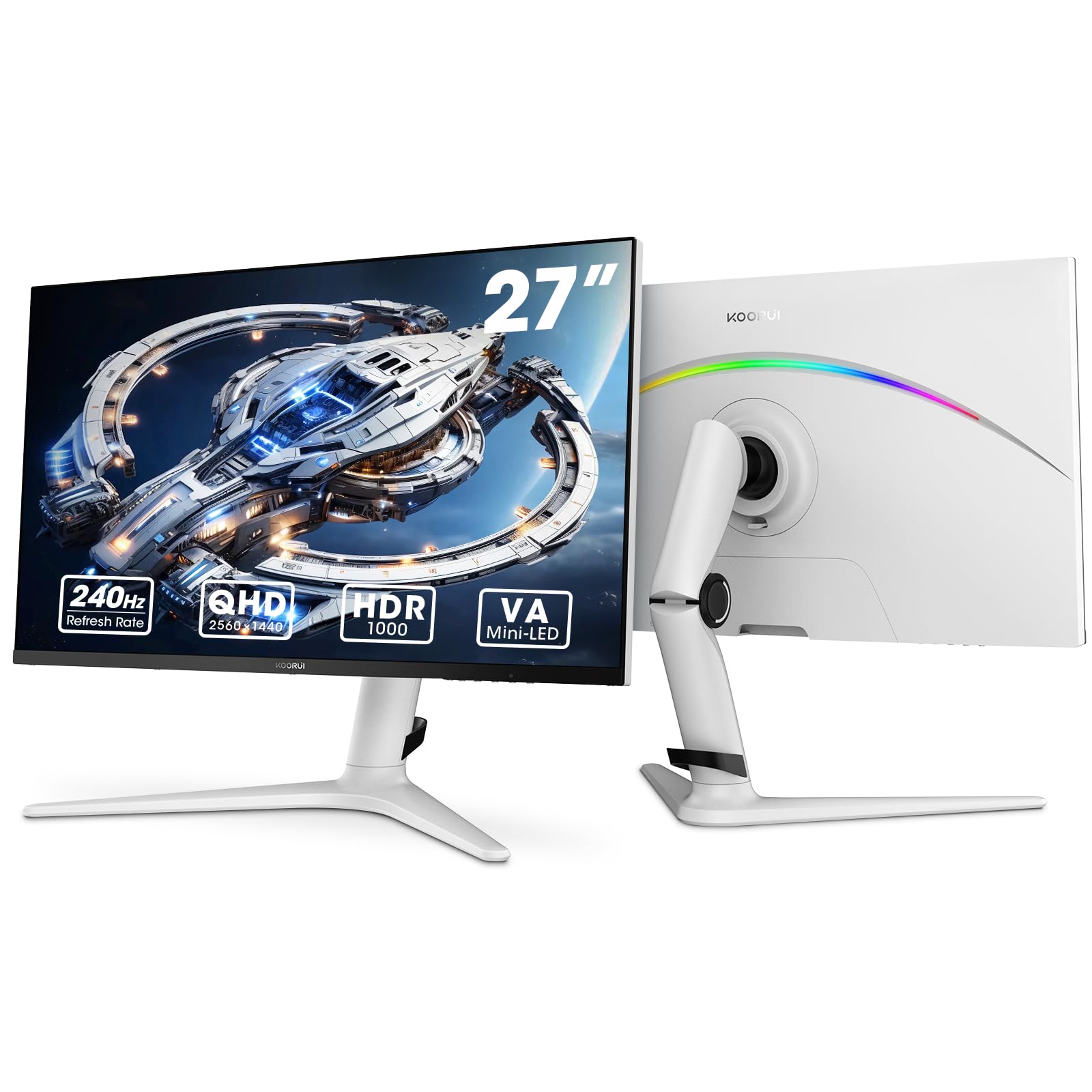
Figure 1: KOORUI GN10 27-inch QHD 240Hz Mini-LED Gaming Monitor.
1. Setup
1.1 Unboxing and Package Contents
Carefully remove all components from the packaging. Verify that all items listed below are present:
- KOORUI GN10 Monitor
- Monitor Stand (Base and Arm)
- Power Cable
- HDMI Cable (x2)
- DisplayPort (DP) Cable
- User Manual (this document)
1.2 Stand Assembly
Follow these steps to assemble the monitor stand:
- Attach the stand arm to the monitor panel. Ensure it clicks securely into place or is fastened with screws if provided.
- Connect the stand base to the stand arm. Tighten any screws to secure the base.
- Place the assembled monitor on a stable, flat surface.

Figure 2: Monitor stand showing height, tilt, swivel, and pivot adjustments.
The ergonomic stand allows for height, tilt, swivel, and pivot adjustments to optimize your viewing angle.

Figure 3: Monitor dimensions for placement planning.
1.3 Connecting to Devices
The monitor supports multiple input sources. Connect your computer or gaming console using the provided cables.
- DisplayPort (DP): For optimal performance, especially at 240Hz refresh rate and QHD resolution, use the DisplayPort cable.
- HDMI: Two HDMI 2.0 ports are available for connecting other devices such as gaming consoles (PS5, Xbox, Switch) or additional computers.
- Audio Out: Connect external speakers or headphones to the 3.5mm audio output jack.

Figure 4: Rear view of the monitor showing available ports (Audio Out, DP 1.4, HDMI 2.0 x2) and VESA mount points.
1.4 Initial Power On
- Connect the power cable to the monitor and then to a power outlet.
- Press the power button, usually located on the back or bottom of the monitor, to turn it on.
- The monitor will automatically detect the input source. If not, use the OSD menu to select the correct input.
2. Operating Instructions
2.1 On-Screen Display (OSD) Menu
The OSD menu allows you to adjust various monitor settings. Access the OSD menu using the joystick or buttons typically located on the back or bottom of the monitor.
Common OSD menu options include:
- Picture Settings: Brightness, Contrast, Sharpness, Gamma.
- Color Settings: Color Temperature, Hue, Saturation, Color Space (sRGB, DCI-P3).
- Input Select: Manually switch between DisplayPort and HDMI inputs.
- Audio: Volume control for the audio output.
- Gaming Features: Adaptive Sync, Response Time (Overdrive), Game Modes.
- OSD Settings: Language, OSD Timeout, Transparency.
2.2 Display Settings
The KOORUI GN10 monitor offers advanced display features for an enhanced visual experience.
- Resolution: The native resolution is QHD (2560 x 1440). Ensure your connected device is set to this resolution for optimal clarity.
- Refresh Rate: Supports up to 240Hz. Configure your graphics card settings to utilize this high refresh rate for smoother motion.
- Response Time: Features a 1ms (GtG) response time, reducing motion blur and ghosting in fast-paced content.
- HDR 1000: High Dynamic Range 1000 provides superior contrast and color depth. Enable HDR in your operating system and monitor settings for compatible content.

Figure 5: Visual comparison illustrating the enhanced contrast and detail with HDR 1000 enabled.

Figure 6: Comparison of QHD (2560x1440) and FHD (1920x1080) resolutions, highlighting increased detail with QHD.
2.3 Gaming Features
The monitor includes features designed to enhance your gaming experience:
- Adaptive Sync (G-Sync Compatible): Synchronizes the monitor's refresh rate with your GPU's frame rate to eliminate screen tearing and stuttering. Ensure this feature is enabled in both the monitor OSD and your graphics card control panel.
- Game Display Modes: Access specific on-screen overlays via the OSD menu, such as:
- Crosshair: Provides an on-screen crosshair for improved aiming.
- Timer: Displays a countdown timer.
- FPS Counter: Shows your current frames per second.
- RTS Counter: A specific counter for Real-Time Strategy games.

Figure 7: Illustration of various exclusive game display modes and Adaptive Sync functionality.

Figure 8: Visual representation of smooth gaming experience with 240Hz refresh rate and 1ms response time.
2.4 RGB Lighting
The monitor features a crescent RGB light strip on the back. This lighting can be customized through the OSD menu to match your preference or gaming setup.

Figure 9: Rear view of the monitor highlighting the customizable RGB light strip.
3. Maintenance
3.1 Cleaning the Monitor
To maintain the monitor's appearance and performance, follow these cleaning guidelines:
- Always power off the monitor and unplug the power cable before cleaning.
- Use a soft, lint-free cloth slightly dampened with water or a non-abrasive screen cleaner.
- Do not spray cleaner directly onto the screen. Apply it to the cloth first.
- Avoid using alcohol, ammonia, or abrasive cleaners, as these can damage the screen surface.
- Wipe the screen gently to remove dust and smudges.
- Clean the monitor casing with a soft, dry cloth.
3.2 General Care
- Avoid placing heavy objects on the monitor or its cables.
- Do not expose the monitor to direct sunlight, excessive heat, or extreme cold.
- Keep the monitor away from liquids and high humidity environments.
- Ensure adequate ventilation around the monitor to prevent overheating.
4. Troubleshooting
If you encounter issues with your monitor, refer to the following common problems and solutions:
| Problem | Possible Cause | Solution |
|---|---|---|
| No image on screen |
|
|
| Flickering or distorted image |
|
|
| No sound from audio out |
|
|
| Adaptive Sync not working |
|
|
If the problem persists after trying these solutions, please contact customer support.
5. Specifications
| Feature | Detail |
|---|---|
| Brand | KOORUI |
| Model Number | GN10 |
| Screen Size | 27 Inches |
| Resolution | QHD Wide 1440p (2560 x 1440) |
| Aspect Ratio | 16:9 |
| Screen Surface | Matte |
| Contrast Ratio | 20,000,000:1 |
| Refresh Rate | 240 Hz |
| Display Technology | Mini-LED |
| Viewing Angle | 178 Degrees |
| Brightness | 350 Candela |
| Color Gamut | 100% sRGB, 95% DCI-P3 |
| Response Time | 1 Millisecond (GtG) |
| HDMI Ports | 2 (HDMI 2.0) |
| DisplayPort | 1 (DP 1.4) |
| Audio Out | Yes |
| Adaptive Sync | G-Sync Compatible |
| Additional Features | Flicker-Free, Frameless, Height Adjustable, Tilt Adjustable, Swivel Adjustable, Rotatable |
| Color | White/Grey |
| Mounting Type | Desk Mount, VESA 75x75mm compatible |
6. Warranty and Support
6.1 Warranty Information
The KOORUI GN10 monitor comes with a 3-year limited warranty. The display screen is backed for 1 year, and other accessories for 3 years. A 12-month replacement service is also provided for eligible issues.
This warranty covers manufacturing defects and malfunctions under normal use. It does not cover damage caused by misuse, accidents, unauthorized modifications, or external factors.
6.2 Customer Support
For technical assistance, warranty claims, or inquiries regarding missing accessories, please contact KOORUI customer support. Have your product model (GN10) and purchase information ready when contacting support.
Contact information can typically be found on the KOORUI official website or through your retailer's support channels.
7. Product Video Demonstration
Video 1: Official product video showcasing the KOORUI GN10 Gaming Monitor's features and design.


