
eppfun B0F6V6B898
eppfun Bluetooth 5.4 Audio Receiver/Transmitter User Manual
Model: B0F6V6B898
1. Introduction
This manual provides detailed instructions for the eppfun Bluetooth 5.4 Audio Receiver/Transmitter. This versatile device supports both classic Bluetooth and Auracast LE Audio functionalities, acting as a 2-in-1 wireless stereo music adapter with microphone input and 3.5mm Aux connectivity. It is designed to enhance your audio experience by enabling wireless transmission and reception across various devices.

Image 1.1: Front view of the eppfun Bluetooth 5.4 Audio Receiver/Transmitter.
2. Key Features
- Bluetooth 5.4 Technology: Utilizes the latest Bluetooth standard for stable and efficient wireless audio.
- Auracast LE Audio Support: Features both broadcast transmission (TX) and reception (RX) capabilities, allowing one-to-many audio sharing.
- High-Quality Audio Codecs: Supports AptX Lossless, AptX Adaptive, AptX HD, AptX, SBC, and LC3 for superior sound quality.
- 2-in-1 Functionality: Operates as both a Bluetooth audio receiver and transmitter.
- Microphone Input: Includes a built-in microphone and supports external wired microphones for voice transmission in broadcast mode.
- USB Sound Card Functionality: Supports 96KHz 24-bit high-definition digital input via USB, functioning as a plug-and-play sound card.
- Multi-Mode Input: Accepts audio input via Bluetooth, USB, AUX, and MIC.
- Long-Distance Transmission: Offers stable transmission up to 20 meters in open spaces.
- Portable Design: Compact and lightweight with a clip for easy portability.
- Memory Function: Remembers the last used mode (Classic Bluetooth or Broadcast) upon power-on.
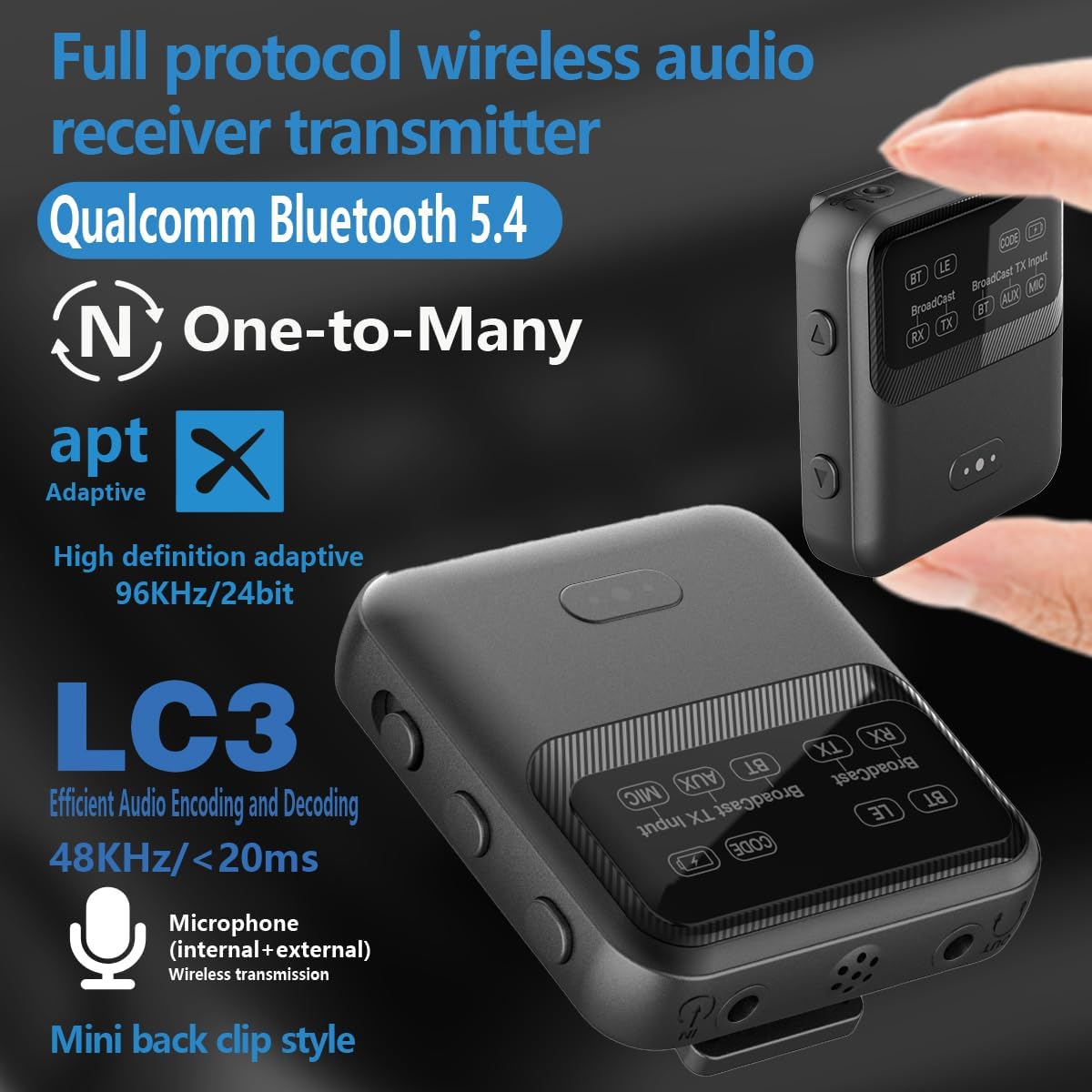
Image 2.1: Visual representation of the device's core features including Bluetooth 5.4, Auracast, and various audio codecs.
3. Package Contents
Please check the package for the following items:
- eppfun Bluetooth 5.4 Audio Receiver/Transmitter
- Charging Cable (USB-C)
- User Manual (this document)
- Auxiliary Audio Cable (3.5mm) (May vary by package)
- External Microphone (May vary by package)
4. Product Overview
Familiarize yourself with the device's components and controls.

Image 4.1: Detailed diagram of the eppfun device's buttons and interfaces.
4.1. Controls and Interfaces
- Power Switch: Turns the device on/off.
- Mode Button:
- Click: Switch between BT (Classic Bluetooth) and Broadcast RX modes.
- Long press for 1 second: Enter Broadcast TX mode.
- Audio Source Input Switch Button (In Broadcast TX mode):
- Click: Switch between BT/USB/AUX/MIC audio input sources.
- Note: When using a BT Bluetooth audio source, you may need to pause the music before switching. System default is Bluetooth audio preferred transmission.
- Multi-Function Buttons:
- Long press for 1 second: Enter pairing mode.
- During startup, long press for 5 seconds: Clear pairing records.
- BT/LE: Click to play/pause music while connected.
- Call: Click to answer/hang up the call.
- Long press for 1 second: Reject incoming call.
- When Broadcast RX: Click mute/restore.
- Up Button:
- When BT/LE: Unit price: Previous song / Long press volume+.
- Broadcast RX/TX: Long press volume+.
- Down Button:
- When BT/LE: Unit price: Next song / Long press volume-.
- Broadcast RX/TX: Long press volume-.
- AUX Output Interface: 3.5mm audio output.
- MIC Reception: Built-in microphone.
- AUX/MIC Input Interface: 3.5mm audio input for external devices or microphones.
- USB 5V Charging / Type-C Sound Card Interface: USB-C port for charging and digital audio input.
5. Setup
5.1. Charging the Device
Before first use, fully charge the device.
- Connect the provided USB-C charging cable to the USB 5V Charging / Type-C Sound Card Interface on the device.
- Connect the other end of the cable to a standard USB power adapter (DC 5V, 1000mA recommended) or a computer's USB port.
- The charging indicator light will illuminate during charging and turn off when fully charged.
5.2. Powering On/Off
- To Power On: Slide the Power Switch to the "ON" position. The indicator light will flash.
- To Power Off: Slide the Power Switch to the "OFF" position. The indicator light will turn off.
6. Operating Modes
The eppfun device supports two primary operating modes: Classic Bluetooth (BT/LE) and Broadcast (Auracast). The device remembers the last used mode.
6.1. Classic Bluetooth Mode (BT/LE)
This mode allows for traditional one-to-one Bluetooth connections, functioning as either a receiver (RX) or a transmitter (TX).
6.1.1. Classic Bluetooth Receiver (RX)
In RX mode, the device receives audio from a Bluetooth-enabled source (e.g., smartphone, tablet) and outputs it via the 3.5mm AUX Output.
- Ensure the device is powered on and in Classic Bluetooth RX mode (indicated by the BT RX light). If not, click the Mode Button until BT RX is selected.
- Long press the Multi-Function Button for 1 second to enter pairing mode. The indicator light will flash rapidly.
- On your audio source device, enable Bluetooth and search for "eppfun [Model Name/ID]".
- Select the device to pair. Once connected, the indicator light will become solid.
- Connect your headphones or speakers to the 3.5mm AUX Output Interface of the eppfun device.
- Play audio on your source device.
6.1.2. Classic Bluetooth Transmitter (TX)
In TX mode, the device transmits audio from a non-Bluetooth source (e.g., TV, PC via AUX/USB) to a Bluetooth-enabled receiver (e.g., Bluetooth headphones, speaker).
- Ensure the device is powered on and in Classic Bluetooth TX mode (indicated by the BT TX light). If not, click the Mode Button until BT TX is selected.
- Connect your audio source to the eppfun device using either:
- 3.5mm AUX/MIC Input Interface (for analog audio).
- USB-C port (for digital audio from a PC/console acting as a sound card).
- Long press the Multi-Function Button for 1 second to enter pairing mode. The indicator light will flash rapidly.
- Put your Bluetooth headphones or speaker into pairing mode.
- The eppfun device will automatically search and connect to nearby Bluetooth receiving devices. Once connected, the indicator light will become solid.
- Play audio from your source device.
6.2. Broadcast Mode (Auracast LE Audio)
Broadcast mode enables one-to-many audio sharing, where one transmitter can send audio to multiple Auracast-compatible receivers simultaneously.

Image 6.1: Illustration of one-to-many audio sharing using the eppfun device in Broadcast mode.
6.2.1. Broadcast Transmitter (TX)
In Broadcast TX mode, the device transmits audio to multiple Auracast receivers. This is ideal for scenarios like tour guides, silent discos, or shared listening.
- Ensure the device is powered on. Long press the Mode Button for 1 second to enter Broadcast TX mode (indicated by the Broadcast TX light).
- Connect your audio source to the eppfun device using BT, USB, AUX, or MIC input. Use the Audio Source Input Switch Button to select the desired input.
- MIC Input: The device has a built-in microphone. For external microphones, connect to the 3.5mm AUX/MIC Input Interface.
- The device will begin broadcasting audio.
- Ensure your receiving devices (e.g., other eppfun units in Broadcast RX mode, Auracast-compatible headphones) are set to receive Auracast broadcasts.

Image 6.2: The device used with a lavalier microphone for voice broadcasting.
6.2.2. Broadcast Receiver (RX)
In Broadcast RX mode, the device receives audio from an Auracast transmitter and outputs it via the 3.5mm AUX Output.
- Ensure the device is powered on. Click the Mode Button until Broadcast RX is selected (indicated by the Broadcast RX light).
- Connect your headphones or speakers to the 3.5mm AUX Output Interface.
- The device will automatically scan for available Auracast broadcasts.
- Once a broadcast is detected, the device will connect and play the audio.
- Use the Up/Down buttons to adjust volume. Click the Multi-Function Button to mute/unmute.

Image 6.3: Demonstrating one-click switching between different audio sources.
7. USB Sound Card Functionality
The eppfun device can function as a USB sound card, providing high-quality digital audio input from a computer or compatible device.
- Connect the eppfun device to your computer's USB port using the USB-C cable.
- The computer should automatically recognize the device as an audio output/input device. No drivers are typically required.
- In Broadcast TX mode, select USB as the audio input source using the Audio Source Input Switch Button.
- The digital audio from your computer will then be transmitted wirelessly via Broadcast or Classic Bluetooth TX mode.
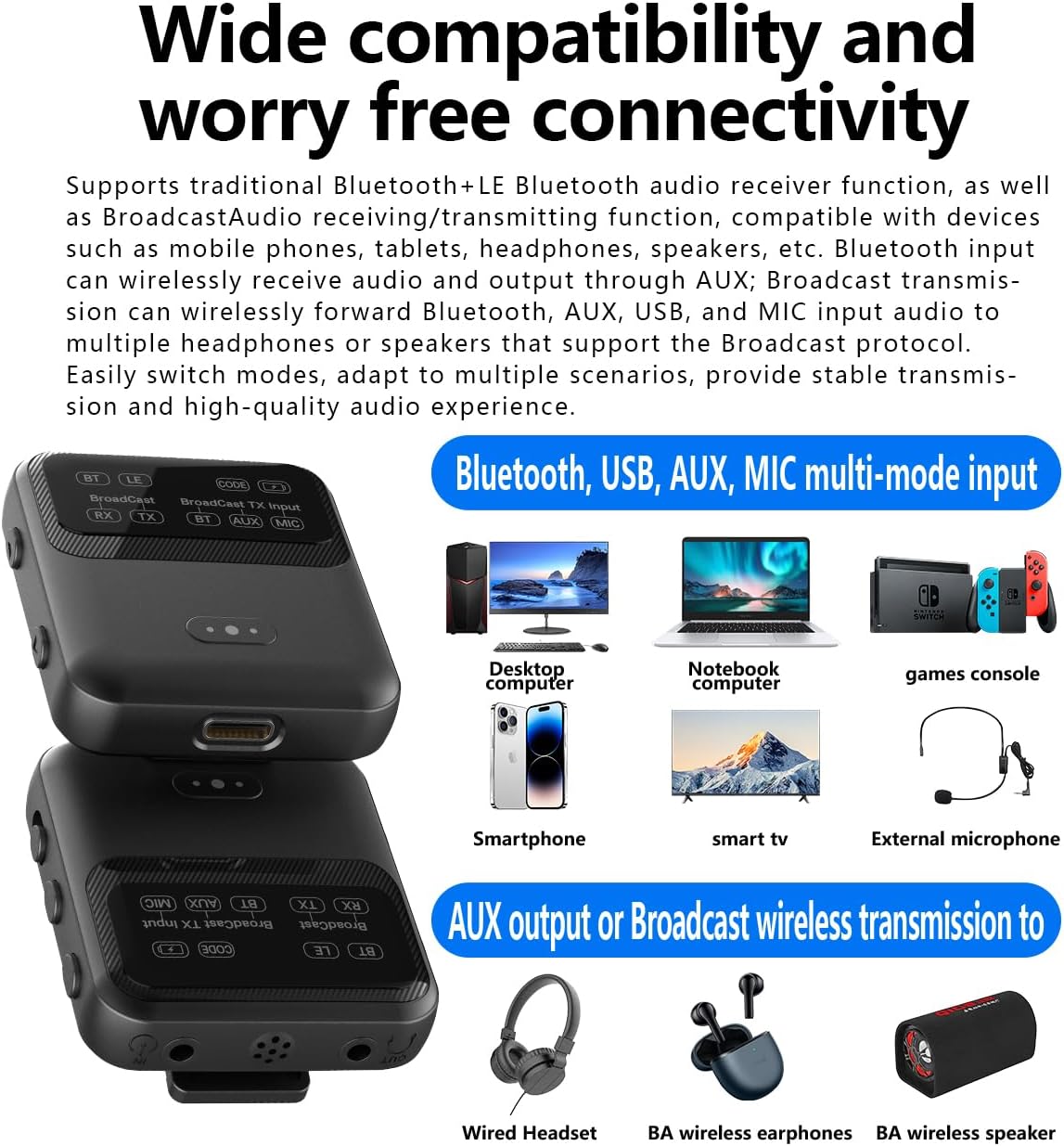
Image 7.1: The device's wide compatibility with various input and output devices.
8. Maintenance
- Keep the device dry. Avoid exposure to moisture or liquids.
- Clean the device with a soft, dry cloth. Do not use harsh chemicals or abrasive cleaners.
- Store the device in a cool, dry place away from direct sunlight and extreme temperatures.
- Avoid dropping or subjecting the device to strong impacts.
9. Troubleshooting
| Problem | Possible Cause | Solution |
|---|---|---|
| Device does not power on. | Low battery or no charge. | Charge the device fully using the provided USB-C cable. |
| Cannot pair in Classic Bluetooth mode. | Device not in pairing mode; target device not in pairing mode; too far apart. | Ensure both devices are in pairing mode. Bring them closer. Clear previous pairing records by long-pressing the Multi-Function Button for 5 seconds during startup. |
| No audio output/input. | Incorrect mode selected; wrong input/output port; volume too low. | Verify the correct mode (RX/TX) is selected. Check cable connections. Adjust volume on both the eppfun device and connected audio devices. Ensure the correct audio source is selected in Broadcast TX mode. |
| Auracast (LE Audio) not working. | Incompatibility with receiving device; not in Broadcast mode. | Ensure both the eppfun device and the receiving device are Auracast/LE Audio compatible and are in the correct Broadcast TX/RX modes. Note that LE Audio/Auracast compatibility can vary between different chip solutions (eppfun uses Qualcomm). |
| Poor audio quality or disconnections. | Interference; distance too great; low battery. | Reduce distance between devices. Avoid obstacles. Charge the device. Minimize other wireless interference. |
10. Specifications
| Feature | Detail |
|---|---|
| Brand | eppfun |
| Model | B0F6V6B898 |
| Bluetooth Version | 5.4 (Qualcomm QCC3084 chip) |
| Connectivity Technology | Bluetooth |
| Supported Audio Codecs | AptX Lossless, AptX Adaptive, AptX HD, AptX, SBC, LC3 |
| Special Feature | Built-In Microphone, Auracast Receiver/Transmitter |
| Input Interfaces | Bluetooth, USB (Type-C), 3.5mm AUX, MIC |
| Output Interfaces | 3.5mm AUX |
| USB Sound Card | 96KHz 24-bit digital input, driver-free |
| Transmission Range | Up to 20 meters (open space) |
| Power Input | DC 5V, 1000mA (via USB-C) |
| Item Weight | 3.2 ounces (approx. 0.09 Kilograms) |
| Dimensions | 6.75 x 3.5 x 1 inches (Package Dimensions, actual device smaller) |
| Compatible Devices | Headphones, Personal Computers, Speakers, Televisions, Smartphones, Game Consoles |
11. Warranty and Support
eppfun products are designed for reliability and performance. For warranty information and customer support, please refer to the official eppfun website or contact your retailer.
For technical assistance or inquiries, please visit: eppfun Official Store on Amazon
Related documentsB0F6V6B898


Ask a question about this manual
Ask about setup, troubleshooting, compatibility, parts, safety, or missing instructions. Manuals+ will review the question and use this page’s manual context to help answer it.