
1. Introduction
This manual provides detailed instructions for the installation, operation, and maintenance of your Potegrap Outdoor Security Camera (Model T-CQ1052-W20V). Please read this manual thoroughly before using the product to ensure proper function and safety. Keep this manual for future reference.
The Potegrap T-CQ1052-W20V is a high-definition outdoor security camera designed for comprehensive home surveillance. It features 2K resolution, dual-band 2.4GHz and 5GHz WiFi connectivity, 360-degree pan and tilt functionality, advanced motion detection with tracking, color night vision, two-way audio, and optional AI-powered features with cloud storage.
2. Safety Information
- Ensure the power adapter is suitable for your local power supply and is properly grounded.
- Do not expose the camera to extreme temperatures outside its operating range (-4°F to 122°F / -20°C to 50°C).
- Avoid placing the camera near strong electromagnetic fields.
- Do not attempt to disassemble or modify the camera. This will void the warranty.
- Keep the camera and its accessories out of reach of children.
- Clean the camera lens with a soft, dry cloth only.
3. Package Contents
Please check the package for the following items:
- Potegrap Outdoor Security Camera (Model T-CQ1052-W20V) - 2 units
- Power Adapters
- Mounting Screws and Anchors
- Mounting Template
- User Manual (this document)

Figure 3.1: Two Potegrap T-CQ1052-W20V outdoor security cameras, highlighting their 2K resolution, 5G WiFi capability, and US-based cloud storage option. A smartphone screen displays a live view from the camera.
4. Product Overview
4.1 Key Features
- 2K HD Resolution: Delivers clear and detailed video footage (2560x1440).
- Dual-Band WiFi: Supports both 2.4GHz and 5GHz networks for flexible and stable connectivity.
- 360° Coverage: Features 355° horizontal pan and 90° vertical tilt for comprehensive area monitoring.
- Advanced Motion Detection & Tracking: Automatically detects and follows moving objects.
- Color Night Vision: Provides full-color video even in low-light conditions.
- Two-Way Audio: Built-in microphone and speaker for real-time communication.
- Privacy Mode: Physically rotates the camera lens for enhanced privacy when needed.
- Flexible Storage: Supports local TF (Micro SD) card storage (up to 128GB, not included) and optional US-based cloud storage.
- AI Features (Subscription Required): Includes person, vehicle, and animal detection, along with a 911 emergency alarm integration.
- Weather Resistant: Designed to operate in various outdoor conditions, from -4°F to 122°F (-20°C to 50°C).

Figure 4.1: A banner image promoting the Potegrap AI-Powered WiFi Camera, emphasizing its smart and safe features including 911 Emergency Alarm, US-Based Cloud storage, and integrated AI capabilities.

Figure 4.2: This image explains the camera's dual-band WiFi support, indicating that it can connect to both 2.4GHz (longer transmission distance) and 5GHz (superior network performance) networks.
5. Setup
5.1 App Installation and Account Creation
- Download the official Potegrap security camera application from your smartphone's app store (available for iOS and Android).
- Open the app and follow the on-screen instructions to create a new account or log in if you already have one.
5.2 Physical Installation
The camera is designed for both indoor and outdoor use. Choose a location that provides the desired viewing angle and has access to a power outlet.
- Use the provided mounting template to mark the drill holes on your chosen surface (wall or ceiling).
- Drill holes and insert the wall anchors if mounting on drywall or masonry.
- Secure the camera's mounting bracket using the provided screws.
- Attach the camera to the mounting bracket.
- Connect the power adapter to the camera and plug it into a power outlet.

Figure 5.1: This banner emphasizes the camera's easy installation for both indoor and outdoor environments, showing a person installing it outdoors and examples of its placement inside a home and outside.
5.3 Connecting to Wi-Fi
- Ensure your smartphone is connected to the same Wi-Fi network (2.4GHz or 5GHz) you intend to connect the camera to.
- In the app, tap 'Add Device' or the '+' icon.
- Select your camera model and follow the in-app instructions, which typically involve scanning a QR code displayed on your phone with the camera or entering Wi-Fi credentials.
- Wait for the camera to connect to the network. A voice prompt or LED indicator will confirm successful connection.
5.4 SD Card Installation (Optional)
For local storage, insert a TF (Micro SD) card (up to 128GB, not included) into the designated slot on the camera. Ensure the camera is powered off before inserting or removing the card. Format the SD card via the app after installation for optimal performance.
6. Operating the Camera
6.1 Live View and Pan/Tilt Control
Open the Potegrap app and select your camera to access the live view. Use the on-screen controls to pan (rotate horizontally 355°) and tilt (rotate vertically 90°) the camera lens to adjust your viewing angle.
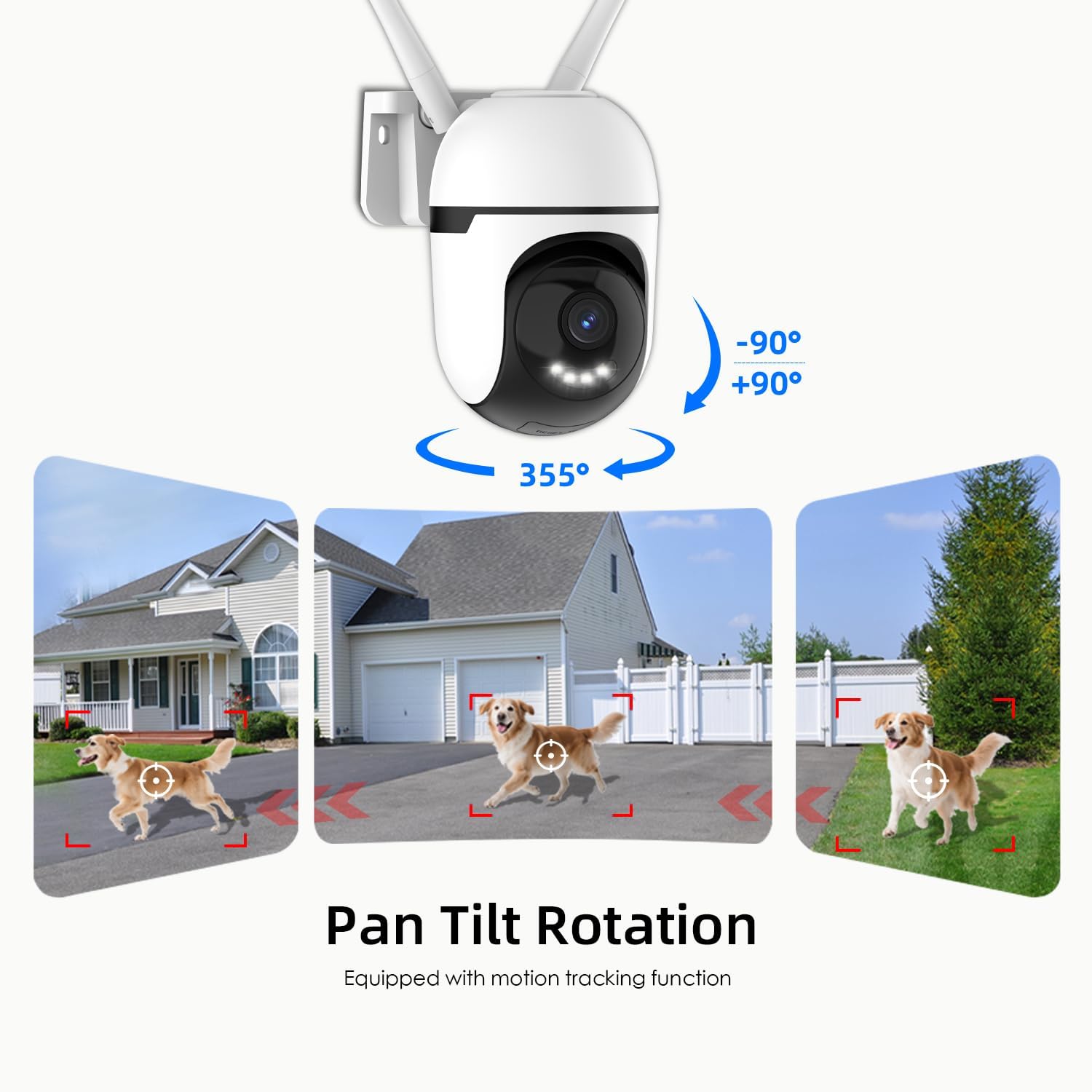
Figure 6.1: This graphic demonstrates the camera's pan and tilt functionality, allowing for a 360-degree horizontal view (355°) and vertical adjustment (90°), illustrated by different perspectives of a dog in a yard.

Figure 6.2: This image highlights the camera's 360-degree coverage (355° pan, 90° tilt) and motion tracking, showing its ability to monitor a wide area including children playing and a dog.
6.2 Motion Detection and Tracking
The camera can detect motion and automatically track moving objects within its field of view. You will receive real-time alerts on your smartphone when motion is detected.
- Enable/Disable: Access camera settings in the app to turn motion detection on or off.
- Sensitivity: Adjust motion detection sensitivity to minimize false alarms.
- Detection Zones: Set specific areas within the camera's view for motion detection to focus on, ignoring irrelevant areas.

Figure 6.3: This image illustrates the camera's auto-tracking motion detection, showing the camera following a moving subject (a child) within its field of view.

Figure 6.4: An illustration of how to set up custom detection zones to reduce unnecessary alerts, showing a dog within a defined zone and a corresponding motion detection notification.
6.3 2-Way Talk
Use the two-way audio feature to communicate with individuals near the camera. Tap the microphone icon in the live view to speak, and listen through the camera's speaker.

Figure 6.5: This image illustrates the two-way talk feature, enabling real-time audio communication between a person near the camera outdoors and another person using the mobile app indoors.
6.4 Night Vision
The camera offers multiple night vision modes:
- Classic IR Night Vision: Standard black and white infrared view.
- Color Night Vision: Utilizes built-in lights to provide full-color video in low-light conditions.
- Intelligent Night Vision: Stays in IR mode and switches to color night vision upon detection of motion.
Adjust night vision settings in the app to suit your preferences.

Figure 6.6: This image compares the camera's night vision capabilities: classic infrared (black and white), full-color night vision, and intelligent night vision that activates color upon detection.
6.5 Privacy Mode
Activate Privacy Mode via the app to physically rotate the camera lens downwards, ensuring your privacy when the camera is not needed for surveillance.

Figure 6.7: The camera's privacy mode is shown, where the lens physically rotates to obscure the view, and the mobile application confirms the mode is active.
6.6 Recording and Storage
The camera supports 24/7 continuous recording and event-triggered recording. Footage can be stored in two ways:
- Local TF Card Storage: Insert a Micro SD card (up to 128GB) for local storage without a subscription. Ensure the card is formatted through the app.
- US-Based Cloud Storage: An optional subscription service provides cloud storage, often including advanced AI analysis features.
Access recorded footage through the playback section of the Potegrap app.

Figure 6.8: This image details the storage options: US-based cloud storage (subscription needed for AI functions) and local TF card storage (up to 128GB, not included) for secure data.
6.7 AI Features (Subscription Required)
Enhance your security with AI-powered features, available with a cloud storage subscription:
- Person Detection: Differentiates human shapes from other moving objects.
- Vehicle Detection: Identifies vehicles, reducing irrelevant alerts.
- Animal Detection: Recognizes animals, useful for pet monitoring or filtering wildlife alerts.
- 911 Emergency Alarm: Integrates with emergency services for rapid response during critical events.

Figure 6.9: The camera's intelligent alarm feature is depicted, showing a detected person and an option within the mobile application to initiate a 911 emergency call.
7. Maintenance
- Cleaning: Regularly wipe the camera lens and body with a soft, dry cloth to remove dust and dirt. Do not use harsh chemicals or abrasive cleaners.
- Firmware Updates: Check the app periodically for firmware updates. Keeping your camera's firmware updated ensures optimal performance and security.
- Power Cycle: If the camera experiences issues, try unplugging it from the power source for 10 seconds and then plugging it back in.
8. Troubleshooting
| Problem | Possible Cause | Solution |
|---|---|---|
| Camera fails to connect to Wi-Fi. | Incorrect Wi-Fi password; camera too far from router; router settings (e.g., firewall). | Verify Wi-Fi password. Move camera closer to router. Ensure router supports 2.4GHz or 5GHz. Temporarily disable firewall for setup. Reset camera and try again. |
| Poor video quality or blurry image. | Dirty lens; insufficient lighting; network bandwidth issues. | Clean the camera lens. Ensure adequate lighting for optimal color night vision. Check your internet speed. |
| Motion detection alerts are too frequent or not working. | Sensitivity set too high/low; detection zone not configured correctly. | Adjust motion detection sensitivity in the app. Configure specific detection zones to focus on relevant areas. |
| Cannot view recorded footage from SD card. | SD card not formatted; SD card full or corrupted; app issue. | Ensure the SD card is correctly inserted and formatted via the app. Check if the SD card is full. Some advanced playback features or continuous recording may require a cloud subscription. |
| AI features (person/vehicle detection, 911 alarm) are not active. | Subscription required for AI features. | These advanced AI features typically require an active cloud storage subscription. Check your subscription status in the app. |
| Camera is unresponsive. | Power issue; software glitch. | Check power connection. Perform a power cycle (unplug and replug). If issues persist, perform a factory reset (refer to app for instructions). |
9. Specifications
| Feature | Detail |
|---|---|
| Model Number | T-CQ1052-W20V |
| Brand | Potegrap |
| Resolution | 2K HD (2560x1440), 3 MP |
| Connectivity | Dual-band 2.4GHz & 5GHz WiFi |
| Power Source | Corded Electric |
| Pan/Tilt Range | 355° Horizontal, 90° Vertical |
| Night Vision | Color Night Vision, IR Night Vision, Intelligent Night Vision |
| Storage Options | TF (Micro SD) Card (up to 128GB, not included), US-Based Cloud Storage (subscription required) |
| Audio | Two-Way Talk (Built-in microphone and speaker) |
| Operating Temperature | -4°F to 122°F (-20°C to 50°C) |
| Dimensions (L x W x H) | 3.9 x 3.1 x 4.3 inches |
| Item Weight | 1.57 pounds (0.71 Kilograms) |
| Compatible Devices | Smartphone (iOS, Android) |
10. Warranty and Support
For warranty information, please refer to the documentation included with your purchase or contact Potegrap customer support. Protection plans may be available for extended coverage.
If you encounter any issues or have questions regarding your Potegrap security camera, please contact our customer support team through the official Potegrap website or the contact information provided in the app.


