
TCL 55C6K
TCL 55C6K 4K QD-Mini LED Smart TV User Manual
Model: 55C6K
Introduction
This user manual provides essential information for the safe and efficient operation of your TCL 55C6K 55-inch 4K QD-Mini LED Smart TV. Please read this manual thoroughly before using the product and retain it for future reference.

Image: Front view of the TCL 55C6K 55-inch 4K QD-Mini LED Smart TV, showcasing its sleek design and vibrant display.
Product Overview
The TCL 55C6K is a state-of-the-art 55-inch 4K QD-Mini LED Smart TV, designed to deliver an immersive viewing experience. It features Quantum Dot technology for vibrant colors, Mini LED backlighting for precise contrast, and a 144Hz native refresh rate for smooth motion. Powered by Google TV, it offers access to a vast array of entertainment options, enhanced by Onkyo 2.1 Hi-Fi audio and Dolby Atmos for superior sound. The integrated AiPQ Pro Processor and Game Master features optimize performance for both content consumption and gaming.

Image: An overview graphic highlighting key features of the TCL 55C6K TV, including Precise Dimming, High HDR Brightness, Dolby Atmos, QLED, HVA Panel, AiPQ Processor, and Ultra Slim Design.
Important Safety Information
Always adhere to the following safety precautions to prevent electric shock, fire, or damage to the product.
- Power Source: Ensure the TV is connected to a power supply within the specified voltage range.
- Ventilation: Do not block ventilation openings. Maintain adequate space around the TV for proper airflow.
- Liquid Exposure: Keep the TV away from water or moisture. Do not place objects filled with liquids on the TV.
- Cleaning: Unplug the TV before cleaning. Use a soft, dry cloth. Avoid liquid cleaners or aerosol sprays.
- Placement: Place the TV on a stable, level surface to prevent it from falling. Avoid placing it in direct sunlight or near heat sources.
- Servicing: Do not attempt to service this product yourself. Refer all servicing to qualified service personnel.
- Children: Supervise children to ensure they do not climb on or play with the TV.
Package Contents
Verify that all items listed below are included in your package. If any items are missing or damaged, contact your retailer.
- TCL 55C6K 55-inch 4K QD-Mini LED Smart TV
- Remote Control
- User Manual (this document)
- TV Stand (2 pieces)
- Power Cable
- Power Adapter (if external)
- Screws for Stand Installation
Setup
Physical Installation
Before proceeding, ensure you have a clean, flat surface to work on. It is recommended to have two people for safe installation.
- Attach the Stand:
- Carefully place the TV face-down on a soft cloth or cushion to prevent screen damage.
- Align the stand pieces with the corresponding slots on the bottom of the TV.
- Secure the stands using the provided screws. Ensure they are tightened firmly.
- Wall Mounting (Optional):
- If wall-mounting, refer to the wall mount kit's instructions. Ensure the VESA mounting holes on the TV are compatible with your wall mount.
- Remove any stand components if they interfere with wall mounting.
- Placement:
- Place the TV in a location with good ventilation, away from direct sunlight and heat sources.
- Ensure the TV is stable and cannot be easily tipped over.

Image: Diagram showing the dimensions of the TCL 55C6K TV, including height, width, and thickness, useful for planning placement or wall mounting.
Connecting Devices
The TCL 55C6K TV offers various connectivity options for your external devices.

Image: Rear view of the TCL 55C6K TV, displaying the various input and output ports for connectivity.
- HDMI: Connect Blu-ray players, game consoles, or set-top boxes to the HDMI ports. This TV supports HDMI 2.1 for 4K 144Hz input.
- USB: Plug in USB drives for media playback or software updates.
- Antenna/Cable: Connect your antenna or cable TV signal.
- Ethernet (LAN): For a wired internet connection.
- Optical Digital Audio Out: Connect to a soundbar or AV receiver for enhanced audio.
- Power: Connect the power cable to the TV and then to a wall outlet.
Initial Setup and First Power On
Once all connections are made, you can power on your TV for the first time.
- Plug the power cable into a wall outlet.
- Press the Power button on the remote control or on the TV itself.
- Follow the on-screen instructions to complete the initial setup, including language selection, network connection (Wi-Fi or Ethernet), and Google TV account setup.
- The TV will guide you through channel scanning if you have an antenna/cable connected.
Operating Your TV
Remote Control Functions
Familiarize yourself with the remote control buttons for easy navigation and control.
- Power: Turns the TV on or off.
- Google Assistant: Activates voice commands.
- Navigation Pad (Up/Down/Left/Right/OK): Navigates menus and confirms selections.
- Back: Returns to the previous screen.
- Home: Accesses the Google TV home screen.
- Volume Up/Down: Adjusts the volume.
- Channel Up/Down: Changes channels.
- Input: Selects input sources (HDMI, USB, etc.).
- App Buttons: Direct access to popular streaming services.
Smart TV Features (Google TV)
Your TCL 55C6K TV runs on Google TV, providing a personalized entertainment experience.
- Home Screen: Displays personalized recommendations, installed apps, and content from your subscriptions.
- Apps: Download and install a wide variety of applications from the Google Play Store.
- Google Assistant: Use voice commands to search for content, control smart home devices, and get information.
- Chromecast Built-in: Cast content from your compatible mobile devices directly to the TV.
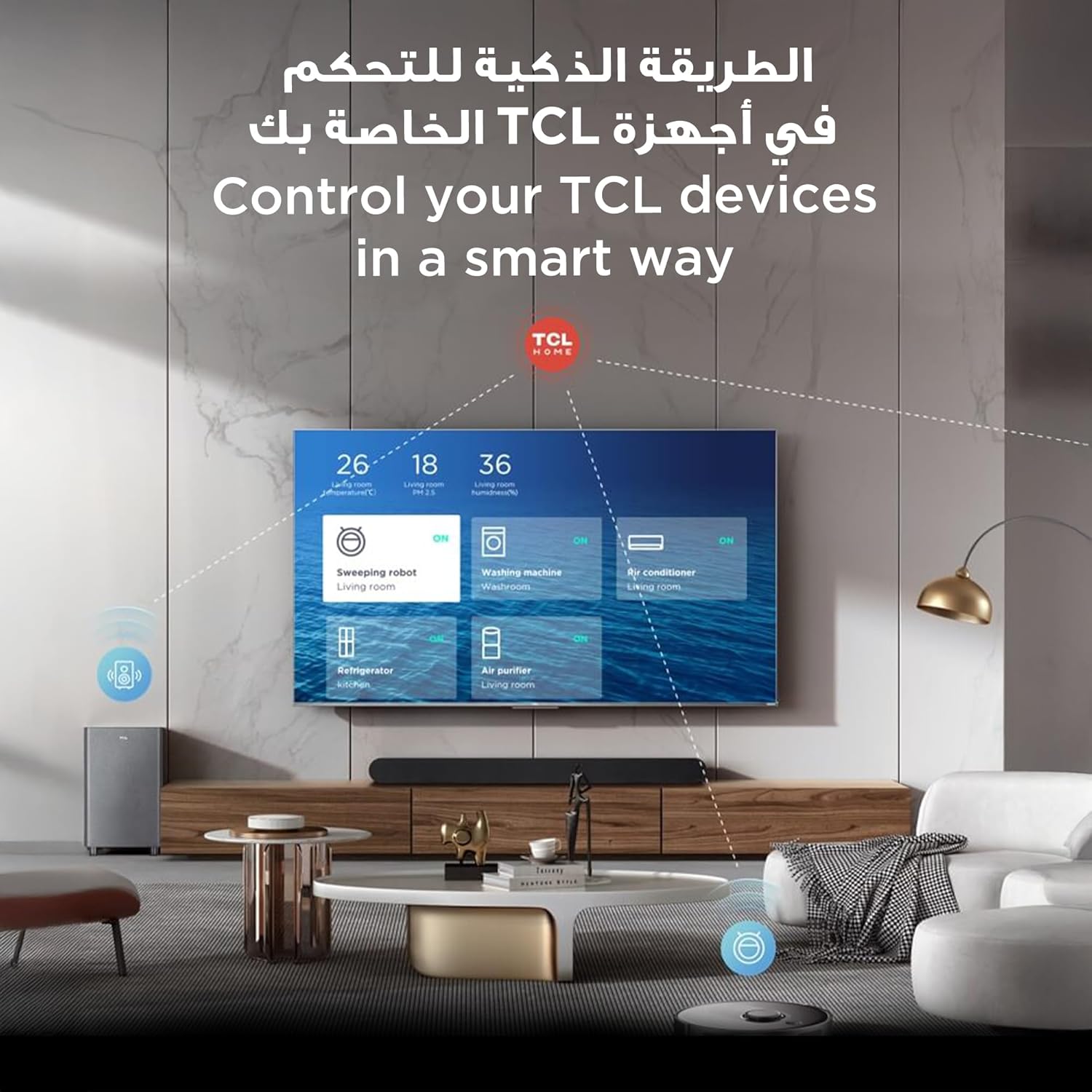
Image: A visual representation of the TCL smart home control interface on the TV screen, showing integration with various smart devices like sweeping robots, washing machines, and air purifiers.
Picture and Sound Settings
Optimize your viewing and listening experience through the TV's settings.
- QLED Technology: The Quantum Dot display covers 93% of the DCI-P3 color gamut, delivering over a billion hues for vivid and accurate colors. Adjust picture modes (Standard, Dynamic, Movie, Game) to suit your content.
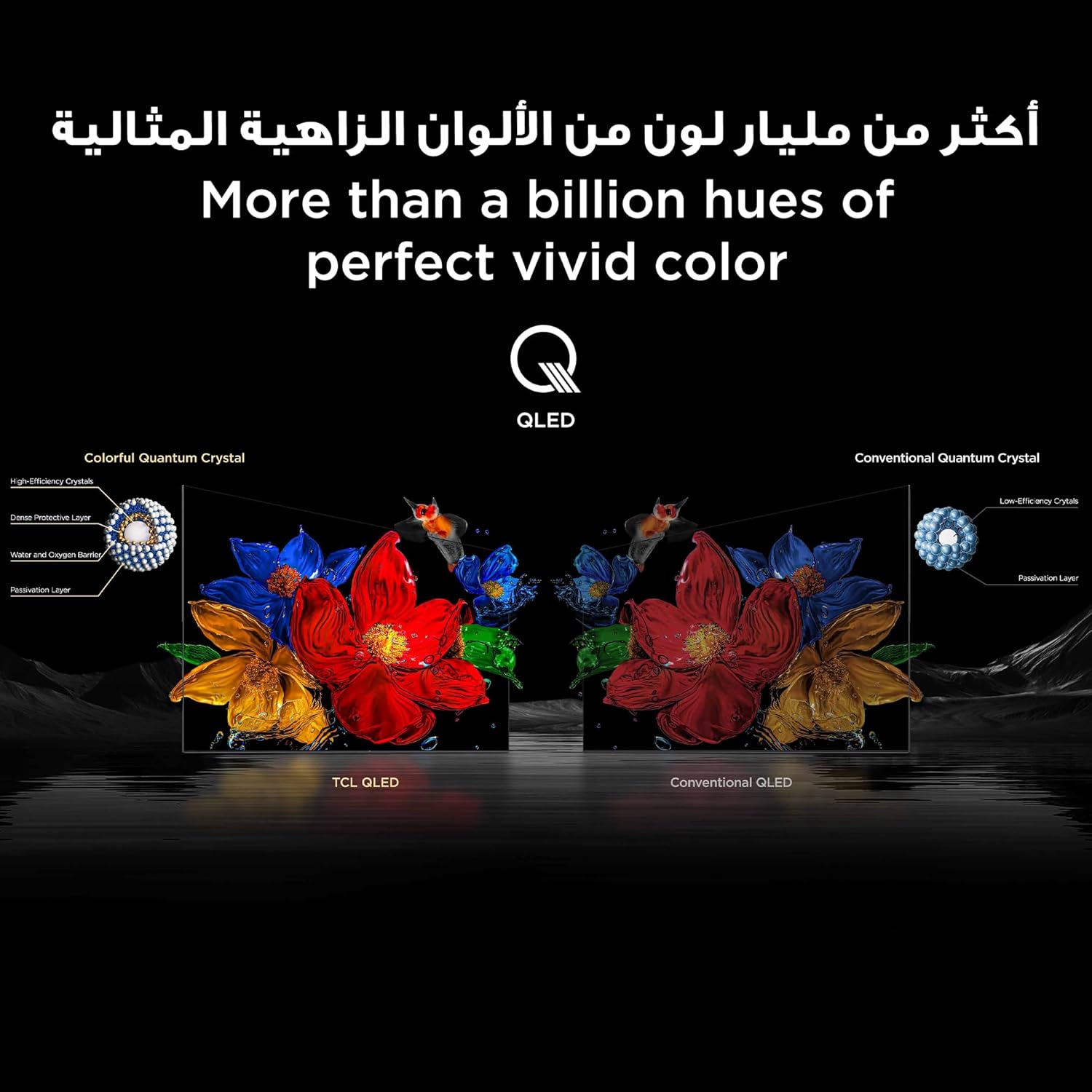
Image: A comparison illustrating the wider and more vibrant color reproduction of TCL QLED technology versus conventional QLED displays.
- Mini LED Backlighting: With up to 512 local dimming zones, Mini LED technology provides precise light control, resulting in deeper blacks and brighter highlights. This enhances contrast and overall picture quality.
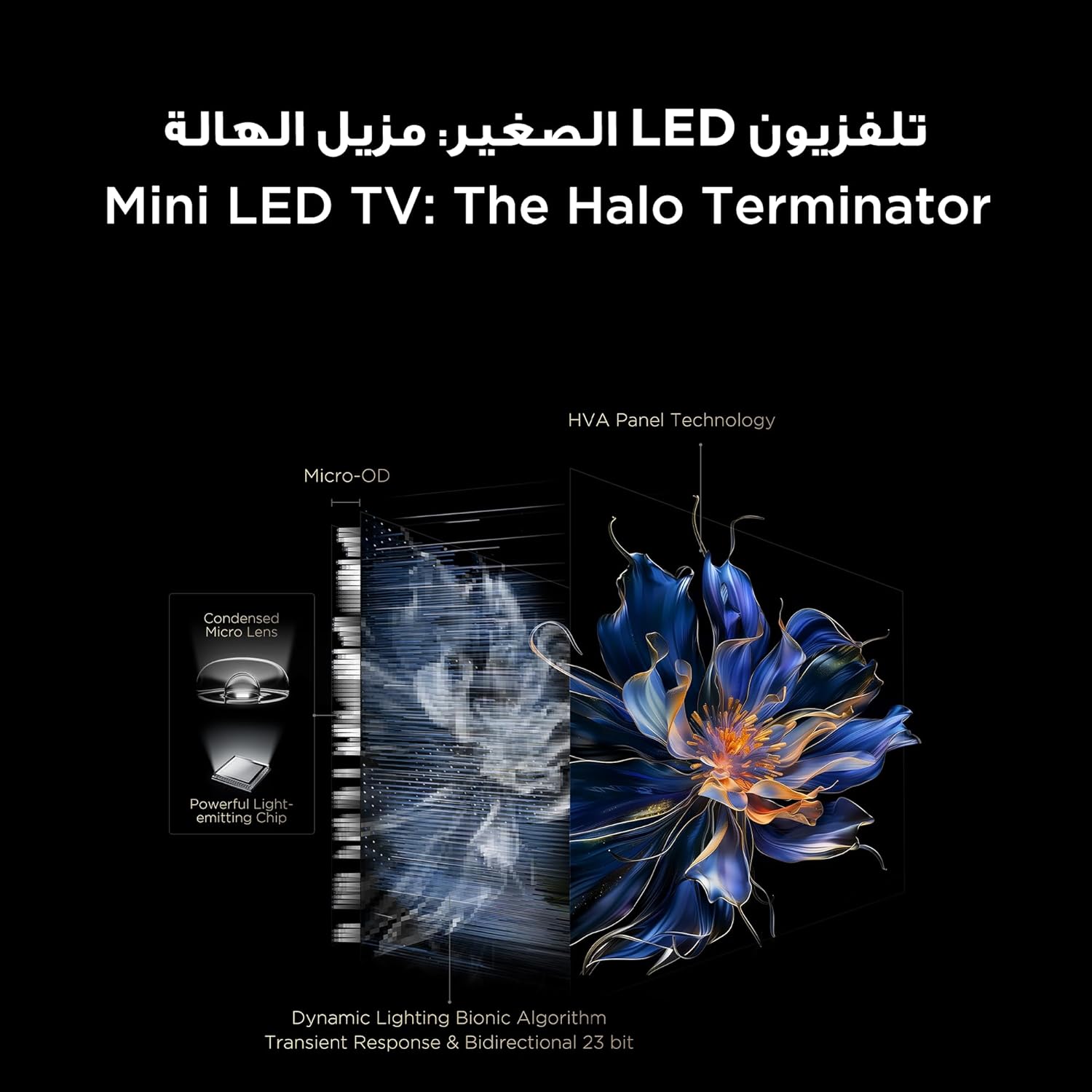
Image: A diagram explaining TCL's Mini LED technology, showcasing the condensed micro lens and powerful light-emitting chip for precise dimming.
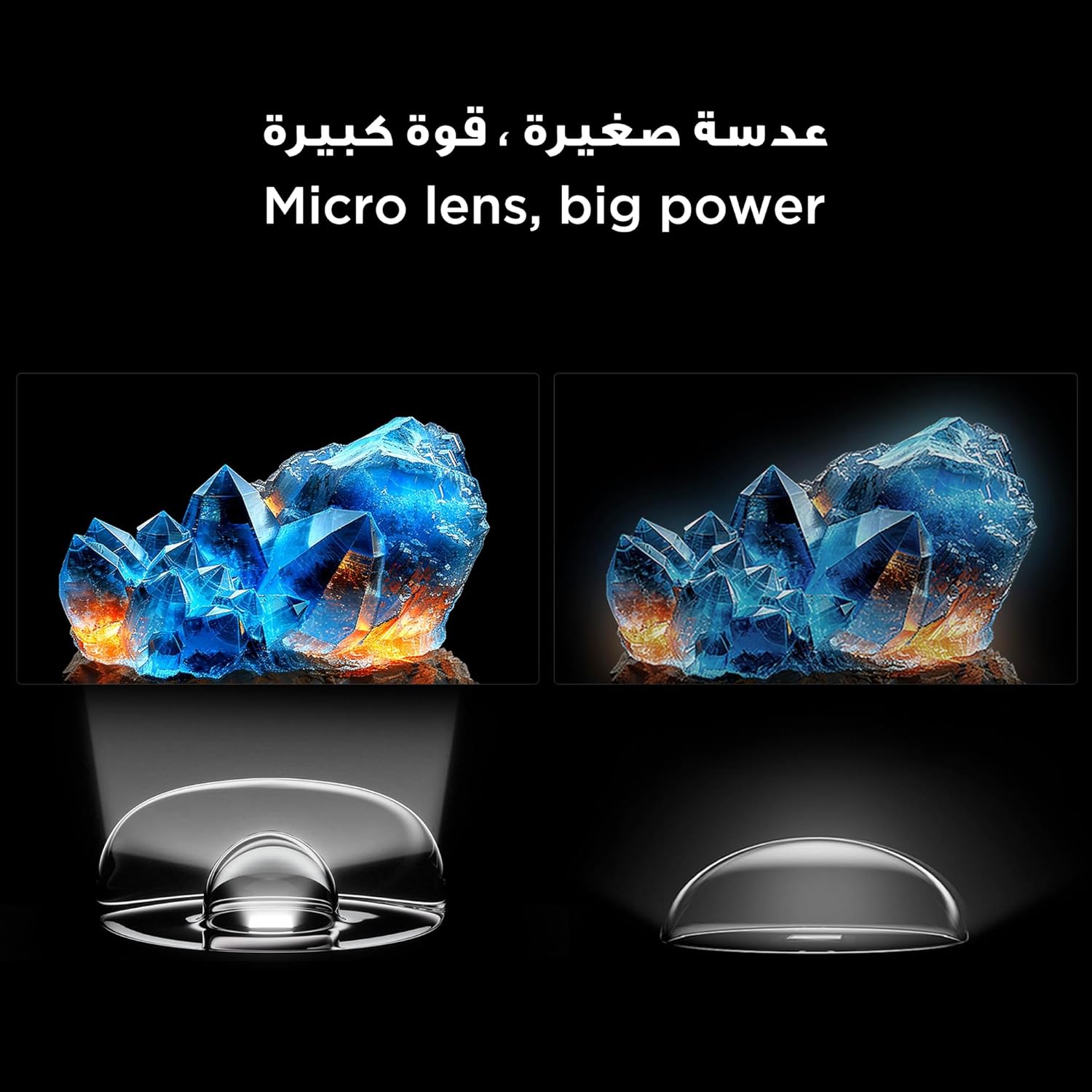
Image: Visual representation of the micro lens technology used in TCL Mini LED TVs, demonstrating how small lenses contribute to powerful and precise light control.
- HDR (High Dynamic Range): Supports HDR10+ for enhanced brightness, contrast, and color detail in compatible content.
- Onkyo 2.1 Hi-Fi Audio & Dolby Atmos: The integrated Onkyo 2.1 sound system delivers rich, clear audio. Dolby Atmos provides immersive, multi-dimensional sound that moves around you. Adjust sound modes (Standard, Movie, Music, Voice) for optimal audio.
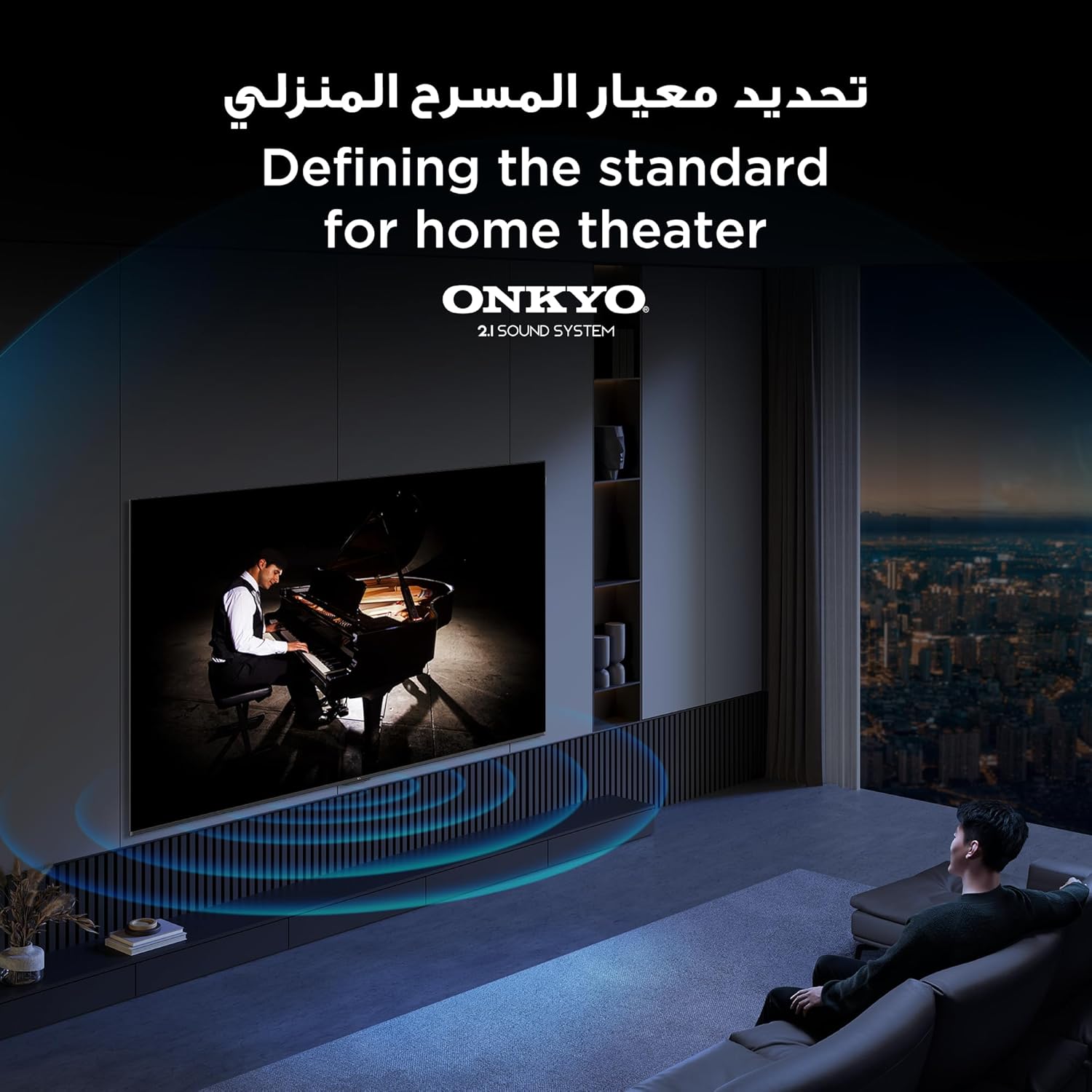
Image: A scene depicting the immersive audio experience provided by the Onkyo 2.1 sound system, defining a new standard for home theater.
Gaming Features
The TCL 55C6K is designed for an exceptional gaming experience.
- 144Hz Native Refresh Rate: Experience ultra-smooth motion and reduced input lag, crucial for fast-paced gaming.
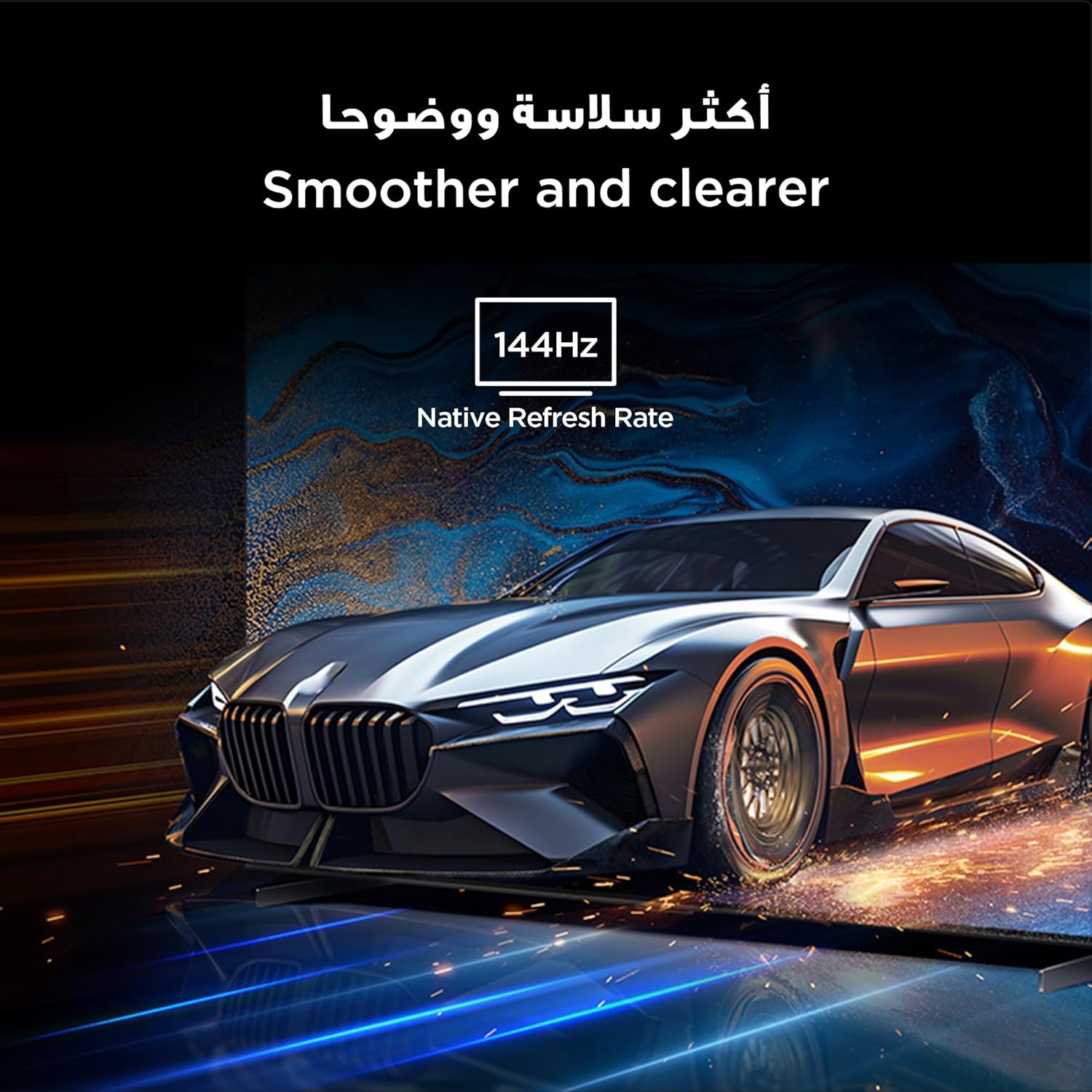
Image: A dynamic image of a car, illustrating the smoother and clearer motion achieved with the 144Hz native refresh rate, ideal for gaming.
- Game Master: This feature optimizes settings for gaming, minimizing latency and maximizing responsiveness.
AI Features (AiPQ Pro Processor)
The AiPQ Pro Processor enhances picture and sound quality in real-time using artificial intelligence.
- The processor analyzes content frame by frame, optimizing resolution, color, contrast, and motion for the best possible viewing experience.
- It perceives, thinks, and produces, adapting to various content types.

Image: A stylized depiction of the AiPQ Pro Processor chip, emphasizing its role in intelligent picture and sound optimization.
Maintenance
Cleaning Your TV
Regular cleaning helps maintain the TV's appearance and performance.
- Screen: Gently wipe the screen with a soft, lint-free cloth. For stubborn marks, slightly dampen the cloth with water or a specialized screen cleaner (do not spray directly on the screen).
- Cabinet: Use a soft, dry cloth to wipe the TV cabinet. Avoid using abrasive cleaners or solvents.
- Dust: Use a soft brush or vacuum cleaner with a brush attachment to remove dust from ventilation openings.
- Always unplug the TV from the power outlet before cleaning.
Software Updates
Keep your TV's software updated to ensure optimal performance and access to the latest features.
- Your TV can automatically check for and install updates when connected to the internet.
- You can also manually check for updates through the TV's settings menu (typically under System > About > System update).
Troubleshooting
If you encounter issues with your TV, refer to the following common problems and solutions.
| Problem | Possible Cause | Solution |
|---|---|---|
| No power | Power cable disconnected; power outlet issue | Ensure power cable is securely plugged in. Test the outlet with another device. |
| No picture, but sound is present | Incorrect input source; loose HDMI cable | Press the 'Input' button on the remote to select the correct source. Check HDMI cable connections. |
| No sound, but picture is present | Volume muted or too low; external audio device issue | Unmute volume or increase level. Check connections to external audio systems. |
| Remote control not working | Dead batteries; obstruction; remote not paired | Replace batteries. Remove obstructions. Re-pair remote if necessary (refer to TV settings). |
| Cannot connect to Wi-Fi | Incorrect password; router issue; TV too far from router | Verify Wi-Fi password. Restart router. Move TV closer or use a Wi-Fi extender. |
If the problem persists after trying these solutions, please contact TCL customer support.
Specifications
| Feature | Detail |
|---|---|
| Brand | TCL |
| Model Number | 55C6K |
| Screen Size | 55 Inches (140 cm) |
| Display Technology | QD-Mini LED |
| Resolution | 4K Ultra HD (3840 x 2160) |
| Refresh Rate | 144 Hz Native |
| HDR Support | HDR10+ |
| Operating System | Google TV |
| Audio System | Onkyo 2.1 Hi-Fi, Dolby Atmos |
| Processor | AiPQ Pro Processor |
| Connectivity | HDMI, USB, Bluetooth, Wi-Fi |
| Product Dimensions (W x H x D) | 122 cm x 71 cm x 7.6 cm (without stand) |
| Weight | 52 kg |
| Aspect Ratio | 16:9 |
| Included Components | Remote control, user manual, stand, power cable, power adapter |
Warranty and Support
Your TCL 55C6K TV comes with a manufacturer's warranty. Please refer to the warranty card included in your package for specific terms and conditions, including warranty period and coverage.
For technical support, service requests, or further inquiries, please contact TCL customer service through their official website or the contact information provided in your warranty documentation.
Online Resources: For the latest drivers, firmware updates, and additional support resources, visit the official TCL support website.
Related documents55C6K


Ask a question about this manual
Ask about setup, troubleshooting, compatibility, parts, safety, or missing instructions. Manuals+ will review the question and use this page’s manual context to help answer it.