
1. Introduction
Thank you for choosing the ByteWave D06 Pro Bluetooth Ring Mouse. This compact, wearable device offers precise cursor control and touchpad functionality, designed for seamless interaction with various devices. This manual provides detailed instructions for setup, operation, and maintenance to ensure optimal performance and longevity of your device.
2. Key Features
- Versatile Connectivity: Compatible with PC, laptop, tablet, and mobile devices via Bluetooth or USB receiver.
- Ergonomic Ring Design: Allows for natural hand movement and keeps your hands free during device operation.
- Integrated Touchpad: Enables precise cursor control and smooth navigation.
- Scrolling Functionality: Convenient video and page scrolling capabilities.
- Portable Form Factor: Compact, ring-shaped design for easy portability and use in various scenarios.
3. What's in the Box
Please check the package contents to ensure all items are present:
- ByteWave D06 Pro Ring Mouse
- Battery Case with Stand
- USB-C Charging Cable
- User Manual (this document)

Image: The ByteWave D06 Pro Ring Mouse resting in its open charging case, illustrating its compact design and indicating compatibility with various operating systems (iOS, macOS, Android, Microsoft) through Bluetooth or a wireless receiver.
4. Setup and Connectivity
4.1 Charging the Device
Before first use, fully charge the ByteWave D06 Pro Ring Mouse and its charging case.
- Place the ring mouse into the charging case.
- Connect the USB-C charging cable to the charging case and a power source (e.g., computer USB port, wall adapter).
- The indicator light on the case will show charging status. A full charge typically takes approximately 1.5 hours for the ring mouse. The charging case can provide up to 5 full charges to the ring mouse, offering a total of 82 hours of use.

Image: A visual representation of the portable charging case, highlighting its ability to charge the ring mouse. It indicates that a single charge takes 1.5 hours, the case can charge the mouse 5 times, and provides up to 82 hours of total usage.
4.2 Using the Charging Case as a Stand
The charging case is designed with a built-in stand feature, allowing you to prop up your smartphone or tablet for convenient viewing while using the ring mouse.
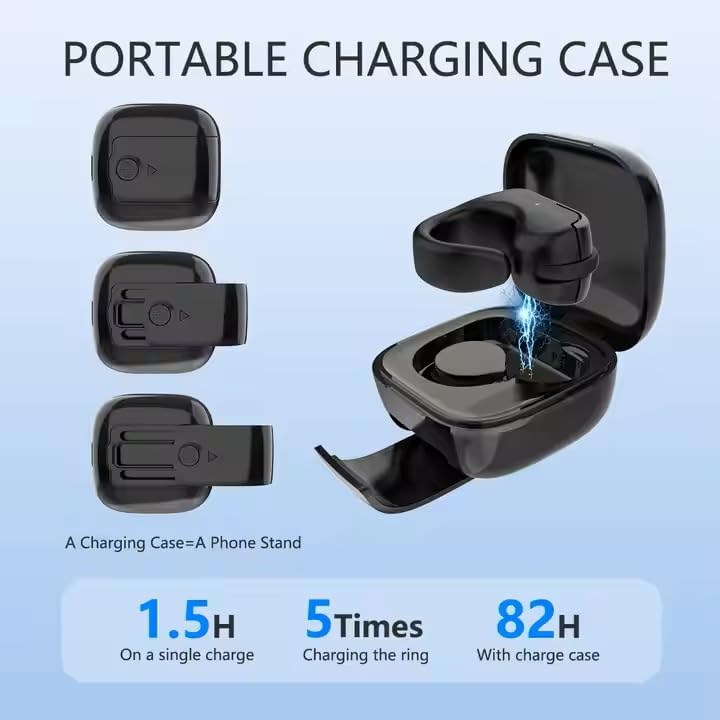
Image: The ByteWave D06 Pro Ring Mouse charging case is shown holding various smartphones and tablets upright, illustrating its secondary function as a device stand for hands-free viewing.
4.3 Wearing the Ring Mouse
For optimal comfort and control, it is recommended to wear the ring mouse on your middle finger.

Image: The ByteWave D06 Pro Ring Mouse designed to be worn on a finger, demonstrating its ergonomic shape for comfortable and convenient handling.
4.4 Connecting via Bluetooth
The ByteWave D06 Pro Ring Mouse can connect to your devices wirelessly via Bluetooth.
- Ensure the ring mouse is charged and powered on.
- On your device (PC, laptop, tablet, or mobile), enable Bluetooth and search for new devices.
- Select "ByteWave D06 Pro" (or similar name) from the list of available devices to pair.
- Follow any on-screen prompts to complete the pairing process.
4.5 Connecting via USB Receiver (2.4GHz Wireless)
The ring mouse also supports connection via a 2.4GHz USB dongle for devices without Bluetooth or for a more stable connection.
- Locate the USB receiver, typically stored within the charging case or the mouse itself.
- Plug the USB receiver into an available USB port on your computer or laptop.
- Ensure the ring mouse is powered on. The device should automatically connect to the receiver.
- To switch between Bluetooth and 2.4GHz modes, press and hold both the right and left buttons simultaneously on the ring mouse.
5. Operating Instructions
5.1 Basic Controls
The ByteWave D06 Pro Ring Mouse features a touchpad and several buttons for navigation.
- Touchpad: Use your thumb to control the cursor movement on the touchpad surface.
- Left Click Button: Performs a standard left-click action.
- Right Click Button: Performs a standard right-click action.
- Scroll Wheel/Middle Click: The scroll wheel allows for vertical scrolling. Pressing it down acts as a middle-click.

Image: The ByteWave D06 Pro Ring Mouse being held, with a list of its remote control functions including scrolling, swiping, media playback control, volume adjustment, and social media interaction.
5.2 Advanced Functions
The ring mouse offers additional functionalities for enhanced control:
- Remote Control for Media and Presentations: Ideal for controlling presentations, video playback, and browsing content from a distance.
- Selfie Remote: Long press the left or right button to remotely take photos or record videos on compatible mobile devices.
- E-book Page Turning: Use the scroll function to turn pages in e-book applications on cellphones and tablets (Note: Not compatible with Kindle Devices).

Image: A user demonstrating the selfie remote control feature of the ByteWave D06 Pro Ring Mouse, indicating that long-pressing the left or right button can trigger photo or video capture.

Image: Devices displaying e-book applications, showcasing the ring mouse's function for turning pages. A note specifies that this feature is not compatible with Kindle devices.

Image: A collage depicting the versatility of the ByteWave D06 Pro Ring Mouse in different daily activities, including leisure, professional presentations, office work, and fitness.
6. Maintenance
- Cleaning: Use a soft, dry cloth to clean the surface of the ring mouse and charging case. Avoid using harsh chemicals or abrasive materials.
- Storage: When not in use, store the ring mouse in its charging case to protect it and keep it charged.
- Battery Care: To prolong battery life, avoid fully discharging the device frequently. Charge it regularly, even if not used for extended periods.
7. Troubleshooting
| Problem | Solution |
|---|---|
| Device does not power on. | Ensure the device is fully charged. Place it in the charging case and connect the USB-C cable to a power source. |
| Cannot connect via Bluetooth. |
|
| Cursor movement is erratic or unresponsive. |
|
| Scrolling does not work on certain applications (e.g., iPad Facebook). | Compatibility for scrolling and other advanced functions can vary between applications and operating systems. Some apps may not fully support external mouse scrolling. Verify app compatibility or try on a different application/device. |
| USB receiver connection issues. |
|
8. Specifications
| Feature | Detail |
|---|---|
| Brand | ByteWave |
| Model Name | ByteWave Multifunctional Ring Mouse (D06 Pro) |
| Color | Black |
| Connectivity Technology | Bluetooth, 2.4GHz Wireless (USB Receiver) |
| Movement Detection Technology | Optical |
| Special Features | Bluetooth, Cursor Control, Page Scroll, Touch Pad, Video Scroll |
| Button Quantity | 4 |
| Hand Orientation | Ambidextrous |
| Compatible Devices | Laptop, Mobile Phone, Personal Computer, Tablet |
| Operating System | Android, Windows, iOS, macOS |
| Battery Average Life | 10 Hours (mouse), 82 Hours (with charging case) |
| Wireless Range | Up to 10 meters (33 feet) |
| Mouse Maximum Sensitivity | 1000 Dots per Inch (DPI) |
| Item Weight | 40 Grams |
| Item Dimensions (L x W) | 1.5"L x 1.5"W (approximate) |
| Enclosure Material | Plastic |
| Power Source | Battery Powered (Rechargeable) |
9. Warranty Information
The ByteWave D06 Pro Bluetooth Ring Mouse comes with a manufacturer's warranty. Please refer to the warranty card included in your package or contact ByteWave customer support for specific details regarding warranty coverage and terms.
10. Customer Support
If you encounter any issues or have questions not covered in this manual, please contact ByteWave customer support. For the most up-to-date support information, including contact details and FAQs, please visit the official ByteWave website or the retailer's support page where you purchased the product.
Please retain your proof of purchase for warranty claims.