
Introduction
This manual provides essential instructions for the installation, operation, and maintenance of the Xqscvqwfa TP.V56.PB801 Universal TV Driver Board. This board is designed as a three-in-one solution for television display control, supporting a resolution of 1920x1080 and operating within a voltage range of 45V-66V. Please read this manual thoroughly before proceeding with installation or operation to ensure proper functionality and safety.
Product Features
- Easy Installation: Designed for straightforward integration into compatible television systems.
- System Stability: Engineered for reliable and consistent performance.
- Fault Correction: Capable of addressing various common television display issues.
- High Definition Support: Supports 1920x1080 resolution for clear visuals.
- Protection Features: Includes anti-static and overvoltage protection for enhanced durability.
Package Contents
Upon opening the package, verify that all components are present and undamaged. The standard package includes:
- 1 x Xqscvqwfa TP.V56.PB801 Universal TV Driver Board
- 1 x Remote Control Unit
- (Additional accessories may vary based on specific purchase options)
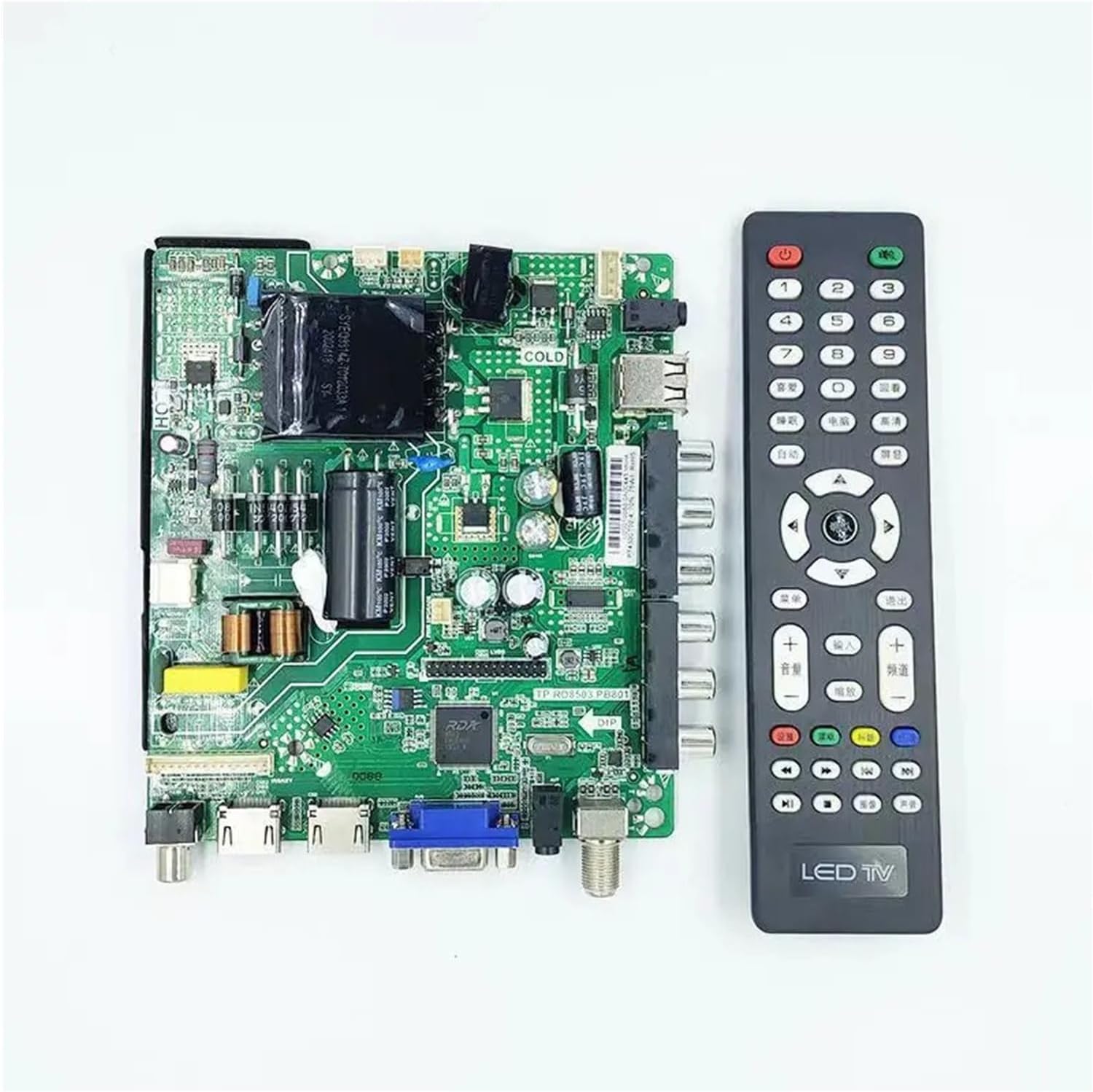
Image 1: The Xqscvqwfa TP.V56.PB801 Universal TV Driver Board shown alongside its accompanying remote control unit. The board features various ports including HDMI, VGA, and USB, as well as an antenna input. The remote control is a standard LED TV remote with numerical buttons, navigation, volume, and channel controls.
Setup Instructions
Important Safety Notice: Before beginning any installation, ensure that the television and all connected devices are powered off and unplugged from the main power supply. Static electricity can damage electronic components. Handle the driver board by its edges to avoid touching sensitive components.
- Prepare the TV: Carefully open the back panel of your television to access the internal components. Refer to your TV's service manual for specific instructions on opening the casing.
- Remove Old Board (if applicable): If replacing an existing driver board, carefully disconnect all cables and mounting screws. Note the orientation and connection points for each cable.
- Install New Board: Position the Xqscvqwfa TP.V56.PB801 board in the designated slot. Secure it with appropriate screws. Ensure all mounting points are aligned.
- Connect Cables:
- Power Supply: Connect the TV's power supply cable to the designated power input on the driver board.
- LVDS Cable: Connect the LVDS (Low-Voltage Differential Signaling) cable from the display panel to the LVDS connector on the driver board. Ensure correct orientation.
- Backlight Cable: Connect the backlight power cable from the display's backlight unit to the corresponding connector on the driver board.
- Input/Output Cables: Connect any necessary input cables (e.g., HDMI, VGA, USB, Antenna) to their respective ports on the board.
- Speaker Cables: Connect the internal speaker cables to the audio output connectors on the board.
- Initial Power-Up: Before fully reassembling the TV, connect the power cord and power on the TV to perform an initial test. Verify that the display powers on and shows a signal.
- Reassemble TV: Once functionality is confirmed, carefully reattach the TV's back panel and secure all screws.
Operating Instructions
The included remote control unit provides full functionality for navigating the TV's menus and controlling playback. Ensure batteries are correctly inserted into the remote control.
Remote Control Functions:
- Power Button (●): Turns the TV on or off.
- Number Buttons (0-9): Directly select channels.
- Input/Source Button: Cycles through available input sources (HDMI, VGA, AV, USB, TV).
- Menu Button: Accesses the main on-screen display (OSD) menu for settings adjustments.
- Navigation Buttons (Up, Down, Left, Right, OK): Navigate through menu options and confirm selections.
- Volume Up/Down (+/-): Adjusts the audio volume level.
- Channel Up/Down (CH+/-): Changes the television channel.
- Mute Button: Toggles audio mute on/off.
- Exit Button: Exits the current menu or function.
- Color Buttons (Red, Green, Yellow, Blue): Functionality varies depending on the specific TV application or menu.
Initial Setup and Channel Scan:
- Power on the TV.
- Press the "Menu" button on the remote.
- Navigate to the "Channel" or "Setup" section using the navigation buttons.
- Select "Auto Scan" or "Channel Search" to automatically find and store available television channels.
- Once the scan is complete, exit the menu.
Maintenance
Proper maintenance ensures the longevity and optimal performance of your driver board.
- Cleaning: Keep the TV's internal area free from dust and debris. Use a soft, dry cloth or compressed air to gently clean the board if necessary. Ensure the TV is unplugged before cleaning.
- Ventilation: Ensure adequate ventilation around the television to prevent overheating of the driver board and other components. Do not block air vents.
- Environmental Conditions: Avoid exposing the TV to extreme temperatures, high humidity, or direct sunlight.
- Firmware Updates: Periodically check the manufacturer's website (if available) for any firmware updates for the driver board. Follow update instructions carefully.
Troubleshooting
If you encounter issues, refer to the following common problems and solutions before seeking professional assistance.
| Problem | Possible Cause | Solution |
|---|---|---|
| No Power | Power cable disconnected, faulty power supply, or board issue. | Check power cable connection. Verify power outlet. Inspect power supply unit. If issue persists, consult a technician. |
| No Picture/Black Screen | Incorrect input source, loose LVDS cable, backlight issue, or board fault. | Press "Input/Source" button on remote to cycle inputs. Check LVDS cable connection. Ensure backlight cable is secure. |
| No Sound | Volume muted, speaker cables disconnected, or audio settings incorrect. | Unmute volume. Increase volume. Check speaker cable connections. Adjust audio settings in the TV menu. |
| Remote Control Not Working | Dead batteries, incorrect battery orientation, or IR sensor blocked. | Replace batteries. Ensure correct polarity. Clear any obstructions between remote and TV's IR sensor. |
| Distorted Picture | Loose video cable, incorrect resolution settings, or panel issue. | Check all video cable connections (HDMI, VGA). Adjust display resolution in TV settings. |
Specifications
| Feature | Detail |
|---|---|
| Model Number | TP.V56.PB801 |
| Brand | Xqscvqwfa |
| Type | Three-in-one Universal TV Driver Board |
| Supported Resolution | 1920x1080 (Full HD) |
| Operating Voltage Range | 45V-66V |
| Network Support | No |
| Item Weight | 50 Grams |
| Input Ports | HDMI, VGA, USB, AV, Antenna (DVB-T/T2/C/S/S2 depending on tuner) |
Warranty and Support
For specific warranty information, please refer to the terms and conditions provided at the time of purchase or contact your retailer. This product is designed for ease of installation and system stability.
If you encounter issues that cannot be resolved using the troubleshooting guide, or require further technical assistance, please contact the seller or a qualified electronics technician. Do not attempt to repair the board yourself if you are not experienced with electronics repair, as this may void your warranty or cause further damage.