
TCL 65C6K
TCL 65-inch 4K QD Mini LED Smart TV
Model: 65C6K
1. Introduction
Welcome to the user manual for your new TCL 65-inch 4K QD Mini LED Smart TV, model 65C6K. This television combines advanced display technologies with smart features to deliver an exceptional viewing and gaming experience. Please read this manual carefully to ensure proper setup, operation, and maintenance of your TV.

Figure 1.1: Front view of the TCL 65C6K Smart TV.
2. Key Features
The TCL 65C6K Smart TV is equipped with cutting-edge technologies designed to enhance your entertainment:
- Mini LED with Quantum Dot Technology: Enhances color accuracy and contrast, improving overall display quality. Precise dimming series reaches up to 512 zones, offering over a billion shades of perfect vivid colors.
- High HDR Brightness: Experience unparalleled brightness with high HDR technology, delivering deep contrast and stunning highlights for an immersive viewing experience. See every detail come to life with amazing clarity and vibrant colors.
- QLED Display: Features 93% DCI-P3 color gamut coverage, providing unparalleled color for stunning and vibrant visuals. Enjoy enhanced color accuracy for a truly immersive experience.
- 144Hz Native Refresh Rate: Unlock ultra-smooth motion with the native 144Hz refresh rate. Whether gaming or watching fast-paced scenes, enjoy seamless clarity that brings every frame to life.
- Non-Glossy HVA Panel: High native contrast ratio of 5000:1 using high molecular weight polyimide material, where liquid crystal molecules are arranged like a butterfly wing, reducing light leakage from the screen.
- AiPQ Pro Processor: This advanced processor perceives, thinks, and produces optimized visuals and audio for an enhanced viewing experience.
- Onkyo 2.1 Hi-Fi Audio with Dolby Atmos: Delivers powerful and immersive sound, defining a new standard for home theater audio.
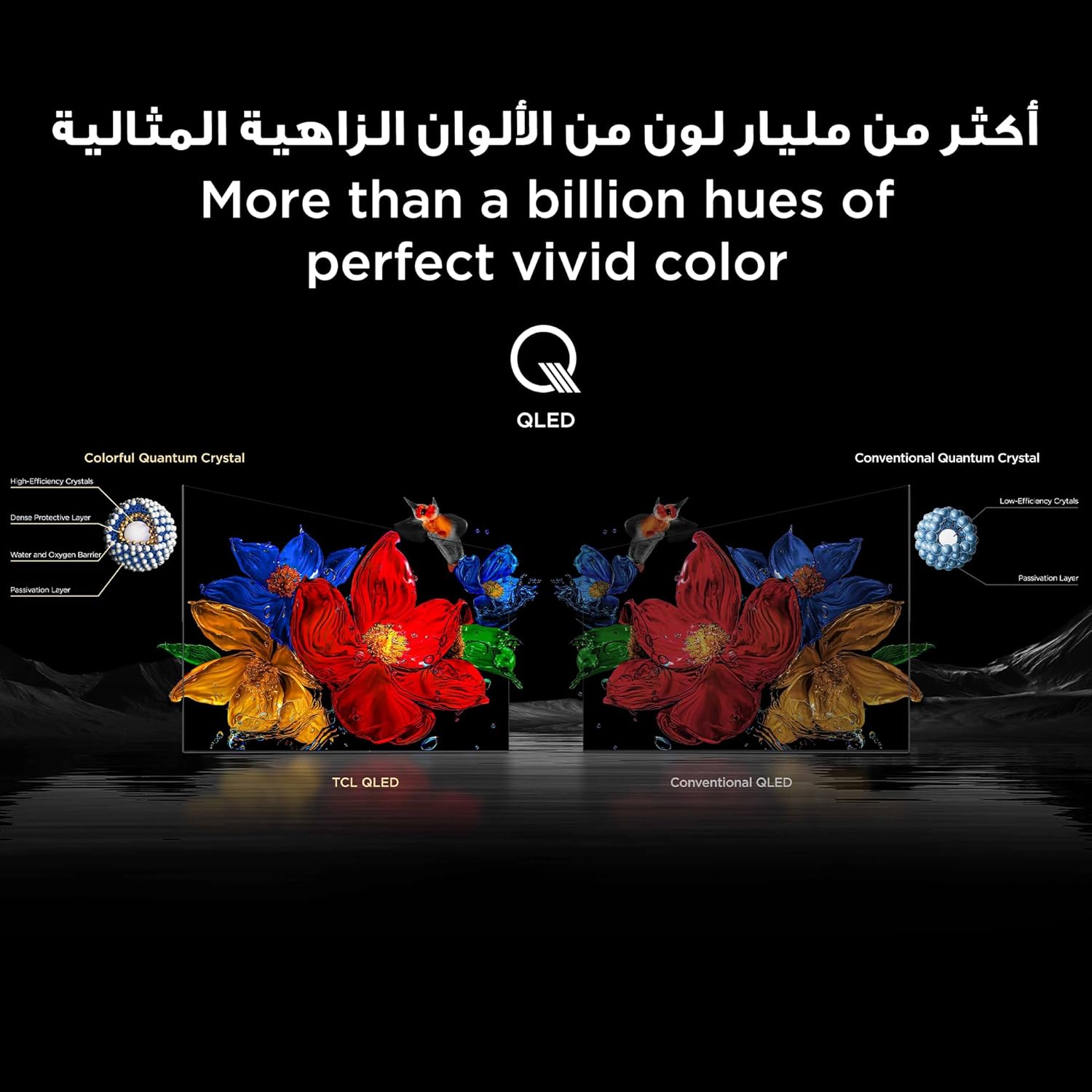
Figure 2.1: Illustration of Mini LED technology, highlighting the precise light control.

Figure 2.2: Visual representation of QLED's expanded color volume compared to conventional displays.

Figure 2.3: High refresh rate ensures smoother and clearer motion, ideal for fast-paced content.

Figure 2.4: The AiPQ Pro Processor intelligently optimizes picture and sound.
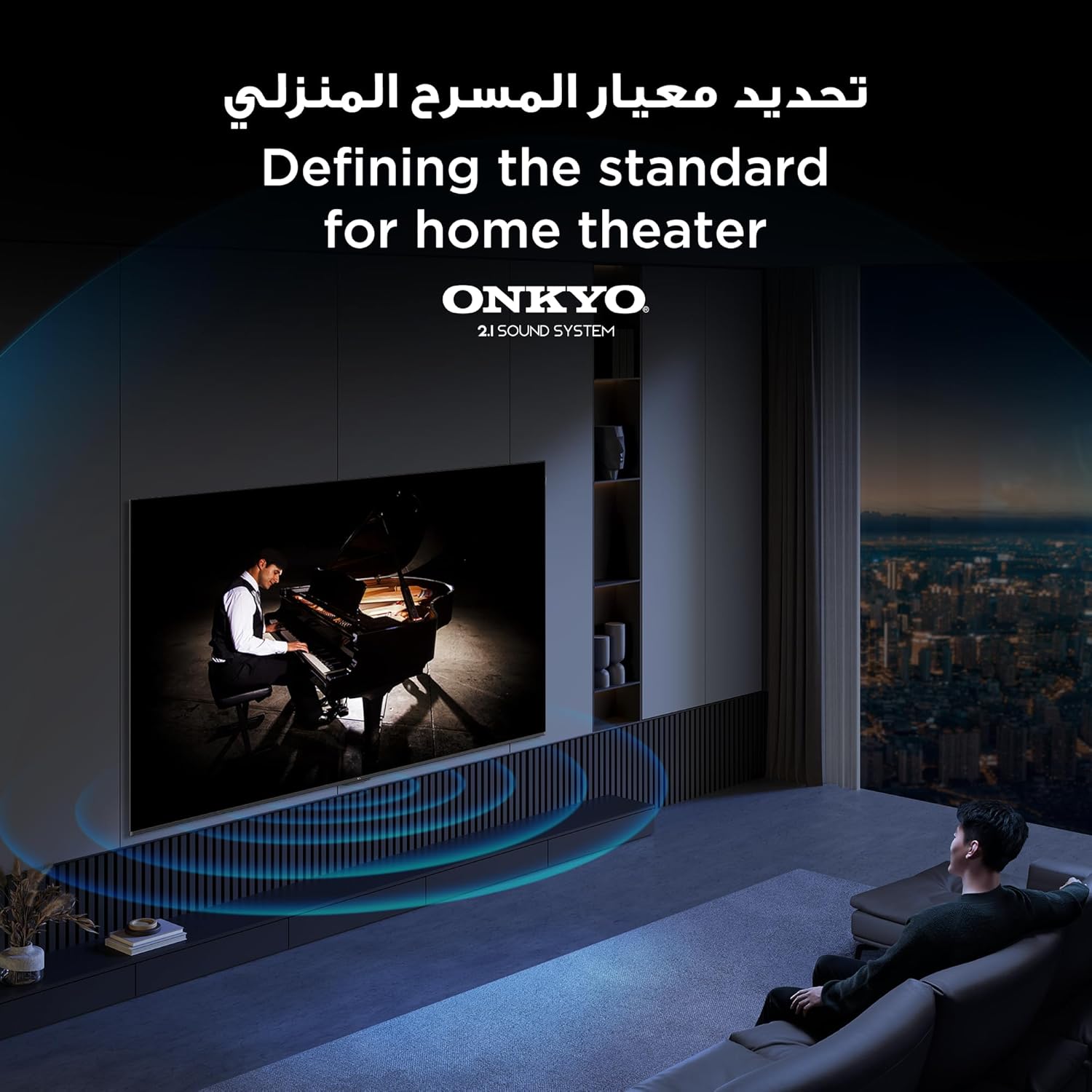
Figure 2.5: The integrated Onkyo 2.1 sound system provides a rich audio experience.
3. Setup Guide
3.1 Unboxing and Inspection
Carefully remove the TV and all components from the packaging. Ensure all included items are present:
- TCL 65C6K Smart TV
- Remote Control
- User Manual
- Stand
- Power Cable
- Power Adapter
Inspect the TV for any physical damage. If damage is found, do not proceed with setup and contact customer support.
3.2 Stand Installation
Place the TV face down on a soft, flat surface to prevent screen damage. Attach the stand legs to the designated slots on the bottom of the TV using the provided screws. Ensure the stand is securely fastened.

Figure 3.1: Side view of the TV, showing its slim profile and stand attachment points.
3.3 Connecting Peripherals
Connect your external devices such as cable boxes, gaming consoles, or sound systems to the appropriate ports on the back of the TV. The TV features HDMI, USB, Bluetooth, and Wi-Fi connectivity.

Figure 3.2: Rear view of the TV, illustrating the various input and output ports.
3.4 Power Connection
Plug the power cable into the TV's power input, then connect the other end to a wall outlet. The TV is now ready for initial power-on.
4. Operating Instructions
4.1 Initial Power-On and Setup Wizard
Press the power button on the remote control or the TV. Follow the on-screen instructions to complete the initial setup, including language selection, network connection (Wi-Fi), and Google TV account setup.
4.2 Basic Functions
- Power On/Off: Use the power button on the remote.
- Input Selection: Press the 'Input' button on the remote to switch between HDMI, USB, and other sources.
- Volume Control: Use the 'Volume Up/Down' buttons.
- Channel Navigation: Use the 'Channel Up/Down' buttons for broadcast TV.
4.3 Smart TV Features (Google TV)
Your TCL 65C6K runs on Google TV, providing access to a vast library of apps, streaming services, and smart home integration. Use the remote's navigation buttons to browse the Google TV interface.
- Voice Assistant: Press the Google Assistant button on your remote to use voice commands for searching content, controlling smart home devices, and more.
- App Access: Navigate to the 'Apps' section to download and manage your favorite streaming applications.
- Game Master: Activate Game Master mode for optimized gaming performance, reducing input lag and enhancing visuals for a smoother gaming experience.
- AI Integration: The TV's AI capabilities enhance picture and sound quality in real-time, adapting to content and environment.

Figure 4.1: The smart interface allows control of various TCL devices and smart home functions.
5. Maintenance
5.1 Cleaning the Screen
To clean the screen, gently wipe it with a soft, lint-free cloth. For stubborn marks, slightly dampen the cloth with water or a specialized screen cleaner. Avoid using harsh chemicals, abrasive materials, or spraying liquid directly onto the screen.
5.2 Cleaning the TV Body
Wipe the TV body and stand with a soft, dry cloth. Do not use solvents or alcohol-based cleaners.
5.3 General Care
- Avoid placing the TV in direct sunlight or near heat sources.
- Ensure adequate ventilation around the TV.
- Unplug the TV during lightning storms or when unused for extended periods.
6. Troubleshooting
This section addresses common issues you might encounter with your TV. If the problem persists after trying these solutions, please contact customer support.
| Problem | Possible Cause | Solution |
|---|---|---|
| No Power | Power cable unplugged; no power from outlet. | Check power cable connection; test outlet with another device. |
| No Picture, but Sound is Present | Incorrect input source selected; faulty HDMI cable. | Verify input source; try a different HDMI cable. |
| Remote Control Not Working | Dead batteries; obstruction between remote and TV. | Replace batteries; remove obstructions; ensure line of sight. |
| Poor Picture Quality | Low-resolution source; picture settings incorrect. | Ensure high-quality source; adjust picture settings (brightness, contrast, sharpness). |
| No Internet Connection | Wi-Fi signal weak; router issue. | Check Wi-Fi signal strength; restart router; re-enter Wi-Fi password. |
7. Specifications
Detailed technical specifications for the TCL 65C6K Smart TV:
| Feature | Description |
|---|---|
| Brand | TCL |
| Model Number | 65C6K |
| Screen Size | 65 Inches |
| Display Technology | QD Mini LED |
| Resolution | 4K (3840 x 2160) |
| Refresh Rate | 144 Hz (Native) |
| Aspect Ratio | 16:9 |
| Connectivity Technology | HDMI, USB, Bluetooth, Wi-Fi |
| Included Components | Remote Control, User Manual, Stand, Power Cable, Power Adapter |
| Product Dimensions (L x W x H) | 144.7 x 5.6 x 83.2 cm; 52 kg |
| First Available Date | April 29, 2025 |
| Country of Origin | China |
8. Warranty and Support
Your TCL 65C6K Smart TV comes with a manufacturer's warranty. Please refer to the warranty card included in your packaging for specific terms and conditions. For technical support, service requests, or further assistance, please visit the official TCL support website or contact their customer service hotline.
Keep your purchase receipt and serial number handy as they may be required for warranty claims.
Related documents65C6K


Ask a question about this manual
Ask about setup, troubleshooting, compatibility, parts, safety, or missing instructions. Manuals+ will review the question and use this page’s manual context to help answer it.