
1. Introduction and Overview
This manual provides detailed instructions for the Redragon K585 one-handed mechanical gaming keyboard and the M616 wired gaming mouse. This bundle is designed to enhance your gaming and productivity experience with customizable features and ergonomic design.

Image 1.1: Redragon K585 keyboard and M616 mouse bundle.
2. Key Features
2.1 Redragon K585 Keyboard Features
- Slim and Tactical Design: The K585 keyboard is designed to be slim and portable, retaining only the most essential keys for efficient gaming and use.
- Upgraded Hot-Swap Sockets: Features upgraded hot-swap sockets, allowing for easy modification and customization of switches.
- Redragon Blue Switches: Equipped with iconic Redragon Blue Switches, providing audible clicky feedback and clear tactile response.
- Programmable Macro Keys: Offers 7 programmable macro keys with a total of 28 macro settings for personalized commands.
- RGB Backlighting: Features 5 customizable RGB backlight modes for enhanced aesthetics.

Image 2.1: The K585 keyboard features a slim and tactical design, removing unnecessary keys to keep essential functions in a compact and portable form factor.

Image 2.2: The K585 keyboard offers 7 programmable macro keys, allowing for 28 total macro settings to optimize gameplay and workflow.

Image 2.3: Equipped with iconic Redragon Blue Switches, the K585 keyboard provides audible clicky feedback and clear tactile response, along with a dustproof design for durability.
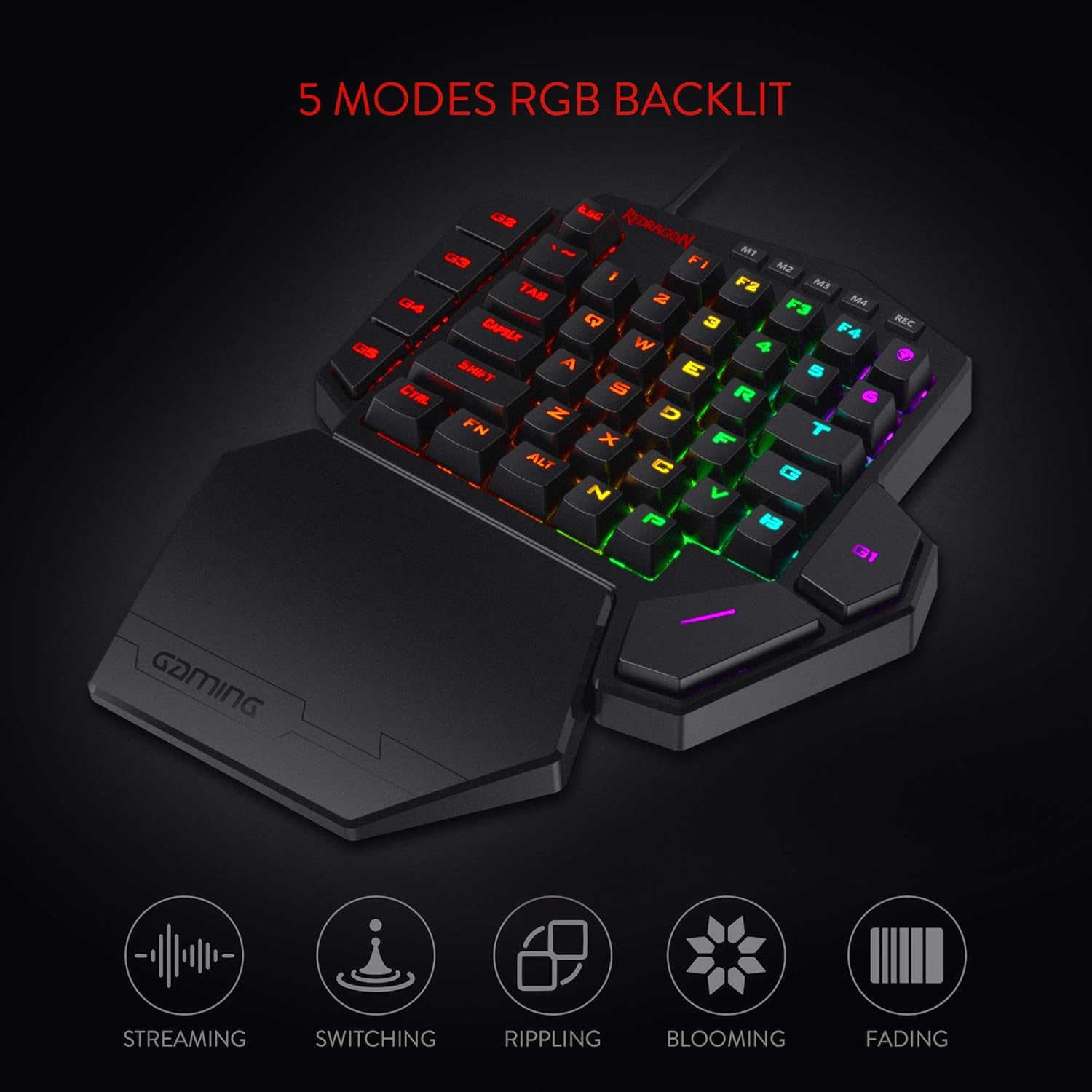
Image 2.4: The K585 keyboard features 5 customizable RGB backlight modes, enhancing the gaming experience with dynamic lighting effects.
2.2 Redragon M616 Mouse Features
- 5 Redefinable DPI Levels: Geared with 5 redefinable DPI levels (default: 800/1200/1600/2400/10000), easily switchable for different game needs.
- Programmable Buttons: 6 programmable buttons are editable with customizable tactical keybinds.
- Ergonomic Design: Features an ergonomic fine texture for comfortable, extended use.
- 8 Lighting Effects: Offers 8 dynamic lighting effects for personalized visual appeal.
- Durable Switches: Built to last with a 10 million click lifespan.

Image 2.5: Redragon M616 gaming mouse highlighting its features like 10000 Max DPI, an SG8925 sensor, 6 programmable buttons, a 10 million click lifespan, 8 backlit modes, and advanced software for customization.

Image 2.6: The M616 mouse offers 5 redefinable DPI levels (800/1200/1600/2400/10000) and adjustable polling rates, allowing users to fine-tune sensitivity for different gaming scenarios.

Image 2.7: Experience enhanced aesthetics with the M616 mouse's 8 lighting effects, offering various visual possibilities to match your setup.

Image 2.8: Designed for extended use, the M616 mouse features an ergonomic fine texture, providing a comfortable and secure grip for long gaming sessions.
3. Setup
The Redragon K585 keyboard and M616 mouse are designed for simple plug-and-play functionality via USB-A connectivity. No complex driver installation is typically required for basic use.
3.1 Initial Connection
- Connect the USB-A cable of the K585 keyboard to an available USB port on your PC.
- Connect the USB-A cable of the M616 mouse to another available USB port on your PC.
- Your operating system should automatically detect and install the necessary drivers.
3.2 Software Installation (Optional for Customization)
For advanced customization of programmable keys, DPI settings, and RGB lighting effects, download the official Redragon software from the Redragon website. Follow the on-screen instructions for installation.
4. Operating Instructions
4.1 K585 Keyboard Operation
- Programmable Keys: Utilize the 7 dedicated macro keys (G1-G7) on the keyboard. These can be programmed via the Redragon software to execute complex commands or sequences with a single press.
- RGB Backlighting: Cycle through the 5 preset RGB backlight modes directly on the keyboard or customize them further using the Redragon software.
4.2 M616 Mouse Operation
- DPI Adjustment: Use the dedicated DPI buttons on the mouse to cycle through the 5 preset DPI levels (800/1200/1600/2400/10000). Fine-tune DPI settings from 100-10000 via the Redragon software.
- Programmable Buttons: The 6 programmable buttons can be assigned various functions, macros, or keybinds using the Redragon software for optimized control in games and applications.
- RGB Lighting: Switch between 8 lighting effects on the mouse or customize them through the Redragon software.
- Mode Switch: The mode switch button located underneath the mouse allows for quick switching between custom profiles configured in the Redragon software.
5. Maintenance
To ensure the longevity and optimal performance of your Redragon K585 keyboard and M616 mouse, follow these maintenance guidelines:
- Cleaning: Use a soft, dry cloth to wipe down the surfaces of the keyboard and mouse. For deeper cleaning, a slightly damp cloth can be used, ensuring no moisture enters the internal components.
- Dust Removal: For the keyboard, use compressed air to clear dust and debris from between the keycaps. The K585's dustproof switches offer added protection.
- Cable Care: Avoid sharp bends or excessive pulling on the USB cables to prevent damage.
- Storage: Store the devices in a cool, dry place away from direct sunlight and extreme temperatures when not in use.
6. Troubleshooting
If you encounter issues with your Redragon K585 keyboard or M616 mouse, try the following troubleshooting steps:
- Device Not Detected: Ensure the USB cables are securely connected to your PC. Try plugging them into different USB ports. Restart your computer.
- Keys/Buttons Not Responding: Check for any physical obstructions. If using custom profiles, ensure the correct profile is active. Reinstall the Redragon software if necessary.
- DPI/RGB Issues: Verify settings within the Redragon software. Ensure the software is up-to-date.
- Intermittent Connectivity: Check the USB cable for any visible damage. Avoid placing the cable near strong electromagnetic interference.
7. Specifications
| Feature | Description |
|---|---|
| Brand | Redragon |
| Compatible Devices | PC, Gaming Console |
| Connectivity Technology | USB-A |
| Keyboard Description | Ergonomic |
| Recommended Uses For Product | Gaming |
| Special Feature | Hot-Swappable, Programmable Keys |
| Material | Plastic |
| Power Source | USB Powered |
8. What's in the Box
- Redragon K585 One-Handed Mechanical Gaming Keyboard
- Redragon M616 Wired Gaming Mouse
9. Warranty and Support
For warranty information, technical support, or further assistance, please refer to the documentation included with your product or visit the official Redragon website. Keep your proof of purchase for warranty claims.


