
1. Introduction
This manual provides detailed instructions for the setup, operation, customization, and maintenance of your EPOMAKER Aula Hero84 HE Wired Hall Effect Gaming Keyboard. Please read this manual thoroughly to ensure proper use and to maximize your keyboard's performance.
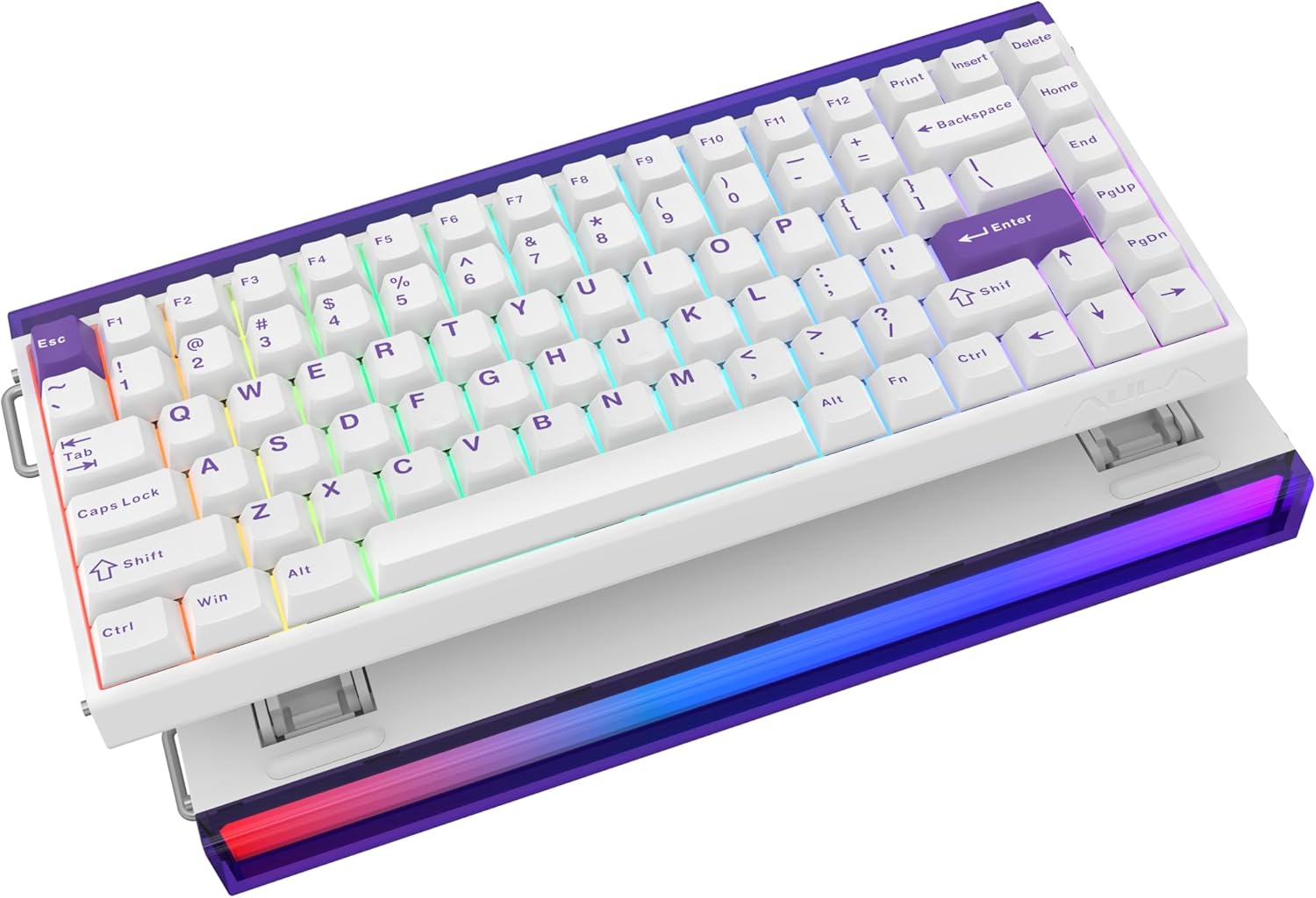
Image 1.1: The EPOMAKER Aula Hero84 HE keyboard, showcasing its compact 75% layout and RGB lighting.
2. Package Contents
Verify that all items are present in your package:
- Hero84 HE Analog Keyboard
- 2-in-1 Switch-and-Keycap Puller
- Detachable USB A to C Keyboard Cable
- Detachable Portable Woven Ribbon
- User Manual
3. Setup Instructions
- Connect the Keyboard: Use the provided USB A to C cable to connect the keyboard to an available USB port on your computer (PC, Mac, or compatible device).
- System Recognition: Your operating system should automatically detect and install the necessary drivers.
- Initial Test: Open a text editor and type to confirm the keyboard is functioning correctly.
- Adjust Kickstand: Utilize the built-in kickstands on the underside of the keyboard to adjust the typing angle for ergonomic comfort.

Image 3.1: The keyboard features an adjustable kickstand for ergonomic typing angles.
4. Operating Instructions
4.1 Basic Key Functions
The Hero84 HE features a 75% compact layout with 84 keys, including a function row. Standard alphanumeric keys operate as expected. Use the Fn key in combination with other keys to access secondary functions, such as media controls, volume adjustments, and lighting effects.
4.2 RGB Lighting Control
The keyboard includes an RGB neon lightbox and per-key backlighting. Lighting effects can be adjusted directly on the keyboard using Fn key combinations or through the dedicated web driver software for more advanced customization.

Image 4.1: The RGB neon lightbox provides ambient lighting, customizable for per-key effects.
5. Customization and Software
The EPOMAKER Aula Hero84 HE keyboard is highly customizable via its web-based driver software. This software is accessible through a Chrome-based browser, eliminating the need for local installation.
5.1 Web Driver Features
- Key Remapping: Reassign key functions to suit your preferences.
- Macro Recording: Create and bind complex macros for enhanced productivity or gaming.
- Lighting Settings: Customize RGB effects, colors, and brightness for both per-key backlighting and the neon lightbox.
- Hall Effect Settings: Adjust actuation points (0.01mm precision), rapid trigger, and dead zones for individual keys.
- Advanced Gaming Features: Configure Snap Key (SOCD) and DKS & MT for precise input control.

Image 5.1: The web-based driver allows extensive customization of key functions, lighting, and Hall Effect settings.
5.2 Cross-Platform Compatibility
The keyboard is designed for seamless operation across multiple platforms, including Windows, macOS, and Android devices. Its onboard memory stores personalized settings, layouts, macros, and trigger ranges, allowing you to maintain your custom configurations when switching between devices.

Image 5.2: The keyboard supports Windows, macOS, Android, and gaming consoles like Xbox and PlayStation.
6. Features Overview
- Hall Effect Switches: Equipped with advanced magnetic switches for adjustable actuation points from 0.01mm, providing precise and customizable key response.
- Ultra-low Latency & High Polling Rate: Achieves an ultra-low latency of 0.125ms and an adjustable polling rate from 125Hz to 8kHz, ensuring rapid response times.
- RGB Neon Lightbox & Backlit: Features a unique RGB neon lightbox for ambient lighting and south-facing LEDs with shine-through keycaps for clear visibility.
- 75% Compact Layout: An 84-key layout that balances functionality with a space-saving design.
- 5-Layer Sound-Dampening: Incorporates multiple layers of sound-dampening materials (PO Sandwich Foam, Fiber Switch Pad, PET Sound Dampening Foam, Bottom Foam, Bottom Silicone Pad) to enhance typing acoustics.
- Hot-Swappable PCB: Allows for easy replacement of switches without soldering, supporting customization and maintenance.
- Aluminum Positioning Plate: Provides stability and contributes to the keyboard's feel and light reflections.

Image 6.1: Overview of the Hero84 HE's core features including Hall Effect switches, 8000Hz polling rate, and adjustable trigger.

Image 6.2: Details on ultra-low latency (0.125ms), key scanning rate (48-128KHz), and polling rate (125-8KHz).

Image 6.3: Close-up of the hot-swap sockets, south-facing LEDs, and specifications for the Black King Magnetic Switch.

Image 6.4: Diagram illustrating the aluminum positioning plate for enhanced stability.

Image 6.5: Exploded view of the keyboard's internal structure, highlighting the 5-layer sound-dampening system.
7. Specifications
| Feature | Specification |
|---|---|
| Product Dimensions | 5.47"L x 1.67"W x 12.67"H |
| Item Weight | 2.9 pounds |
| Connectivity Technology | USB A to C (Wired) |
| Keyboard Description | Magnetic Keyboard (Hall Effect) |
| Compatible Devices | Gaming Console, Laptop, PC |
| Special Features | Ergonomic, Hot-Swappable PCB, N-Key Rollover & Anti-Ghosting, Programmable Keys, RGB Lightbox & Backlit |
| Keyboard Backlighting | RGB |
| Actuation Point | 0.01mm Adjustable |
| Polling Rate | Adjustable 125Hz to 8KHz |
| Latency | 0.125ms |
| Scanning Rate | 48-128KHz |

Image 7.1: Visual representation of the keyboard's dimensions and 75% ANSI layout.
8. Maintenance
To ensure the longevity and optimal performance of your EPOMAKER Aula Hero84 HE keyboard, follow these maintenance guidelines:
- Cleaning: Regularly clean the keycaps and keyboard surface with a soft, dry, lint-free cloth. For deeper cleaning, remove keycaps using the provided keycap puller and use compressed air to clear debris from between switches.
- Switch Care: If replacing switches, use the provided switch puller carefully to avoid damaging the PCB or switch pins.
- Cable Management: Avoid sharp bends or excessive tension on the USB cable to prevent damage.
- Storage: When not in use, store the keyboard in a clean, dry environment, ideally covered with the dust cover to prevent dust accumulation.
9. Troubleshooting
If you encounter issues with your keyboard, refer to the following common troubleshooting steps:
- Keyboard Not Responding:
- Ensure the USB cable is securely connected to both the keyboard and the computer.
- Try connecting the keyboard to a different USB port or another computer to rule out port or system issues.
- Restart your computer.
- Keys Not Registering / Double Input:
- Check the web driver software for actuation point settings. A very low actuation point might cause unintended inputs. Adjust the actuation point to a higher value if necessary.
- Ensure no debris is lodged under the keycap or switch.
- If using hot-swappable switches, gently remove and re-insert the affected switch to ensure proper contact.
- RGB Lighting Issues:
- Verify lighting settings in the web driver software.
- Ensure the keyboard's firmware is up to date.
- Web Driver Not Recognizing Keyboard:
- Ensure you are using a Chrome-based browser.
- Check your internet connection.
- Update your browser to the latest version.
- Temporarily disable any browser extensions that might interfere.
For further assistance, please refer to the official EPOMAKER support resources.
10. Warranty and Support
EPOMAKER products are covered by a manufacturer's warranty. For specific warranty terms, duration, and support options, please visit the official EPOMAKER website or contact their customer service directly. Keep your purchase receipt as proof of purchase for warranty claims.
EPOMAKER Official Website: www.epomaker.com


