
Introduction
Thank you for choosing the Haudio 7-inch Double Din Car Stereo. This manual provides detailed instructions for the installation, operation, and maintenance of your new car stereo system. Please read this manual thoroughly before installation and use to ensure proper functionality and to maximize your user experience. Professional installation is recommended for optimal performance and safety.
Product Features
- Wireless CarPlay & Android Auto: Seamlessly integrate your smartphone for navigation, messaging, and music. Bluetooth 4.1 ensures stable connections for calls and audio streaming.
- 7-inch HD Touchscreen: A vibrant 600x1024 HD capacitive touchscreen provides clear visuals. Powered by an MT8163 quad-core processor (1.3GHz) for smooth operation, supporting 1080P video playback with split-screen and picture-in-picture capabilities.
- 720P AHD Backup Camera: Includes a waterproof 720P AHD camera with a 140° ultra-wide angle and night vision for enhanced parking safety. The display activates automatically when reversing.
- Premium ASP Sound & Storage: Features built-in ASP/EQ sound tuning and supports lossless music. Equipped with 2GB RAM and 32GB internal storage for applications and media. Supports APK downloads via WiFi/hotspot.
- GPS Navigation & Multi-Function: Built-in GPS with support for offline maps and real-time traffic updates. Includes FM/AM/RDS radio. Dual USB ports for charging and media. Customizable UI themes.

Image: The car stereo interface showing Wireless CarPlay, Android Auto, and Mirror Link options for smartphone integration.

Image: A collage illustrating various features including CarPlay, Android Auto, HD screen quality, voice control, Bluetooth connectivity, navigation, and the reverse camera view.
What's in the Box
The package includes the following components:
- Main device (Car Stereo Unit)
- Related accessories (Power Cable, RCA cables, Camera Input cable, USB cables)
- Backup Camera
- GPS Antenna
- Instruction Manual

Image: A visual representation of all items included in the product package, such as the main stereo unit, GPS antenna, user manual, backup camera, various wiring harnesses (RCA, power, camera input), and USB cables.
Setup and Installation
Proper installation is crucial for the performance and safety of your car stereo. It is highly recommended to seek professional assistance for installation.
Pre-Installation Checklist:
- Ensure your dashboard opening is compatible with a double din unit. A compatible dash kit may be required for certain vehicle models (not included).
- Review all wiring diagrams and instructions provided in the physical manual.
- Some vehicle models may require a wire harness adapter and an antenna adapter (not included).
- Disconnect the vehicle's battery before starting installation to prevent electrical damage.
Basic Installation Steps (General Guide):
- Remove Existing Stereo: Carefully remove your vehicle's existing car stereo and trim panels.
- Connect Wiring Harness: Connect the provided power cable and other accessory wires to your vehicle's wiring harness. Ensure all connections are secure and correctly matched.
- Install GPS Antenna: Mount the GPS antenna in a location with a clear view of the sky, typically on the dashboard or under the windshield.
- Install Backup Camera: Route the backup camera cable from the rear of the vehicle to the stereo unit. Connect the camera's power to the reverse light circuit and the video signal to the camera input on the stereo.
- Mount the Unit: Secure the car stereo unit into the dashboard opening using mounting brackets.
- Reconnect Battery: Once all connections are made and secured, reconnect the vehicle's battery.
- Test Functionality: Power on the unit and test all functions, including audio, radio, Bluetooth, CarPlay/Android Auto, and the backup camera.
Operating Instructions
General Controls:
The unit features a 7-inch HD touchscreen and physical knobs/buttons for convenient operation.

Image: A hand operating the physical knob on the car stereo, highlighting its ease of use for volume and navigation.
Wireless CarPlay & Android Auto:
To connect your smartphone wirelessly:
- Ensure Bluetooth is enabled on your smartphone.
- On the car stereo, navigate to the CarPlay or Android Auto application.
- Search for the car stereo's Bluetooth name on your phone and pair.
- Confirm the pairing request on both devices.
- Once connected, your phone's interface will appear on the stereo screen, allowing access to supported apps.
Voice Control:
Utilize voice commands for hands-free operation through CarPlay or Android Auto. Activate your phone's voice assistant (Siri for Apple, Google Assistant for Android) by pressing the voice control button or using the wake phrase (e.g., "Hey Siri" or "Hey Google").
Video: Demonstration of voice navigation, real-time vehicle speed display, voice control for calls, music playback, and the use of convenient knobs and buttons. It also shows the CarPlay connection process and wireless screen mirroring, concluding with the high-definition reverse rearview camera in action.
Music Playback:
Access music through connected CarPlay/Android Auto, Bluetooth streaming, or local media files via USB. Use the touchscreen or physical knobs to control playback (play, pause, skip tracks, adjust volume).
FM/AM/RDS Radio:
Tune into FM or AM radio stations. The RDS (Radio Data System) feature provides additional information like station name, song title, and traffic alerts where available.

Image: A display showing the Bluetooth connection process, FM/AM radio interface, Bluetooth music playback, and an active phone call screen.
Mirror Link:
Mirror your smartphone screen onto the car stereo display for full app compatibility. Connect your phone via USB or Wi-Fi as per the instructions in the Mirror Link application on the stereo.
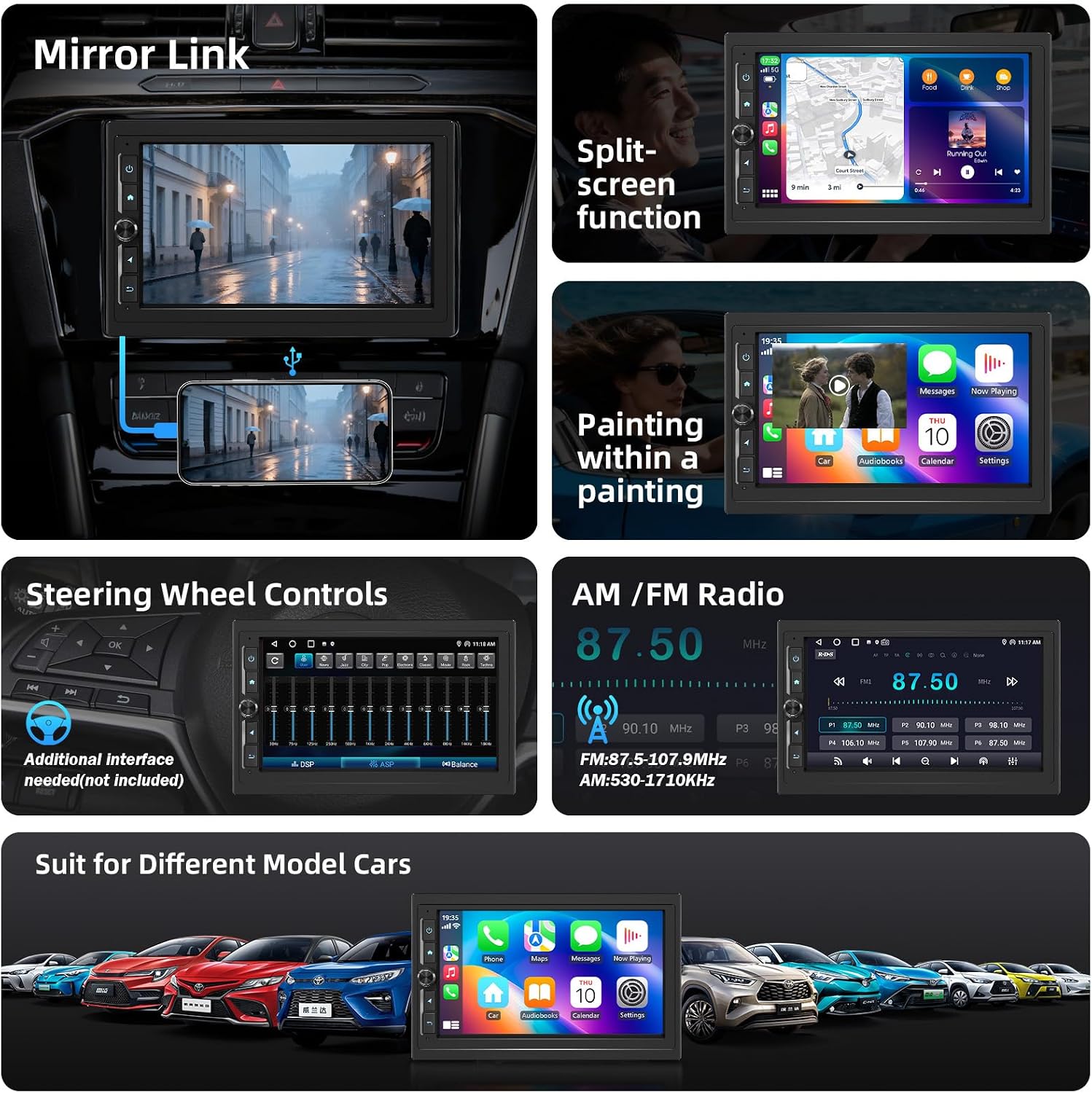
Image: Features such as Mirror Link, split-screen multitasking, picture-in-picture video playback, steering wheel control integration, and the AM/FM radio interface are displayed.
Backup Camera:
When the vehicle is shifted into reverse, the 720P AHD backup camera automatically displays a real-time view on the stereo screen, complete with parking guidelines. The 140° ultra-wide angle and night vision enhance visibility.
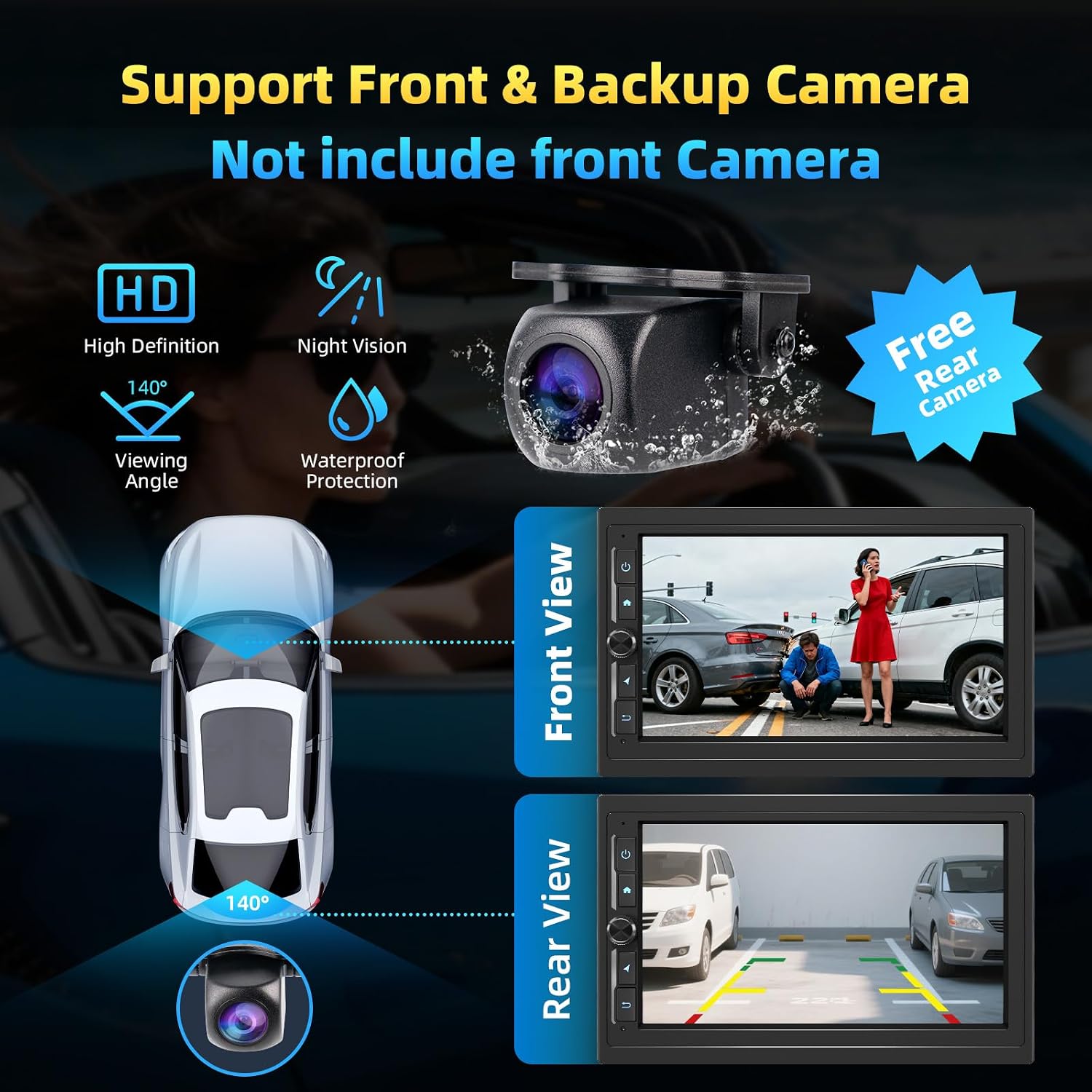
Image: Visuals demonstrating the backup camera's features, including HD quality, 140-degree viewing angle, night vision, and waterproof design, along with front and rear view examples.
GPS Navigation:
The built-in GPS module supports offline maps and provides real-time traffic updates when connected to the internet. Access navigation apps directly from the main menu.
UI Themes & Sound Customization:
Personalize your display with multiple UI themes available in the settings. The built-in EQ/DSP allows for detailed sound tuning, including balance, fader, and various equalizer presets to optimize your audio experience.
Video: A detailed overview of the Haudio 7-inch Double Din Car Stereo's features, including its versatile design, multiple UI themes, knob button functionality, 720*1280 IPS screen quality, picture-in-picture mode, storage capacity (2GB+32GB Octa-Core), built-in EQ/DSP, FM/AM/RDS radio, split-screen capability, Android 13 operating system, CarPlay & Android Auto connectivity, and voice control features.
Maintenance
To ensure the longevity and optimal performance of your car stereo, follow these maintenance guidelines:
- Cleaning the Screen: Use a soft, lint-free cloth to gently wipe the touchscreen. For stubborn smudges, slightly dampen the cloth with water or a screen-safe cleaner. Avoid harsh chemicals or abrasive materials.
- Software Updates: Periodically check for software updates to ensure your system has the latest features and bug fixes. Updates can typically be performed via Wi-Fi.
- Environmental Conditions: Avoid exposing the unit to extreme temperatures, direct sunlight for prolonged periods, or excessive moisture.
- Cable Connections: Periodically check all cable connections to ensure they are secure and free from damage.
Troubleshooting
If you encounter issues with your Haudio car stereo, refer to the following common troubleshooting steps:
| Problem | Possible Cause | Solution |
|---|---|---|
| No Power | Loose power connection, blown fuse, vehicle battery issue. | Check power cable connections. Inspect vehicle fuses and replace if necessary. Ensure vehicle battery is charged. |
| No Sound | Volume too low, incorrect audio source, speaker wiring issues. | Increase volume. Select correct audio source. Check speaker wire connections. |
| Bluetooth/CarPlay/Android Auto not connecting | Bluetooth off, incorrect pairing, software glitch. | Ensure Bluetooth is on for both devices. Delete previous pairings and re-pair. Restart both phone and stereo. |
| Backup Camera not displaying | Loose camera connection, incorrect wiring to reverse light. | Check camera input cable and power connection to reverse light. |
| Touchscreen unresponsive | Temporary software issue, screen calibration needed. | Restart the unit. If issue persists, consult the full manual for screen calibration options or contact support. |
If these steps do not resolve the issue, please refer to the comprehensive troubleshooting section in your physical manual or contact Haudio customer support.
Specifications
Key technical specifications for the Haudio 7-inch Double Din Car Stereo:
- Model Number: 761709916381
- Screen Size: 7 inches
- Display Resolution: 600x1024 HD (Capacitive Touchscreen)
- Processor: MT8163 Quad-core (1.3GHz)
- RAM: 2GB
- Internal Storage: 32GB
- Operating System: Android 13
- Connectivity: Bluetooth 4.1, Wi-Fi, Dual USB, RCA
- Special Features: Wireless Apple CarPlay, Wireless Android Auto, Mirror Link, Built-in GPS, FM/AM/RDS Radio, Built-in EQ/DSP, Rear View Camera Input (720P AHD included)
- Audio Output Mode: Stereo
- Surround Sound Channel Configuration: 2.0
- Video Encoding: H.264, H.265/HEVC
- Color: Black
- Item Weight: 2.57 pounds
- Package Dimensions: 8.46 x 5.83 x 5.59 inches
Warranty and Support
Haudio products are designed for reliability and performance. This product comes with a 1-year warranty from the date of purchase, covering manufacturing defects. For warranty claims, technical support, or any inquiries, please contact Haudio customer service through the retailer where the product was purchased or visit the official Haudio website for contact information.
Please retain your proof of purchase for warranty validation.


