
1. Introduction
This manual provides essential information for the safe and efficient operation of your MEFERI ME10 Wearable Computer and MS300R Ring Scanner. Please read this manual thoroughly before using the devices to ensure proper setup, functionality, and maintenance. Retain this manual for future reference.

Image: The MEFERI ME10 Wearable Computer and MS300R Ring Scanner shown together.
2. Product Components
The MEFERI ME10 Wearable Computer and MS300R Ring Scanner system typically includes the following components:
- ME10 Wearable Computer Unit
- MS300R Ring Scanner
- Wrist Mount for ME10
- Charging Cable (USB-C)
- Power Adapter
- User Manual (this document)

Image: A close-up view of the MEFERI MS300R Ring Scanner, highlighting its design and scanning window.
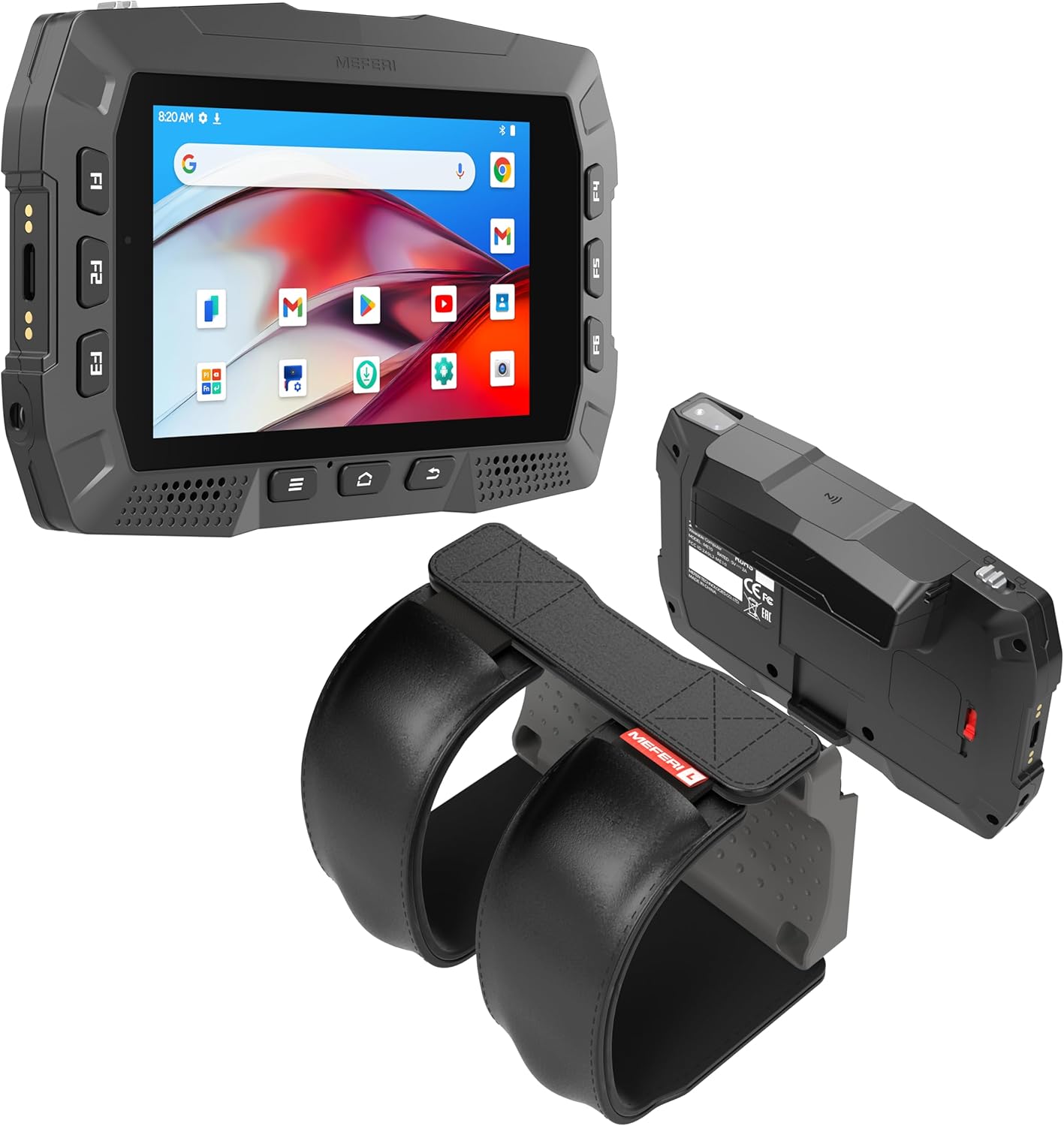
Image: The MEFERI ME10 Wearable Computer attached to its wrist mount, alongside the MS300R Ring Scanner.
3. Setup
3.1 Charging the Devices
Before initial use, ensure both the ME10 Wearable Computer and the MS300R Ring Scanner are fully charged.
- Connect the USB-C charging cable to the charging port on the ME10.
- Connect the other end of the cable to the power adapter, then plug the adapter into a wall outlet.
- For the MS300R Ring Scanner, connect its dedicated charging cable to the scanner and a power source.
- The charging indicator lights will illuminate, typically red for charging and green for fully charged.

Image: The MEFERI ME10 Wearable Computer highlighting its 3400mAh battery and hot-swap capability.
3.2 NFC One-Touch Pairing (ME10 and MS300R)
The MS300R Ring Scanner can be quickly paired with the ME10 Wearable Computer using NFC (Near Field Communication).
- Ensure both devices are powered on and NFC is enabled on the ME10.
- Bring the NFC area of the MS300R Ring Scanner close to the NFC detection area on the ME10 Wearable Computer.
- The devices will automatically detect each other and initiate the pairing process. Follow any on-screen prompts on the ME10 to confirm the connection.
- A successful connection will be indicated by a confirmation message on the ME10 and a status light on the MS300R.

Image: Illustration of NFC Tap-to-Pair functionality for connecting the ME10 and MS300R.
3.3 Initial Configuration (ME10)
Upon first power-on, the ME10 will guide you through the initial Android 13 setup process.
- Select your preferred language.
- Connect to a Wi-Fi network (WiFi-6E supported).
- Sign in with your Google account or skip for later.
- Review and accept the terms and conditions.
- Complete any additional setup steps as prompted.
4. Operating Instructions
4.1 Basic Navigation (ME10)
The ME10 operates on Android 13, providing a familiar touch interface.
- Touchscreen: Navigate menus, open applications, and input data using the 4-inch IPS touch panel.
- Physical Buttons: Utilize the programmable function keys (F1-F6) for quick access to frequently used applications or functions.
- Home, Back, Recent Apps: Standard Android navigation buttons are available on the device.

Image: The MEFERI ME10 Wearable Computer's display, highlighting its 4-inch IPS screen, wet hand/glove operation, and 13MP rear camera.
4.2 Scanning Operations (MS300R)
The MS300R Ring Scanner is designed for efficient 1D and 2D barcode scanning.
- Wearing the Scanner: Securely attach the MS300R to your finger using the adjustable strap.
- Activating Scan: Press the trigger button on the MS300R to activate the scan engine.
- Scanning Barcodes: Aim the scanner's laser or imager at the barcode. Ensure the barcode is within the scanner's field of view. A successful scan is typically indicated by an audible beep and/or a visual confirmation on the ME10 screen.
- Data Transmission: Scanned data is automatically transmitted to the paired ME10 Wearable Computer.

Image: The MS300R Ring Scanner actively scanning multiple 1D and 2D barcodes, demonstrating its professional scan engine capabilities.
4.3 Battery Management
The ME10 features a hot-swappable battery to minimize downtime.
- Battery Level: Monitor the battery icon on the ME10's status bar.
- Hot-Swap Procedure: When the battery is low, prepare a charged spare battery. The ME10 provides a 10-minute backup power window, allowing you to remove the depleted battery and insert a fresh one without powering down the device.
- MS300R Battery: The MS300R has its own internal battery, providing up to 18 hours of operation. Charge it separately as needed.
5. Maintenance
5.1 Cleaning
Regular cleaning helps maintain device performance and longevity.
- Screen: Use a soft, lint-free cloth slightly dampened with water or a screen cleaner. Avoid harsh chemicals.
- Device Body: Wipe the exterior with a soft, damp cloth. For stubborn dirt, a mild soap solution can be used, ensuring no liquid enters ports or openings.
- Scanner Window: Gently clean the scanner's optical window with a soft, dry, lint-free cloth to ensure optimal scanning performance.
- Ports: Keep all ports free of dust and debris. Use a soft brush or compressed air if necessary.
5.2 Storage
When not in use, store the devices properly.
- Store in a cool, dry place away from direct sunlight and extreme temperatures.
- If storing for extended periods, ensure batteries are charged to approximately 50% to prolong their lifespan.
- Keep devices in their original packaging or a protective case to prevent physical damage.
6. Troubleshooting
This section addresses common issues you might encounter. For problems not listed here, contact customer support.
6.1 Common Issues and Solutions
| Issue | Possible Cause | Solution |
|---|---|---|
| Device not powering on | Low or depleted battery | Charge the device for at least 30 minutes. |
| Scanner not pairing with ME10 | NFC disabled, devices too far apart, or pairing error | Ensure NFC is enabled on ME10. Bring devices closer. Restart both devices and try NFC pairing again. |
| Unable to scan barcodes | Dirty scanner window, barcode damaged, or incorrect symbology settings | Clean the scanner window. Try scanning a different barcode. Check scanner settings on ME10 for enabled symbologies. |
| ME10 is slow or unresponsive | Too many apps running, low storage, or software glitch | Close unnecessary applications. Clear cache. Restart the device. |
7. Specifications
Key technical specifications for the MEFERI ME10 Wearable Computer and MS300R Ring Scanner:
| Feature | Specification |
|---|---|
| ME10 Operating System | Android 13 (GMS/AER certified, upgradable) |
| ME10 Processor | Qualcomm QCM4490 Octa-core 2.4GHz |
| ME10 Memory | 4GB RAM, 64GB Storage |
| ME10 Display | 4-inch IPS Touch Panel (Wet Hand & Glove Operation) |
| ME10 Battery | 3400mAh (Hot-swappable, up to 12 hours runtime) |
| ME10 Connectivity | WiFi-6E, Bluetooth 5.2, NFC |
| ME10 Camera | 13MP Rear Camera |
| ME10 Durability | IP54 Sealing, 1.5m Drop Resistant |
| MS300R Scanner Type | 1D & 2D Barcode Scanner (Intelligent Capture Technology) |
| MS300R Battery | Up to 18 hours standard power |

Image: Detailed view of the Qualcomm QCM4490 processor, highlighting its specifications including Octa-core 2.4GHz, 4GB RAM, and 64GB ROM.

Image: The MEFERI ME10 Wearable Computer demonstrating its rugged design with IP54 sealing and 1.5m drop resistance.
8. Warranty and Support
MEFERI products are designed for reliability and performance. This product is covered by a standard manufacturer's warranty against defects in materials and workmanship. The specific terms and duration of your warranty may vary by region and purchase date. Please refer to your purchase documentation for detailed warranty information.
For technical support, warranty claims, or service inquiries, please contact MEFERI customer support through the official MEFERI website or the contact information provided with your product packaging. When contacting support, please have your product model (ME10/MS300R) and serial number ready.
Online Resources: For additional resources, FAQs, and software updates, visit the official MEFERI support page at MEFERI Store on Amazon.

