
DigiLand MID1057-MX
DigiLand MID1057-MX 10.1-inch Android 14 Tablet
User Instruction Manual
Introduction
This manual provides essential information for the proper setup, operation, and maintenance of your DigiLand MID1057-MX 10.1-inch Android 14 Tablet. Please read this manual thoroughly before using the device to ensure optimal performance and longevity.

Image: DigiLand MID1057-MX Android 14 Tablet.
Setup
1. Package Contents
Verify that all items are present in the package:
- DigiLand MID1057-MX Tablet
- USB Type-C Cable
- Power Adapter
- Protective Case
- Quick Start Guide
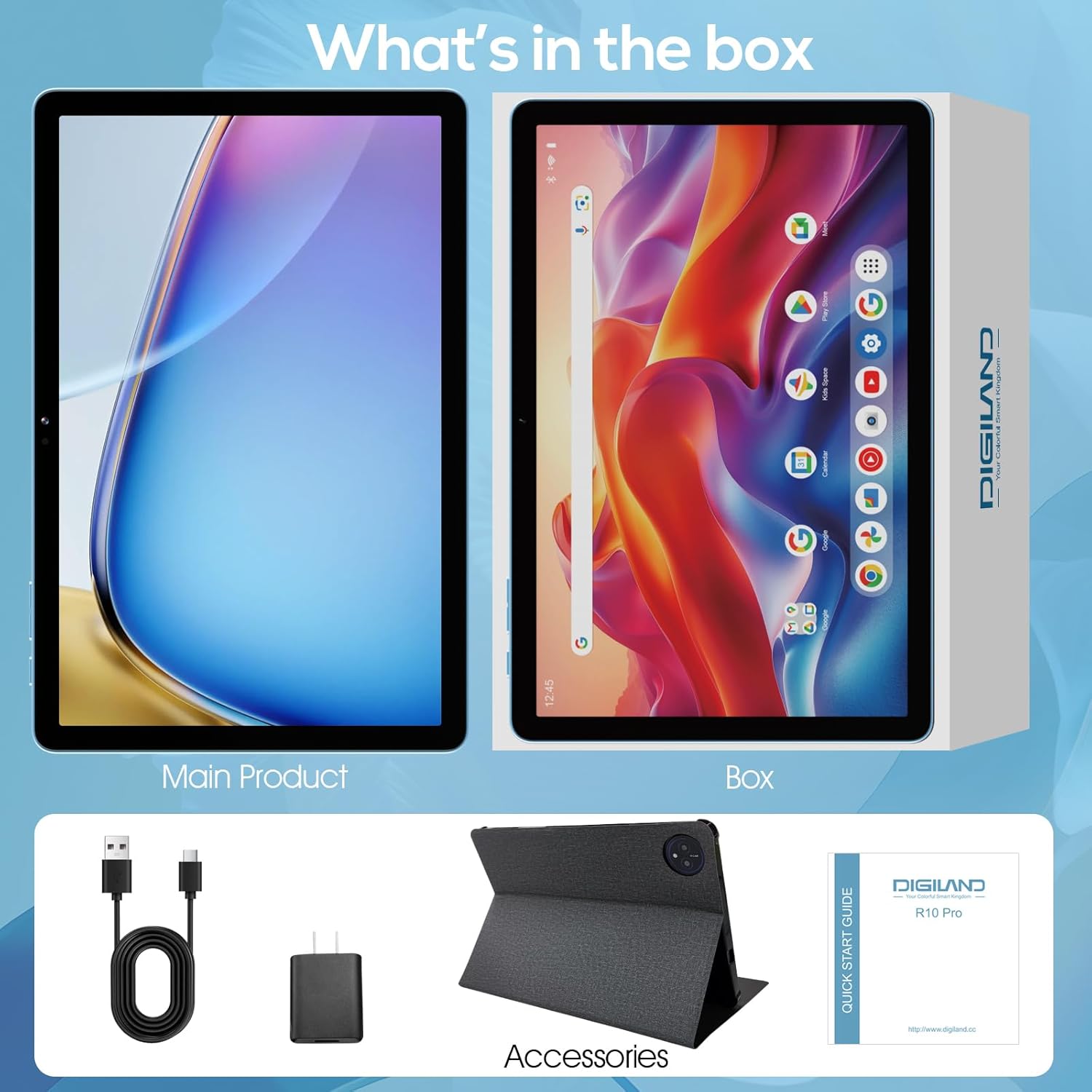
Image: Package contents of the DigiLand MID1057-MX Tablet.
2. Device Layout
Familiarize yourself with the tablet's physical features:
- Power Button: Located on the side, used to turn the device on/off or wake/sleep the screen.
- Volume Buttons: Adjust audio levels.
- USB Type-C Port: For charging and data transfer.
- Headset Jack: For connecting headphones.
- MicroSD Card Slot: For expandable storage (up to 1TB).
- Front Camera: For video calls and selfies.
- Rear Camera: For capturing photos and videos.

Image: Overview of tablet ports and buttons.
3. Initial Charge
Before first use, fully charge the tablet. Connect the USB Type-C cable to the tablet's port and the power adapter to a wall outlet. The battery indicator on the screen will show charging status.
4. Power On/Off
- To Power On: Press and hold the Power button until the DigiLand logo appears.
- To Power Off: Press and hold the Power button until the power options menu appears, then select "Power off."
- To Sleep/Wake: Briefly press the Power button.
5. Initial Setup
Upon first power-on, follow the on-screen prompts to:
- Select your language.
- Connect to a Wi-Fi network.
- Sign in with your Google account or create a new one.
- Set up screen lock and other security features.
Operating
1. Touchscreen Gestures
Navigate the tablet using standard Android gestures:
- Tap: Select an item or open an application.
- Tap and Hold: Access contextual menus or move icons.
- Swipe: Scroll through pages or navigate between screens.
- Pinch: Zoom in or out on images and web pages.
2. Connecting to Wi-Fi
- Go to Settings > Network & internet > Wi-Fi.
- Toggle Wi-Fi On.
- Select your desired network from the list.
- Enter the password if prompted, then tap Connect.
3. Bluetooth Pairing
- Go to Settings > Connected devices > Bluetooth.
- Toggle Bluetooth On.
- Ensure your Bluetooth device is in pairing mode.
- Select the device from the list and follow any on-screen prompts to complete pairing.
4. Installing and Uninstalling Applications
- Install: Open the Google Play Store app, search for the desired application, and tap Install.
- Uninstall: Go to Settings > Apps > See all apps, select the app, then tap Uninstall.
5. Managing Storage
Your tablet comes with 128GB of internal storage. You can expand this by up to 1TB using a MicroSD card (not included).
- To Insert MicroSD Card: Locate the MicroSD card slot, gently insert the card until it clicks into place.
- To Remove MicroSD Card: Go to Settings > Storage, tap on the SD card, and select Eject before physically removing it.

Image: Storage capacity and expansion.
6. Camera Usage
The tablet features a 13MP rear camera and an 8MP front camera.
- Open the Camera app.
- Tap the shutter button to take a photo.
- Tap the video icon to record a video.
- Use the camera switch icon to toggle between front and rear cameras.

Image: Dual camera features and examples.
7. Battery Management
The 6000mAh battery provides extended usage time. To optimize battery life:
- Adjust screen brightness to a comfortable level.
- Turn off Wi-Fi and Bluetooth when not in use.
- Close unused applications running in the background.
- Enable battery saver mode in Settings > Battery.

Image: Battery capacity and usage estimates.
Maintenance
1. Cleaning the Device
Use a soft, lint-free cloth to clean the screen and body of the tablet. Avoid using harsh chemicals or abrasive materials.
2. Software Updates
Regularly check for and install system updates to ensure your tablet has the latest features and security patches. Go to Settings > System > System update.
3. Storage Optimization
Periodically review and delete unnecessary files, photos, and applications to free up storage space and maintain performance. Consider moving large media files to an external MicroSD card.
Troubleshooting
Refer to the table below for common issues and their solutions:
| Issue | Possible Solution |
|---|---|
| Tablet won't turn on | Ensure the battery is charged. Connect to the charger for at least 30 minutes, then try powering on again. |
| Wi-Fi connection issues | Restart the tablet and your Wi-Fi router. Forget the network in settings and reconnect. |
| Slow performance | Close unused apps. Clear cache for frequently used apps. Check for system updates. Free up storage space. |
| Battery drains quickly | Reduce screen brightness. Disable Wi-Fi/Bluetooth when not in use. Limit background app activity. |
| Apps crashing or freezing | Restart the app. Clear the app's cache and data in settings. Reinstall the app. |
Specifications
Key technical specifications for the DigiLand MID1057-MX Tablet:
| Feature | Specification |
|---|---|
| Model | MID1057-MX |
| Operating System | Android 14 |
| Screen Size | 10.1 inches |
| Screen Resolution | 1280 x 800 pixels (IPS HD) |
| Processor | MTK Helio G80 Octa-Core (A523, Cortex A55@1.8 GHz, 22nm) |
| RAM | 12GB (4GB physical + 8GB expansion) |
| Internal Storage | 128GB ROM |
| Expandable Storage | Up to 1TB via MicroSD card (TF card slot) |
| Battery Capacity | 6000mAh |
| Front Camera | 8MP |
| Rear Camera | 13MP |
| Connectivity | Dual-band Wi-Fi (2.4G+5G), Bluetooth 5.0, USB Type-C (OTG) |
| Dimensions (LxWxH) | 9.5 x 6.3 x 0.3 inches |
| Item Weight | 2.79 pounds (485g for tablet only) |

Image: Detailed product specifications.
Warranty and Support
1. Warranty Information
Please refer to the warranty card included with your product for specific warranty terms and conditions. DigiLand provides after-sales support to address any product-related concerns.
2. Customer Support
For technical assistance, troubleshooting, or any questions regarding your DigiLand MID1057-MX Tablet, please contact DigiLand customer support through the contact information provided in your Quick Start Guide or on the official DigiLand website.
Ask a question about this manual
Ask about setup, troubleshooting, compatibility, parts, safety, or missing instructions. Manuals+ will review the question and use this page’s manual context to help answer it.