
Introduction
This manual provides instructions for the Aroepurt PU Leather Stand Folio Cover, designed for the Thomson Origin 1010 10.1 inch tablet. This case offers comprehensive protection, multiple viewing angles, and convenient features for daily use.
The case is constructed from premium durable synthetic leather with a soft, anti-slip interior. It is designed to protect your tablet from fingerprints, dirt, scratches, shocks, and dust. The design includes a 360-degree rotation feature and an anti-slip strip for stable multi-angle viewing.
Package Contents
- 1 x Aroepurt Tablet Case
Setup: Installing Your Tablet
To install your Thomson Origin 1010 tablet into the Aroepurt case, follow these steps:
- Open the Case: Lay the case flat on a clean surface and open it completely.
- Position the Tablet: Carefully align your Thomson Origin 1010 tablet with the internal frame of the case. Ensure the tablet's edges fit snugly within the protective corners.
- Secure the Tablet: Gently press the tablet into the frame until all corners are securely held. Verify that all ports, buttons, and the camera are accessible through the case's cutouts.
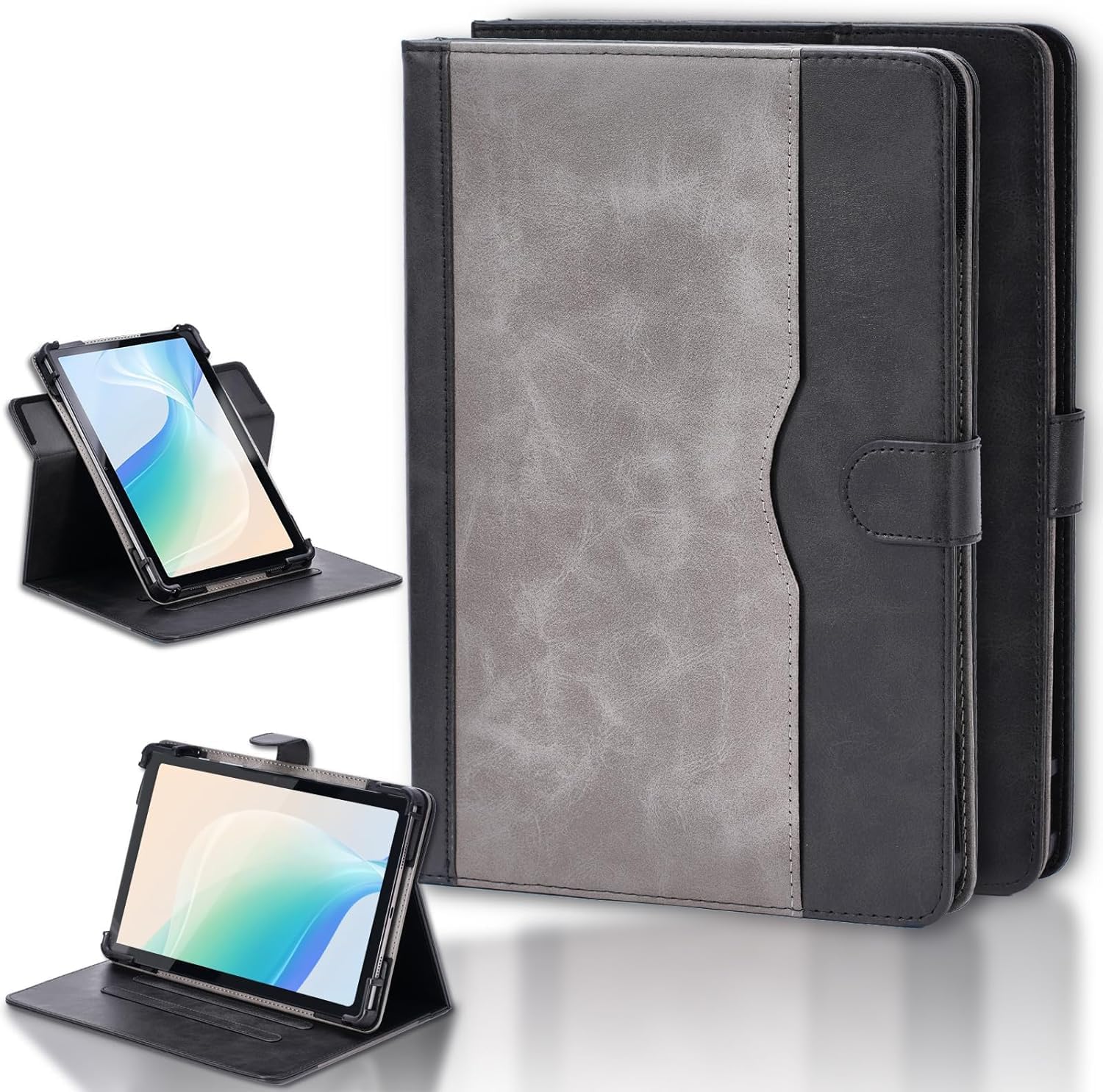
Image: The Thomson Origin 1010 tablet is shown fully inserted into the Aroepurt case, demonstrating a secure and protective fit. The case's frame holds the tablet firmly in place.

Image: A side view illustrates the tablet being inserted into the case, emphasizing the precise alignment of the case's cutouts with the tablet's ports and buttons for full functionality.
Operating Instructions
Using the Multi-Viewing Stand
The case features an anti-slip strip design that allows you to prop up your tablet at various angles for comfortable viewing. To use the stand function:
- Fold the Cover: Fold the front cover backward to form a triangular stand.
- Position the Tablet: Place the edge of your tablet into one of the anti-slip grooves on the inside of the front cover.
- Adjust Angle: Adjust the tablet's position in different grooves to achieve your desired viewing angle.

Image: The tablet case is configured as a stand, illustrating how the anti-slip strip supports the tablet for hands-free viewing. This image highlights the stability and convenience of the stand feature.
360-Degree Rotation
The case allows for 360-degree rotation of your tablet, enabling both portrait and landscape viewing modes while in the stand position.
- Rotate Tablet: While the tablet is secured in the case, gently rotate the tablet within its frame to switch between portrait and landscape orientations.
- Adjust Stand: Re-adjust the stand as needed after rotation to maintain stability.

Image: This diagram demonstrates the 360-degree rotation capability of the tablet within the case, illustrating how users can easily switch between portrait and landscape viewing modes.
Camera Access
The case includes reserved cutouts for the tablet's rear camera, supporting camera usage without removing the tablet from the case. The design accommodates tablets with different camera positions through multiple pre-cutouts.

Image: A detailed view of the case's camera cutouts, highlighting the design that supports various tablet camera placements, ensuring camera functionality remains accessible.
Storage Pocket
The case features a large welt pocket for convenient storage of cards, documents, or cash.

Image: This image displays the integrated storage pocket on the case, demonstrating its capacity to hold cards, documents, and cash for added convenience.
Maintenance and Care
To ensure the longevity and appearance of your Aroepurt tablet case, follow these care instructions:
- Cleaning: Wipe the exterior with a soft, damp cloth. For tougher stains, use a mild soap solution and then wipe with a clean, damp cloth. Avoid harsh chemicals or abrasive cleaners.
- Drying: Allow the case to air dry completely. Do not expose it to direct sunlight or high heat, as this may damage the PU leather.
- Storage: Store the case in a cool, dry place when not in use.
- Avoid Sharp Objects: Keep the case away from sharp objects to prevent scratches or punctures.
Troubleshooting
- Tablet Does Not Fit: Ensure your tablet is a Thomson Origin 1010 10.1 inch model. This case is specifically designed for this model. Verify the tablet's dimensions against the case specifications.
- Camera Obstruction: The case has universal camera cutouts. If your tablet's camera is partially obstructed, ensure the tablet is correctly seated and aligned within the case's frame.
- Stand Instability: Ensure the tablet is placed firmly into one of the anti-slip grooves. The anti-slip strip is designed to provide stability.
- Auto Sleep/Wake Function: Please note that this case does not support any tablet's auto-sleep/wake function.
Specifications
| Brand | Aroepurt |
| Compatible Devices | Thomson Origin 1010 |
| Material | PU Leather |
| Form Factor | Flip Case |
| Special Features | Card insertion, Stash the change, Thickened anti-drop corner protector, Folding stand, 360-degree rotation |
| Color | Black |
| Product Dimensions | 0.39 x 0.39 x 0.39 inches (approximate, as per product data) |
| Item Weight | 2.46 ounces |
Warranty and Support
Information regarding specific warranty terms or direct support contacts is not provided with this product. For any issues or inquiries, please refer to the retailer or your point of purchase for assistance.