
1. Introduction
This manual provides detailed instructions for the setup, operation, maintenance, and troubleshooting of your Ajazz AF84 Wireless Membrane Silent Typewriter Keyboard. Please read this manual thoroughly before using the product to ensure proper function and longevity.
Package Contents:
- Ajazz AF84 Wireless Keyboard
- 2.4G USB Receiver
- User Manual (this document)
- (Batteries not included - requires 2x AAA batteries)

Figure 1.1: Ajazz AF84 Wireless Keyboard (Black variant)
2. Safety Information
To ensure safe operation and prevent damage, please observe the following precautions:
- Do not expose the keyboard to water or excessive moisture.
- Avoid dropping or subjecting the keyboard to strong impacts.
- Do not attempt to disassemble or modify the keyboard. This will void the warranty.
- Keep the keyboard away from extreme temperatures and direct sunlight.
- Use only specified AAA batteries. Ensure correct polarity during installation.
3. Setup
3.1 Battery Installation
The Ajazz AF84 keyboard requires two (2) AAA batteries (not included). The battery compartment is located on the underside of the keyboard.
- Locate the battery compartment cover on the bottom of the keyboard.
- Slide the cover open.
- Insert two AAA batteries, ensuring the correct positive (+) and negative (-) polarity as indicated inside the compartment.
- Close the battery compartment cover securely.

Figure 3.1: Receiver Storage and Battery Compartment
3.2 2.4G Wireless Connection
For a stable and fast wireless connection, use the included 2.4G USB receiver.
- Locate the 2.4G USB receiver, typically stored in a dedicated slot on the underside of the keyboard.
- Plug the USB receiver into an available USB port on your computer or device.
- Turn on the keyboard using the ON/OFF switch located on the underside.
- The keyboard should automatically connect to your device. The 2.4G indicator light will turn off to indicate successful connection.

Figure 3.2: Connecting the 2.4G USB Receiver
3.3 Bluetooth Connection (BT1 / BT2)
The keyboard supports dual Bluetooth connections, allowing you to switch between two paired devices.
- Turn on the keyboard using the ON/OFF switch.
- Press and hold the Fn + PrtSc (BT1) or Fn + Insert (BT2) key combination for 3-5 seconds until the corresponding BT indicator light (BT1 or BT2) starts flashing rapidly. This indicates pairing mode.
- On your device (tablet, phone, PC), enable Bluetooth and search for available devices.
- Select "AF84" from the list of found devices.
- Once paired, the BT indicator light will remain solid green.
- To switch between paired Bluetooth devices, simply press Fn + PrtSc (BT1) or Fn + Insert (BT2). The corresponding light will illuminate.
Video 3.1: Demonstrating Bluetooth pairing and typing with the Ajazz AF84 keyboard.
3.4 Device Compatibility
The Ajazz AF84 keyboard is compatible with a wide range of operating systems and devices:
- Windows: Suitable for Windows 8.0 and above.
- macOS: Compatible with macOS 10.10 and above.
- Android: Supports Android 2.4G mode.
- iOS: Compatible with iPhone and iPad devices.
- Other: Vista, Win7/8/10.
To optimize keyboard functions for different operating systems, use the following key combinations:
- Fn + Q: Switch to iOS mode
- Fn + W: Switch to Windows mode
- Fn + E: Switch to Android mode

Figure 3.3: Multi-Device Compatibility
4. Operating Instructions
4.1 Key Functions and Multimedia Controls
The keyboard features 84 keys, including function keys that can be accessed using the Fn key.
| Key Combination | Function |
|---|---|
| Fn + F1 | Media Player |
| Fn + F2 | Volume Down |
| Fn + F3 | Volume Up |
| Fn + F4 | Mute |
| Fn + F5 | Previous Track |
| Fn + F6 | Next Track |
| Fn + F7 | Play/Pause |
| Fn + F8 | Stop |
| Fn + F9 | |
| Fn + F10 | Web Browser |
| Fn + F11 | My Computer |
| Fn + F12 | Calculator |
| Fn + PrtSc (BT1) | Switch to Bluetooth Channel 1 / Enter Pairing Mode for BT1 |
| Fn + Insert (BT2) | Switch to Bluetooth Channel 2 / Enter Pairing Mode for BT2 |
| Fn + Del | Switch to 2.4G Wireless Mode |
| Caps Lock Key | Toggle Caps Lock (Red indicator light) |
4.2 Indicator Lights Explanation
The keyboard features several indicator lights to provide status information:
- "A" (Caps Lock Indicator Light): Press the Caps Lock key to turn the red light on for uppercase. Press again to turn off the red light and restore lowercase.
- "@" (2.4G Indicator Light): When in 2.4G mode (Fn+Del), this indicator light will be off.
- "BT1/BT2" (Bluetooth Channel Indicator Light): When switching to BT1 or BT2 mode, the corresponding indicator light will remain green after successful connection. Flashing green indicates pairing mode.
- "⚡" (Low Power Indicator Light): A flashing red light indicates low battery power. Replace batteries promptly.
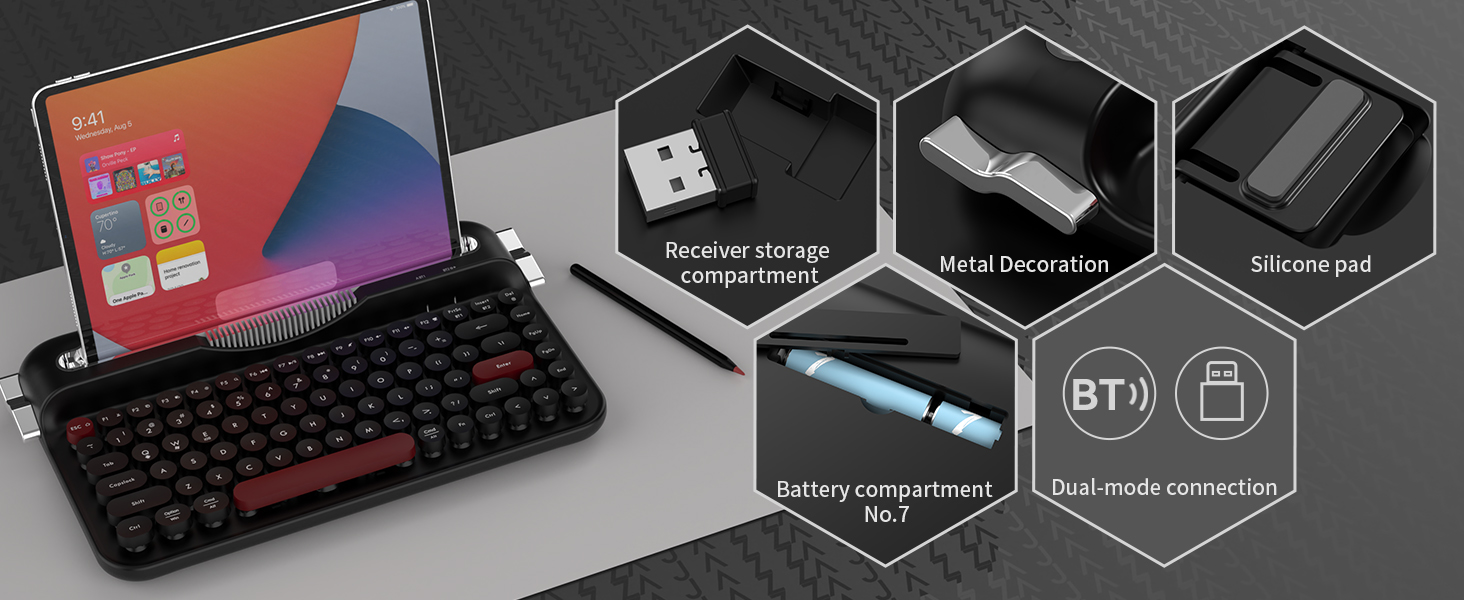
Figure 4.1: Indicator Lights Overview
4.3 Using the Integrated Tablet & Phone Stand
The keyboard features an extended front ledge with a sturdy card slot stand designed to securely hold your iPad, Kindle, or smartphone (up to 12.9 inches) while typing.
- Simply place your tablet or smartphone into the integrated slot.
- Ensure the device is seated securely before typing.

Figure 4.2: Integrated Card Slot Bracket Position
4.4 Adjustable Feet
The keyboard includes adjustable feet on the underside, allowing you to set the typing angle for maximum comfort during extended use.
- Flip the keyboard over to access the adjustable feet.
- Extend the feet to raise the back of the keyboard, creating a gentle incline.
- Fold the feet back in for a flatter typing experience.

Figure 4.3: Ergonomic Comfort with Adjustable Feet
5. Maintenance
5.1 Cleaning the Keyboard
Regular cleaning helps maintain the keyboard's appearance and functionality.
- Turn off the keyboard before cleaning.
- Use a soft, lint-free cloth slightly dampened with water or a mild, non-abrasive cleaning solution to wipe the surface.
- For dust and debris between keycaps, use compressed air or a small brush.
- Do not spray cleaners directly onto the keyboard.
5.2 Battery Replacement
When the low power indicator light flashes red, it's time to replace the batteries.
- Follow the battery installation steps outlined in Section 3.1.
- Dispose of used batteries responsibly according to local regulations.
6. Troubleshooting
If you encounter issues with your Ajazz AF84 keyboard, refer to the following common problems and solutions:
| Problem | Possible Cause / Solution |
|---|---|
| Keyboard not responding / No connection. |
|
| Keys are sticky or unresponsive. |
|
| Bluetooth connection drops frequently. |
|
| Incorrect characters typed. |
|
7. Specifications
| Feature | Detail |
|---|---|
| Product Brand | AJAZZ |
| Product Model | AF84 |
| Transmission Mode | Dual-mode (Bluetooth 5.0 / 2.4G) |
| Product Size | 348.9 x 203.3 x 32.1 mm (13.74 x 8.00 x 1.26 inches) |
| Product Weight | ~680g (1.5 lbs) |
| Shell Material | ABS Injection Molding |
| Battery | 2 x AAA batteries |
| Lighting Effect | No light |
| Working Voltage | 3.0V |
| Key Layout | 84 keys |
| Compatible Devices | Laptop, PC, Smartphone |
| Keyboard Description | Retro typewriter |
| Special Feature | Round Keycaps, Integrated Tablet/Phone Stand, Adjustable Feet |
Figure 7.1: Product Parameters
8. Warranty and Support
Ajazz products are manufactured to high quality standards. For information regarding warranty coverage, technical support, or service inquiries, please refer to the warranty card included with your product or visit the official Ajazz website.
You may also contact the seller directly through the platform where you purchased the product for assistance.
Ajazz Official Website: www.ajazz.com


