
1. Introduction
The FELICON 308i Wireless Bluetooth Keyboard combines a retro typewriter aesthetic with modern multi-device functionality. Designed for comfort and efficiency, it features gradient colorful round keycaps and supports various operating systems. This manual provides essential information for setting up, operating, and maintaining your keyboard.

Figure 1: FELICON 308i Wireless Bluetooth Keyboard (Blue variant) with its magnetic cat doll accessory.

Figure 2: The detachable magnetic cat ornament can be placed on the keyboard for personalization.
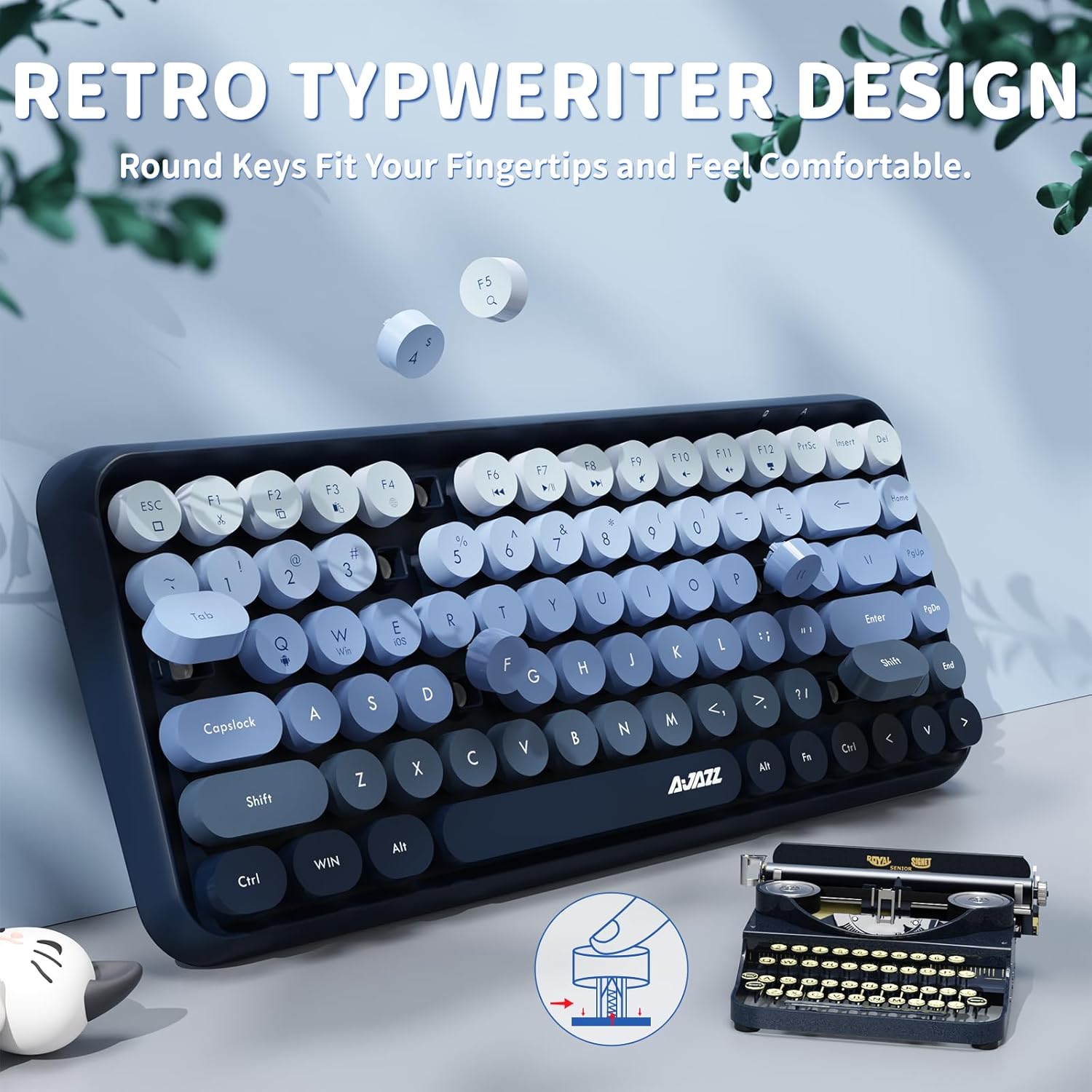
Figure 3: The keyboard features a retro typewriter design with smooth, round keycaps for comfortable typing.
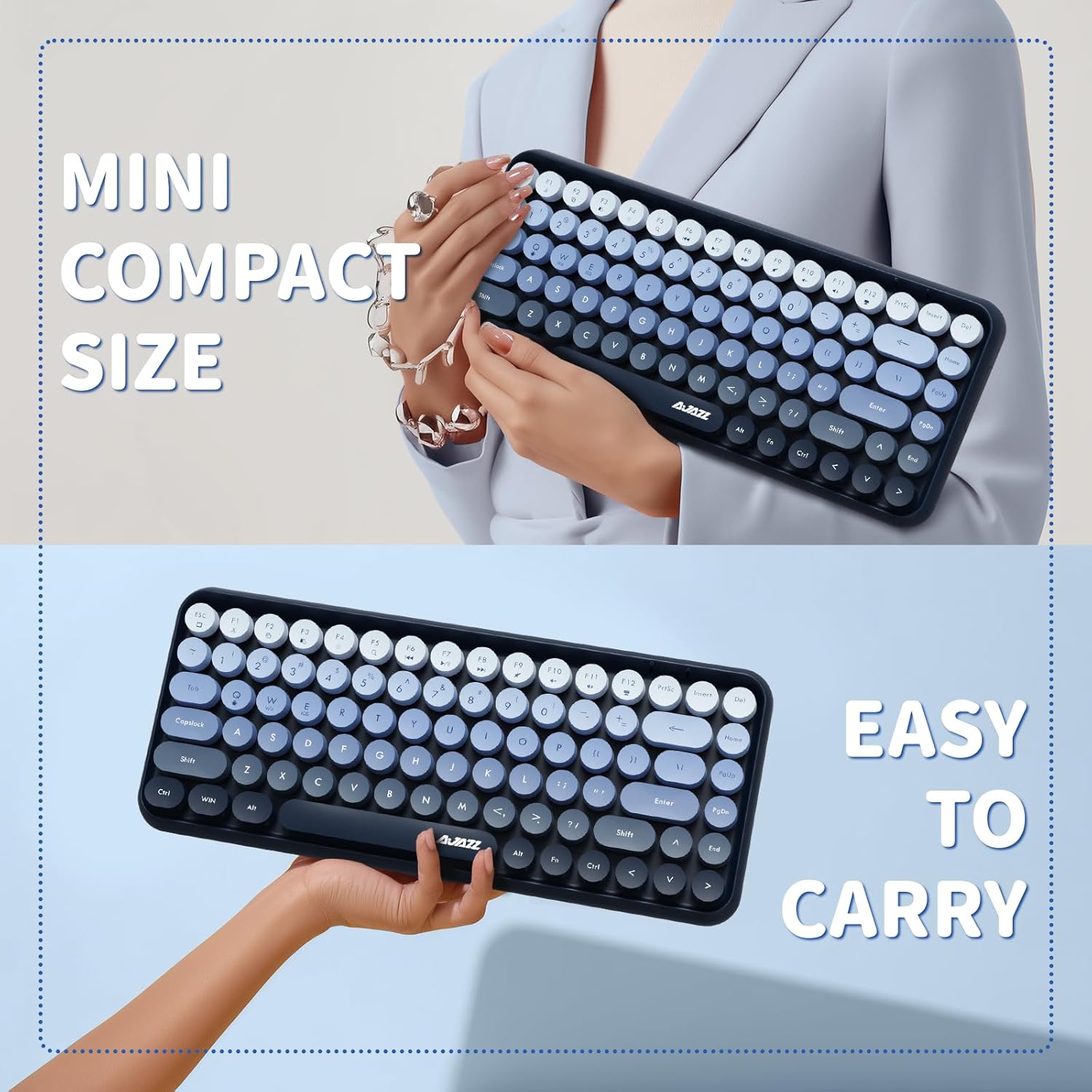
Figure 4: The compact and lightweight design makes the keyboard easy to carry for on-the-go use.
2. Package Contents
Ensure all items are present upon unboxing:
- FELICON 308i Wireless Bluetooth Keyboard
- Magnetic Cat Figurine
- USB Receiver (typically stored in the battery compartment)
- User Manual (this document)
Note: 2x AAA batteries are required for operation and are not included in the package.
3. Setup
3.1 Battery Installation
- Locate the battery compartment on the underside of the keyboard.
- Open the compartment cover.
- Insert two (2) AAA batteries, ensuring correct polarity (+/-).
- Close the battery compartment cover securely.
3.2 Bluetooth Connection
The keyboard utilizes Bluetooth 5.0 for a stable wireless connection up to 10 meters.
- Ensure the keyboard has fresh batteries installed.
- Turn on the keyboard using the power switch (usually located on the back or side).
- Press the FN + C keys simultaneously to activate Bluetooth pairing mode. The indicator light will flash.
- On your device (computer, laptop, tablet, smartphone), open Bluetooth settings.
- Search for available devices and select "ajazz bluetooth" or a similar name to connect.
- Once connected, the indicator light will stop flashing.

Figure 5: Instructions for installing AAA batteries and initiating Bluetooth pairing using FN+C.

Figure 6: The keyboard offers a stable wireless connection to multiple devices via Bluetooth 5.0.
3.3 Multi-Device Switching
The keyboard supports connecting to up to three devices simultaneously. Switch between paired devices using the following shortcut keys:
- FN + Q: Switch to Device 1
- FN + W: Switch to Device 2
- FN + E: Switch to Device 3
4. Operating Instructions
4.1 Key Functions and Multimedia Shortcuts
The 84-key layout includes essential function keys and multimedia shortcuts accessible via the FN key:
- FN + F1-F12: Access various functions such as media control (play/pause, next/previous track), volume adjustment, and more. Refer to the keycap legends for specific functions.
- FN + Home/End/PgUp/PgDn: Navigation keys.
- FN + OS Switch: Some keyboards may have dedicated keys to switch between Windows/Android and iOS/Mac layouts for optimal key mapping.
4.2 Smart Power Saving Mode
To conserve battery life, the keyboard features an intelligent power-saving mode. It will automatically enter sleep mode after 15 minutes of inactivity. To wake it up, simply press any key.
4.3 Quiet Typing Experience
The keyboard is designed with noise-reduction key technology, significantly reducing keystroke sounds for a quieter typing experience, ideal for shared environments.

Figure 7: The noise-reduction key technology ensures a quiet typing experience, suitable for various environments.
5. Maintenance
5.1 Cleaning
To maintain optimal performance and appearance, regularly clean your keyboard:
- Use a soft, dry cloth to wipe down the keycaps and keyboard surface.
- For dust and debris between keys, use compressed air or a soft brush to gently remove particles.
- Avoid using harsh chemicals or abrasive materials, as these can damage the keyboard's finish.
6. Troubleshooting
6.1 Connection Issues
- Keyboard not connecting: Ensure batteries are correctly installed and charged. Verify Bluetooth is enabled on your device and the keyboard is in pairing mode (FN+C). Try restarting both the keyboard and your device.
- Intermittent connection: Ensure the keyboard is within the 10-meter Bluetooth range of your device. Avoid obstacles that may interfere with the signal.
6.2 Keys Not Responding
- Specific keys not working: Check for any physical obstructions or debris under the keycap. Gently clean the area.
- All keys not working: Ensure the keyboard is powered on and successfully connected to your device. Check battery levels.
6.3 iPad Specific Issues
- Unexpected behavior on iPad: If you experience issues like a blue highlight when pressing the spacebar, navigate to your iPad's Accessibility settings and disable "Full Keyboard Access."
7. Specifications
| Brand | FELICON |
| Model | 308i |
| Connectivity Technology | Bluetooth 5.0 |
| Compatible Devices | Tablets, iPad, iPhone, PCs, Desktops, Laptops (Windows, macOS, iOS, Android) |
| Keyboard Layout | 84-Key QWERTY |
| Special Features | Ergonomic, Bluetooth, Hotkeys and Media Keys, Magnetic Cat Figurine Decoration, Trendy Gradient Retro Round Keycaps, Noise-Reduction Key Technology, Smart Power-Saving Mode |
| Power Source | Battery Powered (2x AAA, not included) |
| Material | Plastic |
| Item Weight | 1.69 pounds |
| Package Dimensions | 14.57 x 5.91 x 1.85 inches |
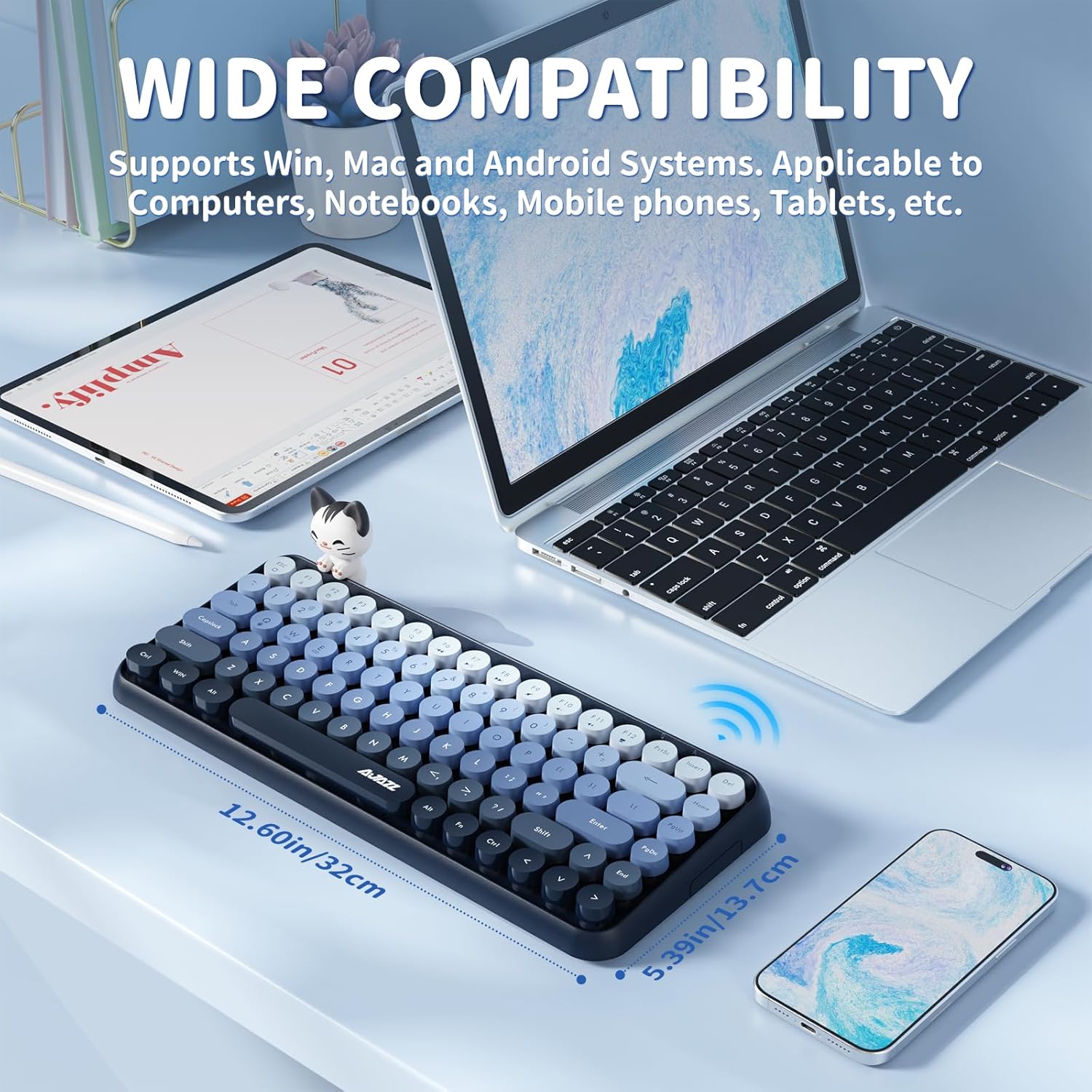
Figure 8: The keyboard offers wide compatibility with Windows, Mac, iOS, and Android systems, and its dimensions are suitable for various setups.
8. Warranty and Support
For warranty information and customer support, please refer to the documentation included with your purchase or visit the official FELICON website. Keep your proof of purchase for any warranty claims.
