
1. Introduction
Thank you for choosing the Ajazz AF84 Wireless Membrane Silent Typewriter Keyboard. This keyboard combines a unique retro aesthetic with modern dual-mode connectivity, offering a comfortable and versatile typing experience. This manual provides detailed instructions for setup, operation, maintenance, and troubleshooting to ensure optimal performance of your device.

Figure 1.1: Ajazz AF84 Keyboard Overview
2. Product Features
- Wireless Bluetooth & 2.4G Dual-Mode: Seamless connectivity with Bluetooth 5.0 and a 2.4G USB receiver for versatile use across multiple devices.
- Vintage Typewriter Style: Features two-tone, spherical keycaps and a classic typewriter aesthetic for a unique look.
- Built-In Tablet & Phone Stand: An extended front ledge with a sturdy card slot supports iPads, Kindles, or smartphones up to 12.9 inches for hands-free viewing.
- Ergonomic Design: 84-key layout with adjustable feet for customizable typing angles, promoting comfort during extended use.
- Portable & Battery-Powered: Operates on 2 AAA batteries (6+ months lifespan), offering a wireless and minimalist setup ideal for travel.
3. Setup Guide
3.1 Battery Installation
The Ajazz AF84 keyboard requires 2 AAA batteries for operation. The battery compartment is located on the underside of the keyboard.
- Locate the battery compartment cover on the bottom of the keyboard.
- Slide or lift the cover to open the compartment.
- Insert 2 AAA batteries, ensuring correct polarity (+/-) as indicated inside the compartment.
- Replace the battery compartment cover securely.
3.2 Connectivity Modes
The keyboard supports two connection modes: 2.4G Wireless via USB receiver and Bluetooth 5.0.
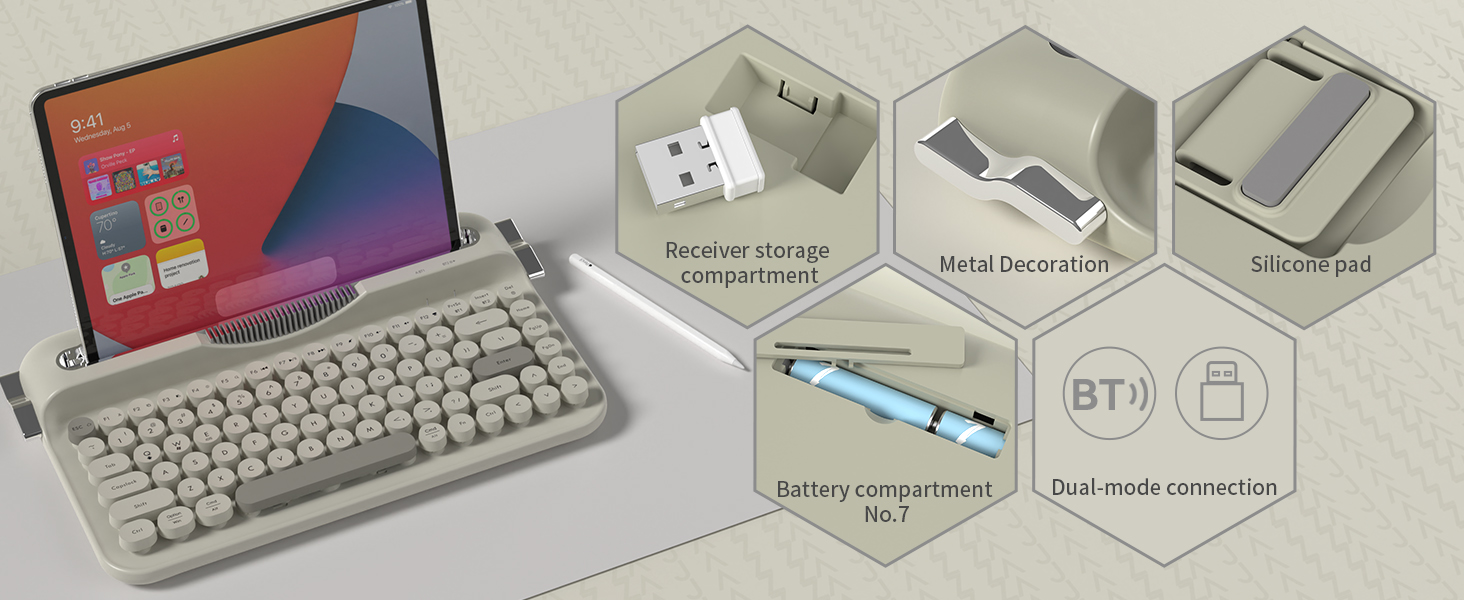
Figure 3.1: Keyboard Components and Connectivity Options
3.2.1 2.4G Wireless Connection
This mode provides a stable and fast connection using the included USB receiver.
- Locate the 2.4G USB receiver, typically stored in a dedicated slot on the keyboard.
- Plug the USB receiver into an available USB port on your computer or device.
- The keyboard should automatically connect. If not, ensure the keyboard is powered on and in 2.4G mode (refer to Section 4.2 for mode switching).

Figure 3.2: 2.4G USB Receiver Connection
3.2.2 Bluetooth Connection
Connect your keyboard to Bluetooth-enabled devices like tablets, smartphones, or computers.
- Ensure the keyboard is powered on.
- Switch the keyboard to Bluetooth mode (refer to Section 4.2).
- On your device, go to Bluetooth settings and enable Bluetooth.
- Search for available devices. The keyboard should appear as "Ajazz AF84" or similar.
- Select the keyboard to pair. If prompted, enter the displayed code on the keyboard and press Enter.
3.3 Device Compatibility
The Ajazz AF84 keyboard is compatible with a wide range of operating systems and devices:
- Operating Systems: Windows (8.0 and above), macOS (10.10 and above), Android, iOS.
- Devices: Laptops, PCs, Smartphones, Tablets, Smart TVs.

Figure 3.3: Multi-Device Support
4. Operating Instructions
4.1 Indicator Lights
The keyboard features several indicator lights to provide status information:
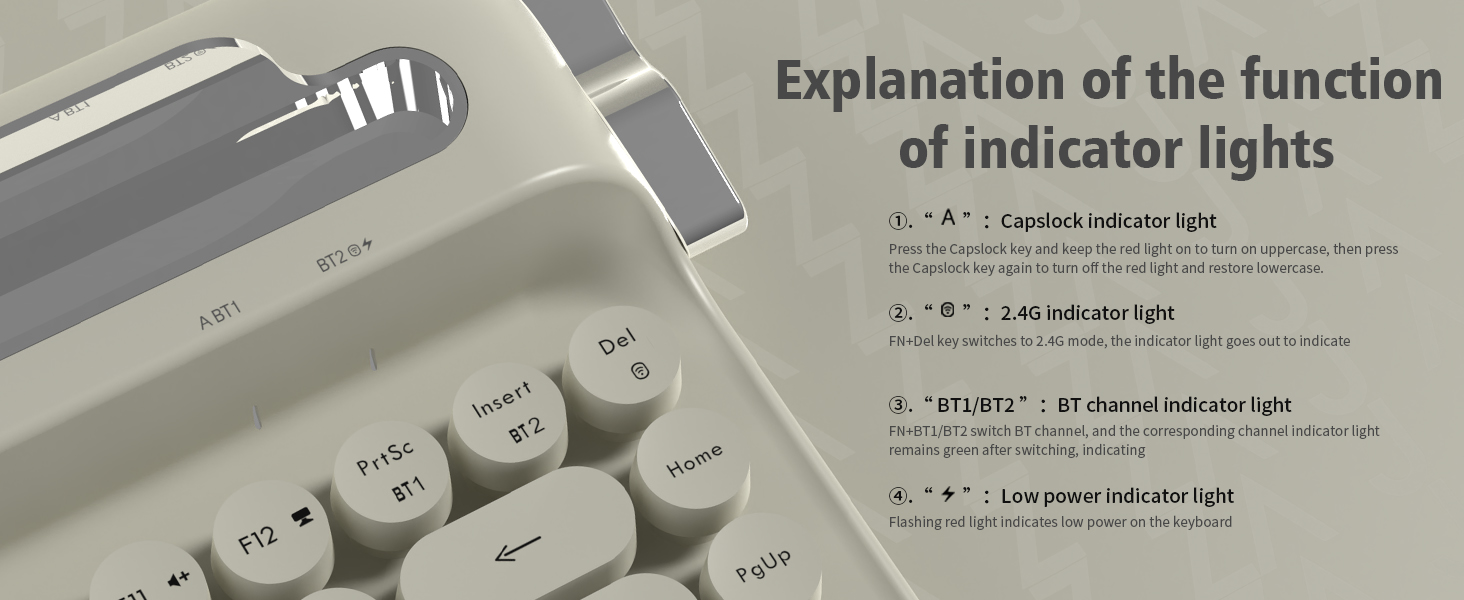
Figure 4.1: Indicator Light Functions
- "A" (Capslock) Indicator Light: Press the Capslock key to turn on (red light) for uppercase. Press again to turn off (light off) for lowercase.
- "2.4G" Indicator Light: When in 2.4G mode, this light will go out to indicate connection.
- "BT1/BT2" (Bluetooth Channel) Indicator Light: The corresponding channel indicator light remains green after switching to indicate active Bluetooth connection.
- "Low Power" Indicator Light: A flashing red light indicates low battery power on the keyboard.
4.2 Switching Between Modes
To switch between 2.4G and Bluetooth modes, use the designated function keys:
- Press FN + Del to switch to 2.4G mode.
- Press FN + BT1 or FN + BT2 to switch between Bluetooth channels.
4.3 Ergonomic Features
The AF84 keyboard is designed for comfort during long typing sessions.
4.3.1 Adjustable Feet
The keyboard features two-stage adjustable tilt legs on its underside, allowing you to set the angle for maximum comfort based on your personal habits.

Figure 4.2: Ergonomic Comfort with Adjustable Feet
4.3.2 Integrated Tablet/Phone Stand
The extended front ledge of the keyboard includes a sturdy card slot designed to securely prop up your iPad, Kindle, or smartphone (up to 12.9 inches), streamlining your workflow with hands-free viewing while typing.

Figure 4.3: Integrated Card Slot Bracket
5. Maintenance
Proper maintenance ensures the longevity and performance of your Ajazz AF84 keyboard.
- Cleaning: Use a soft, dry cloth to wipe the surface of the keyboard. For stubborn dirt, a slightly damp cloth can be used, but ensure no liquid enters the keyboard. Do not use harsh chemicals or abrasive cleaners.
- Keycaps: The round keycaps can be carefully removed for deeper cleaning if necessary. Use a keycap puller or gently pry them off from the edges. Realign and press firmly to reattach.
- Storage: When not in use for extended periods, store the keyboard in a cool, dry place. Remove batteries if storing for several months to prevent leakage.
- Avoid Spills: Keep liquids away from the keyboard to prevent damage to internal components.
6. Troubleshooting
If you encounter issues with your Ajazz AF84 keyboard, refer to the following common troubleshooting steps:
- Keyboard Not Responding:
- Check battery level. Replace batteries if the low power indicator is flashing.
- Ensure the keyboard is powered on.
- Verify the correct connection mode (2.4G or Bluetooth) is selected.
- 2.4G Connection Issues:
- Ensure the USB receiver is securely plugged into a working USB port.
- Try plugging the receiver into a different USB port.
- Move the keyboard closer to the receiver to rule out range issues.
- Bluetooth Pairing Issues:
- Ensure Bluetooth is enabled on your device and the keyboard is in pairing mode.
- Forget the keyboard from your device's Bluetooth list and attempt to re-pair.
- Ensure no other devices are interfering with the Bluetooth signal.
- Try pairing with a different device to confirm keyboard functionality.
- Keys Not Functioning Correctly:
- Check for any debris or foreign objects under the keycaps.
- Ensure keycaps are properly seated.
- If specific keys are not working, it may indicate a hardware issue.
If these steps do not resolve the issue, please contact Ajazz customer support for further assistance.
7. Specifications
Detailed technical specifications for the Ajazz AF84 keyboard:

Figure 7.1: Product Dimensions
| Attribute | Value |
|---|---|
| Brand | Ajazz |
| Model Name | AJAZZ AF84 |
| Connectivity Technology | 2.4Ghz/BT (Bluetooth 5.0) |
| Keyboard Description | Retro typewriter |
| Number of Keys | 84 |
| Color | Gray |
| Special Feature | Round Key, Integrated Tablet/Phone Stand, Adjustable Feet |
| Compatible Devices | Laptop, PC, Smartphone, Tablet |
| Item Weight | 1.87 pounds (approx. 850g) |
| Package Dimensions | 14.41 x 8.39 x 2.68 inches |
| Manufacturer | AJAZZ |
| Power Source | 2 x AAA Batteries |
8. Warranty and Support
For warranty information and customer support, please refer to the official Ajazz website or contact your retailer. Keep your purchase receipt as proof of purchase for any warranty claims.
For technical assistance or inquiries, please visit the Ajazz Store: Ajazz Official Store


