
Introduction
This manual provides essential information for setting up, operating, maintaining, and troubleshooting your HP OmniStudio X 32 AI All-in-One Desktop. Please read this guide thoroughly before using your device to ensure proper functionality and longevity.

Image: The HP OmniStudio X 32 AI All-in-One Desktop, showcasing its 4K display, Wi-Fi 7 with Bluetooth 5.4, 5MP camera with auto-switch HDR, and AI-powered wellness features. The device includes a wireless keyboard and mouse.
Setup Guide
1. Unpacking
Carefully remove all components from the packaging. Ensure the following items are present:
- HP OmniStudio X 32 AI All-in-One Desktop
- Wireless Keyboard
- Wireless Mouse
- Power Adapter
- Adata UC310 64GB USB Flash Drive (if bundled)
2. Connecting Peripherals
Connect the wireless keyboard and mouse. Typically, these devices connect via a USB receiver. Insert the receiver into an available USB port on the desktop. The desktop features an ergonomic height-adjustable stand with side I/O ports for convenient access.

Image: Rear view of the HP OmniStudio X 32 AI All-in-One Desktop. Numbered features indicate (1) screen distance reminder, (2) screen time reminder, and (3) ergonomic height-adjustable stand with side I/O ports for easy connection.
3. Power Connection
Connect the power adapter to the desktop's power input and then plug it into a wall outlet.
4. Initial Power-On
Press the power button, usually located on the side or back of the display. Follow the on-screen instructions to complete the Windows 11 Home setup process.
5. Network Connection
During the Windows setup, you will be prompted to connect to a network. The HP OmniStudio X 32 supports Wi-Fi 7 for high-speed wireless connectivity. Alternatively, you can use an Ethernet cable for a wired connection via the RJ-45 port.
Operating Instructions
Windows 11 Home
Your desktop comes pre-installed with Windows 11 Home, offering a redesigned interface, improved performance, and new features. Familiarize yourself with the Start Menu, Taskbar, and File Explorer for basic navigation.
Display Features
The 31.5-inch 4K UHD (3840 x 2160) IPS display provides stunning visual clarity with anti-glare properties, 550 nits brightness, HDR 600, and 95% DCI-P3 color gamut. This display is flicker-free for comfortable viewing.
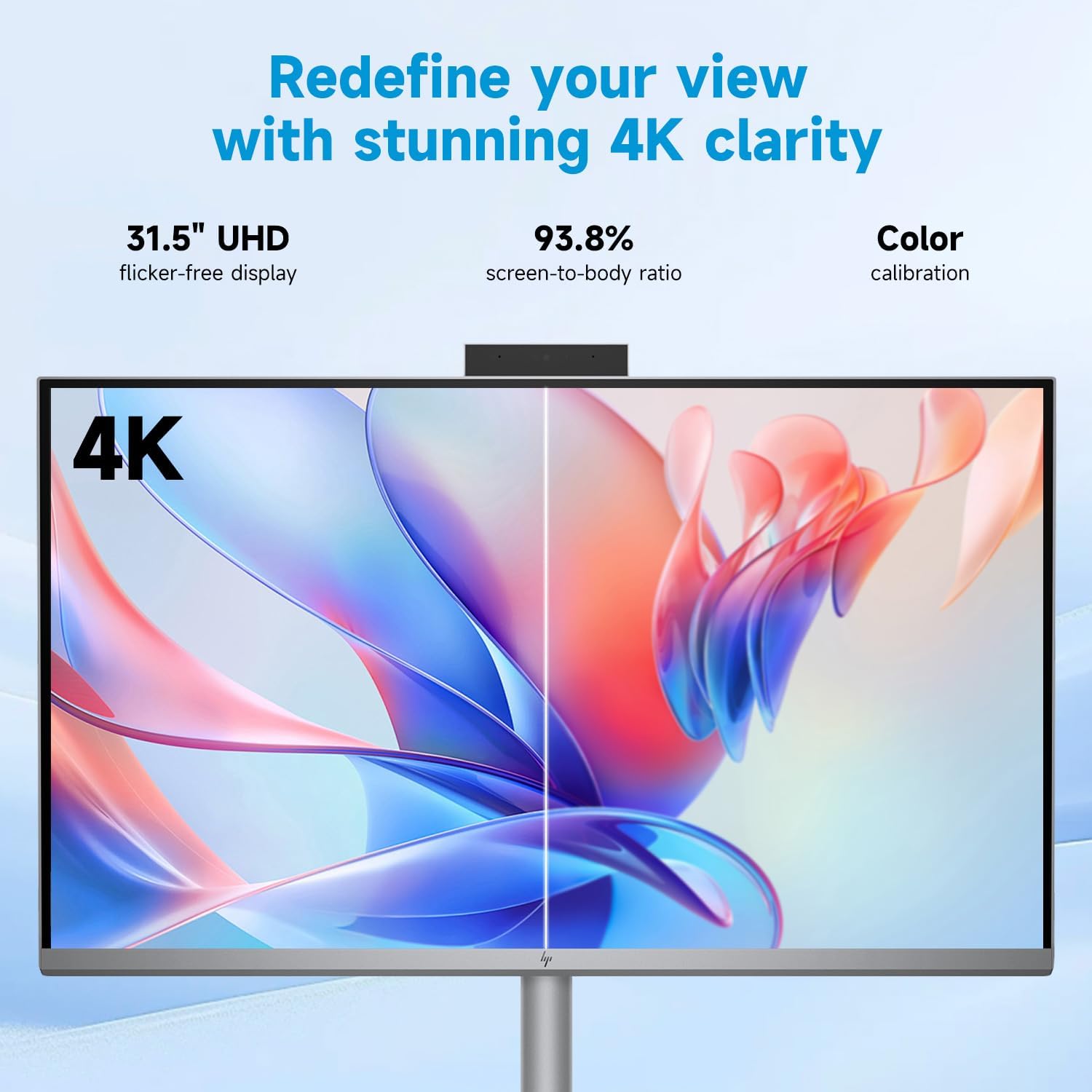
Image: The 31.5-inch UHD display of the HP OmniStudio X 32 AI All-in-One Desktop, emphasizing its stunning 4K clarity, flicker-free operation, high screen-to-body ratio, and color calibration.
AI Features and Productivity
Equipped with an Intel Core Ultra 7 155H processor and NVIDIA GeForce RTX 4050 graphics, this system is designed for enhanced productivity and AI experiences. It supports AI tools like Windows Copilot+ and facilitates smooth multitasking, content creation, and gaming.

Image: The HP OmniStudio X 32 AI All-in-One Desktop, illustrating its capability to boost productivity and AI experiences with Intel Core Ultra processors and up to 47 TOPS NPU, ideal for Windows Copilot+ and enhanced multitasking.
Connectivity
The desktop offers a variety of ports for connecting external devices:
- 1 x Superspeed USB Type-C: For high-speed data transfer and power delivery.
- 2 x Superspeed USB Type-A: For connecting standard USB devices.
- 2 x HDMI: For connecting external displays or input from other devices.
- 1 x RJ-45: For wired Ethernet network connection.
- 1 x Headphone/Microphone Combo: For audio input and output.

Image: A detailed diagram of the ports on the HP OmniStudio X 32 AI All-in-One Desktop, labeling 1. USB Type-C, 2. USB Type-A, 3. HDMI-in, 4. HDMI-out, 5. Ethernet, and 6. Headphone/mic combo jack.
Presence Sensing
The integrated Presence Sensing technology enhances security and power efficiency:
- Walk Away Lock: The screen automatically turns off and locks when you leave the vicinity of the desktop.
- Wake on Approach: The desktop wakes up from sleep mode when it detects your approach.
- Auto Screen Dimming: Conserves power by dimming the screen during periods of inactivity.

Image: A user interacting with the HP OmniStudio X 32 AI All-in-One Desktop, demonstrating the Presence Sensing features such as walk away lock, wake on approach, and auto screen dimming for enhanced security and power saving.
Seamless Laptop Integration
The OmniStudio X 32 allows for seamless integration with your laptop. You can leverage the 31.5" 4K monitor and Poly Studio audio, control your laptop using the All-in-One's keyboard and mouse, and even charge your laptop's battery through the system.

Image: The HP OmniStudio X 32 AI All-in-One Desktop seamlessly connected to a laptop, illustrating how it can leverage the 4K monitor and Poly Studio audio, charge the laptop, and allow control via the All-in-One's keyboard and mouse.
Maintenance
Cleaning
To clean the display, use a soft, lint-free cloth lightly dampened with water or a screen cleaning solution. Avoid harsh chemicals. For the chassis, use a dry, soft cloth. Ensure the device is powered off and unplugged before cleaning.
Software Updates
Regularly check for and install operating system and driver updates to ensure optimal performance and security. Windows Update can be accessed through the Settings menu.
System Backups
Periodically back up your important data to an external drive or cloud storage to prevent data loss. Windows 11 Home provides built-in backup and restore options.
Troubleshooting
No Power
- Ensure the power adapter is securely connected to both the desktop and a working electrical outlet.
- Verify the power outlet is functional by plugging in another device.
Display Issues
- If the screen is blank, check if the desktop is powered on.
- Adjust display settings in Windows if resolution or scaling appears incorrect.
Network Connectivity Problems
- For Wi-Fi, ensure your router is on and broadcasting. Reconnect to the network in Windows settings.
- For wired connection, check the Ethernet cable connection to both the desktop and the router.
Peripheral Not Responding
- For wireless keyboard/mouse, ensure the USB receiver is properly inserted and the devices have charged batteries.
- Try connecting the peripheral to a different USB port.
Specifications
| Feature | Detail |
|---|---|
| Model Number | TPC-I056-32 |
| Processor | Intel Core Ultra 7 155H (16 Cores, 22 Threads, up to 4.9GHz) |
| Graphics | NVIDIA GeForce RTX 4050 (6GB GDDR6) |
| Display | 31.5" 4K UHD (3840 x 2160) IPS, 550 nits, HDR 600, 95% DCI-P3 |
| RAM | 32GB DDR5 (4800 MHz) |
| Storage | 1TB PCIe NVMe M.2 SSD |
| Operating System | Windows 11 Home |
| Wireless Connectivity | Wi-Fi 7 (802.11ax) & Bluetooth |
| Ports | 1x USB Type-C, 2x USB Type-A, 2x HDMI, 1x RJ-45, 1x Headphone/Mic Combo |
| Webcam | 5MP Camera with auto-switch HDR |
| Dimensions (LxWxH) | 28.14 x 7.88 x 22.26 inches |
| Weight | 21.61 lbs |
| Color | Silver |
Warranty and Support
For warranty information and technical support, please refer to the documentation included with your product or visit the official HP support website. You can typically find detailed warranty terms, driver downloads, and contact information for customer service there.
HP Support Website: https://support.hp.com


