
Introduction
The VR SHINECON AI Translation Glasses are designed to provide seamless real-time voice and photo translation, open-ear audio, and convenient touch controls. These smart glasses enhance communication and entertainment, making them ideal for travel and daily use. They operate in conjunction with the free Ear Dance application on your iOS or Android smartphone via Bluetooth connection.

Image: VR SHINECON AI Translation Glasses alongside the Ear Dance app interface on a smartphone.
Setup
1. App Download
The VR SHINECON AI Translation Glasses require the Ear Dance application for full functionality. Download the app using one of the following methods:
- Method 1: Scan QR Code
Locate the QR code provided in your product packaging or on the instruction manual. Scan it with your smartphone's camera to download and install the "Ear Dance" app. Alternatively, you can use this direct link: Ear Dance App Download. - Method 2: Search App Stores
Open the Google Play Store (for Android) or Apple App Store (for iOS) on your smartphone. Search for "Ear Dance" and download the official application.

Image: Visual guide for downloading the Ear Dance application.
2. App Binding and Bluetooth Connection
After installing the Ear Dance app, follow these steps to connect your glasses:
- Ensure your VR SHINECON AI Translation Glasses are charged and powered on.
- Open the Bluetooth settings on your mobile phone.
- In the list of available devices, select "G06" to establish the Bluetooth connection.
- Open the Ear Dance app. You may be prompted to scan an activation QR code or enter an activation number. This code is typically found on a card within your product packaging.
Operating Instructions
1. Power On/Off and Wear Detection
The glasses feature an automatic wear detection system:
- The glasses automatically power on when worn.
- They automatically pause or enter a low-power state when removed, conserving battery life.

Image: Smart Startup feature, indicating automatic power-on when worn.
2. Touch Controls
Utilize the touch-sensitive controls on the temples of the glasses for various functions:
- Play/Pause Audio: Tap once.
- Answer/End Calls: Tap once.
- Trigger Translation: Specific tap gestures (refer to app for details).
- Wake Voice Assistant: Tap and hold (e.g., Siri, Google Assistant).
3. Volume Adjustment
Adjust the audio volume by gently swiping your fingertips along the right temple of the glasses:
- Increase Volume: Swipe forward.
- Decrease Volume: Swipe backward.
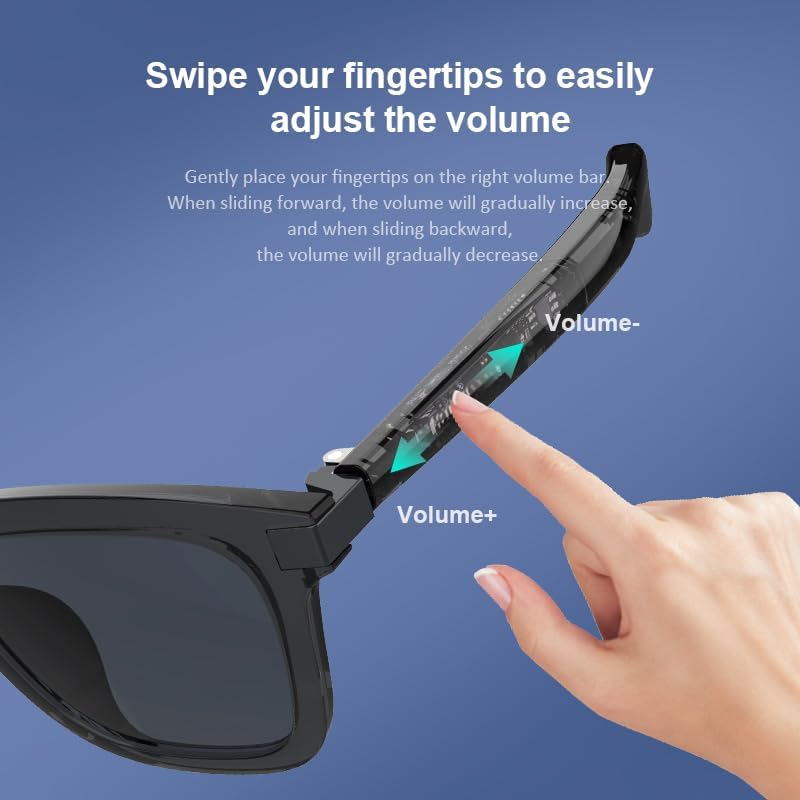
Image: Visual instruction for adjusting volume on the glasses.
4. Real-Time Translation Features
The Ear Dance app unlocks powerful translation capabilities:
- Voice Translation (Free Talk Mode): Engage in real-time, ear-to-ear bilingual conversations across up to 164 languages. Speak naturally, and the glasses will translate and relay the conversation.
- Photo Translation: Use your smartphone camera through the app to snap photos of text (e.g., menus, documents, signs). The app will translate the text and display it, or speak it through your glasses.
- Voice Note Mode: Record voice memos and have them transcribed live within the app. This is useful for meetings, lectures, or personal notes.

Image: Demonstration of real-time translation breaking language barriers.
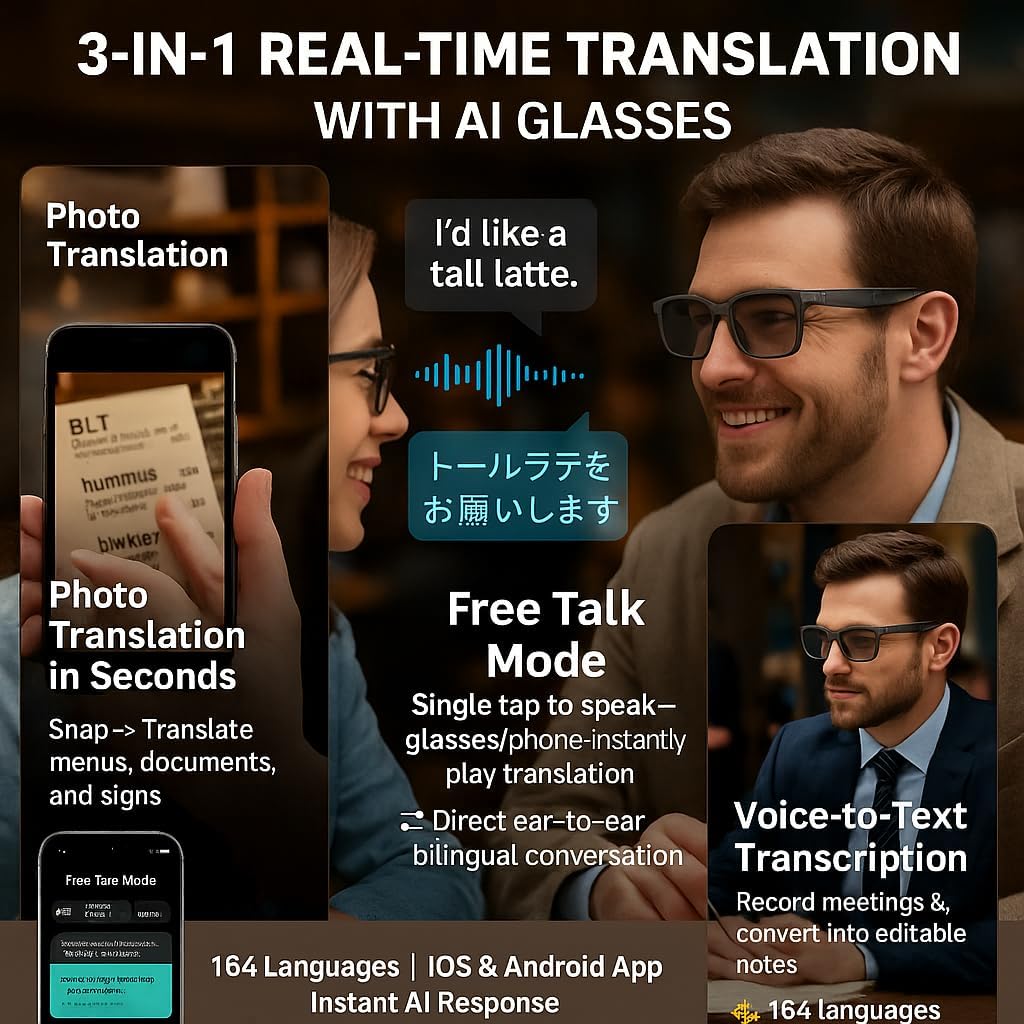
Image: Overview of the three main translation functionalities.
5. Open-Ear Audio
The integrated open-ear speakers allow you to listen to audio while remaining aware of your surroundings. This is beneficial for activities like walking, cycling, or commuting.
- Enjoy clear voice calls, podcasts, audiobooks, and navigation instructions.
- Bluetooth 5.3 technology ensures stable connectivity.
- Note: These glasses are not designed for bass-heavy music or noise isolation.
6. Sleep Mode
The app includes a sleep mode feature that provides relaxing sounds or white noise to aid in rest.
Maintenance
- Cleaning: Use the provided cleaning cloth to gently wipe the lenses and frame. Avoid harsh chemicals.
- Storage: When not in use, store the glasses in the provided pouch to protect them from scratches and dust.
- Charging: Use the original charging cable to charge the glasses. The auto wear detection helps optimize battery life.
Troubleshooting
- Connectivity Issues: Ensure Bluetooth is enabled on your smartphone and the Ear Dance app is open. Verify that the glasses are charged and within range.
- Translation Speed: Translation speed can be affected by your internet connection and background noise. Ensure a stable connection for optimal performance.
- App Activation: If you encounter issues with app activation, double-check that you have correctly scanned the activation QR code or entered the activation number provided with your product.
- Audio Quality: For best audio quality, ensure the speakers on the temples are positioned correctly near your ears.
Specifications
| Feature | Detail |
|---|---|
| Operating System Compatibility | Android, iOS |
| Special Feature | Voice Control |
| Connectivity Technology | Bluetooth 5.3 |
| Wireless Communication Standard | Bluetooth |
| Battery Cell Composition | Lithium Ion |
| GPS | No GPS |
| Color | Black |
| Lens Type | Sunglass lenses, polarized, blue filter |
Official Product Video
Video: An overview of the VR SHINECON AI Translation Glasses, demonstrating their key features and benefits, including real-time translation and smart functionalities.
Warranty and Support
For any assistance, technical support, or warranty inquiries regarding your VR SHINECON AI Translation Glasses, please contact VR SHINECON support. Refer to your product packaging for specific contact information or visit the official VR SHINECON website.
Protection plans may be available for purchase separately to extend coverage beyond the standard warranty. Please check with your retailer for details.