
1. Introduction
The IROK MG75 TKL is a 75% layout wired mechanical keyboard designed for performance and customization. It features advanced magnetic switches with rapid trigger technology, a durable CNC aluminum body, vibrant ARGB lighting, and a gasket structure for an enhanced typing experience. This manual provides essential information for setup, operation, maintenance, and troubleshooting.
2. Package Contents
Verify that all items are present in your package:
- IROK MG75 TKL Mechanical Keyboard
- USB Cable (Type-C)
- Keycap Puller
3. Setup
To begin using your IROK MG75 TKL keyboard, follow these steps:
- Connect the provided USB-C cable to the port on the keyboard.
- Plug the other end of the USB cable into an available USB port on your computer.
- The keyboard will automatically be recognized by your operating system. No additional drivers are typically required for basic functionality.
- For advanced customization and features, proceed to Section 5: Software and Driver.
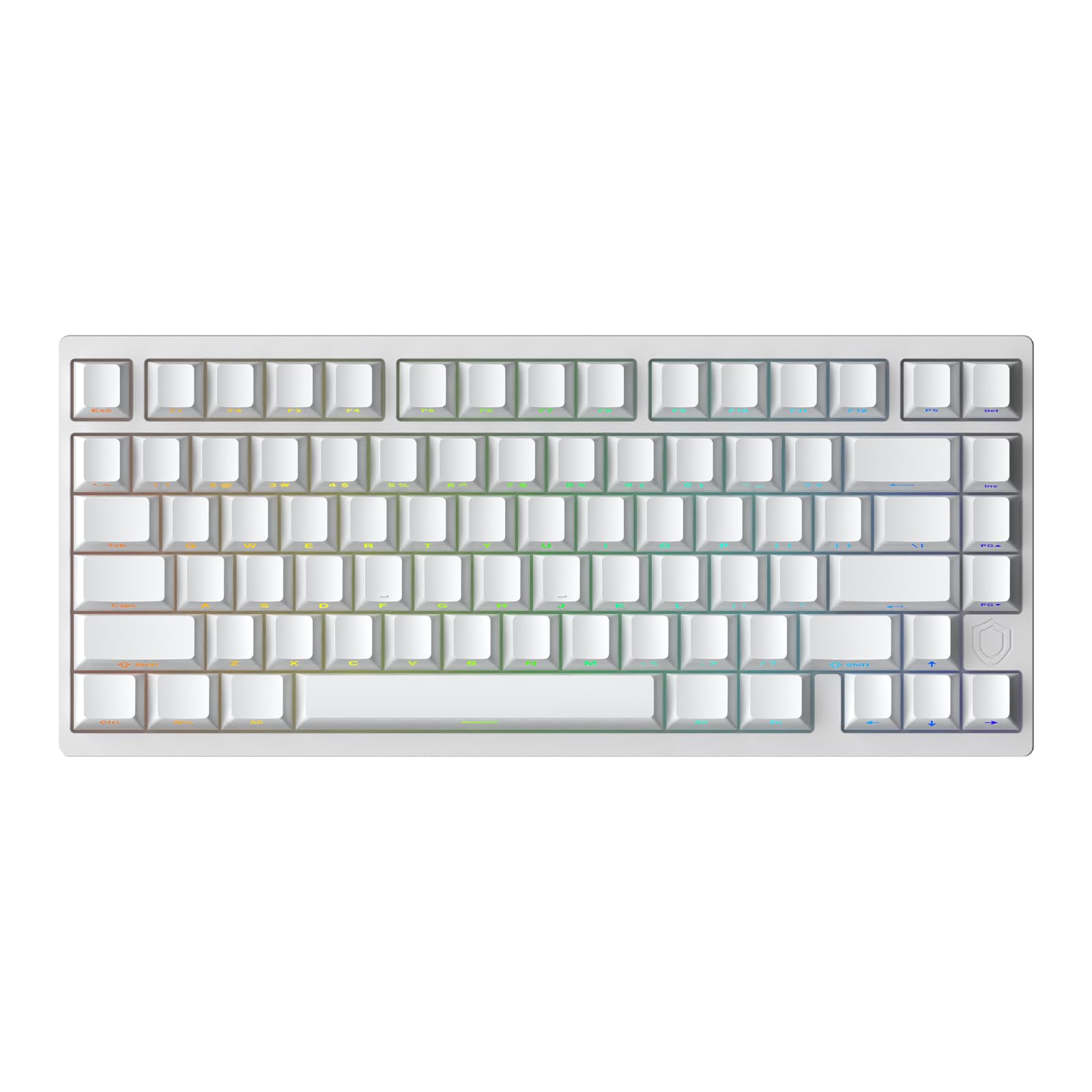
Image: The IROK MG75 TKL Mechanical Keyboard connected to a device via its USB-C cable.
4. Key Features and Operation
4.1. Advanced Magnetic Switches with Rapid Trigger
The IROK MG75 TKL utilizes magnetic switches with Hall Effect technology, offering precise and customizable actuation. Key features include:
- 256KHz Single-Key Scan Rate: Ensures rapid and accurate input detection.
- Low Latency: Achieves latency as low as 0.125ms for immediate response.
- 8KHz Polling Rate: Provides ultra-fast communication between the keyboard and your computer.
- Rapid Trigger (RT): Allows for dynamic actuation and de-actuation points, enabling swift actions and instant stops in gaming. The RT sensitivity can be adjusted down to 0.005mm with 0.001mm steps.

Image: A close-up view of the flagship MCU chip, highlighting its role in high computing power and speed.

Image: The IROK MG75 TKL keyboard illustrating its 256KHz single-key scan rate capability.

Image: The IROK MG75 TKL keyboard demonstrating its ultra-low latency of 0.125ms.

Image: The IROK MG75 TKL keyboard highlighting its Rapid Trigger (RT) with 0.005mm sensitivity and 8KHz polling rate.
4.2. Hot-Swappable Design (MIX Function)
The keyboard features a 'Mix' function, allowing for easy replacement of magnetic switches and keycaps without soldering. This provides flexibility for personalization and maintenance.

Image: A detailed view of the keyboard's hot-swappable magnetic switches, demonstrating the 'Mix' function for easy customization.
4.3. Customizable ARGB Lighting
The IROK MG75 TKL is equipped with an independent IC 500Hz high refresh rate ARGB lamp, offering a wide range of customizable lighting effects. This enhances the aesthetic appeal and provides improved visual comfort.

Image: The IROK MG75 TKL keyboard showcasing its ARGB backlighting with a 500Hz refresh rate.
5. Software and Driver
For advanced customization of key functions, lighting, and rapid trigger settings, the IROK MG75 TKL supports a proprietary Web Driver and a One-stop HUB Drive.
- Web Driver: Access settings directly through a web interface.
- One-stop HUB Drive: A dedicated application for comprehensive control.
Download the driver from the official website: www.irok.cc

Image: A screenshot of the IROK MG75 TKL customization driver, showing options for magnetic settings, lighting, and actions.
6. Maintenance
6.1. Cleaning
To maintain optimal performance and appearance:
- Use a soft, dry cloth to wipe the keyboard surface.
- For dust and debris between keycaps, use compressed air.
- Keycaps can be removed using the provided keycap puller for deeper cleaning.
6.2. Disassembly
The IROK MG75 TKL is designed for easy disassembly without tools, allowing for flexible customization and maintenance of internal components.

Image: An exploded view demonstrating the IROK MG75 TKL keyboard's design for complete disassembly in 3 seconds, highlighting its DIY-friendly structure.
7. Troubleshooting
If you encounter issues with your IROK MG75 TKL keyboard, refer to the following common solutions:
- Keyboard Not Responding: Ensure the USB cable is securely connected to both the keyboard and the computer. Try a different USB port or cable.
- Keys Not Registering: Check if the keyboard is properly connected. If using the customization software, ensure no key remappings are causing conflicts.
- Intermittent Connection (Requires Reconnection): If the keyboard occasionally requires disconnection and reconnection upon computer startup, try updating your computer's USB drivers or the keyboard's firmware via the official driver software. Ensure the USB port provides stable power.
- Lighting Issues: Verify ARGB settings in the customization software. Ensure the keyboard is receiving sufficient power.
For further assistance, consult the official IROK website or contact customer support.
8. Specifications
| Model | MG75 |
| Layout | 75% TKL, 81 Keys |
| Switch Type | Magnetic Switches (Hall Effect) |
| Connectivity | Wired (USB-C) |
| Polling Rate | 8KHz |
| Single-Key Scan Rate | 256KHz |
| Latency | As low as 0.125ms |
| Rapid Trigger Sensitivity | 0.005mm (adjustable in 0.001mm steps) |
| Body Material | CNC Aluminum Alloy |
| Lighting | ARGB (500Hz refresh rate) |
| Dimensions | 12.7 x 5.8 x 1.7 inches |
| Item Weight | 3.63 pounds |
| Compatible Devices | Laptop, PC |
9. Warranty and Support
The IROK MG75 TKL Mechanical Keyboard comes with a standard manufacturer's warranty. For specific warranty terms, duration, and claim procedures, please refer to the documentation included with your purchase or visit the official IROK website.
For technical support, product inquiries, or warranty claims, please visit the IROK official website or contact their customer service department through the channels provided on their website.
Thank you for choosing IROK.


