
1. Introduction
This manual provides detailed instructions for the installation, operation, and maintenance of your AINAVI Android 12 Car Stereo. Designed specifically for Toyota Corolla models from 2014 to 2016, this unit enhances your driving experience with advanced features such as Android 12 OS, wireless CarPlay, Android Auto, GPS navigation, Wi-Fi, and Bluetooth 5.0 connectivity. Please read this manual thoroughly before installation and use to ensure proper function and safety.
2. What's Included
Verify that all components listed below are present in your package:
- 1x Android Car Stereo Head Unit (10.1-inch QLED screen)
- Wiring Harness Power Cable
- CANbus Decoder
- 1 x RCA cable
- 1 x Reversing cable
- 2 x USB cables
- 1 x GPS Antenna
- 1 x Rear View Camera
- 1 x Microphone
- User Manual (this document)
- Frame Panel (customized for Toyota Corolla 2014-2016)
- Frame removal tool

Image: All components included in the AINAVI Android Car Stereo package. Note that cable configurations may vary slightly by model.
3. Setup and Installation
This car stereo is designed for a plug-and-play installation in Toyota Corolla models from 2014 to 2016. No modification of your car's original wiring is typically required. Professional installation is recommended if you are unfamiliar with car electronics.
3.1 Pre-Installation Checklist
- Ensure the vehicle's ignition is off and the battery is disconnected.
- Gather all necessary tools (e.g., screwdrivers, trim removal tools).
- Confirm compatibility with your specific Toyota Corolla model year (2014-2016).
3.2 Installation Steps
- Carefully remove the original car stereo and trim panel using appropriate tools.
- Connect the provided wiring harness and CANbus decoder to the car's existing connectors. Ensure all connections are secure.
- Connect the GPS antenna, USB cables, microphone, and rearview camera (if installing) to the corresponding ports on the new head unit.
- Mount the new AINAVI Android Car Stereo into the dashboard opening, ensuring it fits securely within the provided frame panel.
- Reconnect the vehicle's battery and turn on the ignition to test the unit.
- Perform initial setup and configuration as prompted on the screen.

Image: Visual comparison of the car's dashboard before and after the AINAVI Android Car Stereo installation, showing a seamless fit.
4. Operating Instructions
4.1 Basic Operation
- Power On/Off: Press and hold the power button on the unit or use the vehicle's ignition.
- Touchscreen: Navigate the Android 12 interface using the responsive 10.1-inch QLED touchscreen.
- Volume Control: Adjust volume using the physical buttons or on-screen controls.
- Home Screen: Access various applications and widgets from the customizable home screen.
4.2 Wireless CarPlay & Android Auto
The unit supports both wireless and wired CarPlay, and wired Android Auto, allowing seamless integration with your smartphone for navigation, communication, and entertainment.
- Wireless CarPlay: Connect your iPhone via Bluetooth and then follow the on-screen prompts to establish a wireless CarPlay connection.
- Wired CarPlay/Android Auto: Connect your iPhone or Android phone to the unit via a USB cable. The system will automatically detect and launch the respective interface.

Image: The car stereo display showcasing the Apple CarPlay and Android Auto interfaces, enabling smartphone integration.
4.3 GPS Navigation
The built-in GPS module provides reliable navigation. You can use pre-installed maps or download your preferred navigation apps from the Google Play Store.
- Online Navigation: Connect the head unit to a Wi-Fi network (e.g., mobile hotspot) to receive real-time traffic information.
- Offline Maps: Download offline maps for navigation without an internet connection.

Image: The car stereo screen displaying a detailed GPS navigation map, indicating current location and route.
4.4 Bluetooth & WiFi Connectivity
The unit features Bluetooth 5.0 for hands-free calls and audio streaming, and dual-band Wi-Fi (2.4GHz & 5GHz) for high-speed internet access.
- Bluetooth Pairing: Go to Settings > Bluetooth, enable Bluetooth on your phone, and select the head unit from the list of available devices to pair.
- Wi-Fi Connection: Go to Settings > Wi-Fi, turn on Wi-Fi, and connect to an available hotspot.
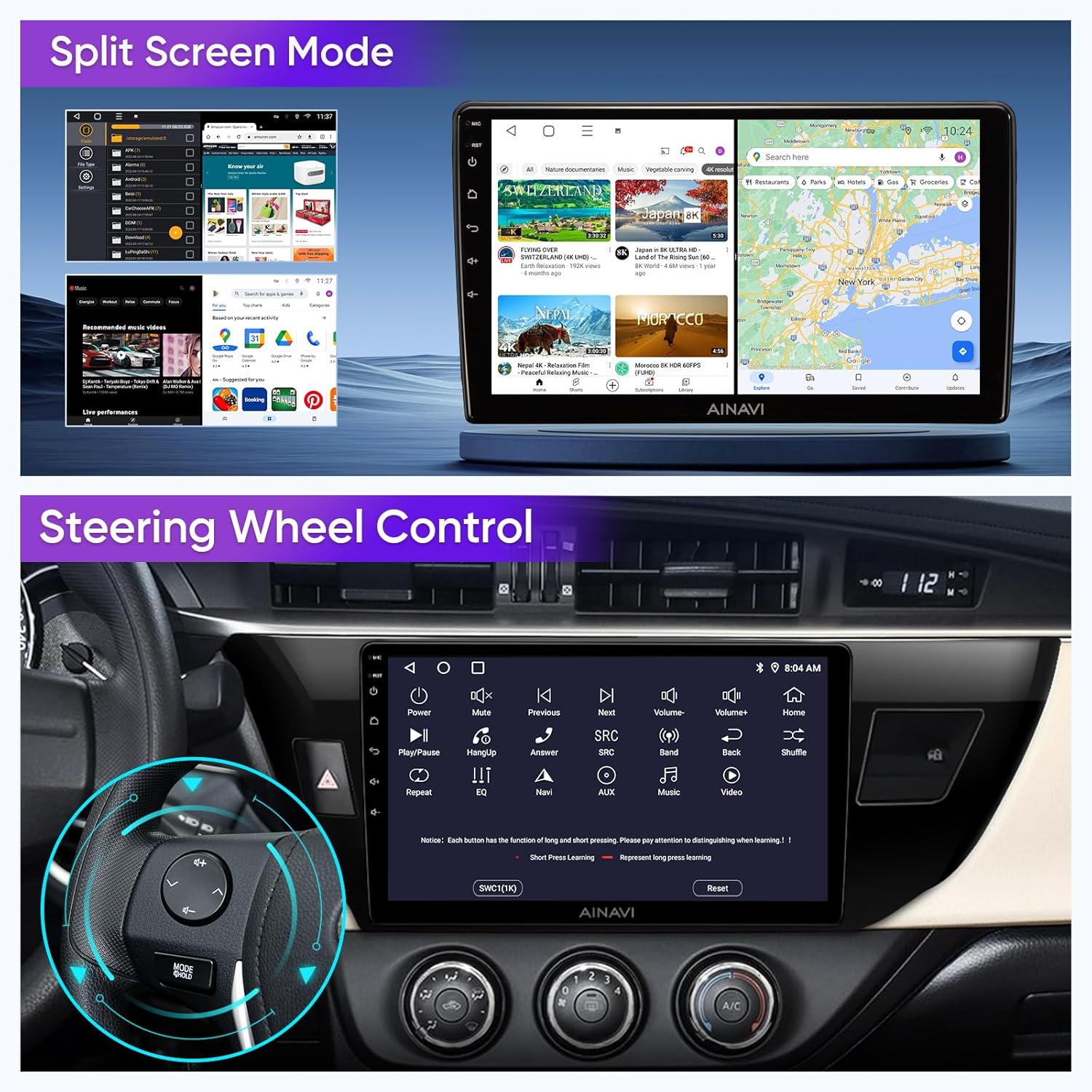
Image: The car stereo interface displaying Bluetooth phone functions and music, with a smartphone illustrating Wi-Fi connectivity.
4.5 Split Screen Mode
Utilize the split-screen function to run two applications simultaneously, such as navigation and music playback.
- Activating Split Screen: Open an application, then long-press the recent apps button or drag an app to one side of the screen to activate split-screen mode.

Image: The car stereo screen demonstrating split-screen functionality, with navigation and a video application running concurrently.
4.6 Steering Wheel Control
The unit supports your vehicle's original steering wheel controls, allowing you to manage audio and other functions without taking your hands off the wheel.
- Configuration: Access the Steering Wheel Control settings in the unit's menu to map functions to your vehicle's buttons.

Image: The car stereo interface for configuring steering wheel controls, with an overlay highlighting the steering wheel buttons.
4.7 Smart Voice Control
Access voice commands through CarPlay/Android Auto by saying "Hey Siri" or "Hey Google," or by touching the microphone icon on the head unit. This allows for hands-free control of navigation, calls, messages, and music.

Image: The car stereo screen illustrating smart voice control capabilities, with examples of voice commands and integrated applications.
5. Maintenance
To ensure the longevity and optimal performance of your AINAVI car stereo, follow these maintenance guidelines:
- Screen Cleaning: Use a soft, lint-free cloth to gently wipe the touchscreen. For stubborn smudges, slightly dampen the cloth with water or a screen-safe cleaner. Avoid harsh chemicals or abrasive materials.
- Software Updates: Periodically check for software updates through the unit's settings or the manufacturer's website to ensure you have the latest features and security patches.
- Environmental Care: Avoid exposing the unit to extreme temperatures, direct sunlight for prolonged periods, or excessive moisture.
- Cable Connections: Ensure all cables remain securely connected. Periodically check for any signs of wear or damage.
6. Troubleshooting
If you encounter issues with your car stereo, refer to the following table for common problems and solutions:
| Problem | Possible Cause | Solution |
|---|---|---|
| Unit does not power on | Loose power connection, blown fuse, vehicle battery issue | Check power cable connections. Inspect vehicle fuses. Ensure car battery is charged. |
| No sound output | Volume too low, incorrect audio source, loose speaker wires | Increase volume. Select correct audio source. Check speaker wire connections. |
| GPS not acquiring signal | GPS antenna not properly connected or positioned, environmental interference | Ensure GPS antenna is securely connected and placed in an unobstructed location (e.g., dashboard). |
| Bluetooth connection issues | Device not in pairing mode, interference, incorrect pairing process | Ensure both devices are in pairing mode. Delete previous pairings and re-attempt. Restart both devices. |
| CarPlay/Android Auto not connecting | Faulty USB cable, phone software issue, incorrect settings | Try a different USB cable. Ensure phone OS is updated. Check unit's settings for CarPlay/Android Auto activation. |
If these solutions do not resolve the issue, please contact customer support.
7. Specifications
Key technical specifications of the AINAVI Android 12 Car Stereo:
| Feature | Detail |
|---|---|
| Operating System | Android 12 |
| Processor | Quad-Core |
| RAM | 2GB |
| Internal Storage (ROM) | 64GB |
| Display Size | 10.1 Inches |
| Display Type | QLED, G+G Full Lamination |
| Resolution | 1280x720 |
| Viewing Angle | 178° Full-Viewing Angle |
| Amplifier Output | Max. 4*45W |
| Equalizer | 16-band EQ, Premium DSP |
| CarPlay | Built-in Wireless & Wired |
| Android Auto | Built-in USB Connection |
| GPS Navigation | Built-in GPS Module (supports online/offline maps) |
| Wi-Fi | Dual-band 2.4Ghz & 5Ghz |
| Bluetooth | Version 5.0 (Hands-free calls, music, phonebook) |
| Special Features | Split Screen Function, Steering Wheel Control, Voice Command (Siri/Google), Mobile Phone Mirroring (Tlink), RDS, Rear View Camera Support |
| Item Weight | 4.44 pounds |
| Package Dimensions | 18.94 x 8.62 x 4.8 inches |

Image: Detailed view of the 10.1-inch HD QLED touchscreen, emphasizing its high resolution and wide viewing angles.
8. Warranty and Support
AINAVI provides comprehensive support for its products.
8.1 Product Warranty
Your AINAVI Android Car Stereo comes with a one-year manufacturer's warranty from the date of purchase. This warranty covers defects in materials and workmanship under normal use. Please retain your proof of purchase for warranty claims.
8.2 Technical Support
For any technical assistance, installation questions, or troubleshooting beyond what is covered in this manual, please do not hesitate to contact us. Our professional technical support team is available to assist you.
- Contact Method: Please reach out to us via Amazon email. We aim to reply as soon as possible.

Image: Illustration of how to access customer installation support through the Amazon platform.


