
1. Introduction
This manual provides detailed instructions for the setup, operation, and maintenance of your JUQITECH Trackpad Keyboard Case. Please read this manual thoroughly before use to ensure optimal performance and longevity of your product.
2. Package Contents
Verify that all items are present in your package:
- 1 x Kickstand Soft Case
- 1 x Wireless Trackpad Keyboard
- 1 x Type-C Charging Cord
- 1 x User Manual
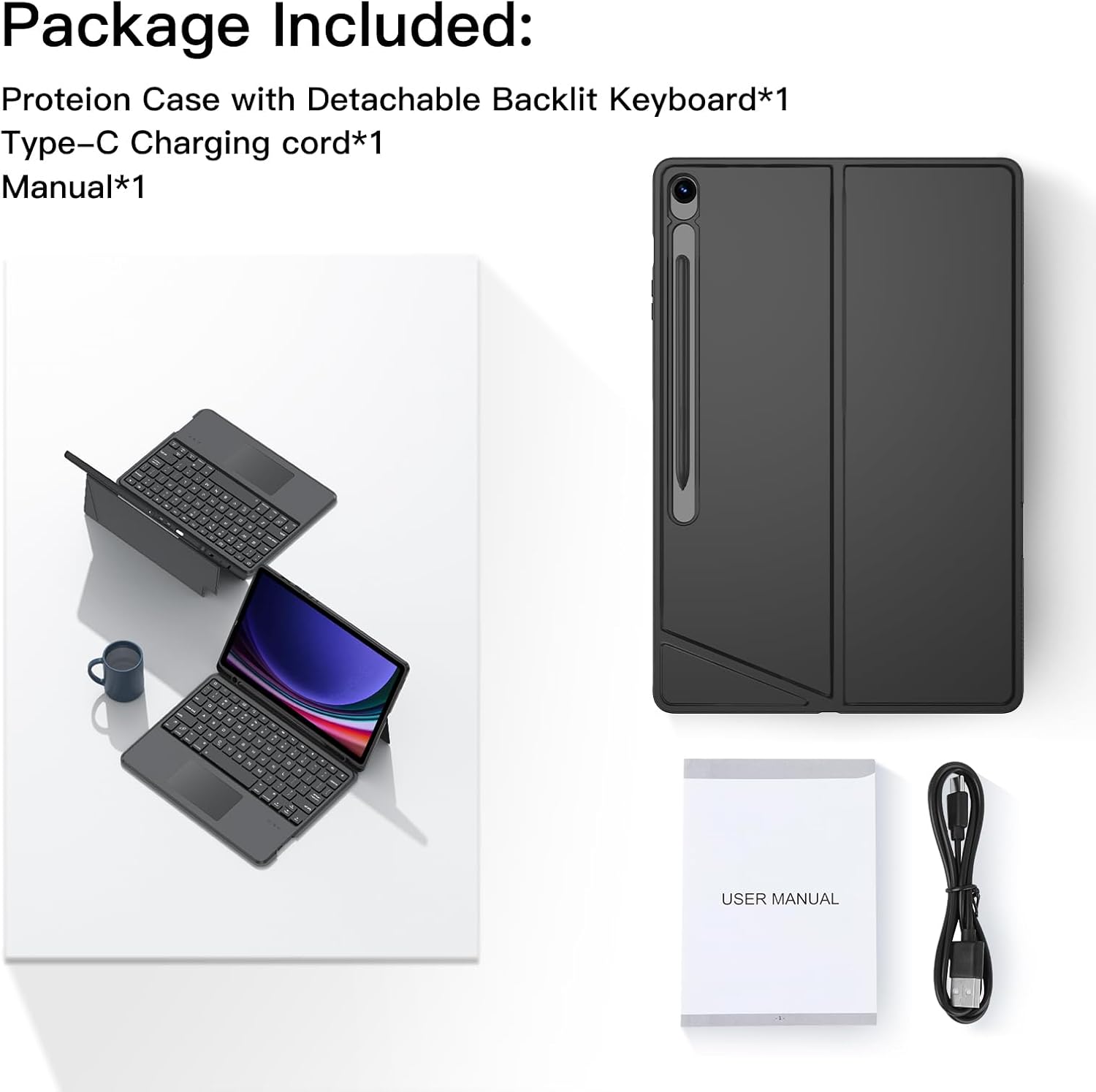
Image: Contents of the product package.
3. Compatibility
This keyboard case is specifically designed for the Samsung Galaxy Tab S10 FE Plus 13.1 inch 2025 models: SM-X620, SM-X626, and SM-X626B. Please ensure your tablet model matches these specifications for proper fit and function.

Image: Compatible Samsung Galaxy Tab S10 FE Plus 13.1" (2025) models.
4. Setup Instructions
4.1 Installing Your Tablet
- Align your Samsung Galaxy Tab S10 FE Plus with the soft TPU inner shell of the case.
- Gently press the tablet into the case, ensuring all edges are securely fitted. The precise cutouts allow full access to all ports and buttons.
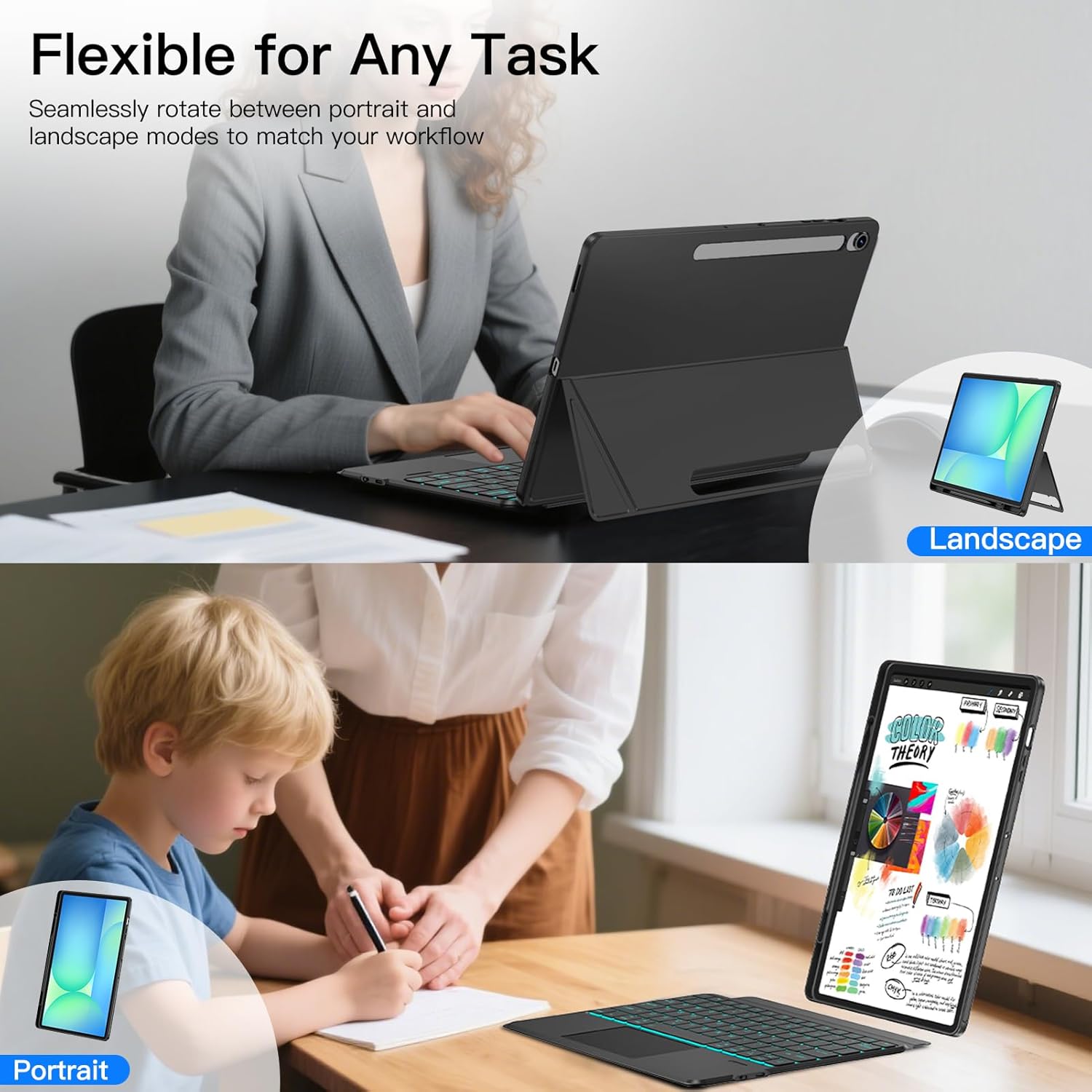
Image: Step-by-step installation of the tablet into the case.
4.2 Connecting the Wireless Keyboard via Bluetooth
- Ensure the keyboard is charged. Connect the provided Type-C charging cord to the keyboard and a power source if needed.
- Turn on the keyboard by sliding the power switch. The Bluetooth indicator light will flash.
- On your Samsung Galaxy Tab, go to Settings > Connected devices > Bluetooth.
- Turn on Bluetooth and search for available devices.
- Select the keyboard (usually named 'Bluetooth Keyboard' or similar) from the list to pair.
- Once paired, the Bluetooth indicator light on the keyboard will stop flashing.
Video: Demonstrates the installation and Bluetooth pairing process for the keyboard case.
5. Operating Instructions
5.1 Keyboard Functions
The keyboard offers a laptop-like typing experience with various function keys:
- Fn + C: Turn On/Off Bluetooth
- Fn + Trackpad Icon: Turn On/Off Trackpad
- Fn + Shift + Light Icon: Turn On/Off Backlight; Adjust Brightness (3 levels)
- Fn + Shift + Color Icon: Change Backlight Colors (7 colors); Breathing Backlight Mode

Image: Keyboard layout with highlighted function key combinations.
5.2 Touchpad Operation
The integrated multi-touch trackpad allows for precise cursor control and gestures, similar to a laptop. Use two fingers to scroll, pinch to zoom, and other standard multi-touch commands.
- Single Finger Tap: Left-click
- Two Finger Tap: Right-click
- Two Finger Scroll: Scroll up/down/left/right
- Pinch In/Out: Zoom in/out
- Fn + Space: Turn On/Off Trackpad

Image: Multi-touch trackpad gestures.
5.3 Backlight Control
The keyboard features 7 colors of backlighting and 3 levels of brightness. Use the Fn + Shift + Light Icon to adjust brightness and Fn + Shift + Color Icon to cycle through colors or activate breathing mode.

Image: Backlit keyboard in use, demonstrating color and brightness options.
5.4 Usage Modes
The magnetic detachable design allows for versatile use:
- Laptop Mode: Keep the keyboard attached for productivity, typing, and touchpad use.
- Tablet Mode: Remove the keyboard for a lightweight protective case, ideal for reading, drawing, or casual browsing.
- Portrait/Landscape Orientation: The adjustable kickstand supports both orientations for various tasks.
Image: Demonstrates flexible use in both portrait and landscape modes.
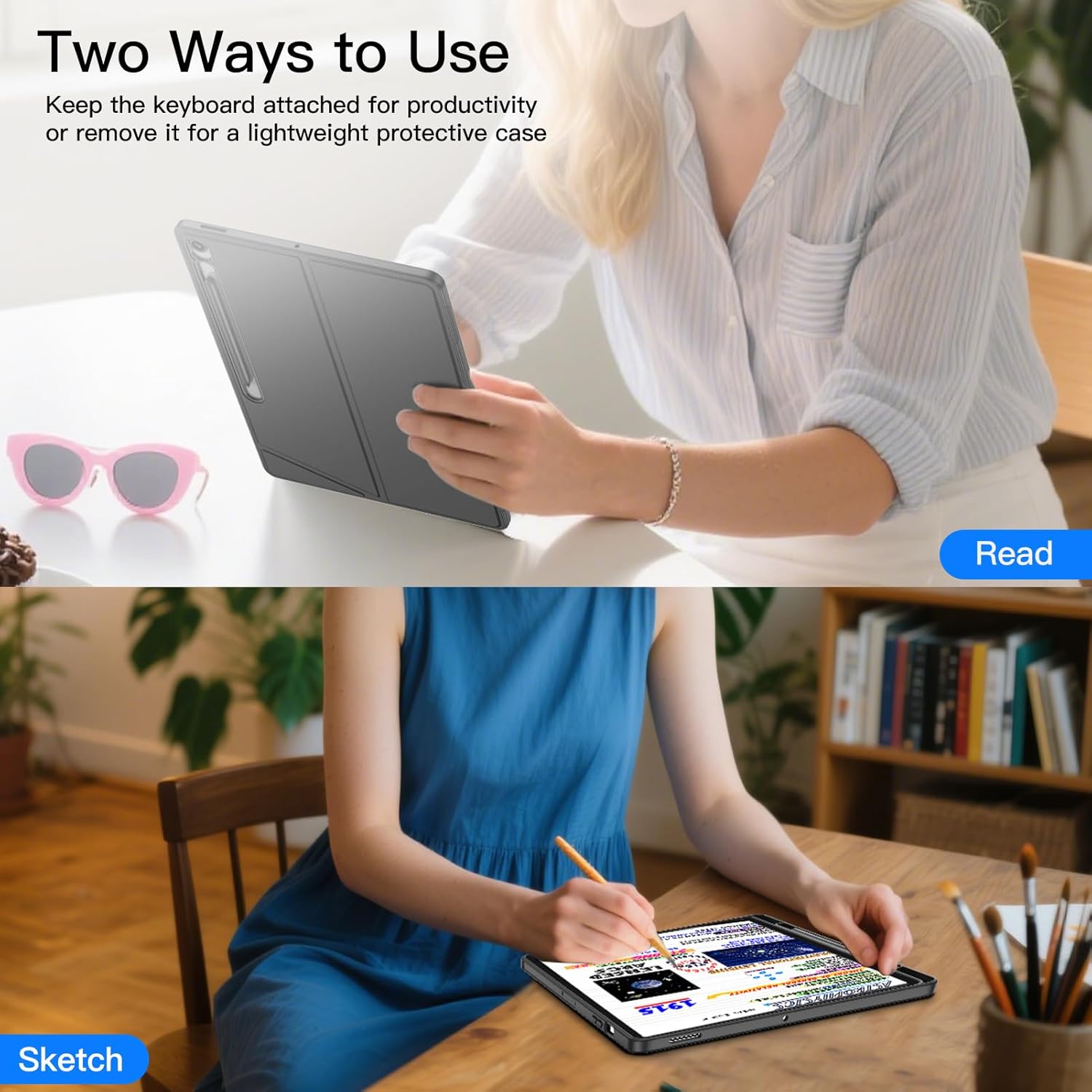
Image: Two ways to use the case: with keyboard attached for productivity or detached for a protective case.
Video: Shows the keyboard case in various modes, including laptop-like typing and tablet-only use.
6. Key Features
6.1 Adjustable Kickstand
The integrated kickstand allows for smooth adjustment from 30° to 160°, providing multiple viewing angles for typing, drawing, watching videos, or working.

Image: Adjustable kickstand for ergonomic typing and viewing angles.
6.2 S Pen Slot
The case includes a dedicated slot for your S Pen, ensuring it is securely stored and easily accessible. It also supports magnetic attachment of the S Pen to the tablet.

Image: S Pen slot and magnetic attachment feature.
6.3 360° Full Protection
Constructed with soft PU and flexible TPU, the case provides comprehensive protection against drops and scratches. The honeycomb heat dissipation design helps maintain optimal tablet temperature.
6.4 Auto Sleep/Wake Function
The smart folding case automatically puts your tablet to sleep when closed and wakes it instantly when unfolded, conserving battery life.

Image: Auto sleep/wake functionality.
7. Maintenance
To maintain the quality and appearance of your keyboard case:
- Wipe the case and keyboard with a soft, damp cloth. Avoid harsh chemicals or abrasive cleaners.
- Keep the keyboard away from liquids to prevent damage.
- Store in a cool, dry place when not in use for extended periods.
8. Troubleshooting
8.1 Keyboard Not Connecting
- Ensure the keyboard is powered on and fully charged.
- Verify Bluetooth is enabled on your tablet.
- Try unpairing and re-pairing the keyboard in your tablet's Bluetooth settings.
- Restart both your tablet and the keyboard.
8.2 Backlight Not Working
- Ensure the keyboard is powered on.
- Press Fn + Shift + Light Icon to cycle through brightness levels or turn the backlight on.
- Check if the keyboard battery is low.
8.3 Touchpad Unresponsive
- Ensure the touchpad is enabled by pressing Fn + Trackpad Icon.
- Clean the touchpad surface to remove any dirt or debris.
- Re-establish the Bluetooth connection.
9. Specifications
| Feature | Detail |
|---|---|
| Brand | JUQITECH |
| Compatible Devices | Samsung Galaxy Tab S10 FE Plus 13.1" 2025 (SM-X620, SM-X626, SM-X626B) |
| Connectivity Technology | Bluetooth |
| Keyboard Description | Bluetooth Backlit Trackpad Detachable Keyboard |
| Special Features | Backlit, Magnetic Detachable Keyboard, Portable, Rechargeable, Trackpad |
| Keyboard Backlighting | 7 Colors, 3 Brightness Levels (RGB) |
| Material | Acrylonitrile Butadiene Styrene, Polyurethane (PU), Thermoplastic Polyurethane (TPU) |
| Power Source | Battery Powered |
| Keyboard Layout | QWERTY |
| Number of Keys | 78 |
| Minimum Required OS | Android 12.0 |
10. Warranty and Support
JUQITECH offers a full 2-year warranty from the order date for free replacement or refund. We also provide a 24-hour service guarantee for any issues with your purchase.
If you encounter any problems or have questions, please contact JUQITECH customer support through the platform where you made your purchase.