
1. Introduction
This manual provides detailed instructions for the setup, operation, and maintenance of your Raddy WF-120P Professional Wi-Fi Weather Station. This system includes a 10-inch HTN color display console and a 7-in-1 outdoor sensor, designed to provide comprehensive weather data and forecasts.

Image: The Raddy WF-120P Weather Station, showing the main display console and the 7-in-1 outdoor sensor unit.
2. Package Contents
Verify that all components are present in your package:
- 1 x Display Console
- 1 x 7-in-1 Outdoor Sensor
- 1 x User Manual
- Mounting Hardware (U-bolts, nuts, washers, mounting pole/bracket)
- Power Adapter for Display Console
3. Key Features
- Large 10-inch HTN Color Display: Provides a clear, comprehensive view of indoor/outdoor temperature and humidity, barometric pressure, wind speed and direction, rainfall, UV index, air quality (PM2.5 AQI), moon phase, and a 5-day weather forecast.
- Smart Wi-Fi App Connectivity: Automatically syncs real-time weather data to the Tuya Smart app. Allows remote viewing of live readings, analysis of historical trends, and access to up to one year of detailed data.
- 7-in-1 Outdoor Sensor: A high-precision wireless sensor that measures temperature, humidity, wind speed, wind direction, rainfall, UV index, and sunlight intensity. It features a 100m (330ft) transmission range to the display console.
- 5-Day Weather Forecast: Once connected to Wi-Fi, the WF-120P automatically updates the current day's weather and provides reliable forecasts for the subsequent four days.
- Adjustable Brightness: The display console offers five backlight levels and an automatic night mode for optimal visibility in various lighting conditions.
4. Setup
4.1. Outdoor Sensor Installation
The 7-in-1 outdoor sensor should be installed in an open area to ensure accurate readings for wind, rain, and sunlight. Ensure it is securely mounted and free from obstructions.

Image: Installation methods for the 7-in-1 outdoor sensor, including mounting on a pole or flat surface, and a diagram of the sensor's internal components like the reset button and battery compartment.
Mounting Options:
- Pole Mount: Use the provided U-bolts and mounting bracket to attach the sensor to a pole. Ensure the pole has a minimum diameter of 2.4 cm (0.9 inches) for stability.
- Flat Surface Mount: The sensor can also be bolted directly to a flat surface using appropriate screws (not included).
Sensor Details:
- Battery Compartment: Located on the underside of the sensor. Requires 4 x AA batteries (not included).
- Reset Button: Use a pin to press the reset button if the sensor needs to be re-paired or reset.
- Manual Transmit Signal Button: Press to manually send a signal to the display console.
4.2. Display Console Setup
- Connect the power adapter to the display console and plug it into a power outlet.
- The display will power on and begin searching for the outdoor sensor.
- Ensure the outdoor sensor batteries are installed correctly. The console should automatically connect to the sensor within a few minutes.
4.3. Wi-Fi and App Connectivity
To enable smart features and app control, connect the display console to your Wi-Fi network (2.4Ghz only).
- Download the Tuya Smart app from your mobile device's app store.
- Register or log in to your Tuya Smart account.
- Follow the in-app instructions to add a new device. The display console will enter pairing mode, indicated by a flashing Wi-Fi icon.
- Once connected, the display console will synchronize time and weather data via the internet.

Image: The display console and a smartphone showing the Tuya Smart app, illustrating wireless app monitoring capabilities.
5. Operating Instructions
5.1. Display Console Overview
The 10-inch HTN color display presents various weather parameters in an organized layout.

Image: A multi-functional display diagram highlighting various data points such as outdoor temperature & humidity, rainfall, UV & light index, 5-day forecast, moon phase, date & time, wind direction & speed, indoor temperature & humidity, air pressure, PM2.5, and AQI.
Key Display Sections:
- Time & Date: Automatically updated via Wi-Fi.
- Outdoor Data: Temperature, humidity, wind speed/direction, rainfall, UV index, light intensity.
- Indoor Data: Temperature, humidity, air pressure, PM2.5, AQI.
- Forecast: 5-day weather forecast with high/low temperatures and weather icons.
- Moon Phase: Displays the current moon phase.
5.2. App Control
The Tuya Smart app provides remote access to your weather station data and settings.
- View current and historical weather data from anywhere.
- Access detailed graphs and trends for various parameters over time.
- Configure alarms and other settings remotely.
5.3. 5-Day Weather Forecast
The display console automatically updates and shows a 5-day weather forecast, including predicted high and low temperatures and weather conditions.

Image: The 5-day weather forecast displayed on the console, showing daily temperature ranges and weather icons.
5.4. Network Time and Sunrise/Sunset
The device automatically synchronizes time via Wi-Fi, ensuring accuracy. It also displays sunrise and sunset times based on your location data.

Image: The display console and a smartphone showing synchronized network time, updated automatically via Wi-Fi.
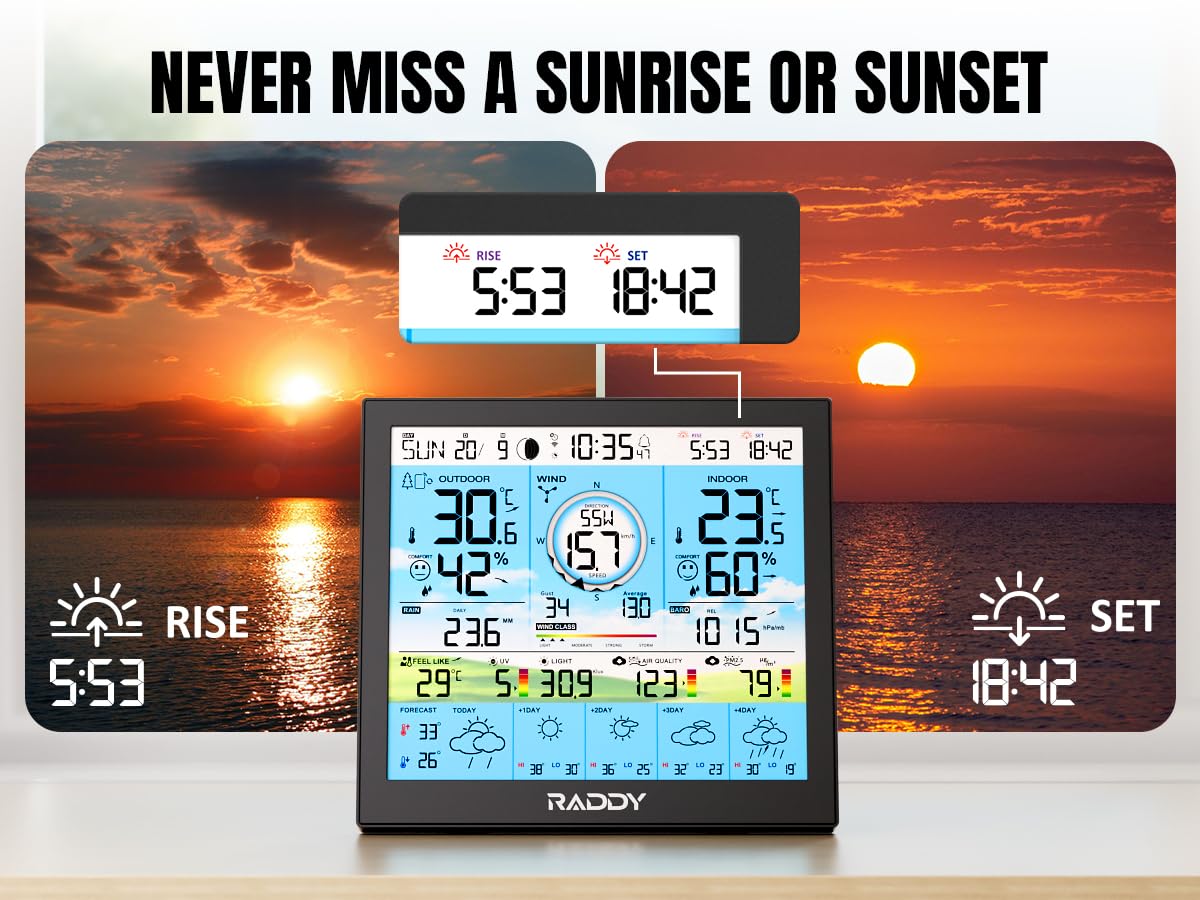
Image: The display console showing sunrise and sunset times, indicating the device's ability to track these daily events.
5.5. Alarm Clocks
The display console includes customizable alarm clock functions with a snooze feature.

Image: The display console on a bedside table, with a smartphone showing the alarm clock settings within the app, highlighting the customizable alarm feature and snooze function.
6. Maintenance
- Rainfall Gauge Cleaning: Periodically inspect and clean the rainfall gauge on the outdoor sensor to prevent debris from affecting accuracy.
- Battery Replacement: Replace the batteries in the outdoor sensor when the low-battery alert appears on the display console or in the app. Use high-quality AA batteries for optimal performance.
- General Cleaning: Wipe the display console and outdoor sensor with a soft, damp cloth. Avoid abrasive cleaners or solvents.
7. Troubleshooting
| Issue | Possible Cause | Solution |
|---|---|---|
| No outdoor data displayed | Outdoor sensor batteries are low or depleted. Sensor is out of range or obstructed. | Replace sensor batteries. Ensure sensor is within 100m (330ft) of the console and has a clear line of sight. Press the manual transmit button on the sensor. |
| Wi-Fi connection failure | Incorrect Wi-Fi password. Router is 5Ghz only. Weak Wi-Fi signal. | Verify Wi-Fi password. Ensure your router supports 2.4Ghz Wi-Fi. Move the console closer to the router or use a Wi-Fi extender. Re-attempt pairing via the Tuya Smart app. |
| Inaccurate rainfall readings | Rainfall gauge is dirty or obstructed. | Clean the rainfall gauge funnel and tipping bucket mechanism on the outdoor sensor. |
| Display is dim or unreadable | Brightness setting is too low. | Adjust the backlight level using the console controls or through the app. |
8. Specifications
| Feature | Detail |
|---|---|
| Brand | Raddy |
| Model Number | WF-120P |
| Display Type | 10-inch HTN Color Display |
| Outdoor Sensor | 7-in-1 (Temperature, Humidity, Wind Speed, Wind Direction, Rainfall, UV Index, Sunlight) |
| Connectivity | Wi-Fi (2.4Ghz only), Tuya Smart App |
| Transmission Range | Up to 100m (330ft) |
| Power Source (Console) | AC Power Adapter |
| Power Source (Sensor) | 4 x AA Batteries (not included) |
| Special Features | App Control, Adjustable Brightness, Alarm, 5-Day Weather Forecast |
| Recommended Uses | Farm, Home |
| Package Dimensions | 14.92 x 10.91 x 6.77 inches |
| Item Weight | 4.54 Pounds |
9. Warranty and Support
For warranty information and technical support, please refer to the official Raddy website or contact their customer service directly. Contact details are typically provided on the product packaging or within the Tuya Smart app's support section.


