
1. Introduction
The eufy Security PoE Bullet-PTZ Cam S4 is an advanced surveillance camera designed for comprehensive outdoor security. This add-on camera requires the eufy NVR S4 to operate, providing a wired, reliable, and feature-rich monitoring solution. It combines a 4K wide-angle lens with a 2K pan-tilt-zoom (PTZ) lens, offering unparalleled coverage and detail. Equipped with AI tracking, color night vision, and two-way audio, the Cam S4 ensures your property is protected 24/7.

Image: The eufy PoE Bullet-PTZ Cam S4 features a 4K wide-angle lens and a 2K PTZ lens for comprehensive coverage.
2. What's in the Box
- 1 x PoE Cam S4
- 1 x Mounting Bracket
- 1 x 59ft/18m Ethernet Cable
- 1 x Waterproof Cover Pack
- 1 x Screw Pack
- 1 x Position Sticker
- 1 x Warning Sticker
- 1 x Quick Start Guide
3. Setup
3.1 System Requirements
The eufy PoE Cam S4 Add-on Camera requires an eufy NVR S4 to operate. Ensure your NVR is properly set up and connected to your network. A PoE NVR, switch, injector, and DC adapter are required (not included with this add-on camera).
3.2 Power Over Ethernet (PoE) Connection
The Cam S4 utilizes Power over Ethernet (PoE) technology, meaning a single Ethernet cable handles both power and data transmission. This simplifies installation and ensures a stable connection.
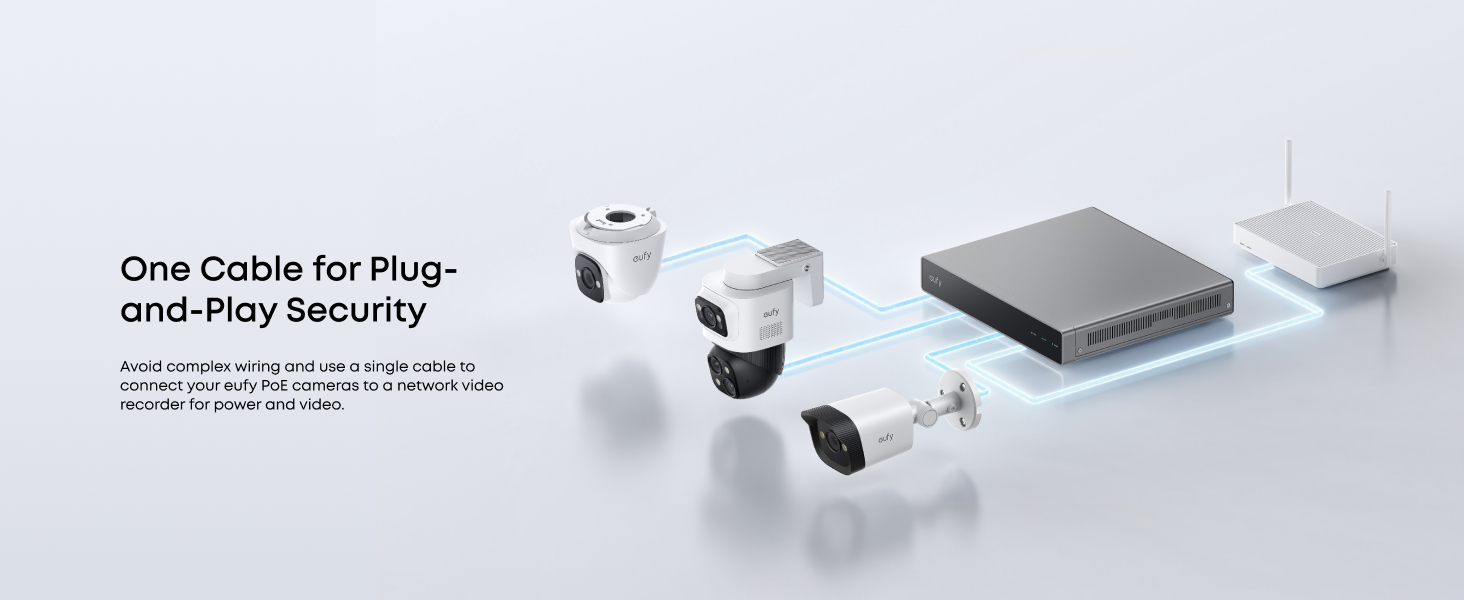
Image: A single Ethernet cable provides both power and data for the eufy PoE camera, connecting directly to the NVR.
3.3 Mounting the Camera
- Choose a Location: Select an outdoor location that provides optimal coverage of your desired monitoring area. Consider factors like line of sight, potential obstructions, and proximity to your NVR or PoE switch. The camera is IP65 weatherproof, suitable for various conditions.
- Install the Mounting Bracket: Use the provided screw pack and position sticker to securely attach the mounting bracket to your chosen surface (wall, pole, or ceiling).
- Attach the Camera: Slide the PoE Cam S4 onto the mounting bracket until it clicks into place.
- Connect the Ethernet Cable: Connect one end of the provided 59ft/18m Ethernet cable to the camera's PoE port and the other end to an available PoE port on your eufy NVR S4 or PoE switch. Use the waterproof cover pack to protect the connection.
- Adjust Camera Angle: Manually adjust the fixed wide-angle lens and the PTZ lens to cover your desired areas. Fine-tuning can be done later via the eufy Security app or NVR interface.
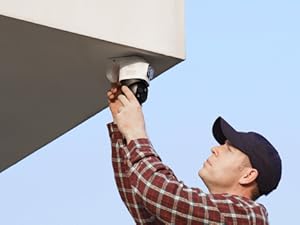
Image: Proper installation of the eufy PoE Bullet-PTZ Cam S4 on an exterior wall.
3.4 Initial Configuration
Once connected to the eufy NVR S4, the camera should automatically be detected. Follow the on-screen prompts on your NVR or use the eufy Security app to complete the initial setup, including naming the camera and configuring basic settings.
4. Operating the Camera
4.1 Dual-Lens System
The Cam S4 features a unique triple-lens design:
- Upper 4K Wide-Angle Camera: Provides a 122° fixed view of the entire scene, capturing broad areas in high definition.
- Lower 2K PTZ Camera: Offers 8× auto-zoom and 360° pan with 70° tilt for detailed, dynamic coverage.

Image: The triple-lens system provides both a fixed wide-angle view and a movable PTZ view for comprehensive monitoring.
4.2 AI Tracking and Auto-Framing
The advanced AI capabilities allow the camera to automatically detect, track, and frame subjects. When the bullet camera detects a subject, the PTZ lens locks on and auto-tracks them in sharp, centered close-ups from up to 164 ft away. Auto-zoom keeps moving subjects framed until they exit the view.
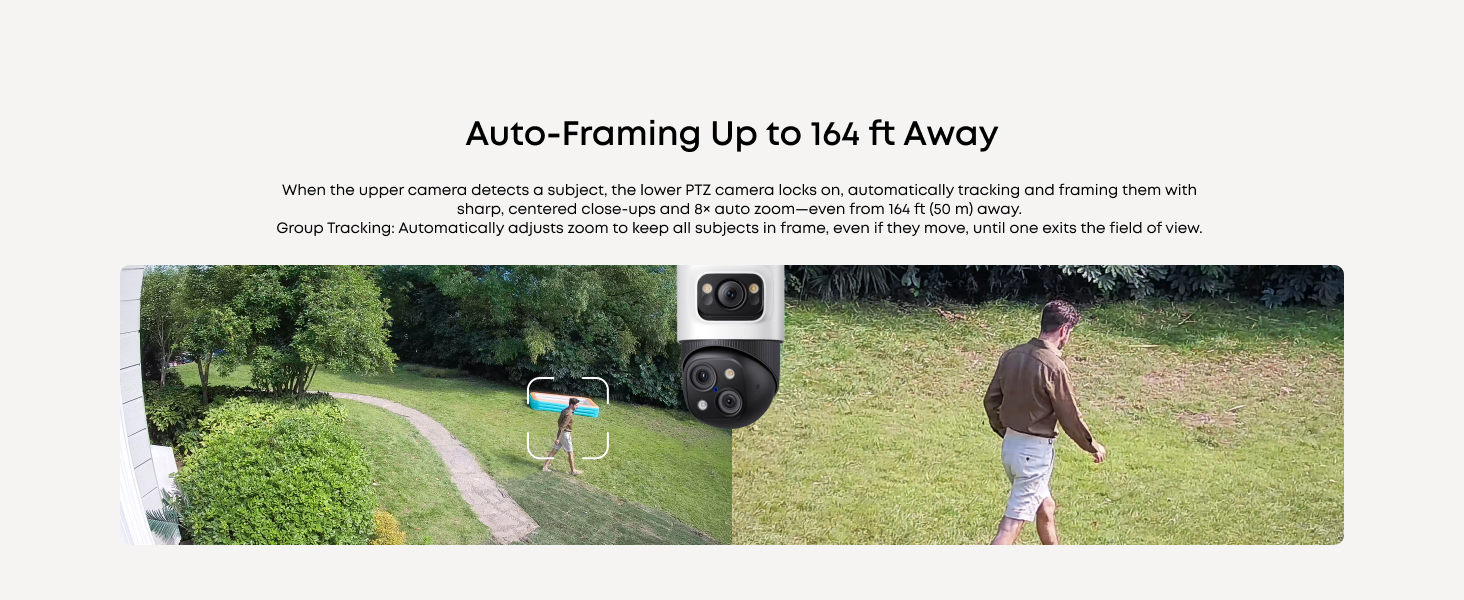
Image: The camera's AI automatically tracks and frames subjects, ensuring they remain in focus.
4.3 Starlight Color Night Vision
Experience clear, colorful nighttime details without the need for a spotlight, thanks to AI-ISP processing. For enhanced clarity, you can activate a spotlight or use HDR to prevent overexposure, allowing for identification of details like license plates.

Image: Various night vision modes, including Starlight Color Night Vision, provide clear visibility in low-light conditions.
4.4 Red and Blue Strobe & Smart Sirens
The camera can deter intruders with smart sirens and a red and blue strobe light, activated automatically when AI detects and tracks unauthorized individuals.
4.5 AI Human Detection
Advanced AI distinguishes between people, pets, and vehicles, reducing false alerts by 99%. You will only receive notifications for events that truly matter.
4.6 Two-Way Talk
Engage in crystal-clear, distraction-free two-way communication with AI noise reduction. This feature allows you to speak to visitors or deter unwanted guests directly through the camera.

Image: The two-way talk feature allows for clear communication through the camera.
4.7 Smart Video Search
Quickly find specific events in your recorded footage using keywords. Instead of scrolling through hours of video, you can search for terms like "person," "vehicle," or specific colors to locate relevant clips in seconds.
Video: This video demonstrates the Smart Video Search feature, allowing users to quickly find specific events in recorded footage using keywords and filters.
5. Maintenance
5.1 Cleaning the Camera
Periodically clean the camera lenses and housing with a soft, damp cloth to ensure optimal image clarity. Avoid using harsh chemicals or abrasive materials that could damage the camera's finish or lenses.
5.2 Weather Resistance
The eufy PoE Bullet-PTZ Cam S4 is rated IP65, meaning it is protected against dust and low-pressure water jets. It is designed to withstand various weather conditions, but extreme conditions (e.g., prolonged submersion, direct high-pressure water) should be avoided.
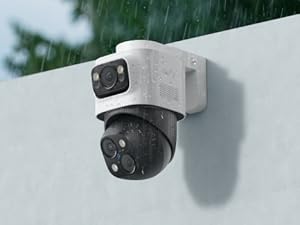
Image: The IP65 rating ensures the camera's durability against various weather conditions.
5.3 Firmware Updates
Regularly check for and install firmware updates via your eufy NVR S4 or the eufy Security app. Updates often include performance improvements, new features, and security enhancements.
6. Troubleshooting
6.1 Camera Not Connecting to NVR
- Ensure the Ethernet cable is securely connected to both the camera and a functioning PoE port on the NVR or switch.
- Verify that the NVR S4 is powered on and connected to your network.
- Check the Ethernet cable for any damage. Try a different cable if necessary.
- Restart the NVR and the camera.
6.2 Poor Image Quality
- Clean the camera lenses to remove any dirt or smudges.
- Ensure there are no obstructions blocking the camera's view.
- Check your network connection speed. While PoE is wired, network congestion can affect live view quality.
- Adjust night vision settings (Starlight, Infrared, Spotlight) in the app or NVR interface for optimal clarity in low light.
6.3 False Alerts
- Adjust the AI Human Detection sensitivity settings in the eufy Security app or NVR interface.
- Configure Activity Zones to focus on specific areas and ignore irrelevant motion (e.g., passing cars on a public road).
- Ensure the camera is mounted securely to prevent movement from wind or vibrations, which could trigger false alerts.
7. Specifications
| Feature | Detail |
|---|---|
| Brand | eufy Security |
| Model Number | T8E00 |
| Connectivity Technology | Ethernet (PoE) |
| Video Capture Resolution | 4K (Upper Lens), 2K (Lower PTZ Lens) |
| Special Features | AI-powered, PTZ Control, Two-Way Audio, Live Cross Cam Tracking, Red and Blue Light, Color Night Vision |
| Number of Channels | 1 (Add-on Camera) |
| Power Source | Power over Ethernet |
| Item Dimensions (L x W x H) | 10.75 x 7.32 x 3.94 inches |
| Operating System | Proprietary/Embedded (eufy NVR-Specific) |
| Recommended Uses | Outdoor |
| Compatible Devices | eufy NVR S4, Laptops, Personal Computers, Smartphones, TV, Tablets |
| Low Light Technology | Starlight Vision, Spotlight Vision, Infrared Vision |
| Night Vision Range | 65 Feet |
| Frame Rate | 15fps/20fps |
| Recording Mode | Continuous, Motion Detection |
| Hardware Interface | Ethernet |
| Lens Type | Wide Angle, PTZ |
| Viewing Angle | 122 Degrees (Fixed Lens) |
| Item Weight | 3.34 pounds |
8. Warranty and Support
8.1 After Sales Support
eufy Security products are covered by a 3-year after-sales service. Our expert support team is available 24/7 to assist with any concerns or issues you may encounter, ensuring your system remains operational.
8.2 Contact Information
For technical support, warranty claims, or general inquiries, please refer to the contact information provided in your Quick Start Guide or visit the official eufy Security website.


