
1. Product Overview
This manual provides instructions for the Xqscvqwfa Universal Three-in-one Driver Board, designed for television replacement and upgrade applications. This driver board integrates multiple functions into a single unit, offering system stability and high-definition support. It is engineered with anti-static and overvoltage protection to ensure reliable operation. The package includes the driver board and a remote control.
The specific variant covered by this manual supports a resolution ratio of 1366x768 pixels.
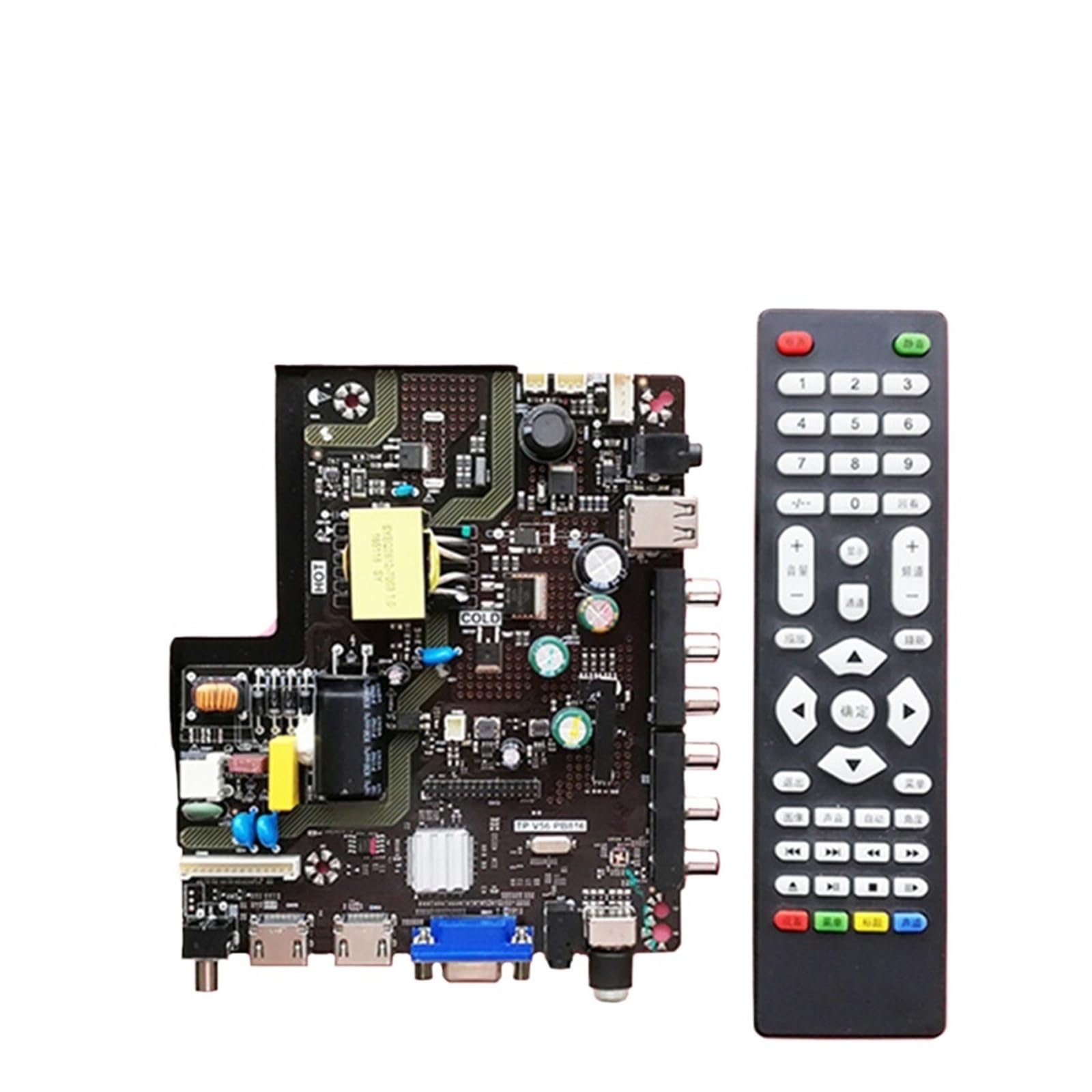
Image 1.1: The Xqscvqwfa Universal Driver Board shown alongside its accompanying remote control. The board features various ports and components for TV integration.
2. Setup and Installation
Before beginning installation, ensure all power to the television or display unit is disconnected. It is recommended to wear anti-static gloves to prevent damage to sensitive electronic components.
- Preparation: Carefully remove the back panel of your television or display unit to access the existing motherboard.
- Removal of Old Board: Disconnect all cables (power, display, input, etc.) from the old motherboard. Unscrew and remove the old board.
- Installation of New Board: Position the Xqscvqwfa Universal Driver Board in the designated slot. Secure it with screws, ensuring it is firmly seated.
- Cable Connection: Reconnect all necessary cables to the corresponding ports on the new driver board. Pay close attention to power, LVDS (display panel), and input cables (HDMI, VGA, AV, USB).
- Initial Power-Up: Before reattaching the back panel, connect the power cord and perform a preliminary power-up to verify basic functionality. If the display powers on and shows a signal, disconnect power and reattach the back panel.
For detailed connection diagrams, refer to the specific documentation of your display panel and the pinout information for the driver board's connectors.
3. Operating Instructions
The driver board is controlled using the included remote control. Ensure batteries are correctly inserted into the remote control.
- Power On/Off: Press the POWER button on the remote control to turn the display on or off.
- Input Selection: Use the INPUT or SOURCE button to cycle through available input sources (e.g., HDMI, VGA, AV, USB).
- Volume Control: Adjust the audio volume using the VOL+ and VOL- buttons.
- Channel Selection: For TV tuner functions, use the CH+ and CH- buttons to change channels.
- Menu Navigation: Access the on-screen display (OSD) menu using the MENU button. Navigate through options using the arrow keys and confirm selections with the OK or ENTER button.

Image 3.1: The remote control provided with the driver board, featuring standard buttons for power, input, volume, channel, and menu navigation.
4. Maintenance
To ensure the longevity and optimal performance of your Xqscvqwfa Universal Driver Board, follow these general maintenance guidelines:
- Cleaning: Keep the board free from dust and debris. Use a soft, dry cloth or a can of compressed air to gently clean the surface. Do not use liquid cleaners directly on the board.
- Environment: Operate the board in a well-ventilated area to prevent overheating. Avoid exposure to excessive moisture, extreme temperatures, and direct sunlight.
- Power Management: Always disconnect power before performing any internal adjustments or cleaning.
5. Troubleshooting
If you encounter issues with your driver board, refer to the following troubleshooting steps:
- No Power:
- Ensure the power cable is securely connected to both the board and the power outlet.
- Verify that the power outlet is functional.
- Check the power indicator light on the board (if present).
- No Signal/Blank Screen:
- Confirm that all video input cables (HDMI, VGA, AV) are correctly connected to both the source device and the driver board.
- Use the remote control to select the correct input source.
- Test with a different video source or cable to rule out external issues.
- Display Issues (e.g., distorted image, incorrect colors):
- Check the LVDS cable connection between the driver board and the display panel.
- Ensure the resolution settings of the source device are compatible with the board's supported resolution (1366x768 for this variant).
- Remote Control Not Responding:
- Replace the batteries in the remote control.
- Ensure there are no obstructions between the remote control and the board's IR receiver.
If problems persist after attempting these steps, it may indicate a more complex issue requiring professional assistance.
6. Specifications
| Feature | Detail |
|---|---|
| Brand | Xqscvqwfa |
| Model Numbers | TP.V56.PB816, TP.V56.PB826, SKR.816, TP.RD8503.816 |
| Supported Resolution | 1366x768 (for this variant) |
| Product Type | Universal Three-in-one Driver Board |
| Included Accessories | Remote Control |
| Key Features | Easy to install, System stability, Fix multiple faults, High definition support, Anti-static and overvoltage protection |
| Item Weight | 50 Grams |
| Unit Count | 1.0 Count |