
1. Product Overview
The RGBlink C16 is a versatile 4-in-1 device combining an auto face tracking tripod, 360° rotating selfie stick, 1-axis gimbal stabilizer, and phone holder with an integrated RGB fill light. Designed for content creators, it features smart AI motion sensing and facial recognition to keep you perfectly framed without manual adjustments. It is compatible with both iPhone and Android devices, making it ideal for TikTok videos, vlogging, Zoom meetings, and live streams.
2. What's in the Box
- 1x Cell Phone Tripod
- 1x Fill Light
- 1x Remote Control
- 1x USB-C Charging Cable
- 1x User Manual
3. Setup Instructions
- Charge the Device: Fully charge the device via the provided USB-C cable before first use.
- Unfold the Tripod: Open the four legs of the tripod and spread them to their maximum angle for stability. Ensure the side switch is UNLOCKED for initial setup.
- Mount Your Phone: Place your phone horizontally (landscape mode) into the phone clamp. Ensure it is centered and, if possible, remove your phone case for a more secure fit.
- Power On: Long-press the Power button on the device. The small camera sensor's green light will face your face, indicating AI tracking is active. If the LED is not green, short-press the Power button to switch modes.
- Pair Remote Control: The small remote is located on the tripod body. Long-press the BIG button on the remote to turn it on until its LED flashes. Open Bluetooth settings on your phone and select "SelfieCom" to pair. Replace the battery if needed.
- Attach Fill Light (Optional): The clip-on magnetic fill light can be attached to either side of the phone clamp when in portrait mode. Note: Magnetic light is not supported in Embedded Mode.

Image: RGBlink C16 Tripod with phone mounted, illustrating AI tracking with a green light and hand gesture controls for pause (palm) and start (OK gesture).
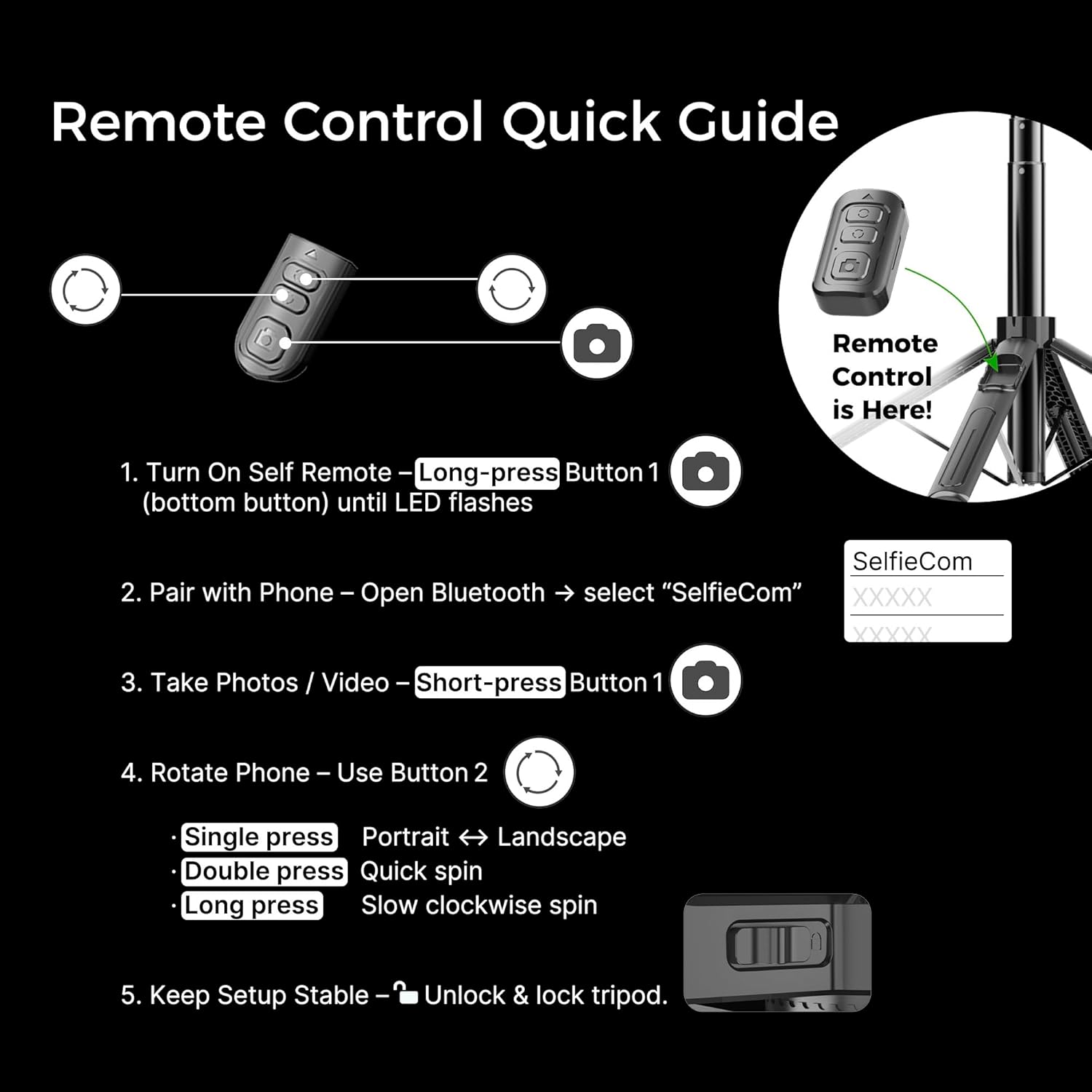
Image: Quick guide for the remote control, detailing how to turn it on, pair via Bluetooth, take photos/videos, and rotate the phone between portrait and landscape modes.
4. Operating Instructions
4.1. Auto Face Tracking (AI Motion Sensor)
- Ensure the small camera sensor's green light is facing you.
- Use a Palm Gesture to pause tracking.
- Use an OK Gesture to start tracking.
- The device will automatically follow your face and body movements, rotating 360° to keep you centered.
4.2. Remote Control Functions
- Button 1 (Bottom Button): Long-press to turn on/off the remote. Short-press to take photos or start/stop video recording (after Bluetooth pairing).
- Button 2 (Top Button): Single press to switch between portrait and landscape orientation. Double press for a quick spin. Long press for a slow clockwise spin.
4.3. Gimbal Stabilizer
- The 1-axis anti-shake gimbal provides stable and smooth video, ideal for vlogging and on-the-go shooting.
- To lock the gimbal for selfie stick use, slide the side switch to the LOCK position. This prevents unwanted rotation.
4.4. RGB Fill Light
- The clip-on magnetic light offers 3 color temperatures and 6 brightness levels.
- Adjust the light to enhance your videos, selfies, and live streams in various lighting conditions.
Video: Official RGBlink video demonstrating the Auto Face Tracking Phone Holder and its key features, including the AI motion sensor and gimbal stabilization.
5. Maintenance
- Cleaning: Use a soft, dry cloth to clean the device. Avoid using harsh chemicals or abrasive materials.
- Storage: Store the tripod in a cool, dry place when not in use. Fold it compactly to protect its components.
- Battery Care: Fully charge the device periodically, even if not in regular use, to maintain battery health.
6. Troubleshooting Tips
- AI Tracking Issues: Ensure the small camera sensor's green light is facing your face. Keep the side switch UNLOCKED for AI tracking.
- Remote Control Not Working: Long-press the BIG button on the remote to turn it on and pair via Bluetooth. If issues persist, replace the remote's battery.
- Stability Problems: Always place the tripod on a flat, hard surface. Avoid carpets, grass, or uneven ground to prevent wobbling or tipping. Fully spread the legs to their maximum angle.
- Phone Fit: Place your phone WITHOUT a phone case, centered in the clamp, for optimal balance and stability.
- Gimbal Not Stabilizing: Ensure the gimbal lock key is in the UNLOCKED position for active stabilization. If the gimbal battery is drained, lock the rotary knob to use it as a normal selfie stick tripod.
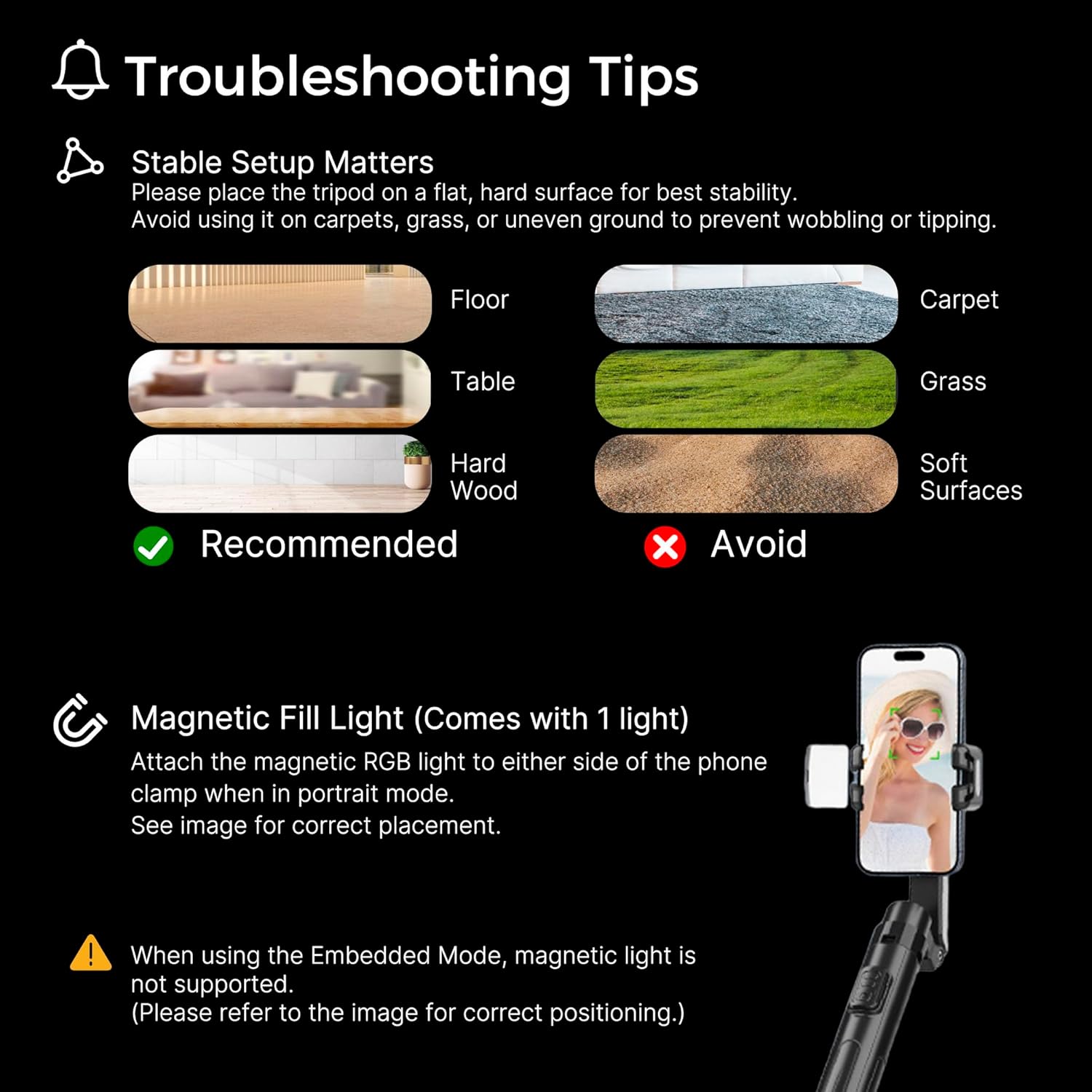
Image: Visual guide for troubleshooting, showing recommended and to-be-avoided surfaces for tripod placement, and instructions for the magnetic fill light.
7. Specifications
| Model Number | C16 |
| Brand | RGBlink |
| Color | Black |
| Material | Acrylonitrile Butadiene Styrene (ABS), Aluminum |
| Item Weight | 12.8 ounces (0.8 Pounds) |
| Maximum Height | 51 Inches |
| Minimum Height | 12 Inches |
| Number of Leg Sections | 4 |
| Tripod Head Type | Single-axis anti-shake gimbal |
| Special Features | Adjustable, Auto Face tracking, Foldable, Lightweight, Remote Control |
| Compatible Devices | Smartphone |
| Batteries | 1 Lithium Ion batteries required (included) |
8. Warranty & Support
For warranty information and customer support, please refer to the documentation included with your product or visit the official RGBlink website. You may also contact the seller directly through your purchase platform for assistance.