
Introduction
This manual provides detailed instructions for the setup, operation, and maintenance of your ESR Flex Keyboard Case. Please read this manual thoroughly to ensure proper use and to maximize the functionality of your device.
Compatibility
The ESR Flex Keyboard Case is compatible with the following iPad models:
- iPad 11-inch (A16) 2025: Models A3354, A3355, A3162, A3356
- iPad 10th Generation 2022: Models A2696, A2757, A2777
To verify your iPad model number, check the back of your device. It is typically printed in small text.

Image: Visual guide for identifying compatible iPad models and locating the model number.
Setup
1. Attaching Your iPad to the Case
- Align your iPad with the protective frame of the case.
- Gently press the iPad into the case until it is securely seated. Ensure all corners are protected by the Air Guard corners.
- The keyboard magnetically attaches to the case. Position the keyboard at the bottom edge of the case for a secure connection.
2. Bluetooth Pairing the Keyboard
- Ensure the keyboard is charged.
- Turn on the keyboard using the power switch (usually located on the side or back of the keyboard).
- On your iPad, go to Settings > Bluetooth.
- Turn on Bluetooth.
- The iPad will search for nearby Bluetooth devices. Select "ESR Keyboard" (or similar name) from the list of available devices.
- If prompted, enter the pairing code displayed on your iPad screen using the keyboard, then press Enter.
- Once paired, the keyboard's status indicator will confirm connection, and it will appear as "Connected" on your iPad's Bluetooth device list.
Operating Instructions
Magnetic Detachable Design
The keyboard can be instantly attached or detached from the case via a strong magnetic connection. This allows for flexible usage:
- Typing Mode: Keep the keyboard attached for a laptop-like experience.
- Tablet Mode: Detach the keyboard for reading, watching videos, or sketching, allowing for a lighter and more portable setup.
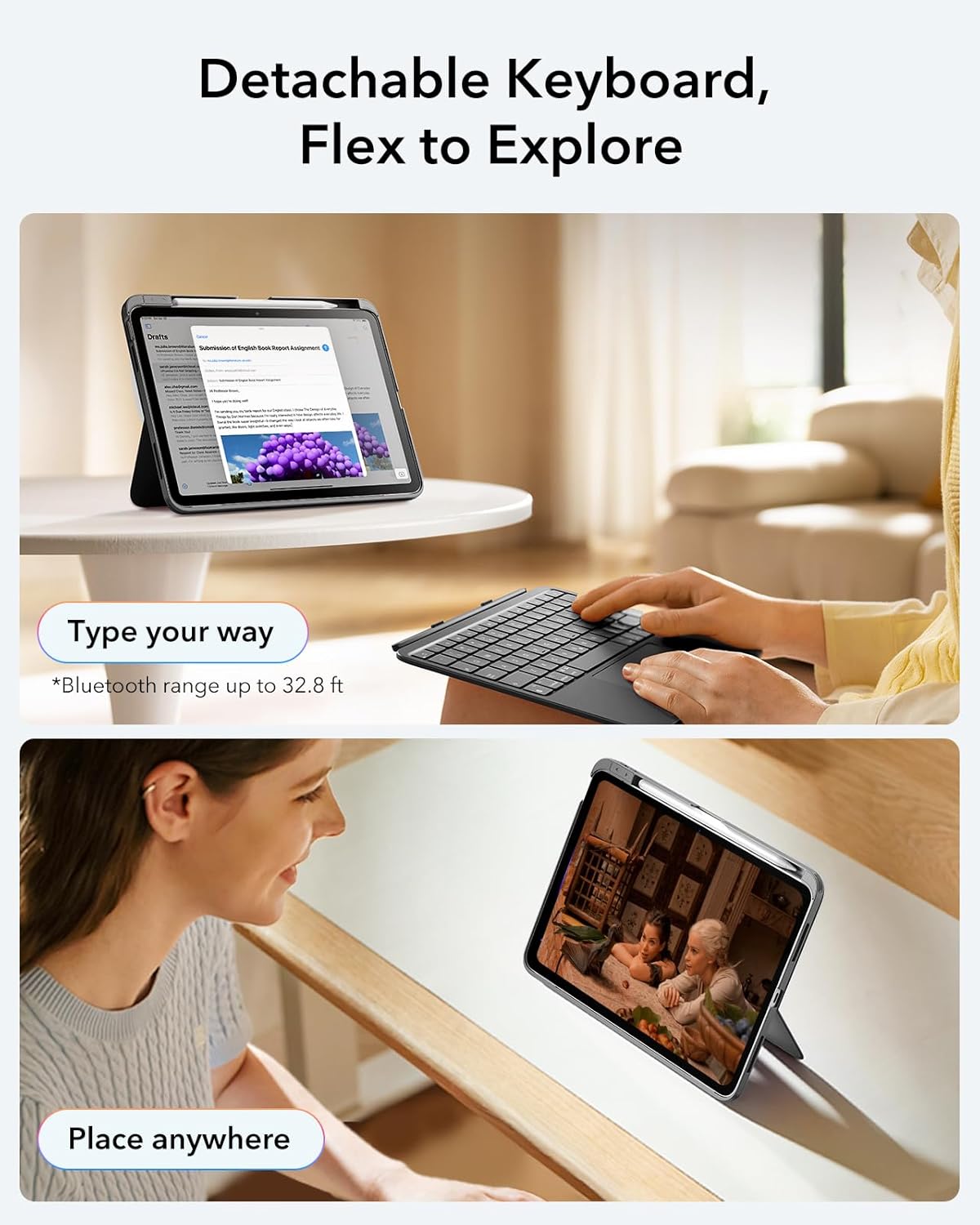
Image: Demonstrates the detachable keyboard for remote typing and the iPad in viewing mode.
Adjustable Viewing Angles
The case features a triangular support stand that provides two stable viewing angles:
- 65° Angle: Ideal for working, watching videos, or general reading.
- 20° Angle: Suitable for sketching, drawing, or writing with a stylus.
Adjust the stand by folding the back panel to achieve the desired angle. The triangular design ensures stability without wobbling.

Image: Illustrates the 20-degree and 65-degree viewing angles provided by the case's stand.
Precision Trackpad Usage
The extra-large trackpad supports intuitive multi-touch gestures for effortless navigation. Common gestures include:
- Click: Single-finger tap or press.
- Scroll: Two-finger drag up or down.
- Zoom: Pinch with two fingers.
- Home: Three-finger swipe up.

Image: Explains trackpad gestures for navigation and control.
Pencil Release
The case includes a quick-access pen slot with a secure one-handed release mechanism for your Apple Pencil or compatible stylus. To release the pencil, gently push it from the cutout on the side of the slot.

Image: Demonstrates the pencil release feature.
Maintenance
Cleaning the Case and Keyboard
- Use a soft, lint-free cloth slightly dampened with water or a mild cleaning solution to wipe down the exterior of the case and keyboard.
- Avoid using harsh chemicals, abrasive cleaners, or solvents, as these can damage the finish.
- Ensure no liquid enters the keyboard's ports or crevices.
Storage
- Store the case and keyboard in a cool, dry place away from direct sunlight and extreme temperatures.
- When not in use for extended periods, ensure the keyboard is turned off to conserve battery life.
Troubleshooting
Keyboard Not Connecting via Bluetooth
- Check Power: Ensure the keyboard is turned on and has sufficient battery charge.
- Re-pair: Go to your iPad's Bluetooth settings, forget the "ESR Keyboard" device, and then attempt to pair it again.
- Restart Devices: Restart both your iPad and the keyboard.
- Proximity: Ensure the keyboard is within the Bluetooth range (up to 32.8 ft or 10 meters) of your iPad.
Trackpad Not Responding
- Bluetooth Connection: Verify the keyboard is properly connected via Bluetooth.
- Clean Trackpad: Ensure the trackpad surface is clean and free of debris.
- iPad Settings: Check iPad settings for trackpad functionality (Settings > Accessibility > Touch > AssistiveTouch, ensure it's not interfering).
Keyboard Keys Not Working
- Battery Level: Low battery can affect keyboard performance. Charge the keyboard fully.
- Reconnection: Disconnect and reconnect the Bluetooth connection.
- Software Update: Ensure your iPad's operating system is up to date.
Specifications
| Feature | Detail |
|---|---|
| Model | ESR Flex Keyboard Case |
| Compatible Devices | iPad 11th (A16) 2025 / 10th Gen 2022 (Models A2696, A2757, A2777, A3354, A3355, A3162, A3356) |
| Connectivity Technology | Bluetooth |
| Keyboard Description | Magnetic, Detachable |
| Special Features | Detachable, Ergonomic, Precision Trackpad, Adjustable Viewing Angles, Air Guard Corners |
| Item Weight | 1.57 pounds (approximately 712 grams) |
| Package Dimensions | 11.73 x 8.82 x 1.14 inches |
| Batteries | 1 Nonstandard Battery (included) |
| Color | Dark Gray |

Image: Illustrates the lightweight nature of the case and keyboard (530g).
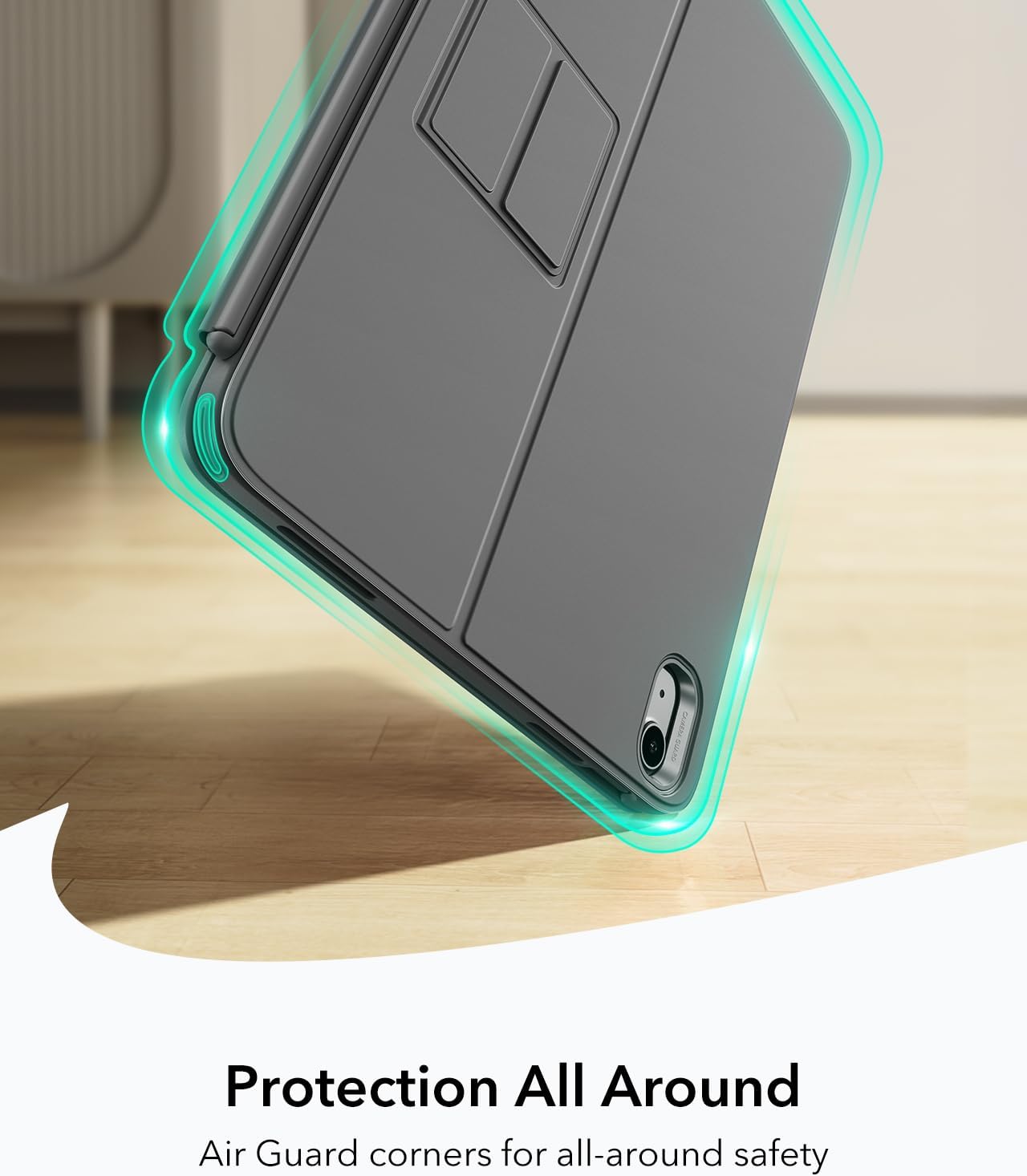
Image: Highlights the protective Air Guard corners of the case.
Warranty and Support
ESR products typically come with a limited warranty. For specific warranty details, registration, or to access customer support, please visit the official ESR website or contact their customer service directly. Keep your purchase receipt as proof of purchase.
For further assistance, you may visit the ESR Store on Amazon.


