
KOORUI S2721XO 27-Inch QD-OLED Gaming Monitor User Manual
Model: S2721XO
1. Introduction
This manual provides instructions for the setup, operation, maintenance, and troubleshooting of your KOORUI S2721XO 27-inch QD-OLED Gaming Monitor. Please read this manual thoroughly before using the product to ensure proper function and safety.
The KOORUI S2721XO monitor features a 27-inch QD-OLED panel with QHD (2560x1440) resolution, a 240Hz refresh rate, and a 0.03ms (GtG) response time. It supports HDR True Black 400 and AdaptiveSync technology for a smooth visual experience. Connectivity options include HDMI 2.1 and DisplayPort 1.4.
2. Safety Information
- Ensure the monitor is placed on a stable, flat surface to prevent accidental falls.
- Do not expose the monitor to rain or moisture to avoid electric shock.
- Keep ventilation openings clear to prevent overheating.
- Use only the power adapter provided with the monitor.
- Avoid touching the screen with sharp objects.
- Disconnect the power cable from the outlet before cleaning or if the monitor will be unused for an extended period.
3. Setup
3.1 Package Contents
Verify that all components are present in the package:
- KOORUI S2721XO Monitor
- Monitor Stand (Base and Neck)
- Power Cable
- DisplayPort Cable (1.8m)
- User Manual (this document)
3.2 Assembling the Stand
- Attach the stand neck to the monitor panel. Ensure it clicks securely into place.
- Attach the stand base to the stand neck. Tighten any screws as necessary.
Alternatively, the monitor supports VESA 100x100mm mounting for compatible wall mounts or monitor arms.
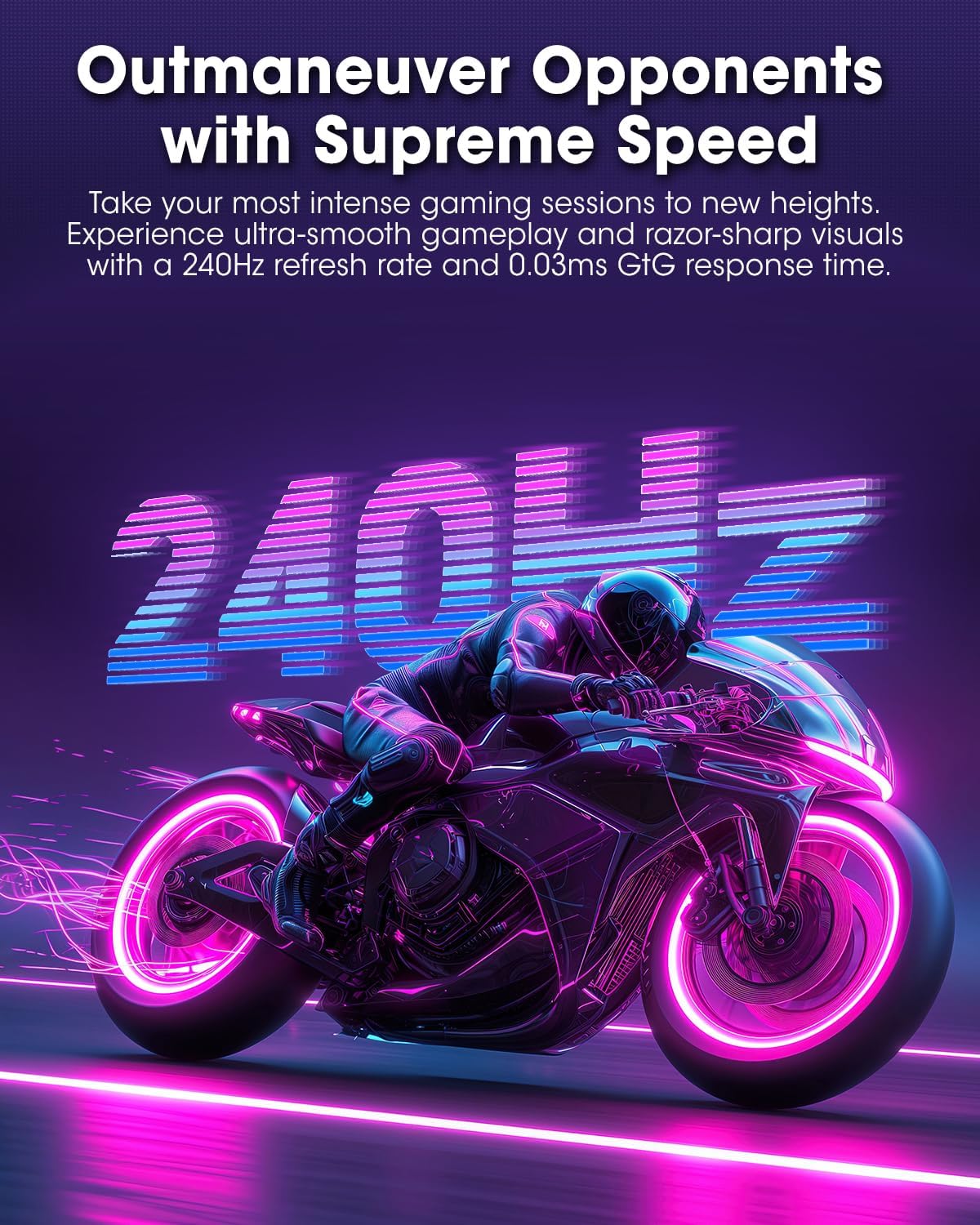
Figure 3.2.1: Rear view of the monitor with VESA mount and stand attachment.

Figure 3.2.2: Rear view of the monitor with the stand assembled.
3.3 Connecting to a Device
The monitor provides multiple input options:
- HDMI 2.1: Connect to a PC or gaming console using an HDMI 2.1 cable. The monitor has two HDMI 2.1 ports.
- DisplayPort 1.4: Connect to a PC using a DisplayPort 1.4 cable. A DisplayPort cable is included.
- Audio Output: Connect external speakers or headphones to the 3.5mm audio jack.

Figure 3.3.1: Monitor input ports.
After connecting the video cable, connect the power cable to the monitor and then to a power outlet.
4. Operation
4.1 Power On/Off
Press the power button (usually located on the back or bottom of the monitor) to turn the monitor on or off. The power indicator light will illuminate when the monitor is on.
4.2 On-Screen Display (OSD) Menu
The monitor features a joystick controller for navigating the OSD menu. This allows for easy adjustment of various settings.
- Press the joystick: Opens the OSD menu.
- Move joystick Up/Down: Navigates through menu options.
- Move joystick Left/Right: Adjusts values or enters sub-menus.
- Press again: Confirms selection or exits a sub-menu.
4.3 Display Settings
Adjust the following settings via the OSD menu for optimal performance:
- Resolution: Set to 2560x1440 (QHD) for the native display resolution.
- Refresh Rate: Select 240Hz for the smoothest motion.
- AdaptiveSync: Enable AdaptiveSync (FreeSync compatible) to eliminate screen tearing and stuttering during gaming.
- HDR True Black 400: Activate HDR for enhanced contrast and color depth in compatible content.
- Color Gamut: Adjust color settings, including DCI-P3 99% and sRGB 100% modes, for accurate color reproduction.
- Brightness/Contrast: Fine-tune display brightness (average 280 nits) and contrast levels.
- Image Retention Refresh: This feature helps prevent burn-in on the OLED panel. It is recommended to keep this enabled.
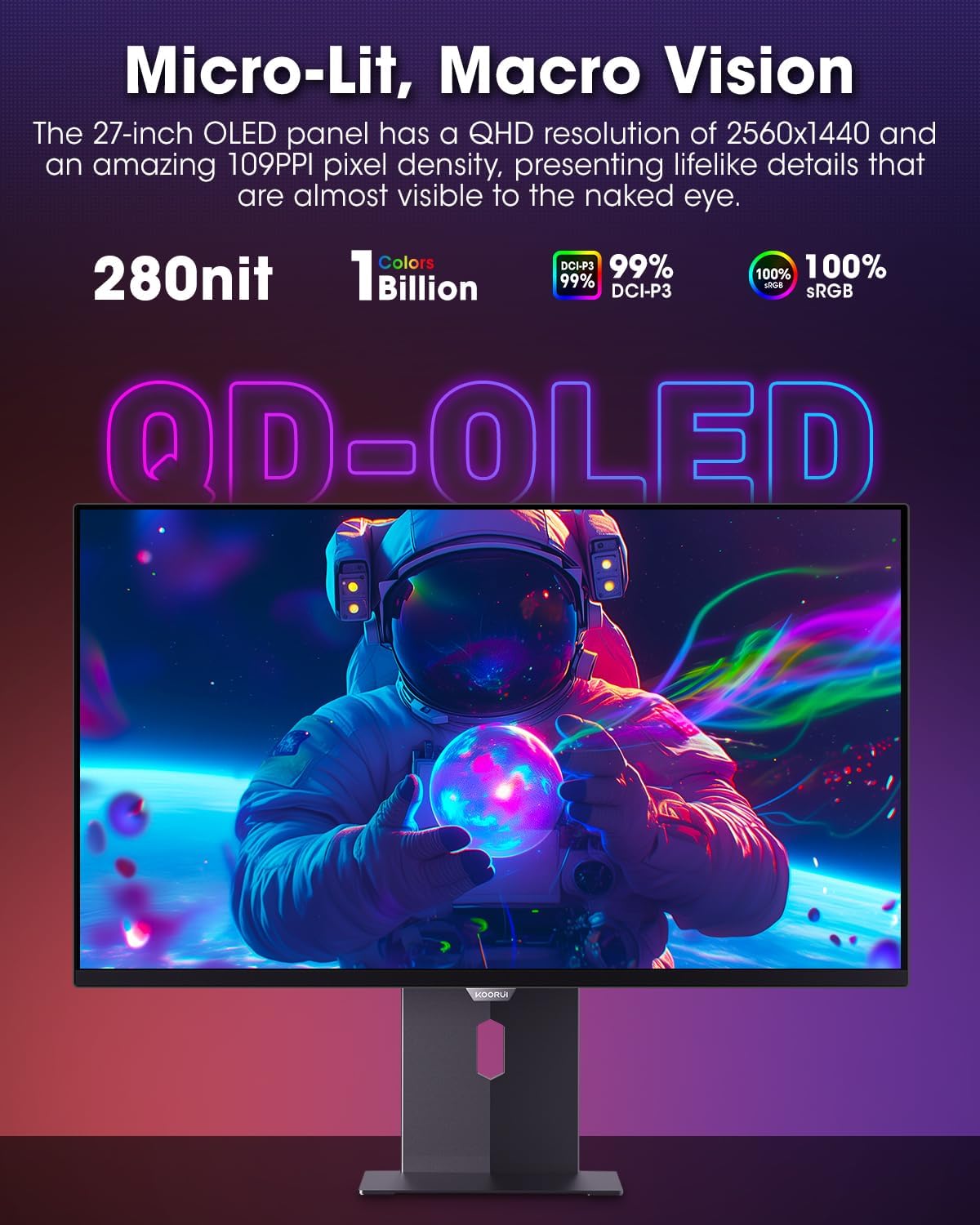
Figure 4.3.1: The QD-OLED panel delivers vivid colors and deep blacks.

Figure 4.3.2: High refresh rate and low response time for smooth gaming.
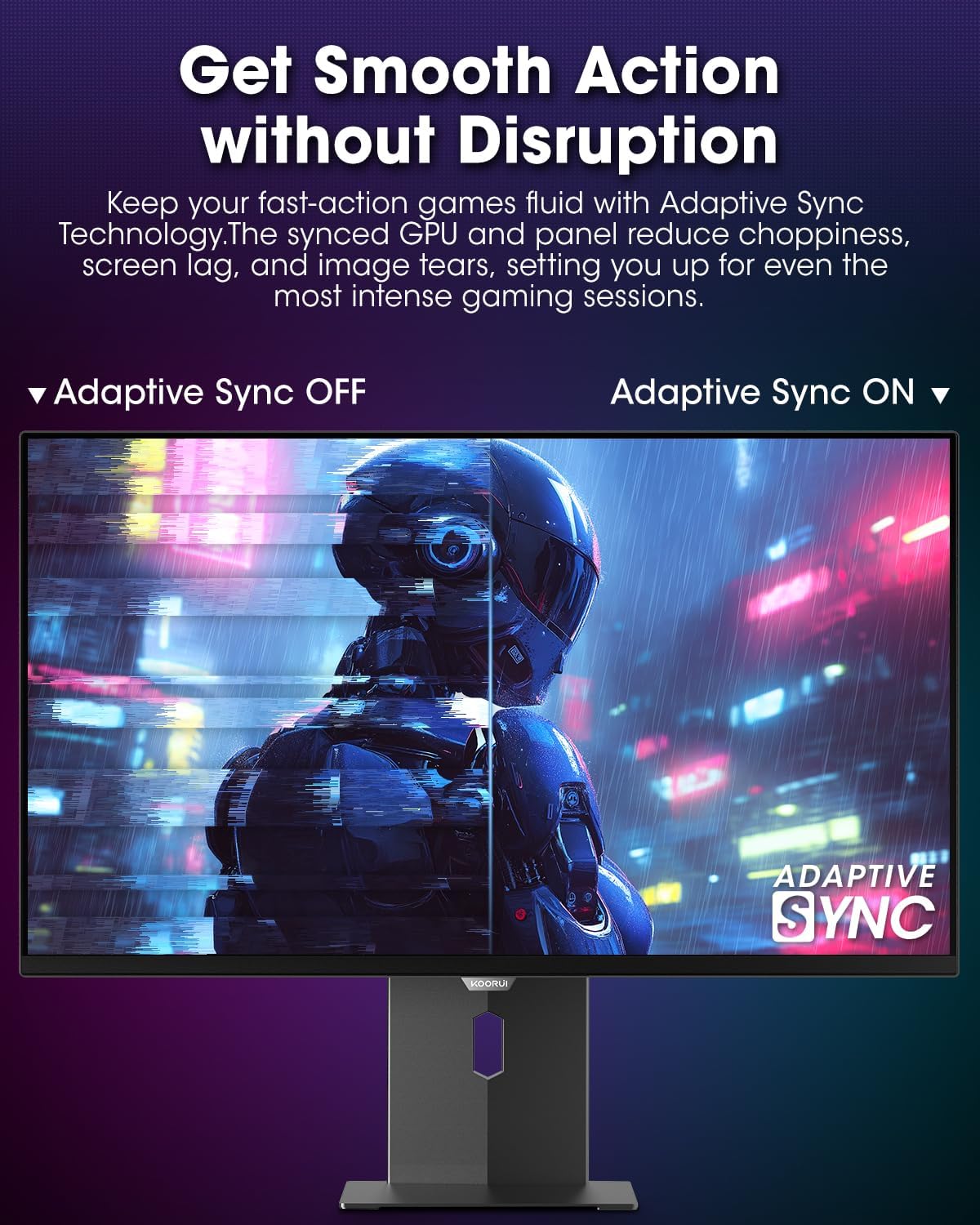
Figure 4.3.3: AdaptiveSync technology prevents screen tearing.
4.4 Ergonomic Adjustments
The monitor stand allows for various adjustments to enhance viewing comfort:
- Height Adjustment: Raise or lower the monitor to eye level.
- Tilt: Adjust the screen angle forward or backward.
- Swivel: Rotate the monitor horizontally.
- Pivot: Rotate the monitor vertically (portrait mode).

Figure 4.4.1: Monitor tilt adjustment.

Figure 4.4.2: Monitor pivot adjustment to portrait mode.
5. Maintenance
- Cleaning the Screen: Use a soft, lint-free cloth lightly dampened with water or a screen cleaner. Do not spray cleaner directly onto the screen.
- Cleaning the Casing: Wipe the monitor casing with a soft, dry cloth. Avoid abrasive cleaners.
- Ventilation: Ensure the monitor's ventilation holes are not blocked to prevent overheating.
- Power Off: Always turn off and unplug the monitor before cleaning.
6. Troubleshooting
| Problem | Possible Cause | Solution |
|---|---|---|
| No image on screen | Power cable disconnected; Video cable disconnected; Incorrect input source selected. | Check power and video cable connections; Select correct input source via OSD menu. |
| Image flickering or tearing | AdaptiveSync not enabled; Graphics card driver issues. | Enable AdaptiveSync in OSD menu; Update graphics card drivers. |
| Colors appear incorrect | Color settings misconfigured; Faulty video cable. | Reset color settings in OSD menu; Try a different video cable. |
| Monitor does not turn on | Power cable not connected; Power outlet not working. | Ensure power cable is securely connected; Test power outlet with another device. |
7. Specifications
| Feature | Detail |
|---|---|
| Brand | KOORUI |
| Model Number | S2721XO |
| Screen Size | 27 Inches |
| Display Type | QD-OLED |
| Resolution | QHD Wide 1440p (2560 x 1440 Pixels) |
| Refresh Rate | 240 Hz |
| Response Time | 0.03 Milliseconds (GtG) |
| Contrast Ratio | 20,000,000:1 |
| Brightness | 350 candela_per_square_meter (average 280 nits) |
| Color Gamut | 99% DCI-P3 |
| HDR Support | HDR True Black 400 |
| Adaptive Sync | FreeSync Compatible |
| Connectivity | 2x HDMI 2.1, 1x DisplayPort 1.4, 1x Audio Out |
| Ergonomics | Tilt, Height, Swivel, Pivot Adjustment |
| VESA Mount | 100x100mm |
| Product Dimensions | 21.58 x 61 x 51.2 cm; 8.96 kg |

Figure 7.1: Monitor dimensions.
8. Warranty and Support
8.1 Warranty Information
The KOORUI S2721XO monitor comes with a 1-year limited warranty. Please retain your proof of purchase for warranty claims. For detailed warranty terms and conditions, refer to the official KOORUI website or contact customer support.
8.2 Customer Support
For technical assistance, troubleshooting, or warranty inquiries, please contact KOORUI customer support. Refer to the contact information provided on the official KOORUI website or your purchase documentation.
You can also find additional support resources and FAQs on the KOORUI brand store on Amazon: KOORUI Amazon Store
9. Product Videos
KOORUI 4K OLED Gaming Monitor 240Hz (Seller Video)
This video provides an overview of the KOORUI OLED Gaming Monitor, highlighting its key features such as high refresh rate and OLED display technology. While the title mentions "4K", the video content is generally applicable to high-performance OLED gaming monitors from KOORUI, including the S2721XO model's features like 240Hz refresh rate and fast response time.


