
1. Introduction
The UGREEN Bidirectional HDMI to DisplayPort Cable (Model HD187) provides versatile connectivity between devices with HDMI and DisplayPort interfaces. This cable supports both HDMI source to DisplayPort display and DisplayPort source to HDMI display conversions, offering high-resolution video and audio transmission. It is designed for various applications, including connecting gaming consoles, laptops, and graphics cards to monitors or TVs.
2. Key Features
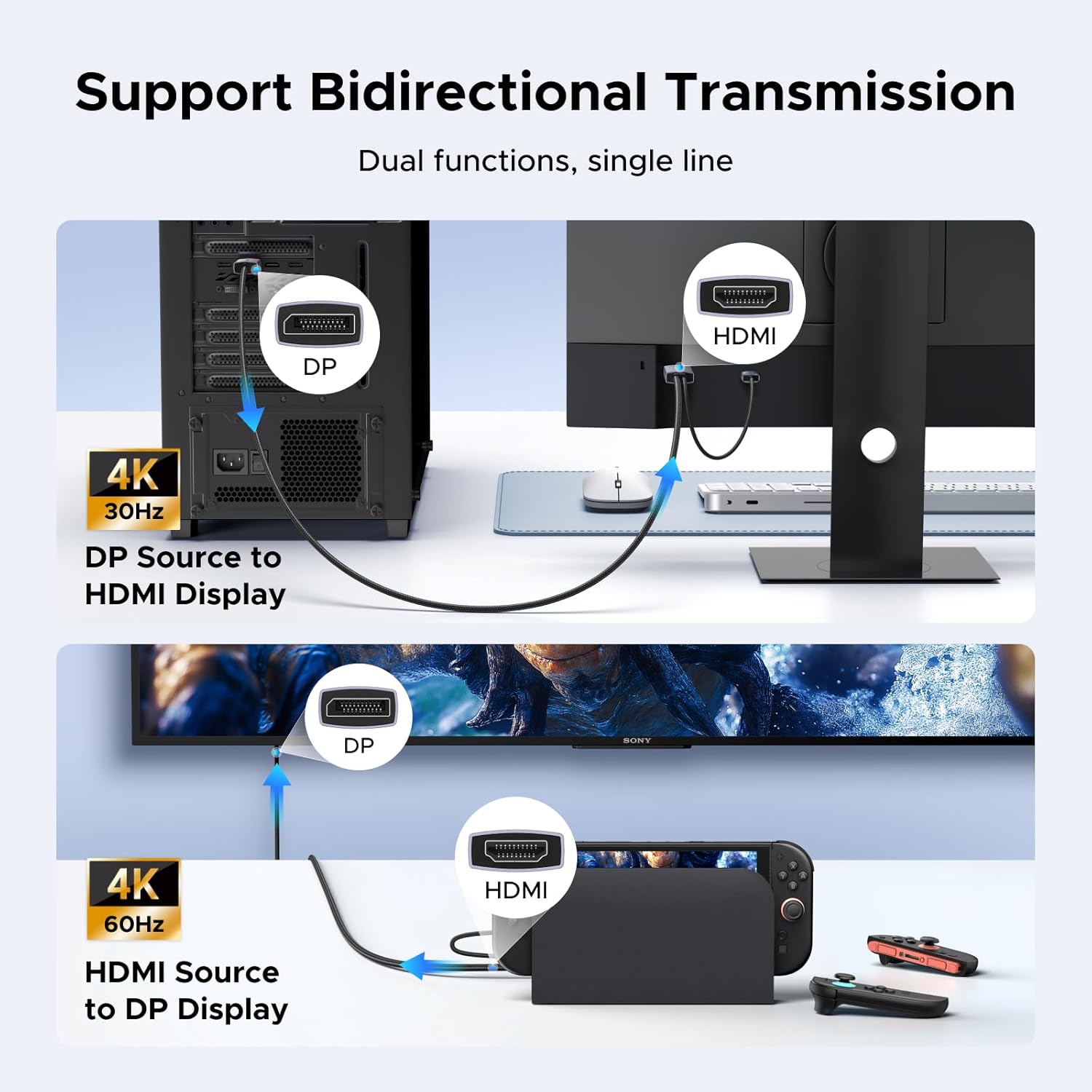
- Bidirectional Connectivity: Supports HDMI to DisplayPort conversion (up to 4K@60Hz) and DisplayPort to HDMI conversion (up to 4K@30Hz).
- High Resolution Support: Delivers crisp 4K video quality. Compatible with RGB/HDR/YCbCr 4:4:4 formats for enhanced color and contrast.
- USB Powered: Requires a USB-A power connection (5V/0.5A) for stable operation, especially for HDMI to DisplayPort conversion and with gaming consoles like PS5/PS4/Xbox.
- Wide Compatibility: Connects DisplayPort source devices (e.g., PCs, NVIDIA/AMD graphics cards) to HDMI displays, or HDMI source devices (e.g., Laptops, Switch, PS4/PS5, Xbox) to DisplayPort displays.
- Audio-Video Synchronization: Supports data transfer speeds up to 18Gbps (DP-to-HDMI max: 10.2Gbps) and audio sampling rates up to 24-bit/192kHz for high-fidelity sound.
- Durable Design: Features a robust EMI-shielded cable with 30AWG copper, dual Al-foil + Al-Mg braid, nickel-plated connectors, aluminum heatsink shell, and a high-tensile textile braided sleeve.
3. Package Contents
- 1 x UGREEN Bidirectional HDMI to DisplayPort Cable (Model HD187)
4. Setup Instructions
Follow these steps to connect your devices using the UGREEN Bidirectional HDMI to DisplayPort Cable:
- Identify Ports: Determine whether your source device has an HDMI or DisplayPort output, and your display device has an HDMI or DisplayPort input.
- Connect Video Ports:
- If connecting an HDMI source (e.g., PS5, Switch, laptop) to a DisplayPort display (e.g., monitor), connect the HDMI end of the cable to your source and the DisplayPort end to your display.
- If connecting a DisplayPort source (e.g., PC, graphics card) to an HDMI display (e.g., TV, monitor), connect the DisplayPort end of the cable to your source and the HDMI end to your display.
- Connect USB Power: Plug the integrated USB-A connector into a 5V/0.5A power source (e.g., a USB port on your device, a USB wall adapter). This step is crucial for the cable to function correctly, especially when converting from HDMI to DisplayPort or when using gaming consoles.

5. Operating Modes
The cable supports common display modes for various applications:
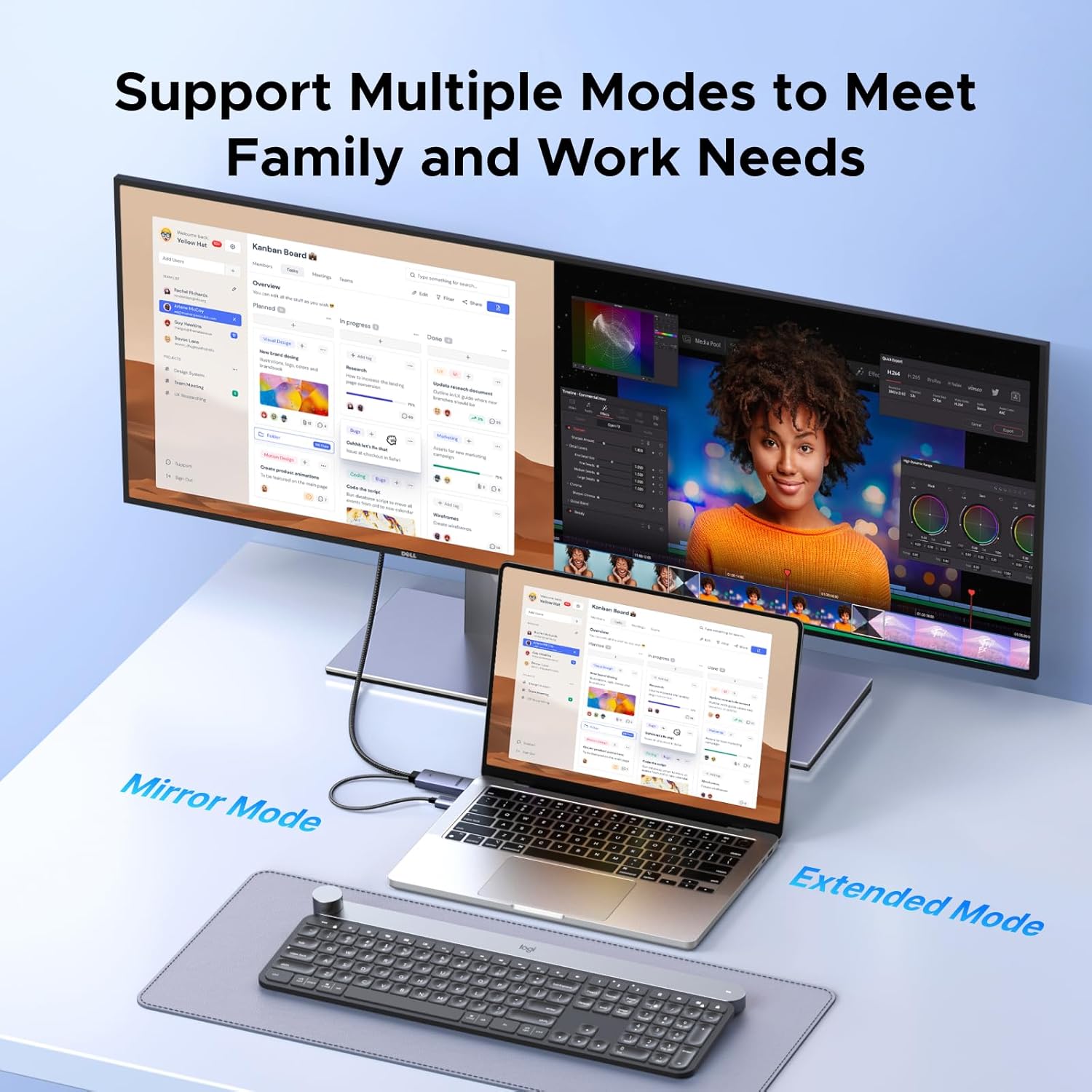
- Mirror Mode: Duplicates your primary display onto the connected secondary display. This is useful for presentations or sharing content.
- Extended Mode: Extends your desktop across multiple displays, allowing for increased workspace and multitasking.
6. Compatibility
This cable is compatible with a wide range of devices:
- DisplayPort Source Devices: Desktop PCs, Graphics Cards (e.g., NVIDIA RTX 5090, 4090, 4080 Ti, 4070 Ti, 3080, 3090; AMD Radeon RX 6900 XT, RX 7900 XT), Laptops with DisplayPort output.
- HDMI Source Devices: Laptops, Gaming Consoles (e.g., PS4, PS5, Xbox, Nintendo Switch, Switch 2), Projectors.
- Display Devices: Monitors, TVs, Projectors with either HDMI or DisplayPort input.
Note: Ensure your devices support DisplayPort 1.2, HDCP 1.4/2.2, and HDMI 1.4 specifications for optimal performance.

7. Optimal Performance Considerations
- Resolution and Refresh Rate: The cable supports 4K@60Hz for HDMI to DisplayPort and 4K@30Hz for DisplayPort to HDMI. Lower resolutions may support higher refresh rates (e.g., 2K@120Hz).
- USB Power: Always ensure the USB-A connector is plugged into a stable 5V/0.5A power source. Insufficient power can lead to unstable connections or no signal.
- HDR/YCbCr 4:4:4: For HDR content and full color fidelity, ensure both your source device and display support these features.
- HDCP: The cable is compliant with HDCP 1.4/2.2. If you encounter issues with protected content, verify your devices' HDCP compliance.

8. Maintenance and Care
To ensure the longevity and optimal performance of your UGREEN cable, follow these guidelines:
- Handle with Care: Avoid excessive bending, twisting, or pulling of the cable, especially near the connectors.
- Keep Clean: Use a soft, dry cloth to gently clean the connectors and cable if necessary. Avoid liquid cleaners.
- Proper Storage: When not in use, coil the cable loosely and store it in a cool, dry place away from direct sunlight and extreme temperatures.
- Protect Connectors: Avoid exposing the connectors to dust or moisture.
9. Troubleshooting
If you encounter issues with your UGREEN Bidirectional HDMI to DisplayPort Cable, refer to the following troubleshooting tips:
- No Signal or Black Screen:
- Ensure all connections are secure and fully inserted.
- Verify the USB-A power cable is connected to a stable 5V/0.5A power source. This is a common cause for no signal, especially for HDMI to DP conversion.
- Check the input source selection on your display (monitor/TV) to ensure it's set to the correct HDMI or DisplayPort input.
- Test with a different source device or display if possible to isolate the issue.
- Adjust the resolution and refresh rate settings on your source device to a lower value to see if a signal appears, then gradually increase.
- Flickering or Unstable Connection:
- Ensure the USB power supply is sufficient and stable. Try a different USB port or power adapter.
- Check for any physical damage to the cable or connectors.
- Reduce the display resolution or refresh rate on your source device.
- No Audio:
- Verify that the audio output settings on your source device are configured to send audio through the HDMI/DisplayPort connection.
- Check the volume levels on both your source device and display.
- Ensure your display device has built-in speakers or is connected to external audio output.
- Overheating:
- While normal operation may involve some warmth, excessive heat could indicate an issue. Ensure the cable's active components (the larger connector housings) have adequate ventilation.
- Confirm the USB power supply meets the 5V/0.5A requirement without exceeding it, as incorrect power can cause issues.
10. Specifications
| Feature | Specification |
|---|---|
| Brand | UGREEN |
| Model Name | HD187 |
| Connector Type | DisplayPort, HDMI, USB-A (for power) |
| Cable Type | Braided Cable |
| Connector Gender | Male-to-Male |
| Cable Length | 6.6 feet |
| Data Transfer Rate | Up to 18 Gbps (HDMI to DP), Up to 10.2 Gbps (DP to HDMI) |
| Max Resolution (HDMI to DP) | 4K@60Hz |
| Max Resolution (DP to HDMI) | 4K@30Hz |
| Audio Support | 24-bit/192kHz |
| HDCP Compliance | 1.4/2.2 |
| Power Requirement | USB-A 5V/0.5A |
| Color | Grey |
11. Warranty and Support
UGREEN products come with a standard warranty. For specific warranty details, please refer to the warranty card included with your product or visit the official UGREEN website. If you encounter any issues or have questions regarding the UGREEN Bidirectional HDMI to DisplayPort Cable, please contact UGREEN customer support through their official channels for assistance.


