
1. Introduction
This manual provides detailed instructions for the safe and efficient operation of your MOREFAND DJ-4 USB Professional Audio Mixer. Please read this manual thoroughly before using the device and retain it for future reference.
2. Important Safety Information
- Ensure the power supply voltage matches the requirements specified on the mixer.
- Do not expose the device to rain, moisture, or extreme temperatures.
- Avoid placing the mixer near heat sources or in direct sunlight.
- Do not open the casing; refer all servicing to qualified personnel.
- Disconnect power before cleaning or if the device will be unused for extended periods.
- Use only accessories specified by the manufacturer.
3. Package Contents
Verify that all items are present in the package:
- MOREFAND DJ-4 USB Professional Audio Mixer
- Power Adapter
- User Manual

Image: The MOREFAND DJ-4 USB mixer, its retail box, power adapter, and user manual, illustrating the typical package contents.
4. Product Overview
The MOREFAND DJ-4 USB is a 4-channel professional audio mixer designed for versatile sound production. It features Bluetooth 5.0, a USB interface, 16 DSP effects, a 7-band graphic equalizer, and +48V phantom power.
4.1 Front Panel Layout and Controls

Image: A comprehensive diagram highlighting the various inputs, outputs, and control knobs on the mixer's front panel, including gain, EQ, effect, and level controls.
- XLR/6.35mm TRS Input (Line In/Mic): Connect microphones or line-level instruments.
- +48V Phantom Power Switch & LED Indicator: Activates phantom power for condenser microphones.
- Gain Control: Adjusts input sensitivity for each channel.
- 3-Band Equalizer (HI/MID/LOW): Adjusts high, mid, and low frequencies for each channel.
- FX (Effect) Control: Adjusts the amount of effect applied to each channel.
- Level Control: Adjusts the output level of each channel.
- Peak Indicator: Lights up when the input signal is too high, indicating potential clipping.
- DSP Display & Controls: Digital display for DSP effects, with selection and confirmation buttons.
- 7-Band Stereo Graphic Equalizer: Faders for precise frequency adjustment of the main output.
- Main Output L/R Channel Volume Fader: Controls the overall output volume.
- Headphone Output Volume Level Adjustment: Controls the volume for headphone monitoring.
- USB Expansion Port: For connecting to a computer or USB drive.
- RCA L&R Stereo Input (CD/TAPE): Connect external audio sources like CD players.
- RCA L&R Stereo Output (CD/TAPE): Output for recording or connecting to other devices.
- 6.35mm Headphone Output: For connecting headphones.
- 6.35mm Stereo Main Output: Connects to PA systems or amplifiers.
4.2 Rear Panel Layout
Image: The rear view of the mixer, showing the DC 12V power input, metallic shell, and rubber non-slip base.
- DC 12V Input: Connect the provided power adapter here.
- Metallic Shell: Durable construction for protection.
- Rubber Non-Slip Base: Provides stability during use.
5. Setup Guide
5.1 Power Connection
- Connect the DC 12V power adapter to the mixer's DC IN port on the rear panel.
- Plug the power adapter into a suitable power outlet.
- Turn on the mixer's power switch (located on the front panel).
5.2 Connecting Audio Devices
The mixer supports various input and output connections:

Image: A visual representation of how to connect different audio sources and output devices, such as microphones, headphones, mobile phones, computers, and amplifiers, to the mixer.
- Microphones: Connect dynamic or condenser microphones to the XLR/6.35mm TRS inputs. For condenser microphones, activate the +48V phantom power.
- Line-Level Instruments: Connect instruments like keyboards or guitars to the 6.35mm TRS inputs.
- External Audio Sources (CD/Tape): Use the RCA L&R Stereo Input to connect devices like CD players or mobile phones.
- Main Output: Connect the 6.35mm Stereo Main Output to your PA system, amplifier, or active speakers.
- Headphones: Connect headphones to the 6.35mm Headphone Output for monitoring.
- USB Connection: Connect the mixer to a computer via the USB port for use as an audio interface for playback and recording with your preferred software.
Video: This video demonstrates the physical connections and initial setup of the MOREFAND DJ-4 USB mixer, including power, external audio devices, and microphones.
6. Operating Instructions
6.1 Basic Operation
- Power On/Off: Use the main power switch to turn the mixer on or off.
- Adjusting Channel Volume: Use the individual channel LEVEL knobs to set the volume for each input.
- Adjusting Main Output Volume: Use the MAIN L/R faders to control the overall output volume.
6.2 Bluetooth Connection
- Press the "MODE" button on the DSP section until "BLUE" appears on the display.
- On your mobile device, enable Bluetooth and search for available devices.
- Select the device named "BT" (or similar) to pair. Once paired, you can stream audio wirelessly to the mixer.
6.3 USB Playback and Recording
- USB Playback: Insert a USB drive into the USB port. The mixer will automatically detect and play media files. Use the MP3-/MP3+ buttons to navigate tracks and long-press them to adjust volume.
- USB Recording: Switch the mode to "REC" (if available) to record audio directly to a USB drive.
- Computer Connection: Connect the mixer to a computer via USB for use as an audio interface for playback and recording with your preferred software.
6.4 DSP Effects
The mixer features 16 built-in digital signal processing (DSP) effects.
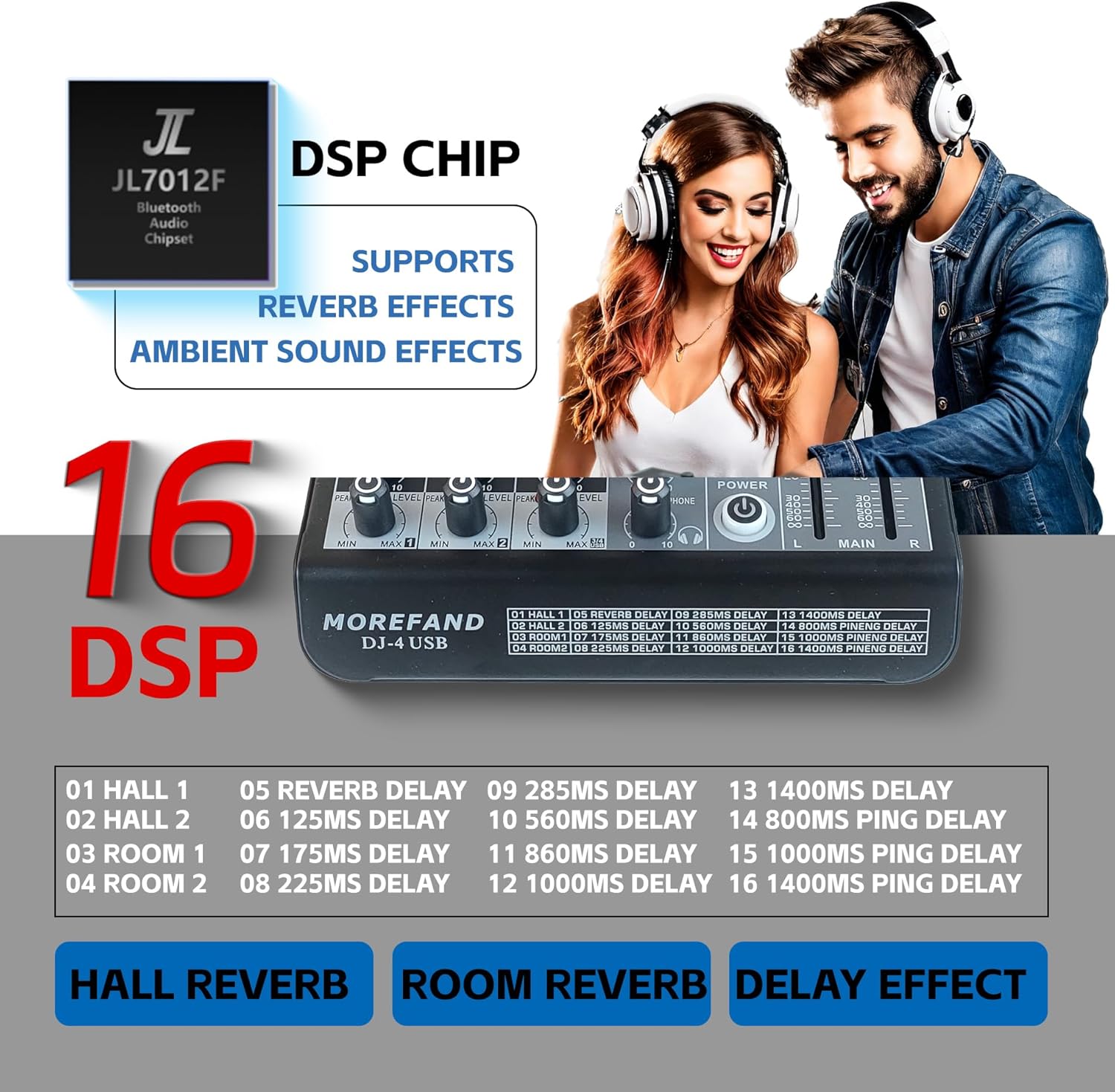
Image: A visual showing the DSP chip and a detailed list of the 16 available digital effects, categorized into Hall Reverb, Room Reverb, and Delay effects with specific time settings.
- Selecting Effects: Rotate the "PROGRAM" knob to browse through the 16 DSP effects. The selected effect number will be displayed.
- Confirming Selection: Press the "PROGRAM" knob to confirm your effect selection.
- Adjusting Effect Level: Use the FX knob on each channel to control the amount of the selected effect applied to that channel.
6.5 Equalizer Adjustment
The mixer provides both individual channel EQ and a main 7-band graphic equalizer.

Image: A detailed view of the 7-band stereo graphic equalizer, showing the frequency bands (63Hz to 16KHz) and their respective faders for precise audio shaping.
- Channel EQ: Use the HI, MID, and LOW knobs on each channel to adjust the tone of individual inputs.
- Main Output 7-Band Graphic EQ: Use the faders on the 7-band graphic equalizer to fine-tune the overall frequency response of the main mix.
6.6 Phantom Power (+48V)
The mixer provides +48V phantom power for condenser microphones.
- Ensure condenser microphones are connected before activating phantom power.
- Press the +48V PHANTOM switch to supply power. The indicator LED will illuminate.
- Turn off phantom power when not using condenser microphones or before disconnecting them.
6.7 Monitoring
Use the dedicated headphone output for accurate audio monitoring.

Image: A visual demonstrating the use of headphones for real-time audio monitoring through the mixer's 6.35mm headphone output.
- Connect your headphones to the 6.35mm Headphone Output.
- Adjust the Headphone Output Volume Level knob to your desired listening level.
7. Maintenance
- Cleaning: Use a soft, dry cloth to clean the mixer's surface. Do not use liquid cleaners or solvents.
- Storage: Store the mixer in a cool, dry place away from direct sunlight and extreme temperatures when not in use.
- Ventilation: Ensure proper ventilation around the mixer to prevent overheating.
8. Troubleshooting
| Problem | Possible Cause | Solution |
|---|---|---|
| No power | Power adapter not connected, power switch off, faulty outlet. | Check power connections, ensure switch is on, try a different outlet. |
| No sound output | Volume levels too low, incorrect input/output connections, mute engaged. | Increase main and channel volume faders/knobs. Verify all cables are correctly connected. Check for any mute functions. |
| Microphone not working | Incorrect connection, +48V phantom power off (for condenser mics), faulty mic/cable. | Ensure mic is properly connected. Activate +48V phantom power for condenser mics. Test with a different mic or cable. |
| Bluetooth not connecting | Mixer not in Bluetooth mode, device not discoverable, interference. | Ensure mixer is in "BLUE" mode. Make sure your device's Bluetooth is on and discoverable. Try restarting both devices. |
| Distorted audio | Input gain too high, output volume too high, faulty cable. | Reduce input GAIN for channels. Lower main output volume. Check and replace cables if necessary. Observe peak indicators. |
9. Technical Specifications
| Brand | MOREFAND |
| Model Number | DJ4 |
| Number of Channels | 4 |
| Connectivity Technology | USB, Bluetooth 5.0 |
| DSP Effects | 16 (Hall Reverb, Room Reverb, Delay) |
| Equalizer | 7-Band Graphic EQ (Main Output), 3-Band EQ (Per Channel) |
| Phantom Power | +48V |
| Audio Processing | 192kHz/24bit |
| Power Source | AC Power |
| Voltage | 12 Volts |
| Item Weight | 5.5 pounds (2.5 kg) |
| Product Dimensions | 8.74"D x 7.28"W x 1.77"H (22.2 x 18.5 x 4.5 cm) |

Image: A diagram illustrating the physical dimensions of the mixer, with measurements provided in both millimeters and inches.
10. Warranty and Customer Support
For warranty information, technical support, or service inquiries, please refer to the warranty card included with your product or contact MOREFAND customer service through their official website or the retailer where the product was purchased.