
1. Introduction
The IMILAB C30 Dual Lens Room Camera is designed to provide comprehensive monitoring for your baby, kids, or pets. Featuring dual 3K+3K lenses, it offers a wide field of view and clear imaging, even in low-light conditions with enhanced night vision. This manual will guide you through the setup, operation, and maintenance of your new camera, ensuring you can utilize all its advanced features for peace of mind.
2. What's in the Box
Please check the contents of your package. If any items are missing or damaged, contact customer support.
- IMILAB C30 Dual Lens Room Camera
- 128GB MicroSD Card
- Power Adapter
- USB Power Cable
- Mounting Kit (Screws and Wall Plugs)
- User Manual (this document)
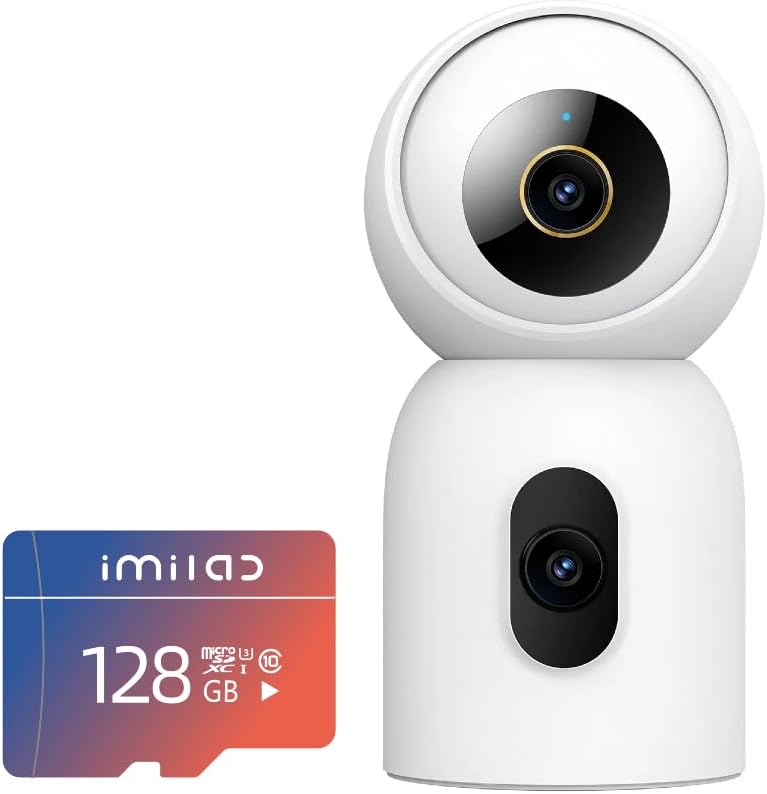
Image: The IMILAB C30 Dual Lens Room Camera shown alongside the included 128GB MicroSD card.
3. Product Overview
Familiarize yourself with the main components of your IMILAB C30 Dual camera:
- Upper Lens: Primary 3K lens for wide-angle viewing.
- Lower Lens: Secondary 3K lens for focused monitoring.
- Microphone: For two-way audio communication.
- Speaker: For two-way audio communication and alerts.
- Power Port: USB-C port for power supply.
- Reset Button: Used for factory reset and pairing.
- MicroSD Card Slot: For local storage (supports up to 256GB).
- Mounting Base: For secure installation on a flat surface or ceiling/wall.

Image: The IMILAB C30 Dual camera highlighting its dual lens capability for monitoring two directions simultaneously, such as a pet and a baby.
4. Setup Guide
4.1. Download the App
Search for "IMILAB Home" or "Mi Home" in your mobile app store (Google Play Store for Android or Apple App Store for iOS) and download the application. Create an account or log in if you already have one.
4.2. Power On the Camera
Connect the USB power cable to the camera's power port and plug the power adapter into a wall outlet. The camera will power on and the indicator light will begin to flash, indicating it's ready for pairing.
4.3. Add Device to App
- Open the IMILAB Home or Mi Home app.
- Tap the "+" icon in the top right corner to add a new device.
- Select the "IMILAB C30 Dual" from the list of available devices.
- Follow the on-screen instructions to connect the camera to your Wi-Fi network. You may need to scan a QR code displayed on your phone screen with the camera's lens.
- Once connected, the indicator light will turn solid blue, and the camera will be ready for use.
4.4. Install MicroSD Card (Optional)
The camera comes with a 128GB MicroSD card for local storage. To install it, gently tilt the camera lens upwards to reveal the MicroSD card slot. Insert the card with the gold contacts facing down until it clicks into place. Ensure the camera is powered off before inserting or removing the card.
4.5. Mounting Options
The IMILAB C30 Dual can be placed on a flat surface or mounted to a wall or ceiling using the included mounting kit. For ceiling or wall mounting, use the provided template to mark drill holes, then secure the mounting base with screws and wall plugs. Attach the camera to the base by twisting it into place.
5. Operating Your Camera
5.1. Live View and Dual Lens Control
Open the app and select your IMILAB C30 Dual camera to access the live view. You will see feeds from both 3K lenses. You can switch between views or use the pan/tilt controls within the app to adjust the camera's angle and zoom in on specific areas.

Image: The IMILAB C30 Dual camera's live view interface on a smartphone, demonstrating the 3K+3K resolution and real-time monitoring capabilities.
5.2. Two-Way Audio
Tap the microphone icon in the app to enable two-way audio. You can speak through your phone, and your voice will be heard through the camera's speaker, allowing you to communicate with family members or pets remotely.
5.3. Night Vision
The camera automatically switches to enhanced night vision in low-light conditions, providing clear black and white or color footage depending on the ambient light. This ensures continuous monitoring day and night.
5.4. Local AI Detections
The IMILAB C30 Dual features advanced AI detection capabilities without requiring a monthly subscription. You will receive alerts for:
- Human Detection
- Pet Detection
- Baby Crying Detection
- Sound Detection (e.g., loud noises, fire/smoke alarms - beta feature)
You can customize alert settings and motion zones within the app to suit your monitoring needs.

Image: Examples of local AI detection notifications from the IMILAB C30 Dual camera, including person, pet, loud noise, and baby crying detection.
5.5. Recording and Storage
The camera supports 24/7 continuous recording to the included 128GB MicroSD card. You can also opt for unlimited subscription-based cloud storage for added convenience and backup.

Image: The IMILAB C30 Dual camera's app interface displaying flexible footage storage options, including cloud storage and MicroSD card recording.
5.6. Privacy Mode and Sharing
Activate Privacy Mode through the app to temporarily disable camera recording and live view for enhanced privacy. You can also share camera access with family members through the app, allowing multiple users to monitor the feed.
6. Maintenance
- Cleaning: Use a soft, dry cloth to clean the camera lenses and body. Avoid using harsh chemicals or abrasive materials.
- Firmware Updates: Regularly check the app for firmware updates. Keeping your camera's firmware up-to-date ensures optimal performance, new features, and security enhancements.
- Placement: Ensure the camera is placed in a stable location, away from direct sunlight, heat sources, and excessive moisture.
7. Troubleshooting
| Problem | Possible Solution |
|---|---|
| Camera not powering on. | Ensure the power adapter and USB cable are securely connected and the power outlet is functional. Try a different outlet or cable. |
| Cannot connect to Wi-Fi. |
|
| Poor image quality. |
|
| MicroSD card not recognized. |
|
If issues persist, please contact IMILAB customer support for further assistance.
8. Specifications
- Model: IMILAB C30 Dual
- Lens Resolution: Dual 3K+3K
- Night Vision: Enhanced Night Vision
- Audio: Two-way Audio
- AI Features: Human Detection, Pet Detection, Baby Crying Detection, Sound Detection
- Storage: MicroSD Card (up to 256GB, 128GB included), Cloud Storage
- ASIN: B0F6L6QPNC
- Date First Available: April 27, 2025
9. Warranty and Support
IMILAB products come with a standard manufacturer's warranty. For detailed warranty information, product registration, or technical support, please visit the official IMILAB website or contact their customer service directly. Keep your purchase receipt for warranty claims.
For further assistance, you may also refer to the IMILAB Store on Amazon.


