
ZMX PANDA20
PANDA20 Mechanical Number Pad User Manual
Model: PANDA20 | Brand: ZMX
Introduction
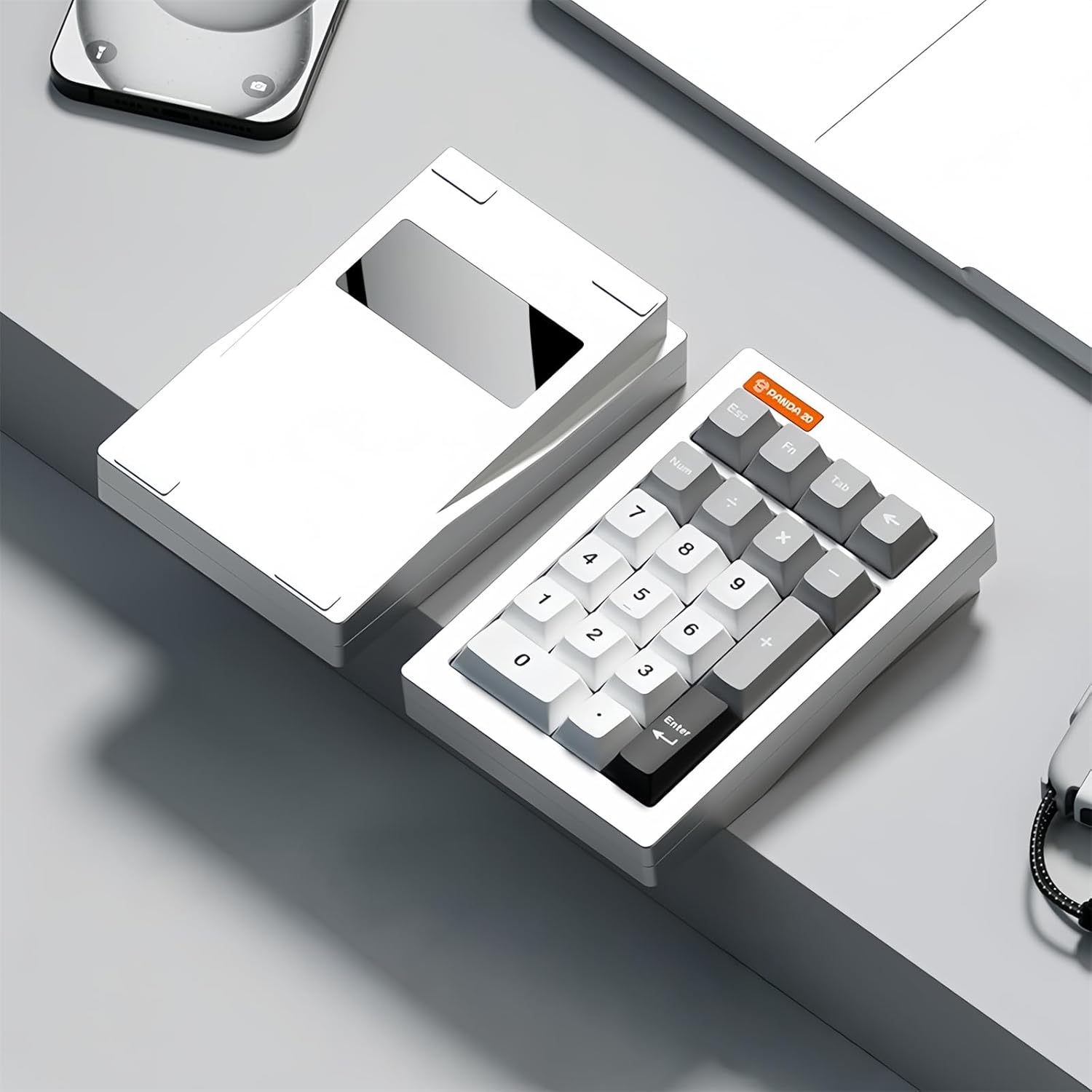
The ZMX PANDA20 Mechanical Number Pad is a versatile and highly customizable numeric keypad designed for enhanced productivity and gaming. Featuring VIA/QMK programmability, a durable aluminum CNC case, hot-swappable switches, and tri-mode connectivity (Bluetooth 5.0, 2.4GHz, USB-C), it offers a premium typing experience with personalized RGB backlighting. This manual provides essential information for setup, operation, and maintenance of your PANDA20 numpad.
What's in the Box
- PANDA20 Mechanical Numpad
- USB Cable
- User Manual
- Keycap Puller
- Spare Switches
Specifications
| Feature | Detail |
|---|---|
| Product Dimensions | 5.1 x 3.7 x 1.3 inches |
| Item Weight | 1 pounds |
| Manufacturer | ZMX |
| Model Number | PANDA20 |
| Batteries | 1 Nonstandard Battery (included) |
| Connectivity Technology | 2.4GHz, Bluetooth 5.0, USB-C |
| Keyboard Description | Numeric |
| Number of Keys | 20 |
| Backlighting | RGB |
| Special Features | Backlit, Ergonomic Height, Hot-Swappable, Portable, Rechargeable, VIA/QMK Programmable |
Setup
Tri-Mode Connection
The PANDA20 numpad supports three connection modes: Wireless 2.4GHz, Bluetooth 5.0, and USB-C Wired. It can connect to up to 3 devices simultaneously.
- USB-C Wired Connection:
Connect the provided USB-C cable from the numpad to your computer's USB port. The numpad will be recognized automatically.
- 2.4GHz Wireless Connection:
Locate the 2.4GHz USB receiver, typically stored in a compartment on the numpad. Plug the receiver into an available USB port on your computer. The numpad should connect automatically. This mode offers faster transmission with lower latency.
- Bluetooth 5.0 Connection:
Ensure the numpad is in Bluetooth mode (refer to the numpad's physical switch or key combination if available). On your device (PC, laptop, Mac, smartphone, iPad, tablet), go to Bluetooth settings and search for new devices. Select "PANDA20" from the list to pair. This mode provides lower latency and power consumption.


Operating Instructions
VIA/QMK Programmability
The PANDA20 numpad is fully programmable using VIA and QMK software. This allows you to customize key functions, create macros, and adjust lighting effects for all 20 keys (excluding the FN key).
- Key Remapping: Assign any key to perform a different function, such as system shortcuts, multimedia controls, or specific text inputs.
- Macro Creation: Program complex sequences of keystrokes to be executed with a single press, ideal for gaming or productivity tasks.
- Lighting Effects: Customize the RGB backlight with various colors and effects to match your setup or mood.
For detailed instructions on using VIA/QMK software, please refer to the official VIA/QMK documentation online or the specific software guide provided by ZMX.
Hot-Swappable Switches
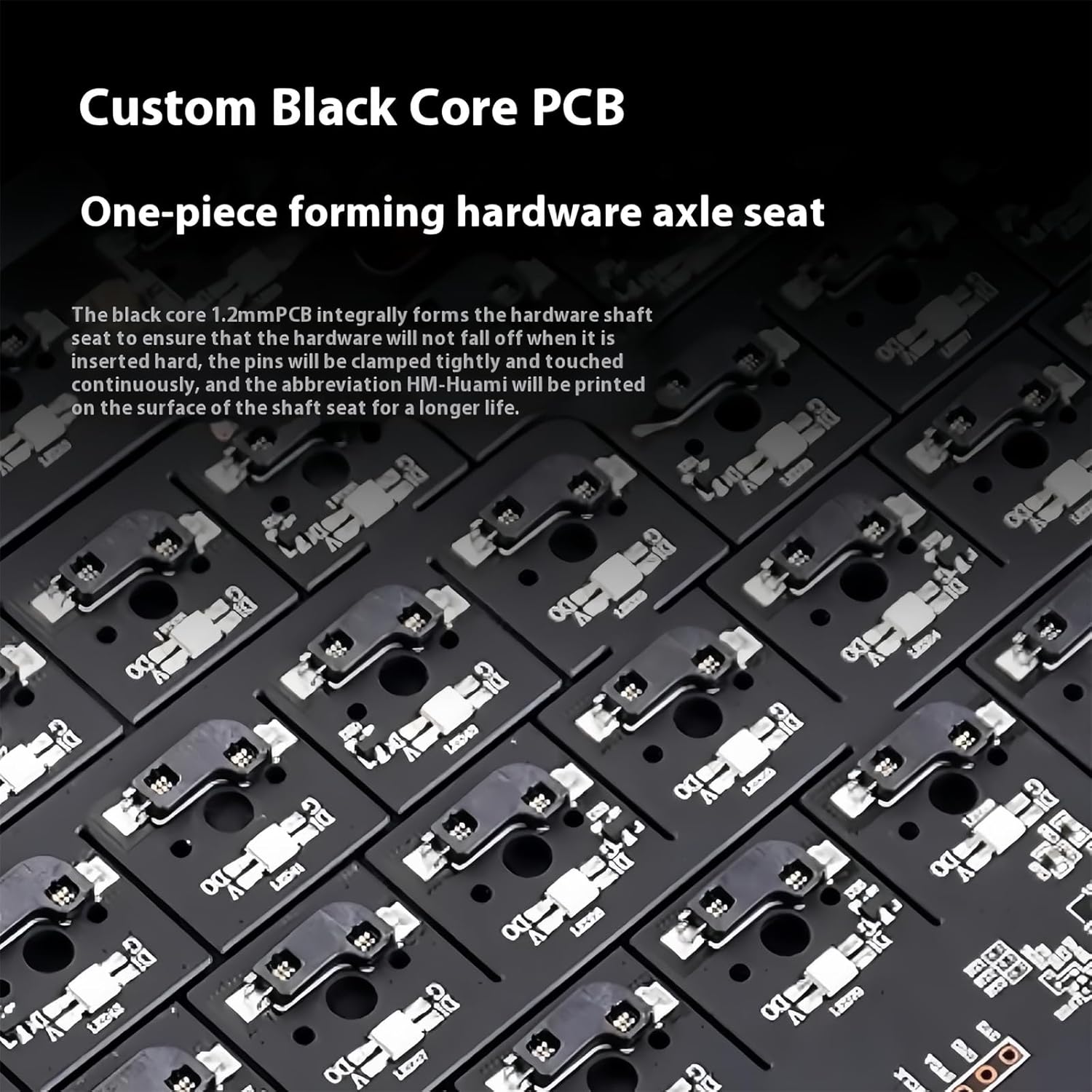
The PANDA20 features a hot-swappable PCB, allowing you to easily change mechanical switches without soldering. It supports both 3-pin and 5-pin switches.
- To remove a switch, use the provided switch puller to gently grip and pull the switch upwards.
- To install a new switch, align the pins of the new switch with the holes on the PCB and press down firmly until it clicks into place. Ensure pins are straight to avoid bending.


RGB Backlight
The PANDA20 features a vibrant RGB backlight with up to 16 million colors. You can customize the backlight effects through the VIA driver software.
Maintenance
- Cleaning: Use a soft, dry cloth to wipe down the numpad. For deeper cleaning, you can remove keycaps and use compressed air to clear debris from between switches.
- Switch Care: If you frequently swap switches, ensure proper alignment to prevent bending pins. Store spare switches in a clean, dry place.
- Battery: The numpad is equipped with a 2500mAh battery. For optimal battery life, avoid fully discharging the battery frequently.
Troubleshooting
Connectivity Issues
- Numpad not recognized (Wired): Ensure the USB-C cable is securely connected to both the numpad and your computer. Try a different USB port or cable.
- 2.4GHz Wireless not connecting: Verify the USB receiver is properly plugged in. Ensure the numpad is in 2.4GHz mode. Try re-pairing by unplugging and re-plugging the receiver.
- Bluetooth not pairing: Make sure Bluetooth is enabled on your device and the numpad is in Bluetooth pairing mode. Remove any previous pairings of the numpad from your device's Bluetooth settings and try pairing again. Ensure the numpad battery has sufficient charge.
Key Functionality Issues
- Keys not responding: Check if the switch is properly seated. If it's a hot-swappable switch, remove and re-insert it. If the issue persists, try swapping it with a spare switch.
- Incorrect key output: This might be due to a custom keymap. Use the VIA/QMK software to reset the keymap to default or reconfigure the problematic key.
RGB Backlight Issues
- Backlight not working: Ensure the backlight is enabled via the numpad's controls or VIA software. Check if the numpad battery is charged.
- Inconsistent lighting: This could indicate a software issue. Try updating the firmware or resetting the lighting profile in VIA.
Warranty and Support
For warranty information and technical support, please contact ZMX customer service. You can find more information and contact details on the official ZMX website or through their Amazon store page.
Visit the ZMX Store: ZMX Official Store on Amazon
Ask a question about this manual
Ask about setup, troubleshooting, compatibility, parts, safety, or missing instructions. Manuals+ will review the question and use this page’s manual context to help answer it.