
1. Introduction
Thank you for choosing the Orbitell Indoor Wi-Fi Surveillance Home Security Camera. This manual provides essential information for setting up, operating, and maintaining your camera. Please read it thoroughly before use to ensure proper functionality and safety.
Package Contents
- Orbitell Indoor Security Camera
- Power Adapter
- Mounting Screws (if applicable for wall mount)
- User Manual (this document)

Image 1.1: The Orbitell Indoor Wi-Fi Security Camera shown with a smartphone demonstrating its mobile application interface.
2. Product Features
- FHD Video: Records in Full High Definition (1080p) for clear and detailed surveillance footage.
- Night Vision: Equipped with infrared LEDs, providing visibility in complete darkness up to 30 feet (9 meters).
- Motion Detection: Sends instant alerts to your smartphone when movement is detected within the camera's field of view.
- Two-Way Audio: Features a built-in microphone and speaker, enabling real-time communication with individuals near the camera.
- 2.4GHz Wi-Fi Only: Compatible exclusively with standard 2.4GHz Wi-Fi networks. Not compatible with 5GHz networks.
- Mobile App Control: View live feed, manage settings, and receive notifications via a dedicated smartphone application (iOS/Android).
- Flexible Mounting: Designed for versatile placement, including on a flat surface or mounted to walls/ceilings using the provided hardware.
- Cloud Storage (Sold Separately): Supports secure cloud storage for recorded footage, protected by AES 128-bit encryption protocols.

Image 2.1: Key features of the Orbitell camera, including AI Human Detection, Easy Installation, Two-way Talk, 2.4G/5G Wi-Fi (note: product is 2.4G only), and Cloud Storage.

Image 2.2: Demonstration of the two-way audio feature, showing a user communicating with someone near the camera.
3. Setup Guide
Follow these steps to set up your Orbitell Security Camera and connect it to your Wi-Fi network.
- Download and Launch the App: Search for the designated Orbitell app in your smartphone's app store (iOS or Android) and install it.
- Plug in Your Camera: Connect the camera to a power source using the provided power adapter. The camera will power on and indicate its status (e.g., flashing LED).
- Add Device in App: Open the Orbitell app, log in or create an account, and tap the "+" icon to add a new device.
- Select Device Type: Choose "Indoor Security Camera" or the appropriate camera model from the list of available devices in the app.
- Initiate Pairing Mode: Press and hold the SYNC button on the camera until the red light begins flashing. Confirm this action in the app to proceed.
- Bluetooth Connection: The app will attempt to connect to the camera via Bluetooth. Ensure Bluetooth is enabled on your smartphone.
- Wi-Fi Configuration: Select your 2.4GHz Wi-Fi network from the list and enter the correct Wi-Fi password. The camera is only compatible with 2.4GHz networks.
- Connection Confirmation: The app will display a confirmation once the camera successfully connects to the Wi-Fi network.
- Finalize Setup: Follow any remaining on-screen prompts in the app to name your camera and complete the setup process.
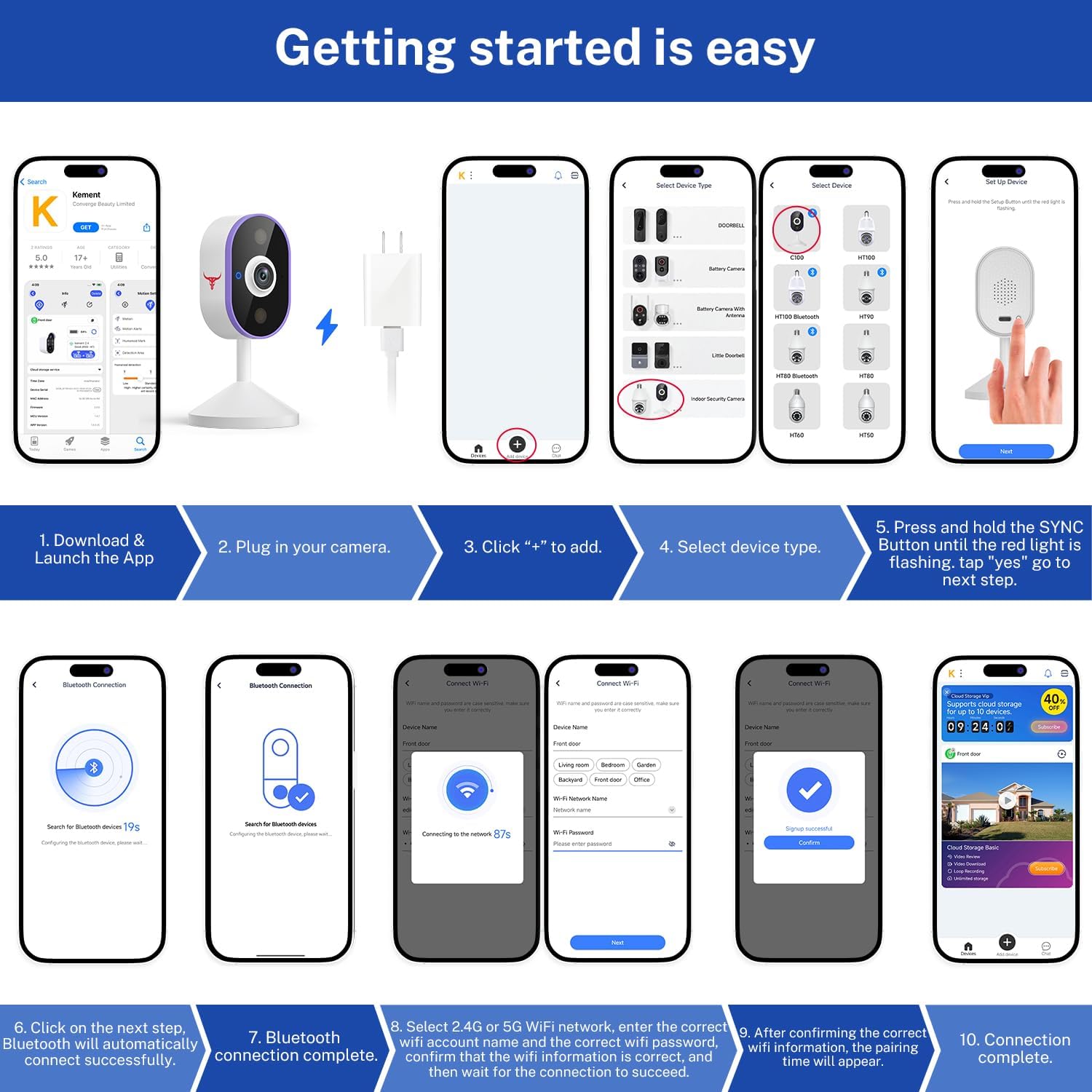
Image 3.1: Visual step-by-step guide for connecting the Orbitell camera using the mobile application, from downloading the app to successful Wi-Fi connection.
Mounting Options
The Orbitell camera offers flexible mounting. It can be placed on a flat surface like a shelf or desk, or securely mounted to a wall or ceiling using the included mounting hardware. Ensure the camera has a clear line of sight to the area you wish to monitor and is within range of your 2.4GHz Wi-Fi network.

Image 3.2: Examples of flexible mounting options for the Orbitell camera, including wall mounting and placement on a desk.
4. Operating Instructions
Using the Mobile App
Once your camera is set up, you can access its features through the Orbitell mobile application:
- Live View: Tap on your camera in the app to view the live video feed from anywhere.
- Two-Way Audio: Use the microphone icon in the live view to speak through the camera's speaker and the speaker icon to listen.
- Motion Alerts: Enable motion detection in the app settings to receive push notifications on your phone when activity is detected.
- Recording: Manually record video or capture screenshots from the live view.
- Playback: Access recorded footage stored on cloud (subscription required) or a local SD card (if supported and installed).
- Settings: Adjust camera settings such as night vision mode, motion sensitivity, and notification preferences.

Image 4.1: A smartphone receiving a real-time notification indicating human detection from the Orbitell camera.
Cloud Storage
The Orbitell camera supports cloud storage for your video recordings. This service is sold separately and typically requires a subscription. Cloud storage provides secure, encrypted storage for your footage, allowing you to access it anytime, anywhere, and protecting it from physical damage or theft of the camera.

Image 4.2: Illustration of the cloud storage feature, showing video footage being securely stored and accessible.
5. Maintenance
To ensure optimal performance and longevity of your Orbitell camera, follow these maintenance guidelines:
- Cleaning: Gently wipe the camera lens and body with a soft, dry, lint-free cloth. Avoid using harsh chemicals or abrasive cleaners.
- Power Supply: Always use the original power adapter provided with the camera. Do not use damaged cables or adapters.
- Placement: Ensure the camera is placed in a stable location, away from direct sunlight, extreme temperatures, and high humidity.
- Software Updates: Regularly check the Orbitell app for firmware updates for your camera. Updates often include performance improvements and security enhancements.
- Network Stability: Maintain a stable 2.4GHz Wi-Fi connection for uninterrupted operation.
6. Troubleshooting
If you encounter issues with your Orbitell camera, refer to the following common problems and solutions:
| Problem | Possible Cause | Solution |
|---|---|---|
| Camera won't power on | Power adapter not connected or faulty. | Ensure the power adapter is securely plugged into the camera and a working power outlet. Try a different outlet. |
| Cannot connect to Wi-Fi | Incorrect Wi-Fi password; 5GHz network used; camera too far from router. | Verify Wi-Fi password. Ensure you are connecting to a 2.4GHz network. Move camera closer to the router. Restart router and camera. |
| No motion detection alerts | Motion detection disabled; sensitivity too low; app notifications off. | Enable motion detection in the app. Adjust sensitivity settings. Check phone notification settings for the Orbitell app. |
| Two-way audio not working | Microphone/speaker muted in app; network issues. | Ensure microphone and speaker icons are not muted in the live view. Check network connection stability. |
| Poor video quality | Insufficient bandwidth; dirty lens. | Ensure stable Wi-Fi connection. Clean the camera lens with a soft cloth. |
7. Specifications
| Feature | Detail |
|---|---|
| Model Name | C100 |
| Indoor/Outdoor Usage | Indoor |
| Video Capture Resolution | 1080p (Full HD) |
| Connectivity Technology | Wireless (Wi-Fi) |
| Connectivity Protocol | Wi-Fi (2.4GHz only) |
| Power Source | Corded Electric |
| Mounting Type | Wall Mount, Shelf/Desk Placement |
| Special Feature | 2-Way Audio, Night Vision, Motion Detection |
| Compatible Devices | Smartphone (iOS/Android) |
| Item Dimensions (L x W x H) | 2.36 x 2.36 x 4.47 inches (6.0 x 6.0 x 11.35 cm) |
| Item Weight | 2.56 ounces (0.16 lbs) |
| Batteries Required | No |
| Video Capture Format | MP4 |
| Recommended Uses | Baby Monitoring, Indoor Security, Pet Monitoring |

Image 7.1: Dimensional specifications of the Orbitell Indoor Security Camera.
8. Warranty and Support
Orbitell products are designed for reliability and performance. For warranty information, technical support, or service inquiries, please refer to the contact details provided on the product packaging or visit the official Orbitell website. Keep your purchase receipt as proof of purchase for warranty claims.