
1. Product Overview
The Philips 40" Class 6000 Series Full HD 1080p Smart LED TV (Model 40PFL6533/F7) offers a high-definition viewing experience with integrated smart features. This television operates on the Roku OS, providing access to a wide array of streaming content. It is compatible with voice assistants such as Alexa, Google Assistant, and Apple HomeKit, allowing for convenient control.
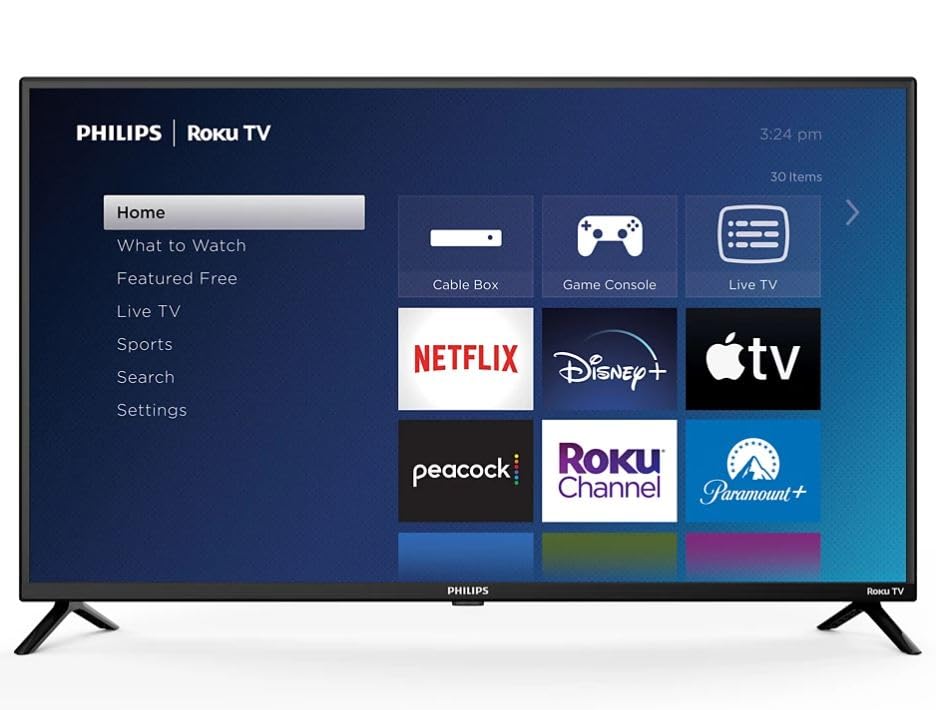
Image: Philips 40-inch Smart LED TV showcasing its Roku operating system interface with popular streaming applications.
2. Setup Guide
2.1 Unboxing and Initial Inspection
Carefully remove the TV and its components from the packaging. Ensure all items listed in the 'What's in the Box' section are present and undamaged.
2.2 Attaching the Stand
Place the TV screen-down on a soft, clean surface to prevent scratches. Align the included stand feet with the designated slots on the bottom of the TV. Secure the feet using the provided screws. Refer to the diagram below for proper attachment.

Image: Detail of the Philips and Roku TV branding on the lower frame of the television, indicating the front-facing design.
2.3 Connecting Power and External Devices
Connect the power cord to the TV and then to a wall outlet. The TV features multiple connectivity options:
- HDMI Ports: 3 ports for connecting devices like gaming consoles, Blu-ray players, or cable boxes.
- USB Input: 1 port for media playback from USB drives.
- Optical Audio Out: For connecting to external audio systems.
- Wi-Fi: Built-in for internet connectivity.
- Ethernet: For a wired internet connection.
Connect your desired devices to the appropriate ports. For optimal performance, use high-quality HDMI cables.

Image: Side profile of the television highlighting the accessible input/output ports for external device connections.
2.4 Initial Setup and Remote Pairing
Upon first power-on, the TV will guide you through the initial setup process. This includes selecting your language, connecting to your Wi-Fi network, and activating the Roku OS. Follow the on-screen instructions. The remote control typically pairs automatically during this process. If not, refer to the remote control's specific pairing instructions, usually involving holding down certain buttons for a few seconds.
3. Operating Instructions
3.1 Basic Functions
- Power: Press the power button on the remote to turn the TV on or off.
- Volume: Use the 'Vol +' and 'Vol -' buttons to adjust the volume.
- Inputs: Use the 'Input' button to switch between connected devices (HDMI 1, HDMI 2, USB, etc.).
- Navigation: Use the directional pad (up, down, left, right) and 'OK' button to navigate menus and select options.
3.2 Smart TV Features (Roku OS)
The Roku OS provides a user-friendly interface for accessing streaming content. The home screen displays various streaming channels (apps) and input options. You can customize the order of channels and add new ones from the Roku Channel Store.

Image: The Roku TV home screen, illustrating the intuitive layout for app selection and navigation.
- Streaming Apps: Access pre-installed apps like Netflix, Prime Video, Max, Disney Plus, YouTube TV, Paramount+, Apple TV+, Crunchyroll, and more.
- Voice Control: The TV is compatible with Alexa, Google Assistant, and Apple HomeKit. Use your voice assistant device to control TV functions such as power, volume, and channel selection.
- Search: Use the search function to find movies, TV shows, actors, or channels across multiple streaming services.
3.3 Picture and Audio Settings
Access the 'Settings' menu to adjust picture and audio preferences. You can select various picture modes (e.g., Standard, Movie, Sport) and fine-tune brightness, contrast, and color. The TV supports Dolby Audio for an enhanced sound experience.
4. Maintenance
4.1 Cleaning the TV
- Screen: Gently wipe the screen with a soft, lint-free cloth. For stubborn marks, lightly dampen the cloth with water or a specialized screen cleaner. Do not spray liquid directly onto the screen.
- Frame and Stand: Use a soft, dry cloth to wipe dust and dirt from the TV frame and stand.
4.2 General Care
- Avoid placing the TV in direct sunlight or near heat sources.
- Ensure adequate ventilation around the TV to prevent overheating.
- Do not block ventilation openings.
5. Troubleshooting
5.1 No Power
- Check if the power cord is securely plugged into both the TV and the wall outlet.
- Verify that the wall outlet is functioning by plugging in another device.
- Try a different power outlet.
5.2 No Picture/Sound from External Device
- Ensure the correct input source is selected on the TV.
- Check the cable connections between the device and the TV. Try re-seating the cables.
- Test with a different HDMI cable if possible.
- Verify the external device is powered on and functioning correctly.
5.3 Remote Control Not Responding
- Replace the batteries in the remote control.
- Ensure there are no obstructions between the remote and the TV's IR sensor.
- Re-pair the remote control if necessary (refer to section 2.4).
5.4 Network Connectivity Issues
- Restart your Wi-Fi router and modem.
- Check the TV's network settings to ensure it's connected to the correct Wi-Fi network.
- If using an Ethernet cable, ensure it is securely connected.
6. Specifications
| Feature | Specification |
|---|---|
| Screen Size | 40 Inches |
| Display Technology | 1080p LED |
| Resolution | 1920 x 1080 (Full HD) |
| Refresh Rate | 60 Hz |
| Operating System | Roku OS |
| Connectivity Technology | Wi-Fi, HDMI, USB |
| Total Number of HDMI Ports | 3 |
| Total USB Ports | 1 |
| Audio Input | HDMI |
| Speaker Description | Dolby Audio |
| Voice Assistant Compatibility | Alexa, Google Assistant, Apple HomeKit |
| Mounting Type | Table Mount (VESA 200 x 200 mm compatible) |
| Product Dimensions (D x W x H) | 3"D x 35"W x 20"H |
| Item Weight | 12 Pounds |
| Model Year | 2024 |
7. Warranty and Support
7.1 Warranty Information
This Philips TV comes with a Limited 3 Months Warranty. Please retain your proof of purchase for warranty claims.
7.2 Customer Support
For further assistance, technical support, or warranty inquiries, please refer to the official Philips support website or contact their customer service. Contact information can typically be found in the quick start guide included with your product or on the manufacturer's website.


