
1. Introduction
This manual provides detailed instructions for the setup, operation, and maintenance of your MANBASNAKE M3 Wireless Gaming Mouse. Please read this manual thoroughly to ensure proper use and to maximize your gaming experience.

Image 1.1: The MANBASNAKE M3 Wireless Gaming Mouse, highlighting its superlight design and PAW3395PRO sensor.
2. Product Overview
The MANBASNAKE M3 is an ultra-lightweight gaming mouse designed for precision and versatility. It features a tri-mode connection, a high-performance optical sensor, and durable micro-switches.
2.1 Package Contents
- MANBASNAKE M3 Wireless Gaming Mouse
- USB-C to USB-A Charging Cable
- 2.4GHz USB Receiver (Dongle)
- User Manual
2.2 Mouse Components

Image 2.1: Top view of the MANBASNAKE M3 Wireless Gaming Mouse, showing its ergonomic design.
- Left Click Button
- Right Click Button
- Scroll Wheel / Middle Click Button
- DPI Indicator Light
- Forward Side Button
- Back Side Button
- USB-C Charging Port (Front)
- Power/Mode Switch (Bottom)

Image 2.2: Bottom view of the MANBASNAKE M3 Wireless Gaming Mouse, showing the power/mode switch and sensor.
2.3 Key Features
- Ultra-Lightweight Design: Weighing approximately 39g, designed for comfort and reduced fatigue during extended use.
- PAW3395PRO Optical Sensor: Provides up to 40,000 DPI, 60G acceleration, and 700 IPS tracking speed for precise control.
- Tri-Mode Connectivity: Supports 2.4GHz wireless, Bluetooth 5.3, and wired USB-C connections.
- Omron Micro-switches: Engineered for durability and responsive clicks.
- Long Battery Life: Up to 200 hours of use on a single charge.
- QMK AI Web-based Driver: Allows customization without software installation.
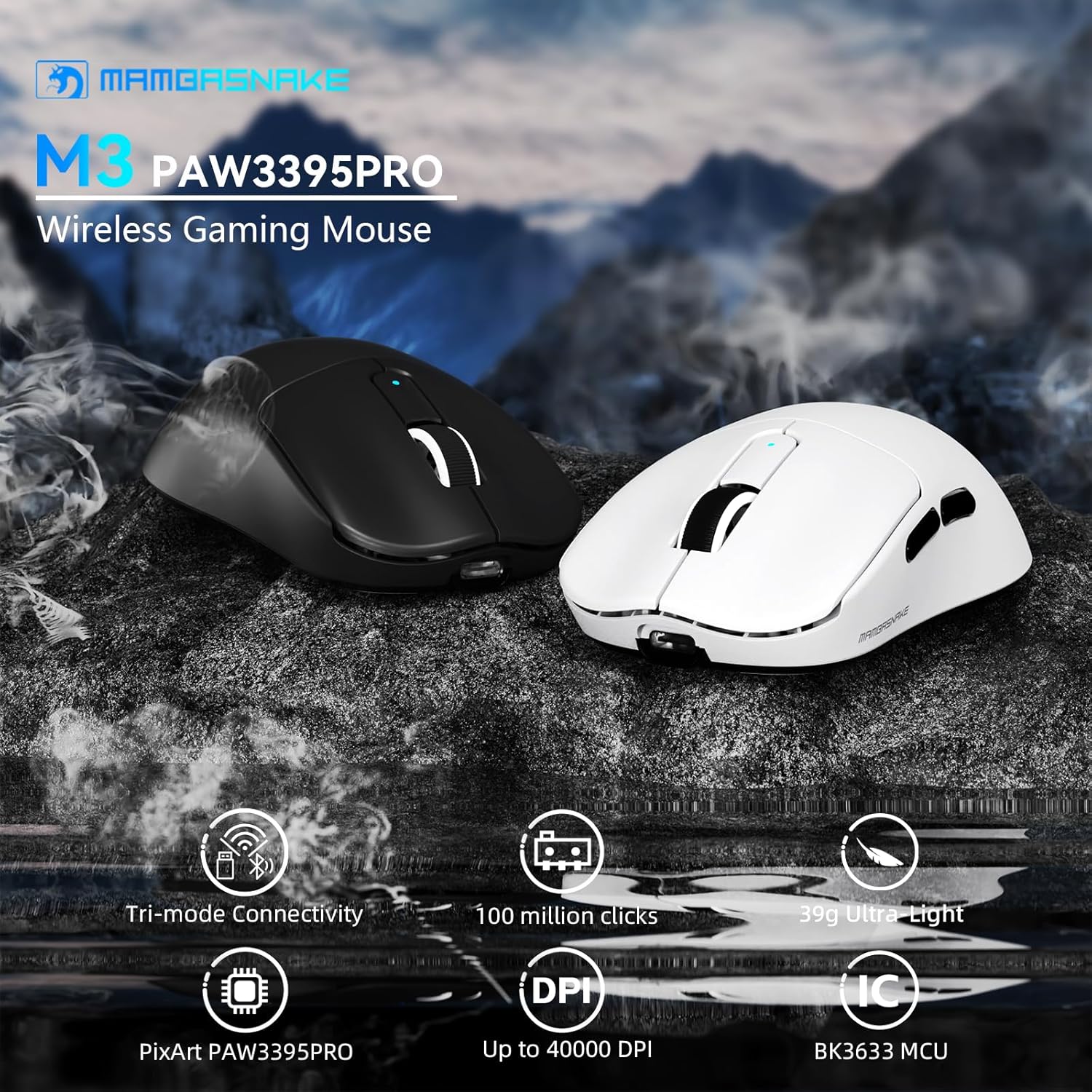
Image 2.3: Visual representation of the M3's key features including tri-mode connectivity, 100 million click lifespan, 39g ultra-light design, PixArt PAW3395PRO sensor, up to 40000 DPI, and BK3633 MCU.
3. Setup
3.1 Charging the Mouse
Before first use, it is recommended to fully charge the mouse. Connect the supplied USB-C cable to the mouse's front port and the other end to a USB power source (e.g., computer USB port, USB wall adapter).
- The DPI indicator light will show charging status.
- A 5-minute charge can provide approximately 2 hours of use.

Image 3.1: The MANBASNAKE M3 mouse connected via USB-C for charging, illustrating its long battery life and smart sleep mode.
3.2 Connecting the Mouse
The M3 mouse supports three connection modes: 2.4GHz Wireless, Bluetooth, and Wired USB-C.
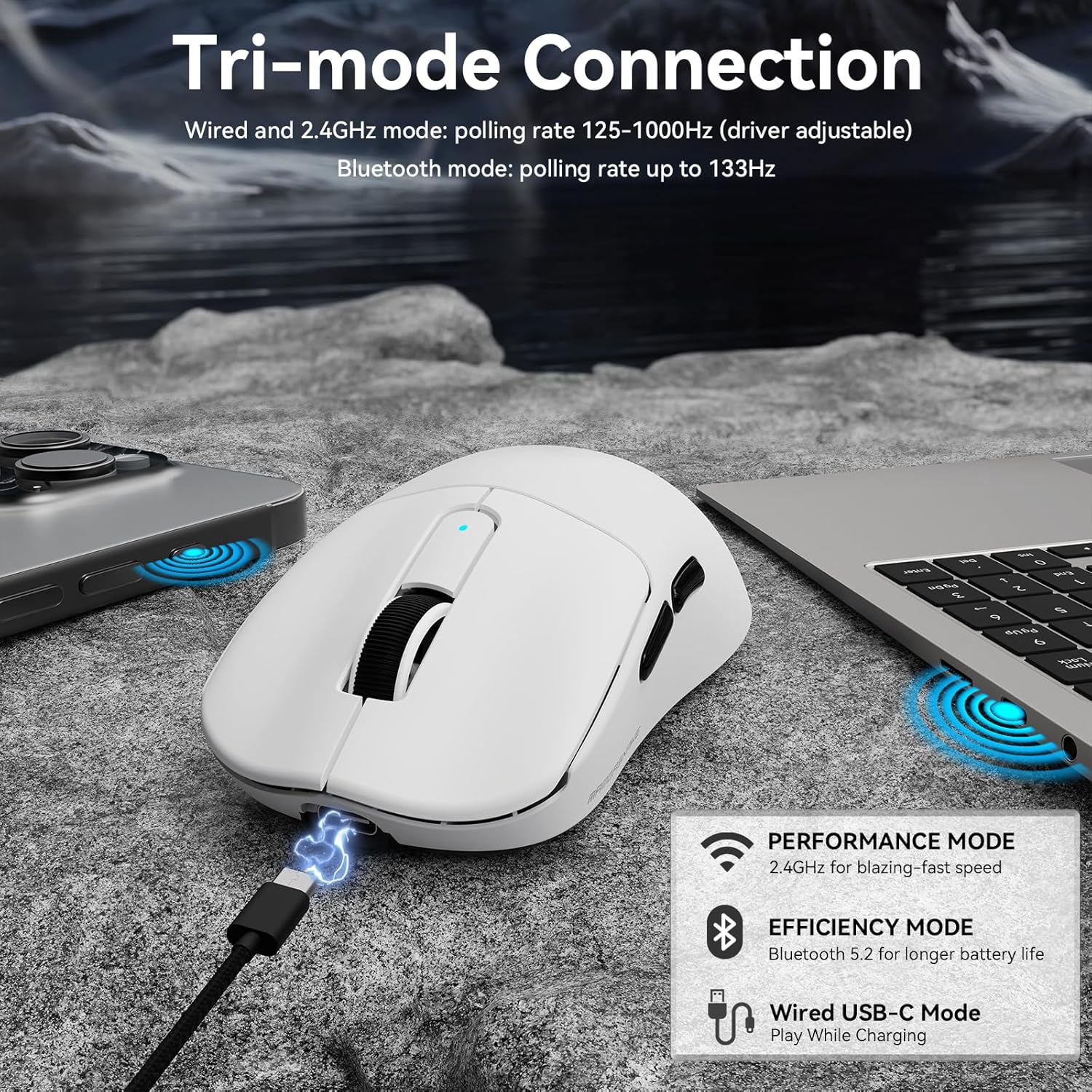
Image 3.2: The MANBASNAKE M3 mouse demonstrating its tri-mode connection capabilities: 2.4GHz wireless, Bluetooth, and wired USB-C.
3.2.1 2.4GHz Wireless Mode
- Locate the 2.4GHz USB receiver (dongle).
- Plug the USB receiver into an available USB-A port on your computer.
- Flip the power/mode switch on the bottom of the mouse to the '2.4G' position.
- The mouse should connect automatically. If not, press and hold the Left Click and Scroll Wheel buttons simultaneously for 3 seconds to initiate pairing.
3.2.2 Bluetooth Mode
- Flip the power/mode switch on the bottom of the mouse to the 'BT' position.
- The DPI indicator light will blink, indicating pairing mode. If not, press and hold the Right Click and Back Side buttons simultaneously for 3 seconds to initiate Bluetooth pairing.
- On your computer or device, go to Bluetooth settings and search for new devices.
- Select 'MAMBASNAKE M3' from the list of available devices to connect.
3.2.3 Wired USB-C Mode
- Connect the supplied USB-C cable to the mouse's front port.
- Connect the USB-A end of the cable to your computer.
- The mouse will automatically switch to wired mode and function as a wired mouse while charging.
4. Operating Instructions
4.1 Power On/Off and Mode Switching
Use the switch on the bottom of the mouse to select your desired mode:
- OFF: Powers off the mouse.
- 2.4G: Activates 2.4GHz wireless mode.
- BT: Activates Bluetooth wireless mode.
4.2 DPI Adjustment
The M3 mouse features 6 adjustable DPI levels, visually indicated by the RGB lighting of the DPI indicator light.
- To cycle through DPI settings, press the Left Click and Back Side buttons simultaneously for a few seconds.
- The default DPI levels range from 1200 to 40000.
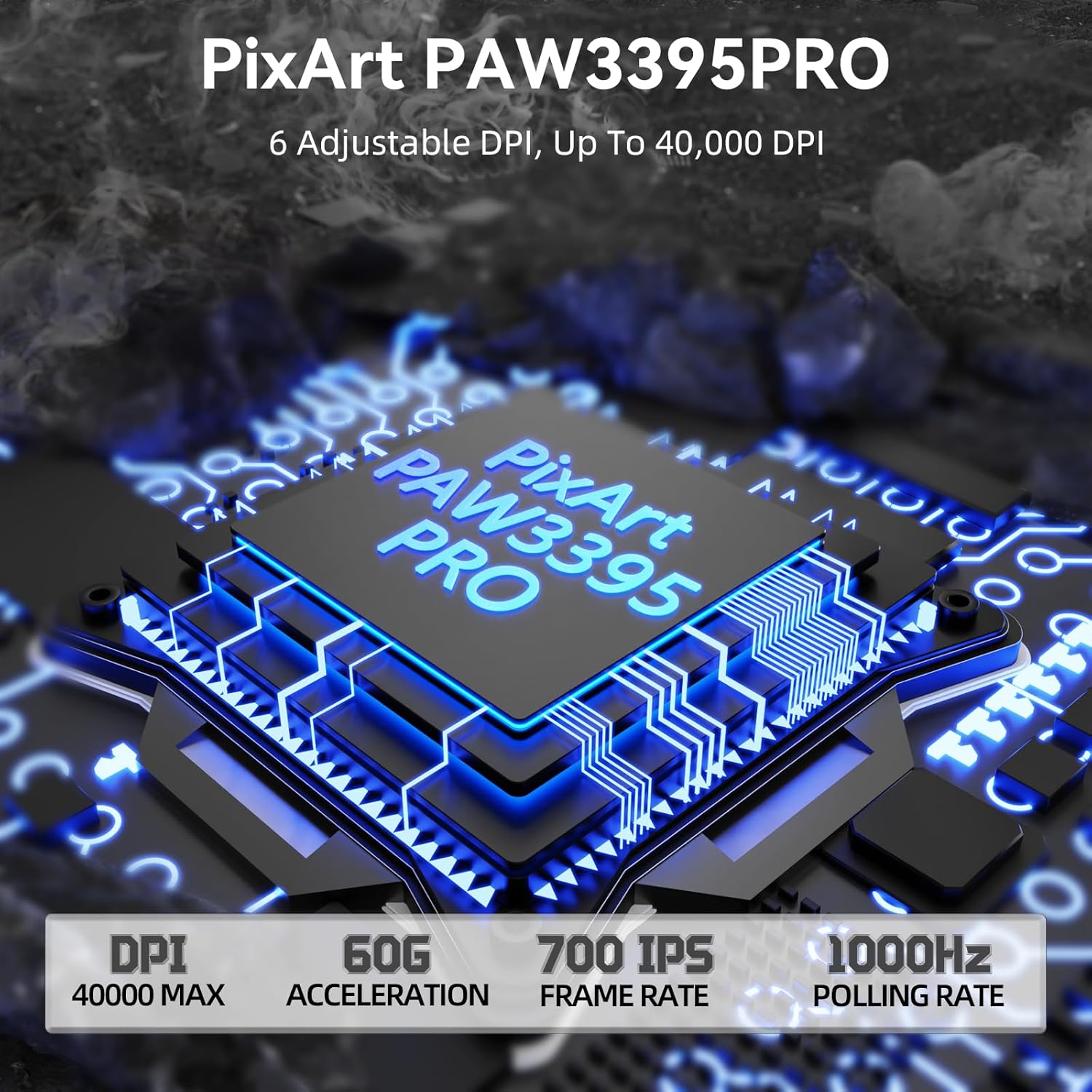
Image 4.1: Close-up of the PixArt PAW3395PRO gaming chip, detailing its 40000 MAX DPI, 60G acceleration, 700 IPS frame rate, and 1000Hz polling rate capabilities.
4.3 Customization (QMK AI Web-based Driver)
The M3 mouse can be customized without installing any software. Access the QMK AI web-based driver via your web browser to adjust settings.
- Visit the designated webpage (refer to product packaging or official website for URL).
- Through the web interface, you can customize:
- Macros
- DPI settings
- Key mappings
- Polling rate (125-1000Hz for wired/2.4GHz, up to 133Hz for Bluetooth)
- RGB effects
- Cloud profiles allow syncing settings across multiple devices.

Image 4.2: Screenshot of the customization interface, showing options for mouse settings, DPI, parameters, and macro editing.
4.4 Smart Sleep Mode
To conserve battery life, the mouse automatically enters sleep mode after 30 seconds of inactivity. It can be instantly woken up by any movement or button press.
5. Maintenance
5.1 Cleaning
- Use a soft, dry cloth to wipe the surface of the mouse.
- For stubborn dirt, slightly dampen the cloth with water or a mild cleaning solution. Avoid harsh chemicals.
- Do not allow liquids to enter the mouse's internal components.
5.2 Battery Care
- Avoid fully discharging the battery frequently.
- Store the mouse in a cool, dry place when not in use for extended periods.
- Use only the provided charging cable or a certified USB-C cable.
6. Troubleshooting
6.1 Mouse Not Responding
- Check Battery: Ensure the mouse is charged. Connect it via USB-C cable to charge.
- Check Mode Switch: Verify the power/mode switch on the bottom of the mouse is set to the correct mode (2.4G, BT, or wired).
- 2.4GHz Connection: Ensure the USB receiver is securely plugged into a working USB port. Try a different USB port. Re-pair by holding Left Click + Scroll Wheel for 3 seconds.
- Bluetooth Connection: Ensure Bluetooth is enabled on your device. Re-pair by holding Right Click + Back Side button for 3 seconds and re-selecting 'MAMBASNAKE M3' in your device's Bluetooth settings.
- Wired Connection: Ensure the USB-C cable is securely connected to both the mouse and the computer.
6.2 DPI Not Changing
- Ensure you are pressing the Left Click and Back Side buttons simultaneously for a few seconds to cycle DPI.
- Check the QMK AI web-based driver for custom DPI settings that might override default cycling.
6.3 Lag or Disconnections
- 2.4GHz: Ensure the USB receiver is not obstructed and is close to the mouse. Avoid interference from other wireless devices.
- Bluetooth: Reduce distance between mouse and device. Ensure no other Bluetooth devices are causing interference.
- Battery Level: Low battery can affect wireless performance. Charge the mouse.
7. Specifications
| Model | M3 |
| Brand | MANBASNAKE |
| Connectivity Technology | 2.4G Wireless, Bluetooth 5.3, USB-C Wired |
| Movement Detection Technology | Optical (PAW3395PRO Sensor) |
| DPI Sensitivity | Up to 40,000 DPI (6 adjustable levels) |
| Polling Rate | 1000Hz (2.4G/Wired), up to 133Hz (Bluetooth) |
| Acceleration | 60G |
| Tracking Speed | 700 IPS |
| Item Weight | Approximately 39g (1.38 ounces) |
| Battery Life | Up to 200 hours |
| Dimensions | 6.57 x 4.57 x 1.81 inches (Package) |
| Manufacturer | MANBASNAKE |
8. Warranty and Support
For warranty information and technical support, please refer to the official MANBASNAKE website or contact their customer service. Keep your purchase receipt for warranty claims.
Online Support: Visit the official MANBASNAKE website for FAQs, driver updates, and contact information.