
1. Introduction
This manual provides detailed instructions for the setup, operation, and maintenance of your MAMBASNAKE M3 Wireless Gaming Mouse. Please read this manual thoroughly before using the product to ensure optimal performance and longevity.

Image: Top view of the MAMBASNAKE M3 Wireless Gaming Mouse in black.
2. Key Features
- Ultra-Lightweight Design: Weighs approximately 39g for enhanced portability and control.
- PAW3395PRO Optical Sensor: Delivers up to 40,000 DPI precision with 60G acceleration and 700 IPS tracking speed.
- Tri-Mode Connectivity: Supports 2.4GHz wireless, Bluetooth 5.3, and USB-C wired modes.
- Durable Micro-switches: Equipped with Osprey Tactile Switches rated for 1 billion actuations.
- Long Battery Life: Up to 200 hours of use per charge with intelligent sleep mode.
- QMK AI Web-Based Driver: Customize macros, DPI, and key mappings without software installation.

Image: Overview highlighting the M3's 39g superlight design and PAW3395PRO sensor.
3. Package Contents
Verify that all items are present in the package:
- MAMBASNAKE M3 Wireless Gaming Mouse
- USB-C to USB-A Charging/Data Cable
- 2.4GHz USB Receiver
- User Manual (this document)
- (Optional) Grip Tape
4. Product Overview
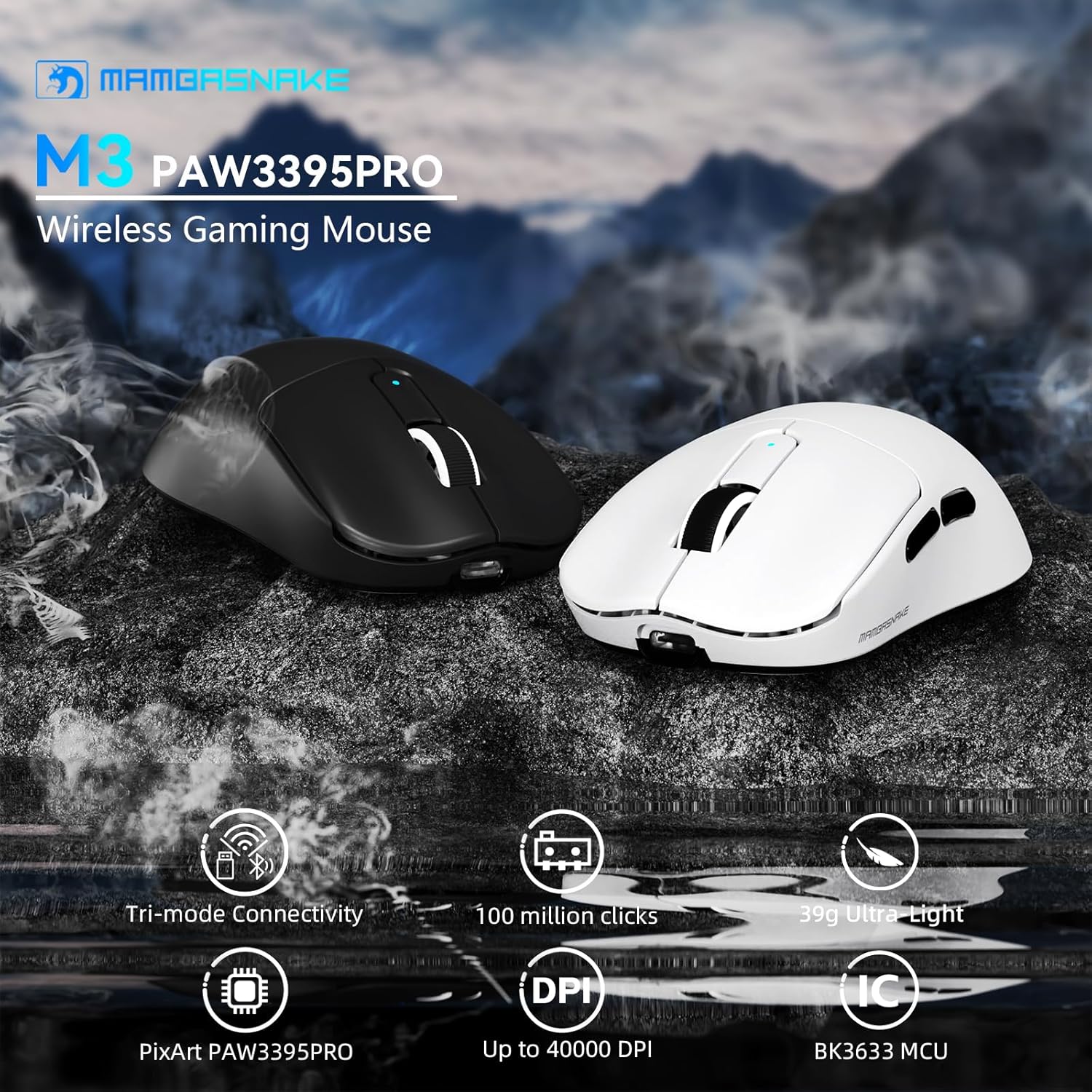
Image: Diagram illustrating the main components of the MAMBASNAKE M3 mouse.
- Left Click Button
- Right Click Button
- Scroll Wheel
- DPI Indicator / Mode Switch Button
- Forward Button
- Back Button
- USB-C Port
- Power/Mode Switch (2.4G/OFF/BT)
5. Setup and Connectivity
5.1 Charging the Mouse
Connect the provided USB-C cable to the mouse's USB-C port and the other end to a USB-A port on your computer or a USB power adapter. The mouse will charge automatically. A full charge provides up to 200 hours of usage.
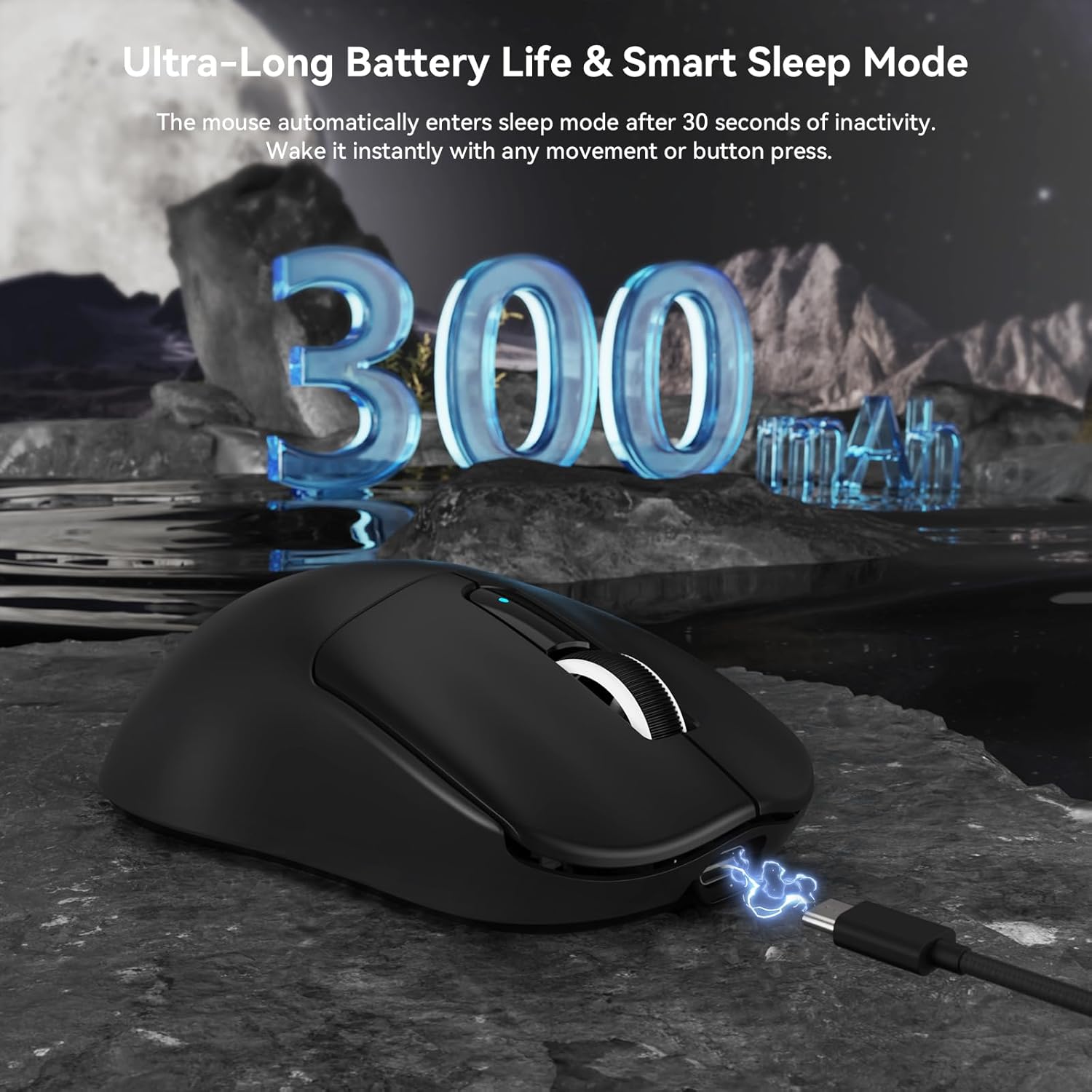
Image: The MAMBASNAKE M3 mouse connected via its USB-C charging cable.
5.2 2.4GHz Wireless Mode
- Locate the 2.4GHz USB receiver.
- Plug the USB receiver into an available USB-A port on your computer.
- Slide the power/mode switch on the bottom of the mouse to the "2.4G" position.
- The mouse should connect automatically. If not, press the DPI button and the back button simultaneously for a few seconds to initiate pairing.
5.3 Bluetooth Mode
- Slide the power/mode switch on the bottom of the mouse to the "BT" position.
- On your computer or device, open Bluetooth settings.
- Press and hold the DPI button and the back button simultaneously for a few seconds until the DPI indicator light flashes rapidly, indicating pairing mode.
- Select "MAMBASNAKE M3" from the list of available Bluetooth devices on your computer to complete the pairing process.
5.4 Wired Mode
Connect the mouse to your computer using the provided USB-C to USB-A cable. The mouse will function as a wired mouse and charge simultaneously. Ensure the power/mode switch is in the "OFF" or "2.4G" position for wired operation, though it will function in any position when connected via cable.

Image: Visual representation of the tri-mode connectivity options for the M3 mouse.
6. Operation
6.1 DPI Adjustment
The M3 mouse features multiple DPI levels (1200-40000) indicated by RGB lighting. To cycle through DPI settings, press the dedicated DPI button (usually located behind the scroll wheel). The color of the indicator light will change to reflect the current DPI level.
6.2 Button Customization and Macros
The MAMBASNAKE M3 utilizes a QMK AI web-based driver for customization. This allows you to configure macros, adjust DPI settings, and remap buttons without installing any software.
- Open a web browser on your computer.
- Visit the designated webpage for the QMK AI driver (refer to product packaging or official website for the URL).
- Follow the on-screen instructions to customize your mouse settings. Changes are applied in real-time.

Image: Screenshot of the web-based customization interface for the M3 mouse, showing options for button assignments and DPI settings.
6.3 Smart Sleep Mode
The mouse automatically enters a smart sleep mode after 30 seconds of inactivity to conserve battery. It will instantly wake up with any movement or button press.
7. Maintenance
- Cleaning: Use a soft, dry cloth to clean the mouse surface. Avoid using harsh chemicals or abrasive materials.
- Storage: Store the mouse in a cool, dry place away from direct sunlight and extreme temperatures.
- Battery Care: For optimal battery life, avoid fully discharging the mouse frequently. Charge it when the battery indicator is low.
8. Troubleshooting
8.1 Mouse Not Responding
- Ensure the mouse is charged. Connect it via USB-C cable to check if it functions in wired mode.
- Check the power/mode switch on the bottom of the mouse. Ensure it is set to the correct mode (2.4G or BT).
- For 2.4GHz mode, ensure the USB receiver is securely plugged into a working USB port. Try a different USB port.
- For Bluetooth mode, ensure Bluetooth is enabled on your device and the mouse is properly paired. Re-pair if necessary.
- If using wired mode, ensure the USB-C cable is fully inserted into both the mouse and the computer.
8.2 Intermittent Connection/Lag
- Move the mouse closer to the USB receiver (for 2.4GHz) or your Bluetooth device to reduce interference.
- Avoid placing the receiver near other wireless devices or large metal objects that could cause interference.
- Ensure the mouse battery is not critically low.
- Update your computer's USB or Bluetooth drivers.
8.3 DPI Settings Not Changing
- Ensure you are pressing the correct DPI adjustment button.
- If using the web-based driver, ensure your changes are saved and applied.
9. Specifications
| Feature | Detail |
|---|---|
| Model | M3 |
| Connectivity | 2.4G Wireless, Bluetooth 5.3, USB-C Wired |
| Sensor | PAW3395PRO Optical Sensor |
| DPI Range | 1200-40000 DPI (Adjustable) |
| Polling Rate | 1000Hz (2.4G/Wired), up to 133Hz (Bluetooth) |
| Acceleration | 60G |
| Tracking Speed | 700 IPS |
| Weight | Approx. 39g |
| Battery Life | Up to 200 hours |
| Micro-switches | Osprey Tactile Switches (1 billion clicks) |
| Dimensions | 6.61 x 4.57 x 1.77 inches (Package) |

Image: Detailed view of the PAW3395PRO gaming chip, highlighting its advanced specifications.
10. Official Product Video
Video: An official product video showcasing the MAMBASNAKE M3 Ultra-Lightweight Wireless Gaming Mouse, highlighting its features and design.
11. Warranty and Support
For warranty information and technical support, please refer to the warranty card included with your product or visit the official MANBASNAKE website. Keep your purchase receipt for warranty claims.