
GMKtec NUCBOX
GMKtec Nucbox M5 Plus Mini PC User Manual
Model: NUCBOX | Brand: GMKtec
Introduction
Welcome to the user manual for your new GMKtec Nucbox M5 Plus Mini PC. This guide provides essential information for setting up, operating, maintaining, and troubleshooting your device. The Nucbox M5 Plus is a high-performance mini desktop computer designed for various applications, including gaming, multimedia, and professional use, featuring an AMD Ryzen 7 5825U processor, ample memory, and versatile connectivity options.
What's in the Box
Please check the contents of your package to ensure all items are present:
- 1 x GMKtec Nucbox Mini PC
- 1 x Power Adapter
- 1 x User Manual (this document)
- 1 x VESA Mount with Screws
- 1 x HDMI Cable

Image: Retail Boxed Packaging showing all included accessories.
Product Overview
The GMKtec Nucbox M5 Plus is a compact yet powerful mini PC. Familiarize yourself with its key features and components.
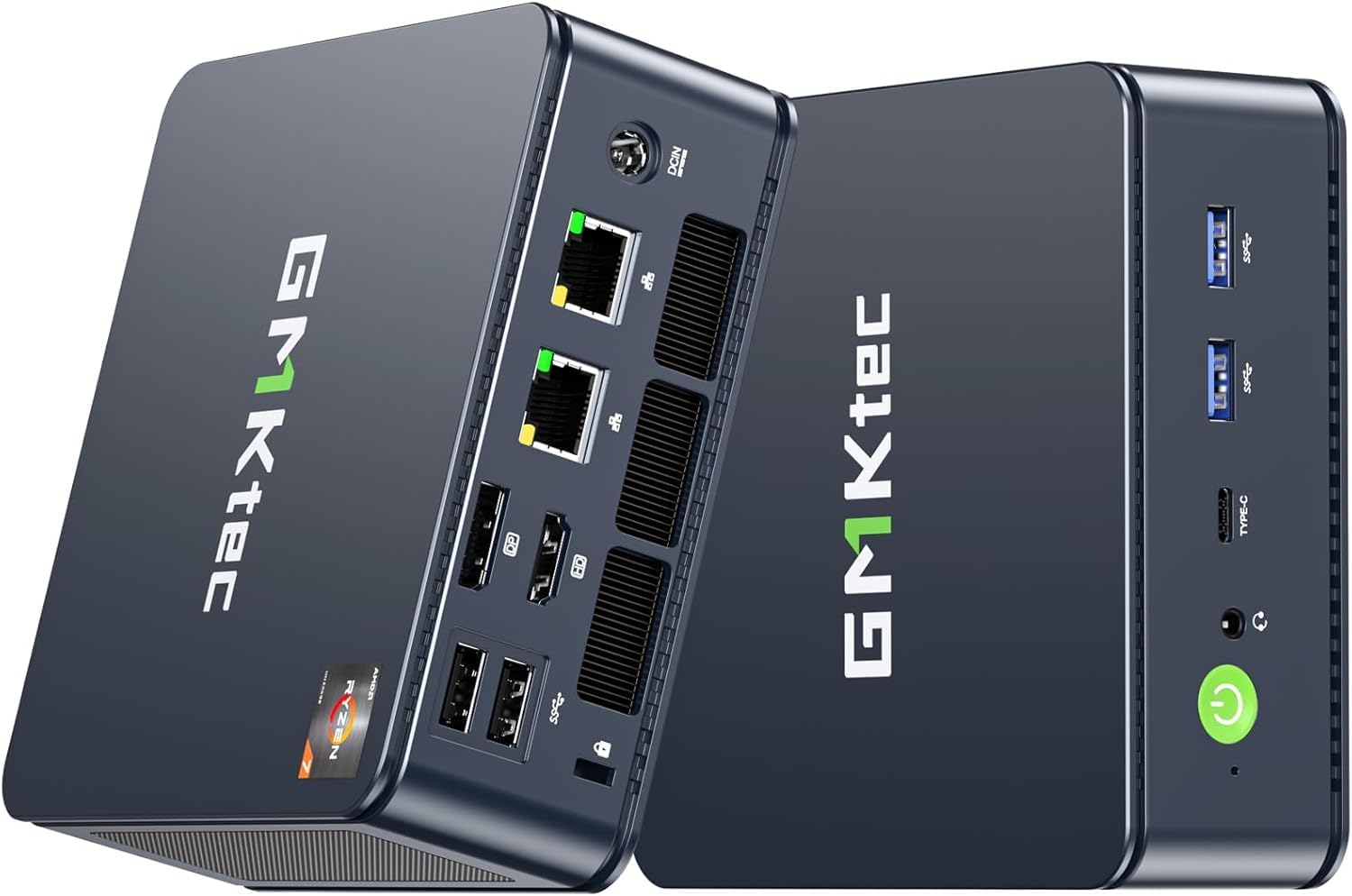
Image: Front and rear views of the GMKtec Nucbox M5 Plus Mini PC.
Key Features
- Processor: AMD Ryzen 7 5825U with 8 Cores and 16 Threads, up to 4.5 GHz Max Frequency.
- Memory: 32GB DDR4 RAM (Dual Channel, 2x16GB), expandable up to 64GB.
- Storage: 512GB PCIe 3.0 M.2 2280 SSD, with dual slot expansion support up to 4TB SSD.
- Graphics: Integrated AMD Radeon Graphics with 8 Cores and 2000 MHz GPU.
- Display Support: Triple 4K@60Hz display output via HDMI 2.0, DisplayPort (DP), and USB-C (DP/PD/DATA).
- Networking: Dual 2.5Gbps RJ45 LAN ports, WiFi 6E (2.5G/5G/6G triple band), and Bluetooth 5.2.
- Ports: 2x USB 3.2, 2x USB 2.0, 1x HDMI 2.0, 1x DP, 1x USB-C (PD/DP/DATA), 1x 3.5mm Audio Jack (HP&MIC), 2x RJ45 2.5G LAN, 1x DC Power Port.
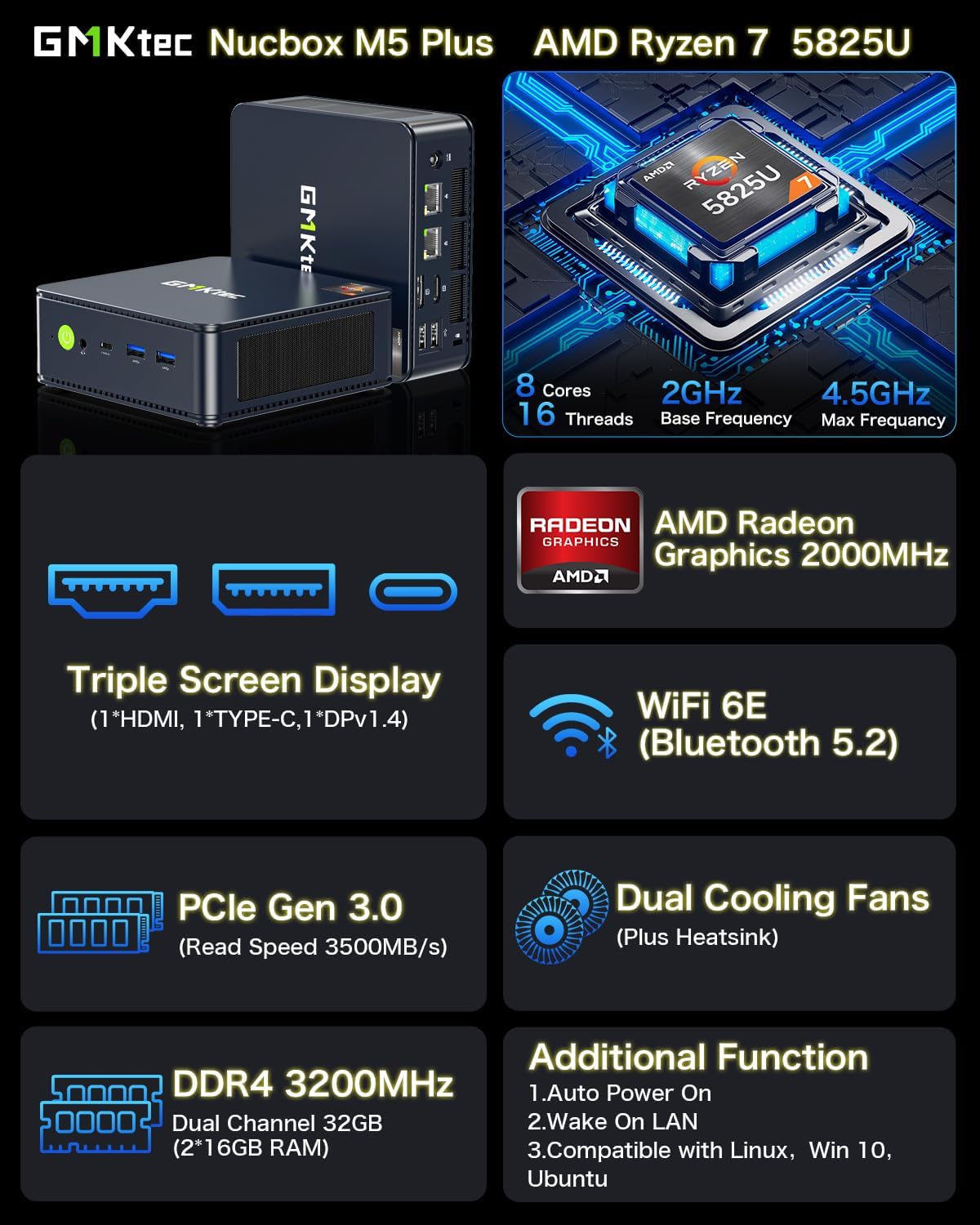
Image: Overview of the Nucbox M5 Plus's main features.
Internal Components and Cooling
The Nucbox M5 Plus features a well-designed internal layout for optimal performance and heat dissipation.

Image: Exploded view detailing the premium parts and design, including SSD, RAM, and cooling system.
It incorporates dual cooling fans and a heatsink to maintain optimal operating temperatures, ensuring stable performance even under heavy loads.

Image: Illustration of the improved quiet cooling fan and exhaust vents.
Setup Guide
Follow these steps to set up your GMKtec Nucbox M5 Plus Mini PC:
- Connect to Display: Connect your monitor(s) to the mini PC using the HDMI, DisplayPort (DP), or USB-C port. The Nucbox M5 Plus supports up to three 4K displays simultaneously.
- Connect Peripherals: Plug in your keyboard, mouse, and any other USB devices into the available USB 2.0 or USB 3.2 ports.
- Network Connection: For wired internet, connect an Ethernet cable to one of the 2.5Gbps LAN ports. For wireless internet, ensure your WiFi 6E router is active.
- Power Connection: Connect the power adapter to the DC Power Port on the mini PC, then plug the adapter into a power outlet.
- Power On: Press the power button located on the front of the mini PC. The system will boot up.
- Initial Setup: Follow the on-screen instructions to complete the Windows 11 Pro operating system setup, including language, region, and network settings.
VESA Mount Installation
The included VESA mount allows you to attach the mini PC to the back of a compatible monitor or to a wall, saving desk space.
- Attach the VESA mount bracket to the back of your monitor using the provided screws. Ensure the monitor has VESA mounting holes (typically 75x75mm or 100x100mm).
- Carefully slide the mini PC onto the VESA mount bracket until it clicks securely into place.
- Ensure all cables are connected before mounting for easier access.

Image: Desktop placement versus VESA installation for space saving.
Operating Instructions
Once set up, your GMKtec Nucbox M5 Plus operates like a standard desktop computer. Here are some general operating tips:
- Power On/Off: Use the power button on the front to turn the PC on. To shut down, use the operating system's shutdown option (Start Menu > Power > Shut down).
- Restart: To restart the PC, use the operating system's restart option (Start Menu > Power > Restart).
- Sleep Mode: To put the PC into sleep mode, use the operating system's sleep option (Start Menu > Power > Sleep).
- Connecting to WiFi: Access network settings in Windows to connect to your preferred WiFi 6E network.
- Bluetooth Devices: Pair Bluetooth devices (e.g., headphones, mouse, keyboard) through the Bluetooth settings in Windows.
- Triple Display Setup: Ensure your display cables are securely connected. Windows will typically detect multiple displays automatically. You can configure display settings (resolution, orientation, extended/duplicate desktop) in the Display Settings.

Image: Triple Ultra HD Display setup with the mini PC.
Maintenance
Regular maintenance helps ensure the longevity and optimal performance of your mini PC:
- Keep it Clean: Periodically clean the exterior of the mini PC with a soft, dry cloth. Use compressed air to gently clear dust from the ventilation openings to prevent overheating.
- Software Updates: Regularly update your operating system (Windows 11 Pro) and device drivers to ensure security and performance improvements.
- Avoid Obstructions: Ensure the mini PC's ventilation openings are not blocked to allow for proper airflow and cooling.
- Safe Shutdown: Always shut down the PC properly through the operating system before disconnecting power.
- Data Backup: Regularly back up important data to an external drive or cloud storage to prevent data loss.
Troubleshooting
If you encounter issues with your GMKtec Nucbox M5 Plus, refer to the following common problems and solutions:
| Problem | Possible Cause | Solution |
|---|---|---|
| No power/PC won't turn on | Power adapter not connected, faulty outlet, power button issue. | Ensure power adapter is securely connected to both PC and outlet. Try a different outlet. |
| No display on monitor | Loose display cable, incorrect input source on monitor, driver issue. | Check display cable connections. Select correct input source on monitor. Try a different display port or cable. |
| No internet connection (wired) | Ethernet cable loose, router issue, network driver issue. | Ensure Ethernet cable is securely connected. Restart router. Check network adapter status in Device Manager. |
| No internet connection (wireless) | WiFi disabled, incorrect password, router issue, driver issue. | Ensure WiFi is enabled. Re-enter WiFi password. Restart router. Update WiFi drivers. |
| Slow performance | Too many applications running, insufficient RAM, overheating, full storage. | Close unnecessary applications. Check task manager for resource usage. Ensure proper ventilation. Free up disk space. |
| Bluetooth device not pairing | Bluetooth disabled, device out of range, device battery low, driver issue. | Ensure Bluetooth is enabled on PC and device. Bring device closer. Charge device. Update Bluetooth drivers. |
Specifications
Detailed technical specifications for the GMKtec Nucbox M5 Plus Mini PC:
| Feature | Detail |
|---|---|
| Processor | AMD Ryzen 7 5825U (4.5 GHz Max, 8 Cores, 16 Threads) |
| RAM | 32GB DDR4 (2x16GB Dual Channel, 3200MHz), expandable to 64GB |
| Storage | 512GB PCIe 3.0 M.2 2280 SSD, expandable to 4TB |
| Graphics | AMD Radeon Graphics (8 Cores, 2000 MHz) |
| Operating System | Windows 11 Pro |
| Display Output | 1x HDMI 2.0 (4K@60Hz), 1x DisplayPort (DP), 1x USB-C (DP/PD/DATA) - Triple Display Support |
| LAN | 2x 2.5Gbps RJ45 Ethernet Ports |
| Wireless Connectivity | WiFi 6E (2.4GHz, 5GHz, 6GHz), Bluetooth 5.2 |
| USB Ports | 2x USB 3.2, 2x USB 2.0 |
| Audio Port | 1x 3.5mm Audio Jack (HP&MIC) |
| Dimensions (LxWxH) | 5.2 x 4.92 x 2.28 inches |
| Weight | 1.8 pounds |
| Color | Black |

Image: Rich Interface diagram detailing all ports.
Warranty and Support
GMKtec is committed to providing excellent customer service and support for your mini PC.
- Warranty: GMKtec offers a 1-year limited warranty for each mini PC, starting from the date of purchase. This warranty covers defects due to design and workmanship.
- Technical Support: Lifetime technical support is provided.
- After-Sales Service: For any issues or inquiries, you can contact the professional after-sales team.
How to Contact Support:
- Amazon Support: For purchases made on Amazon, you can contact support via your Amazon account: Login to Amazon -> Your Account -> Your Orders -> "Ask Product Question".
- Direct Email: Send an email to the After-Sales Team at support@gmktec.com for 24/7 customer support.

Image: Warranty and Support contact information.
Related documentsNUCBOX


Ask a question about this manual
Ask about setup, troubleshooting, compatibility, parts, safety, or missing instructions. Manuals+ will review the question and use this page’s manual context to help answer it.