
1. Introduction
The Bnlei Smart Air Tracker Tag is a compact and efficient device designed to help you locate your valuable items using Apple's 'Find My' network. This tracker integrates seamlessly with your iOS devices, allowing you to pinpoint the location of your keys, wallet, bicycle, luggage, or other personal belongings. It features a powerful alarm, anti-loss notifications, and a long-lasting replaceable battery.
2. Package Contents
Your Bnlei Smart Air Tracker Tag package includes the following items:
- Bnlei Smart Air Tracker Tag(s)
- Silicone Protective Case(s)
- Lanyard/Keychain(s)
- CR2032 Replacement Battery(ies)
- User Manual

Image: Contents of the 4-pack, showing four trackers, four silicone cases, four lanyards, and four CR2032 batteries.
3. Setup and Pairing
The Bnlei Smart Air Tracker Tag is designed for quick and easy setup with Apple devices. It is compatible with iPhone and iPod touch models running iOS 14.5 or later, iPad models running iPadOS 14.5 or later, and iMac and MacBook models running macOS 12.5 or later. Note: This device is not compatible with Android systems.
3.1 Initial Pairing
- Ensure Bluetooth is enabled on your iOS device.
- Open the 'Find My' app on your iPhone, iPad, or Mac.
- Navigate to the 'Items' tab.
- Tap the '+' icon and select 'Add Other Item'.
- Bring the Bnlei Tag close to your device. The device will detect the tracker.
- Follow the on-screen prompts to name your item and register it to your Apple ID.

Image: Detailed instructions showing smartphone app screens for connecting the Bnlei Tag via Bluetooth and the pairing procedure.
4. Operating Instructions
Once paired, your Bnlei Smart Air Tracker Tag can be used to locate your items through the Apple 'Find My' network.
4.1 Locating Nearby Items
If your item is within Bluetooth range, you can make the tracker emit a sound to help you find it.
- Open the 'Find My' app.
- Select the item you wish to locate from the 'Items' tab.
- Tap 'Play Sound'. The tracker will emit an alarm up to 100 dB, audible across a room.

Image: A hand interacting with the Find My app on an iPhone, showing the 'Play Sound' option to locate an item nearby, with sound waves emanating from a pillow.
4.2 Locating Distant Items
For items outside Bluetooth range, the Apple 'Find My' network can help you locate them globally.
- Open the 'Find My' app.
- Select the item you wish to locate.
- Tap 'Directions' to view the item's last known location on a map and get directions to it.

Image: A person using the Find My app to get directions to a distant item, with the tracker shown attached to a bicycle handlebar.
4.3 Lost Mode
If an item is lost, you can activate 'Lost Mode' to receive notifications when it's found and display a message with your contact information to anyone who finds it.
- In the 'Find My' app, select your lost item.
- Scroll down to 'Lost Mode' and tap 'Enable'.
- Follow the instructions to enter your contact information.

Image: A person activating 'Lost Mode' on their iPhone, with a laptop showing a map in the background, illustrating how to recover owner information.
4.4 Anti-Loss Notification and Separation Alarm
The tracker can notify you on your smartphone if you move away from your valuable items, helping to prevent loss. The activation distance for this alarm may vary based on environment and interference.
4.5 Sharing Location
With iOS 17 or later, you can share your item's location with up to 5 trusted individuals through the 'Find My' app. They will be able to see the item's location on the map without receiving unwanted tracking notifications when the item is with them.

Image: The 'Share This Item' screen in the Find My app, demonstrating how to share an item's location with friends and family. Requires iOS 17 or later.
5. Maintenance
5.1 Battery Replacement
The Bnlei Smart Air Tracker Tag uses a replaceable CR2032 battery, offering an average battery life of 9-12 months in standby mode. Replacement batteries are included in the package.
- Hold the Bnlei Tag horizontally. Locate the rectangular notch on the side.
- Insert your fingernail into the notch and gently lift the glossy galvanized cover upwards to open.
- Remove the old CR2032 battery.
- Insert the new CR2032 battery with the positive (+) pole facing upwards.
- Align the holes and close the battery compartment cover until it clicks securely into place.

Image: A visual guide demonstrating the three steps to replace the CR2032 battery in the Bnlei Tag.
5.2 Cleaning
Wipe the tracker with a soft, dry cloth. Avoid using harsh chemicals or abrasive materials.
6. Troubleshooting
6.1 Resetting the Device
If you experience connectivity issues or need to re-pair the device, you can reset it:
- Press and hold the small side button on the tracker for 14 seconds.
- Release the button when you hear a continuous acoustic signal. This indicates the device has been reset.
- You can now attempt to connect and pair the device again following the steps in Section 3.1.
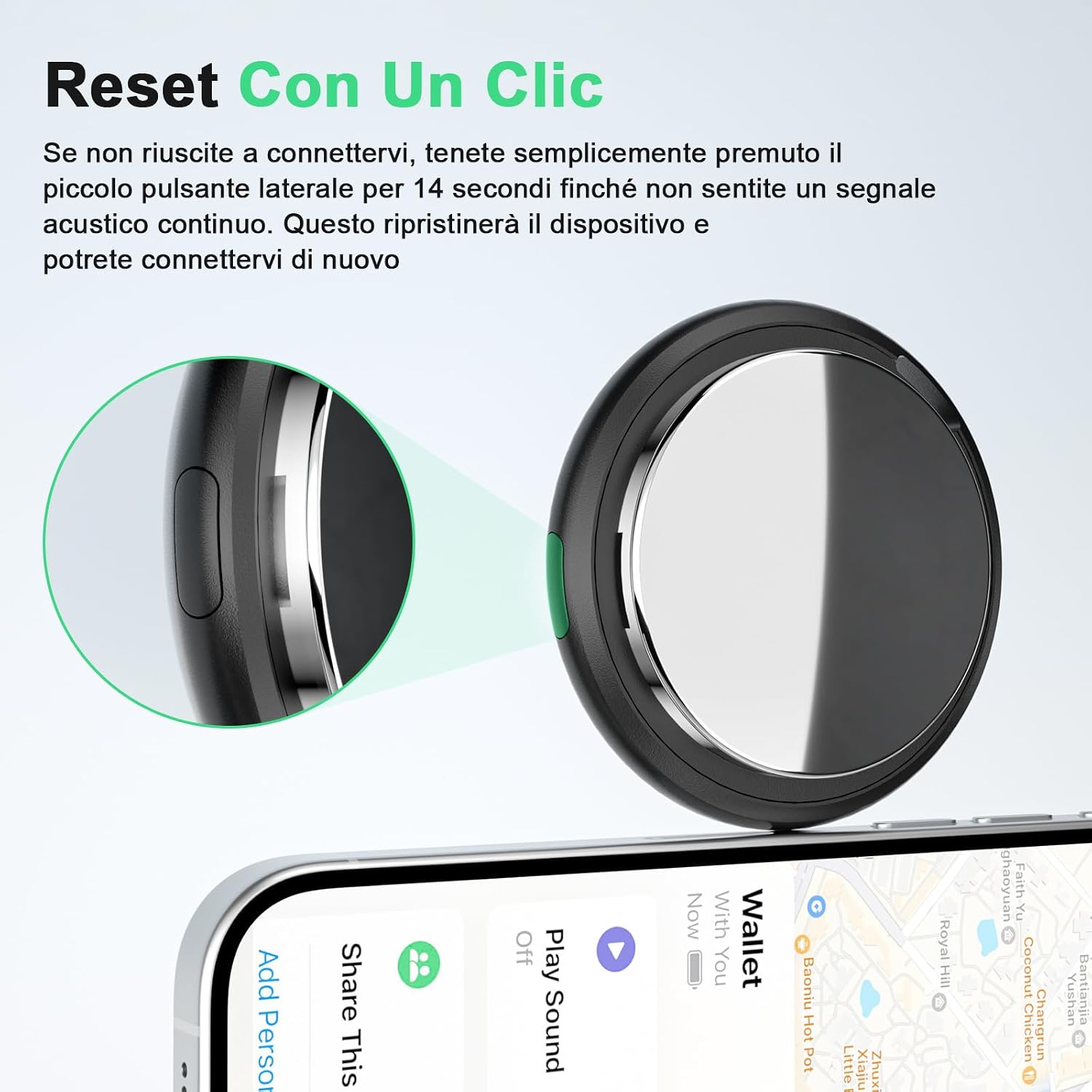
Image: A close-up view of the Bnlei Tag highlighting the side button used for a one-click reset.
6.2 Connectivity Issues
- Ensure your iOS device's Bluetooth is turned on.
- Make sure the Bnlei Tag has a charged battery.
- Confirm your iOS device is running iOS 14.5 (or iPadOS 14.5, macOS 12.5) or later.
- If the issue persists, try resetting the device as described above.
6.3 Alarm Volume
The tracker's alarm can reach up to 100 dB. If you find the alarm difficult to hear, ensure there are no obstructions directly covering the tracker's speaker.
7. Specifications
| Brand | Bnlei |
| Model Number | BTag-Black4.1 |
| Material | Acrylonitrile Butadiene Styrene (ABS) |
| Dimensions (L x W x H) | 30mm x 30mm x 7mm |
| Item Weight | 7 Grams |
| Connectivity Technology | Bluetooth |
| Control Method | App (Apple Find My) |
| Compatible Devices | Apple devices (iOS 14.5+, iPadOS 14.5+, macOS 12.5+) |
| Battery Type | 1 x CR2032 (included, replaceable) |
| Average Battery Life | 1 Year (9-12 months standby) |
| Alarm Volume | Up to 100 dB |
8. Warranty and Support
8.1 Warranty Information
The Bnlei Smart Air Tracker Tag comes with a 1-year manufacturer's warranty. Please retain your proof of purchase for warranty claims.
8.2 Customer Support
For any questions, technical assistance, or warranty inquiries, please contact Bnlei customer support through the retailer's platform or the official Bnlei website.