
Introduction
This manual provides detailed instructions for the installation, operation, and maintenance of your SIXWIN P3-4G+64G Android 13 Car Stereo. This unit is designed specifically for Subaru Outback and Legacy models manufactured between 2010 and 2014. Please read this manual thoroughly before installation and use to ensure proper function and to maximize your experience with the device.
Package Contents
Verify that all items listed below are included in your package. If any items are missing or damaged, please contact customer support.
- SIXWIN P3-4G+64G Android 13 Car Stereo Unit
- Power Cable (Plug and Play)
- USB Cable
- GPS Antenna
- Rear Camera Input Cable
- RCA Cable
- Microphone
- Rear Camera
- Installation Tool
- User Manual (this document)

Figure 1: Car Stereo Unit Dimensions and Included Accessories. This image displays the physical dimensions of the 9.7-inch car stereo unit and a visual representation of all components typically found in the product package, including various cables, antennas, and the backup camera.
Setup and Installation
Compatibility Note
This car stereo is designed for basic version Subaru Outback and Legacy models from 2010-2014. It is not compatible with vehicles equipped with a Harman Kardon sound system or navigation-equipped versions. Please verify your vehicle's original system before proceeding with installation.

Figure 2: Installation Effect and Compatibility Check. This image illustrates how the car stereo appears after installation in a compatible Subaru dashboard. It also provides visual cues for identifying basic version car radios versus those with Harman Kardon or navigation systems, which are not supported.
Wiring Diagram
Refer to the following diagram for correct wiring connections. The included cables are designed for plug-and-play installation for compatible Subaru models.
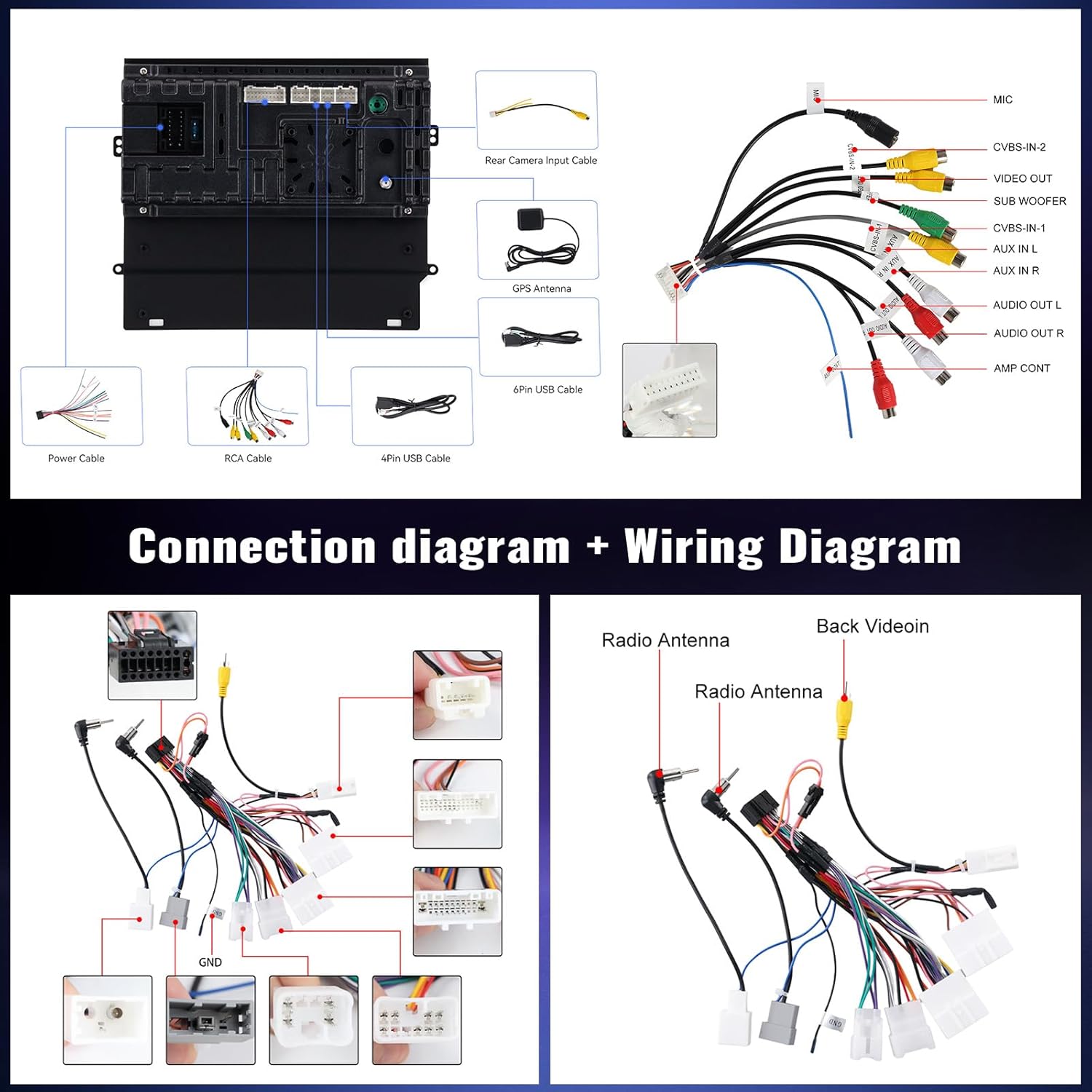
Figure 3: Connection and Wiring Diagram. This diagram provides a comprehensive overview of all necessary electrical connections for the car stereo, including power, USB, RCA, GPS antenna, reversing camera input, and radio antenna. It details the various harnesses and their corresponding functions.
Installation Steps (General)
- Preparation: Disconnect the vehicle's battery before starting any electrical work.
- Remove Original Unit: Carefully remove the factory car stereo and trim panels.
- Connect Wiring: Connect the provided power harness, RCA cables, USB cables, GPS antenna, and microphone to the new head unit. Ensure all connections are secure.
- Backup Camera Installation: Install the backup camera at the rear of the vehicle and route its cable to the head unit, connecting it to the 'Reversing Camera Input'.
- Steering Wheel Control (SWC): Connect the SWC cable if your vehicle supports this feature. Refer to your vehicle's wiring diagram for specific SWC wire identification.
- Test Functionality: Before fully reassembling the dashboard, temporarily connect the battery and test the basic functions of the stereo (power on/off, audio, touch screen, camera input).
- Secure Unit: Mount the new car stereo securely into the dashboard opening.
- Reassemble: Reinstall all trim panels and reconnect the vehicle battery.
Operating Instructions
Wireless CarPlay & Android Auto
The unit supports both wireless and wired CarPlay and Android Auto for seamless smartphone integration. Note: Samsung phones may not be fully supported for Android Auto.
- Connection Methods: Connect your smartphone via USB cable, Bluetooth, or WiFi.
- App Activation: Open the 'Zlink5' application on the car stereo.
- Functionality: Once connected, you can access navigation, phone contacts, messages, music, and other compatible apps directly from the car stereo's touch screen. Voice control (e.g., Siri) is also supported.
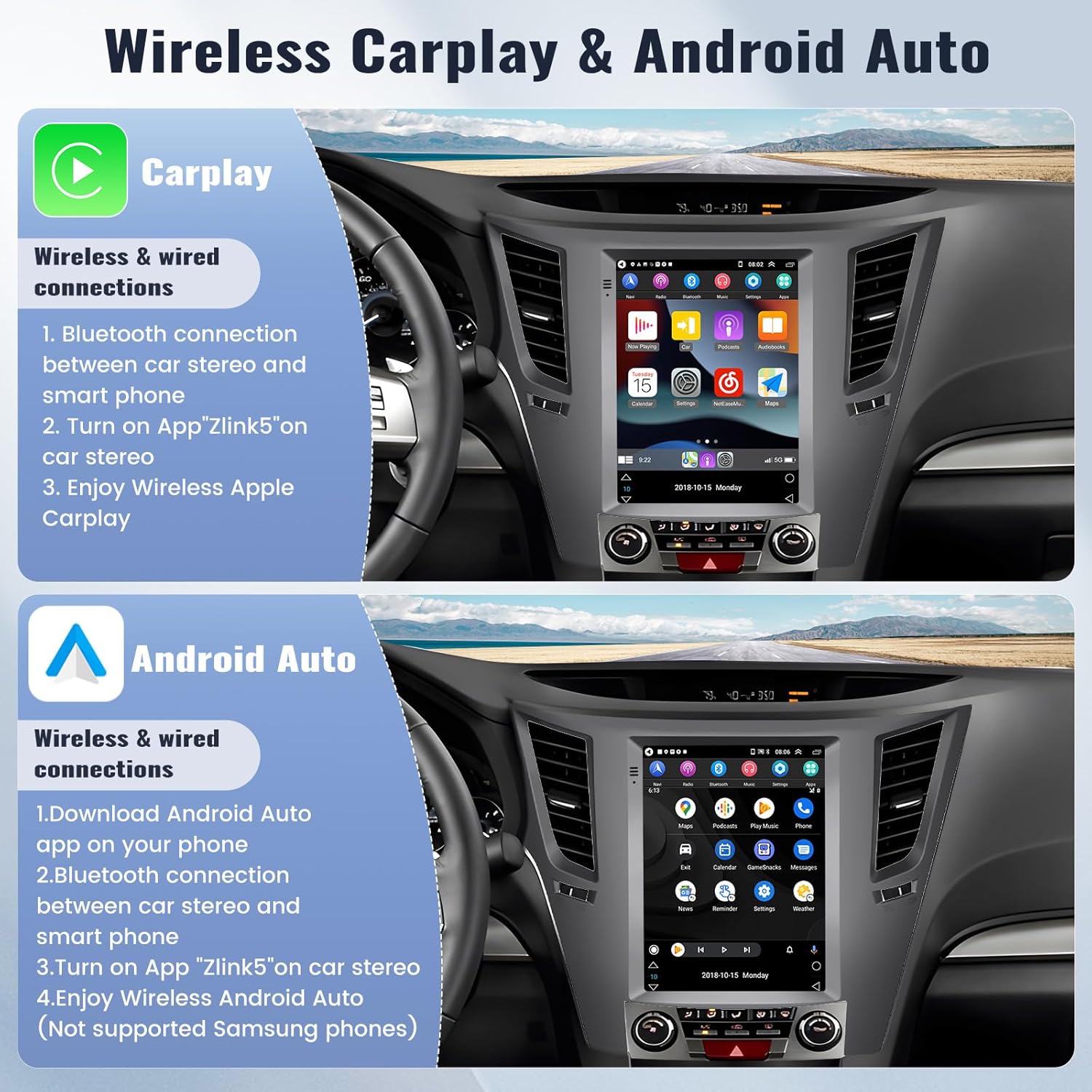
Figure 4: Wireless CarPlay and Android Auto Interface. This image displays the user interface when Apple CarPlay and Android Auto are active, showing how smartphone applications are mirrored and controlled on the car stereo's large touch screen.
Bluetooth Functions
Connect your phone via Bluetooth for hands-free calling and music streaming.
- Hands-free Calling: Make and receive calls directly from the stereo.
- Bluetooth Music: Stream audio from your phone to the car stereo.
- Phonebook Sync: Download your phone's contacts for easy access.
- External Microphone: Use the included external microphone for clearer voice communication during calls.
FM Radio
Access local radio stations with the built-in FM tuner.
- Preset Stations: The FM radio provides 18 preset stations for quick access to your favorite channels.
- Scanning: Automatically or manually scan for available radio frequencies.

Figure 5: Bluetooth and FM Radio Interfaces. This image illustrates the user interface for Bluetooth functions, including the dialer and music playback, as well as the FM radio tuner with frequency display and controls.
GPS Navigation
The car stereo features built-in GPS navigation with support for both online and offline maps.
- Online Navigation: Connect to WiFi to use online mapping services and real-time traffic updates.
- Offline Navigation: Utilize the 'Here We Go' app. Download necessary offline map data in advance to navigate without an internet connection.
- App Downloads: Connect to WiFi to download additional navigation or other applications from the app store, similar to a mobile phone.
Steering Wheel Control (SWC)
If your vehicle is equipped with steering wheel controls, you can configure them to operate the car stereo.
- Functionality: Control functions such as switching songs, adjusting volume, and answering calls directly from your steering wheel.
- Connection: Ensure the SWC cable is properly connected during installation. The unit typically has a learning function to map your vehicle's SWC buttons.
Backup Camera
The included AHD backup camera enhances parking safety.
- Automatic Display: When reversing your vehicle, the camera image will automatically display on the stereo screen.
- Features: The camera provides an AHD image, is waterproof, offers a 170° wide-angle view, and includes night vision capabilities.

Figure 6: Steering Wheel Control and Backup Camera View. This image shows the interface for configuring steering wheel controls and a clear display of the backup camera feed, including parking guidelines.
Multiple UI Desktop Themes & Split Screen Function
Customize your user experience and enhance multitasking.
- UI Themes: Choose from various built-in desktop themes to personalize the look of your stereo interface.
- Split Screen: Use the split-screen function to run two different applications simultaneously, such as navigation and music playback.
Maintenance
- Cleaning: Use a soft, dry cloth to clean the screen and unit. Avoid abrasive cleaners or solvents.
- Software Updates: Periodically check for software updates to ensure optimal performance and access to new features. Updates can typically be performed via WiFi.
- Temperature: Avoid exposing the unit to extreme temperatures or direct sunlight for prolonged periods.
Troubleshooting
| Problem | Possible Cause | Solution |
|---|---|---|
| Unit does not power on. | Loose power connection, blown fuse, incorrect wiring. | Check all power cables, especially the main power harness. Verify vehicle fuses. Ensure the orange and pink ignition wires are correctly connected or disconnected as per vehicle requirements (some Subaru models may require disconnecting these for proper ignition-on behavior). |
| Unit powers off when ignition is turned on. | Incorrect ignition wire connection. | For some Subaru models, disconnecting the orange and pink wires on the harness may resolve this issue. Consult a professional if unsure. |
| No sound or poor sound quality. | Speaker wires incorrectly connected, volume too low, incorrect audio source. | Check speaker wiring. Adjust volume. Select correct audio source. Ensure vehicle is not equipped with Harman Kardon system if this unit is installed. |
| GPS signal is weak or inaccurate. | GPS antenna not properly installed or obstructed. | Ensure the GPS antenna is mounted in a clear location, free from obstructions, typically on the dashboard or under the windshield. |
| CarPlay/Android Auto not connecting. | Incorrect connection method, phone compatibility, app issues. | Ensure correct USB, Bluetooth, or WiFi connection. Verify 'Zlink5' app is running. Note that some Samsung phones may have compatibility issues. Try restarting both phone and stereo. |
| Steering Wheel Controls not working. | SWC cable not connected, controls not configured. | Check SWC cable connection. Access the SWC learning function in the stereo settings to program the buttons. |
| Radio antenna does not reach. | Vehicle specific antenna placement. | An antenna extension cable may be required for some Subaru models due to the factory antenna connection location. This is not included. |
Specifications
- Model Number: A7907A3018A4MI2
- Operating System: Android 13
- Memory: 4GB RAM + 64GB ROM
- Display Size: 9.7 Inches
- Connectivity: Wireless CarPlay, Android Auto, Mirror Link, Bluetooth, WiFi
- Navigation: Built-in GPS (supports online/offline maps)
- Audio Output Mode: Stereo
- Special Features: FM Radio (18 preset stations), 32-band EQ, Steering Wheel Control (SWC), Backup Camera input (AHD camera included), Multiple UI Themes, Split Screen Function
- Item Weight: Approximately 4.13 pounds
- Product Dimensions: Approximately 1 x 1 x 1 inches (unit only, without frame)
Warranty Information
This SIXWIN car stereo unit comes with a 1-year warranty from the date of purchase. This warranty covers manufacturing defects and malfunctions under normal use. It does not cover damage caused by improper installation, misuse, accidents, or unauthorized modifications. Please retain your proof of purchase for warranty claims.
Customer Support
For online assistance, technical support, or inquiries regarding your user manual, please contact us directly:
Email: sixwin_vip@163.com

Figure 7: Customer Support Contact Information. This image visually reinforces the availability of online help and provides the direct email address for customer support.
